

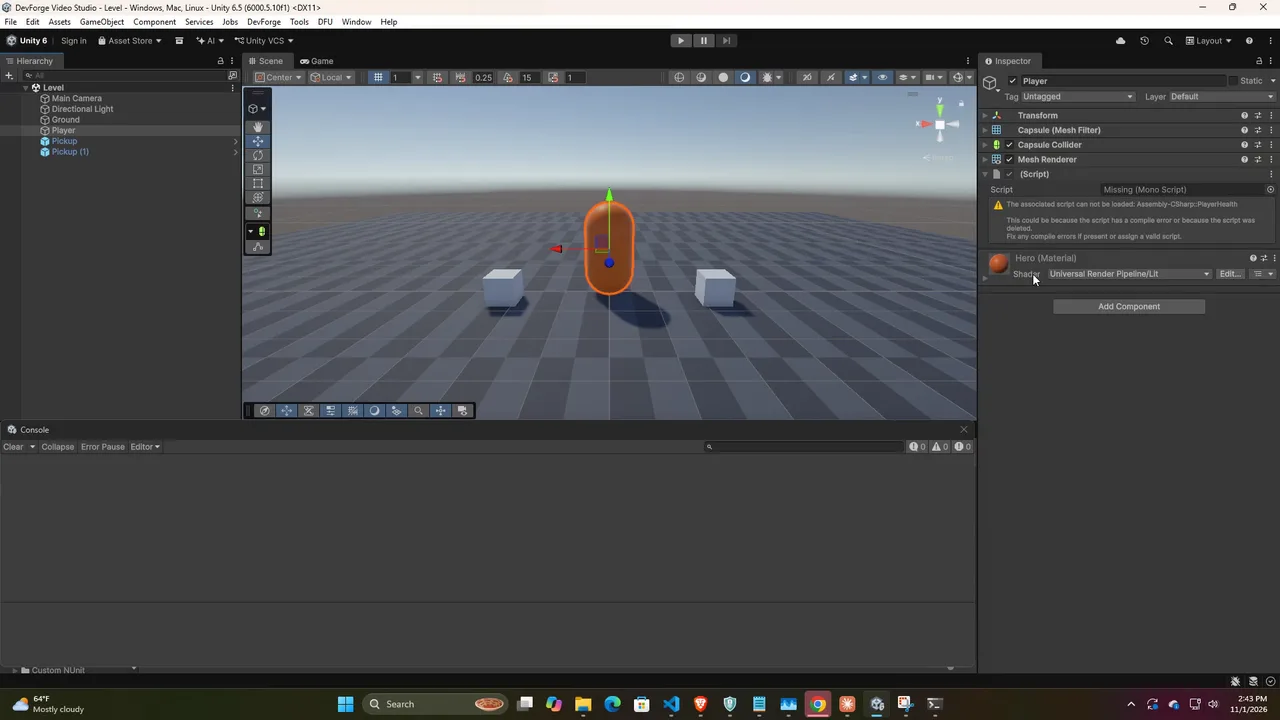
If you’ve opened a Unity project and seen a wall of “The referenced script on this Behaviour is missing!” warnings, or a component in the Inspector that just says Missing (Mono Script), you’ve hit one of the most common and most annoying problems in Unity development. The good news: it’s almost always fixable, often without losing any of the component’s settings, and once you understand why it happens you can stop it from happening again. This guide covers finding every missing script in your scenes and prefabs, recovering the original references, and bulk-cleaning the ones that are truly gone.
What “Missing Script” Actually Means
Unity doesn’t store your C# code on GameObjects. A component in a scene or prefab file stores a reference to a script asset by its GUID, plus the values of its serialized fields. Here’s what a component looks like inside a .unity or .prefab file (with Force Text serialization):
--- !u!114 &1843256712
MonoBehaviour:
  m_GameObject: {fileID: 1843256710}
  m_Enabled: 1
  m_Script: {fileID: 11500000, guid: 5f1c0c3e8a2b4e0f9d7a6b5c4d3e2f10, type: 3}
  maxHealth: 100
  regenPerSecond: 2.5
That GUID comes from the script’s .meta file, which sits next to it on disk:
# PlayerHealth.cs.meta
fileFormatVersion: 2
guid: 5f1c0c3e8a2b4e0f9d7a6b5c4d3e2f10
MonoImporter:
  ...
When Unity can’t find a script whose .meta has that GUID, or finds the file but can’t load a matching class from it, the component becomes “missing.” Your field values are still in the file. Note maxHealth: 100 above. That’s why reconnecting the original GUID brings the component back exactly as it was, while deleting and re-adding the component loses every value.
The Error Messages, Decoded
| Message | Where | What it means |
|---|---|---|
| The referenced script (Unknown) on this Behaviour is missing! | Console, on scene load | A component’s script GUID doesn’t resolve. The wording “on this Behaviour (Game Object ‘X’)” names the object. |
| The associated script can not be loaded. Please fix any compile errors and assign a valid script. | Inspector, on the component | Either a compile error or a genuinely missing/mismatched script. |
| Missing (Mono Script) | Inspector, Script field | The GUID points at nothing. The script was deleted, or its .meta changed. |
| No MonoBehaviour scripts in the file, or their names do not match the file name. | When adding a script | The class name doesn’t match the file name, or the class doesn’t inherit MonoBehaviour. |
| Can’t add script behaviour … because it is an editor script. | When adding a script | The script is in an Editor folder or Editor-only assembly. |
| A meta data file (.meta) exists but its asset … can’t be found. | Console | A file was deleted or moved outside Unity without its .meta. |
Common Causes
- Compile errors. If the project doesn’t compile, Unity can’t load any updated script classes, and components can appear broken until the errors are fixed.
- The class was renamed but the file wasn’t (or vice versa). A MonoBehaviour’s class name must match its file name exactly, including capitalization.
- A script was renamed or moved outside Unity (in Explorer, Finder or a terminal) without its
.metafile. Unity generates a new.metawith a new GUID, and every old reference breaks. .metafiles weren’t committed, so a teammate’s fresh clone generates new GUIDs for everything.- A script, package or Asset Store plugin was deleted or updated in a way that removed or renamed its scripts.
- A class was moved into a different file, for example when splitting a big script. The GUID belongs to the file, so the reference follows the old file, not the class. (Changing the class’s namespace inside the same file is fine.)
Step 1: Check for Compile Errors First
Open the Console (Window > General > Console, or Ctrl/Cmd + Shift + C), click Clear, and look for red errors that remain. Compiler errors look like Assets/Scripts/Enemy.cs(42,17): error CS1002: ; expected. Fix them all and let Unity recompile before you touch any “missing” component. This alone resolves a surprising number of reports, and fixing components while the project doesn’t compile can make things worse. If Unity asked you to open the project in Safe Mode, that’s the same situation: fix the errors Safe Mode shows first.
Step 2: Find Every Missing Script, in Scenes and Prefabs
Unity has no built-in “find all missing scripts” button, and clicking through the Hierarchy only covers the scene you have open. Prefabs are where most missing scripts actually hide. Save this as Assets/Editor/MissingScriptTools.cs:
using UnityEditor;
using UnityEngine;
using UnityEngine.SceneManagement;

public static class MissingScriptTools
{
    [MenuItem("Tools/Missing Scripts/Find In Open Scenes")]
    static void FindInScenes()
    {
        int total = 0;
        for (int i = 0; i < SceneManager.sceneCount; i++)
        {
            Scene scene = SceneManager.GetSceneAt(i);
            if (!scene.isLoaded) continue;
            foreach (GameObject root in scene.GetRootGameObjects())
                total += Report(root, scene.name);
        }
        Debug.Log($"Scene scan complete: {total} missing script(s).");
    }

    [MenuItem("Tools/Missing Scripts/Find In All Prefabs")]
    static void FindInPrefabs()
    {
        int total = 0;
        string[] guids = AssetDatabase.FindAssets("t:Prefab", new[] { "Assets" });
        try
        {
            for (int i = 0; i < guids.Length; i++)
            {
                string path = AssetDatabase.GUIDToAssetPath(guids[i]);
                if (EditorUtility.DisplayCancelableProgressBar("Scanning prefabs", path, (float)i / guids.Length))
                    break;
                var prefab = AssetDatabase.LoadAssetAtPath<GameObject>(path);
                if (prefab != null) total += Report(prefab, path);
            }
        }
        finally
        {
            EditorUtility.ClearProgressBar();
        }
        Debug.Log($"Prefab scan complete: {total} missing script(s) in {guids.Length} prefab(s).");
    }

    static int Report(GameObject root, string where)
    {
        int count = 0;
        foreach (Transform t in root.GetComponentsInChildren<Transform>(true)) // true = include inactive
        {
            int missing = GameObjectUtility.GetMonoBehavioursWithMissingScriptCount(t.gameObject);
            if (missing > 0)
            {
                count += missing;
                Debug.LogWarning($"{missing} missing script(s) on '{GetPath(t)}' in {where}", t.gameObject);
            }
        }
        return count;
    }

    static string GetPath(Transform t) =>
        t.parent == null ? t.name : GetPath(t.parent) + "/" + t.name;
}
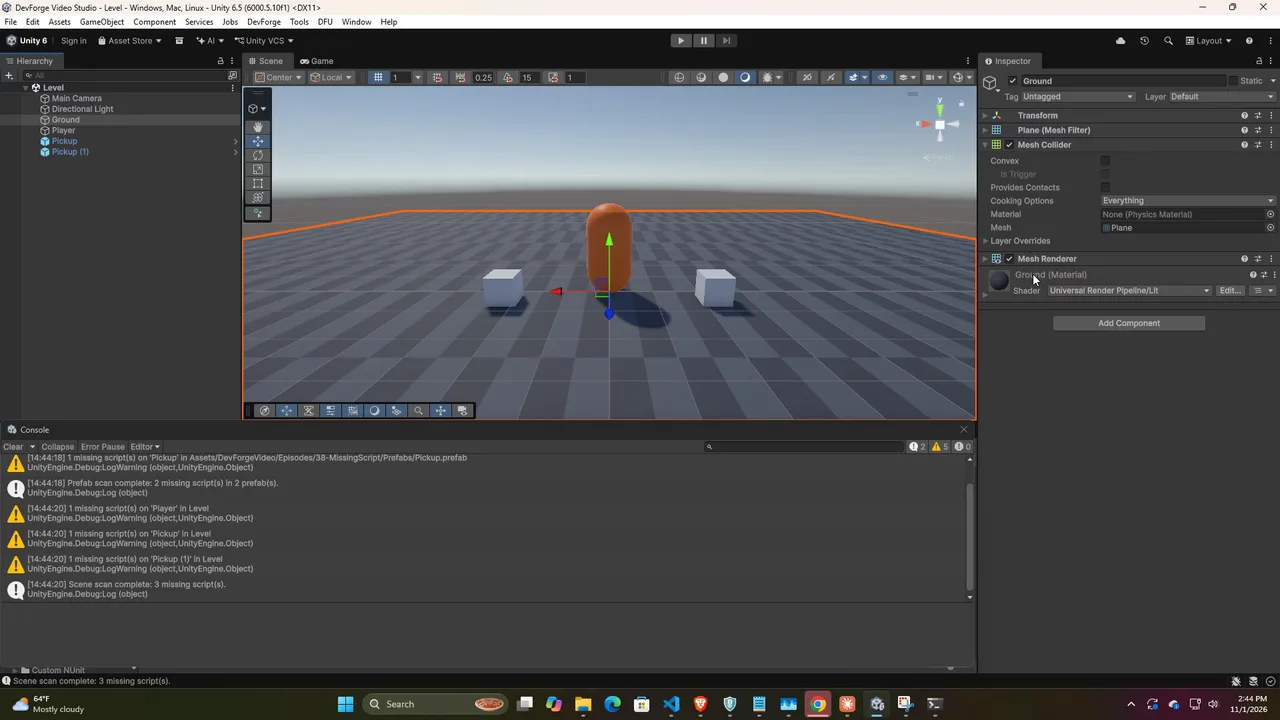
Run Tools > Missing Scripts > Find In Open Scenes and Find In All Prefabs. Each warning shows the full hierarchy path, and clicking it in the Console highlights the object. To cover every scene, open them one by one (or additively) and rerun the scene scan.
Why GetMonoBehavioursWithMissingScriptCount? You’ll see older snippets that loop over GetComponents<Component>() and check for null. That trick works, but the dedicated API (available since Unity 2019.1) is clearer and has a matching bulk-remove function, used in Step 3. Also avoid snippets built on FindObjectsOfType: it’s obsolete in Unity 6, and it only searches loaded scenes, never prefab assets.
Nested prefabs: a missing script inside a nested prefab is reported once for the inner prefab and again for every prefab that contains it. Fix the innermost prefab first and the others clear up with it.
Step 3: Fix, Recover or Remove
Work through these options in order. The first two keep your component’s settings; the last one throws them away.
Option A: Restore the original GUID (keeps every value)
If the script still exists but its .meta was regenerated (the classic “renamed outside Unity” or “forgot to commit .meta” case), put the old GUID back:
- Find the GUID the scene expects. Open the
.unityor.prefabfile in a text editor, search for a field name you remember from the broken component (e.g.maxHealth), and copy theguidfrom them_Scriptline just above it. - Find where that GUID came from. If you use Git, this lists the commits that added or removed it in any
.metafile:git log --all --oneline -S "5f1c0c3e8a2b4e0f9d7a6b5c4d3e2f10" -- "*.meta" git show --stat <commit> # shows which .meta file it was - Close Unity, open the script’s current
.meta, replace the value on itsguid:line with the old GUID, save, and reopen the project. (Or restore the whole old.metafrom history withgit checkout <commit> -- path/to/Script.cs.meta, renaming it to match the current file name if the script was renamed.)
Every scene and prefab that referenced the old GUID reconnects at once, with all field values intact. Make sure no other .meta in the project already uses that GUID. If two files share one, Unity assigns a new GUID to one of them and logs a conflict warning.
Option B: Reassign the script in the Inspector (check the values afterwards)
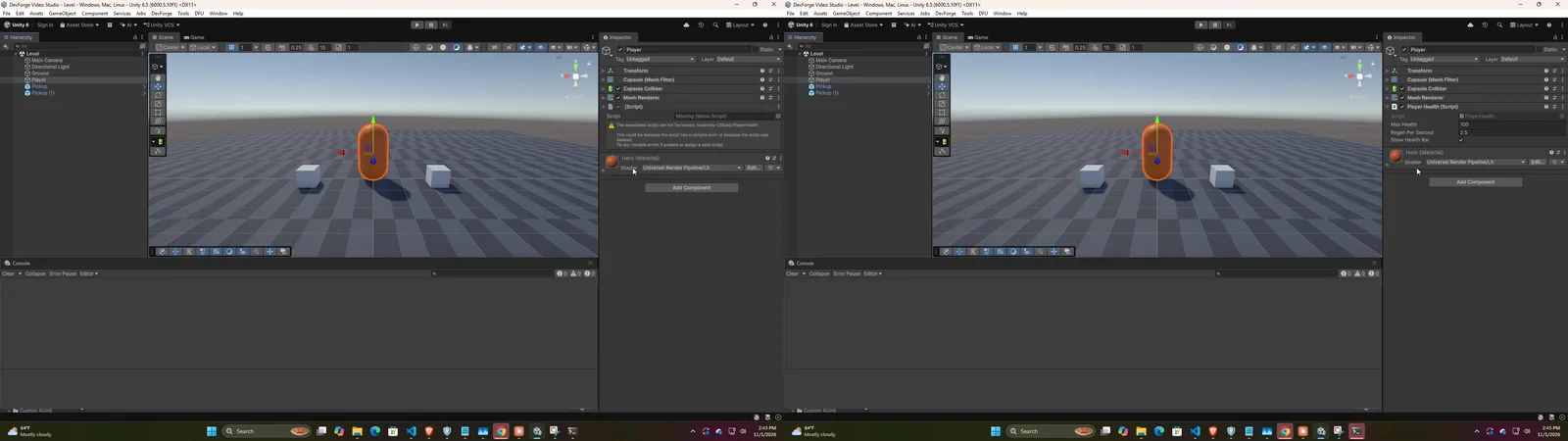
If you know which script the component should be, select the object and drag the correct script from the Project window onto the component’s Script field, or use the field’s object picker. The component reconnects immediately, but don’t count on getting the saved values back: in our Unity 6.5 test, reassigning the script on a Missing (Mono Script) component brought maxHealth back as the script’s default (50), not the saved 100. Write down the values that matter before you reassign, and re-enter them afterwards. Use this fix when the script was deleted and rewritten, or when a class moved to a new file, so there is no old GUID to restore. If the old GUID can be restored, Option A is the one that keeps every value.
Option C: Remove the broken components
If the script is genuinely gone and not coming back, remove the dead components. For one object, right-click the component header > Remove Component. For many, add these two methods to the MissingScriptTools class above:
[MenuItem("Tools/Missing Scripts/Remove From Selected Objects")]
static void RemoveFromSelection()
{
    int removed = 0;
    foreach (GameObject go in Selection.gameObjects)
    foreach (Transform t in go.GetComponentsInChildren<Transform>(true))
    {
        if (GameObjectUtility.GetMonoBehavioursWithMissingScriptCount(t.gameObject) == 0) continue;
        Undo.RegisterCompleteObjectUndo(t.gameObject, "Remove Missing Scripts");
        removed += GameObjectUtility.RemoveMonoBehavioursWithMissingScript(t.gameObject);
    }
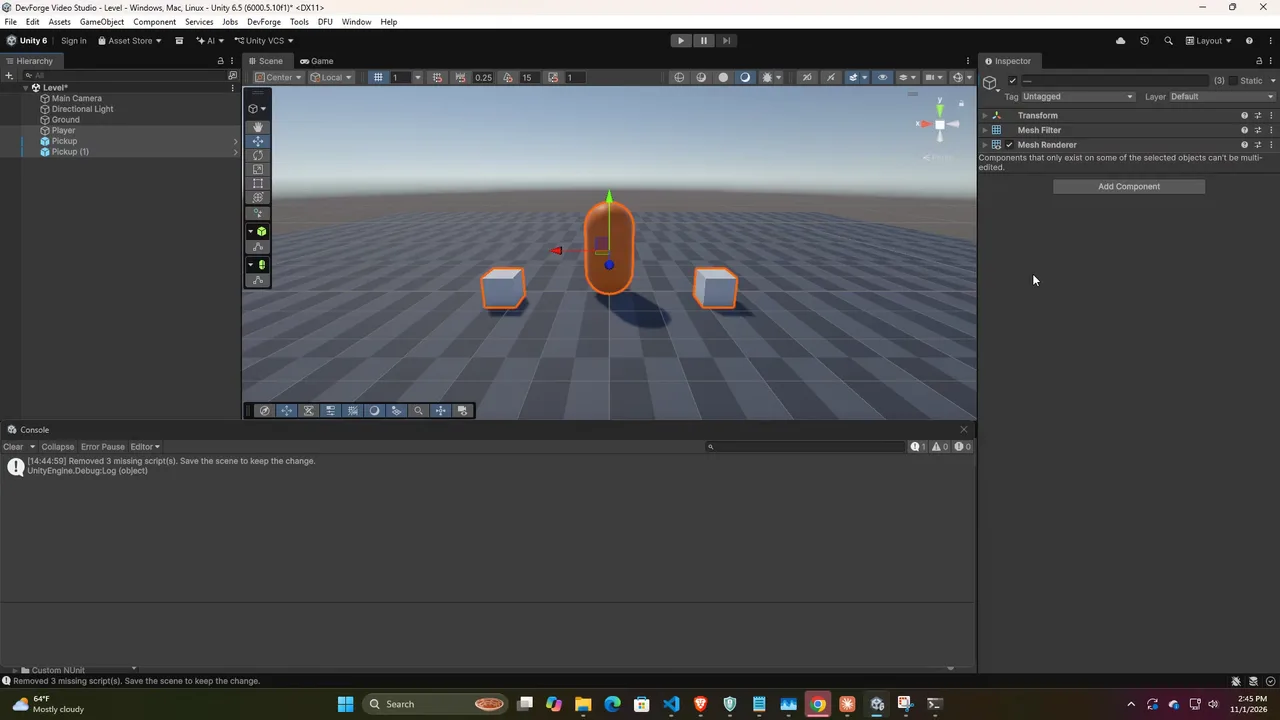
    Debug.Log($"Removed {removed} missing script(s). Save the scene to keep the change.");
}

[MenuItem("Tools/Missing Scripts/Remove From All Prefabs")]
static void RemoveFromAllPrefabs()
{
    if (!EditorUtility.DisplayDialog("Remove missing scripts",
        "Remove missing scripts from every prefab under Assets? Commit to version control first.",
        "Remove", "Cancel"))
        return;

    int removed = 0;
    foreach (string guid in AssetDatabase.FindAssets("t:Prefab", new[] { "Assets" }))
    {
        string path = AssetDatabase.GUIDToAssetPath(guid);
        GameObject root = PrefabUtility.LoadPrefabContents(path); // editable copy of the prefab asset
        try
        {
            int before = removed;
            foreach (Transform t in root.GetComponentsInChildren<Transform>(true))
            {
                // Components on nested prefab instances belong to those prefabs' own assets,
                // which this loop fixes when it reaches them.
                if (PrefabUtility.IsPartOfPrefabInstance(t.gameObject)) continue;
                removed += GameObjectUtility.RemoveMonoBehavioursWithMissingScript(t.gameObject);
            }
            if (removed > before) PrefabUtility.SaveAsPrefabAsset(root, path);
        }
        finally
        {
            PrefabUtility.UnloadPrefabContents(root);
        }
    }
    Debug.Log($"Removed {removed} missing script(s) from prefab assets.");
}
If a missing script sits on a prefab instance in a scene, fix the prefab asset with the second command rather than the instance. The instance picks up the change automatically. Components added as overrides on nested instances or prefab variants are skipped by design, so rerun Find In All Prefabs afterwards to catch anything left over.
🛠 Most missing scripts start with a naming slip.
A MonoBehaviour’s file name has to match its class name exactly, and Unity message methods have to be spelled exactly. A consistent naming standard removes both failure modes.
Scripts That Are Only Missing in Builds
Sometimes everything is fine in the Editor, but the player log of a build shows “The referenced script on this Behaviour is missing!” and a feature silently does nothing. That means the script exists in the Editor but not in the build:
- It’s in an
Editorfolder or an assembly definition whose platforms are limited to the Editor. Move it to a runtime folder. - The whole class is wrapped in
#if UNITY_EDITOR. Wrap only the Editor-only members, never the class itself. - It’s in an assembly definition that excludes the target platform (check Include/Exclude Platforms on the asmdef).
Player logs live in %USERPROFILE%\AppData\LocalLow\<Company>\<Product>\Player.log on Windows and ~/Library/Logs/<Company>/<Product>/Player.log on macOS. To stop broken scenes from shipping at all, add the build-time check from our Editor Scripting guide, which fails the build when any scene contains a missing script.
Step 4: Prevent It From Happening Again
- Rename, move and delete scripts inside Unity (or in Rider or Visual Studio with Unity integration, which move the
.metafor you), never in the raw file system. - Rename the class and the file together. Your IDE’s rename refactoring on the class name usually offers to rename the file too; accept it.
- Commit
.metafiles, always in the same commit as their asset. Our Git setup guide for Unity has a.gitignorethat keeps them and ignores everything that should be ignored. - Keep Version Control mode on Visible Meta Files: Edit > Project Settings > Version Control > Mode. This is the default in modern Unity; in Unity 2019 and older it’s under Project Settings > Editor.
- Use Force Text serialization (Project Settings > Editor > Asset Serialization) so you can read GUIDs in scene files when you need to recover them.
- Don’t mix ZIP transfers or copy-paste between projects with Git. To move assets between projects, use Assets > Export Package, which carries the GUIDs along.
- Test Asset Store updates on a branch and scan prefabs afterwards. Updates that rename scripts are a classic source of mass breakage.
📦 Buying Asset Store packages?
Imported packages are one of the most common sources of broken script references, so it pays to be choosy. Our roundup covers the 10 Asset Store tools we think are worth the money, plus how to test a package in a scratch project before it touches your main branch.
FAQ
Will removing a missing script lose data?
Yes. The serialized values stored on that component are deleted with it. If there’s any chance you’ll get the script back, try restoring its GUID (Option A) first, and commit before bulk-removing so you can undo from version control.
Why did missing scripts appear after I updated an Asset Store package?
The new version renamed, moved or removed scripts, or the update was installed without its .meta files. Check the package’s upgrade notes. Many publishers recommend deleting the old folder before importing a major version. If you have the old version in Git, compare GUIDs between the two versions.
Do missing scripts break a build?
Not by default. The build succeeds and the broken components simply do nothing, which often shows up later as a NullReferenceException in code that expected them. Add a build check (see the Editor Scripting guide) if you want the build to fail instead.
Why is the component missing even though the script is right there?
Either there’s a compile error, the class name doesn’t match the file name, the class doesn’t inherit MonoBehaviour, or the script’s .meta has a different GUID than the one the scene expects. Check those four things in that order.
Can a missing script be on a ScriptableObject asset?
Yes. The asset’s Inspector shows the same “associated script can not be loaded” message. The fixes are identical: restore the GUID or reassign the Script field. Search the .asset files’ YAML for the missing GUID to find all of them.
Quick Checklist
- Console has zero compile errors
- Ran the missing-script scan on every scene and on all prefabs
- Restored original GUIDs where the script still exists
- Reassigned or removed every remaining broken component
- Scripts in
Editorfolders or Editor-only asmdefs aren’t used on GameObjects .metafiles are committed alongside their assets- Version Control mode is Visible Meta Files; serialization is Force Text
Missing script errors look scary, but they’re a housekeeping problem, not a fundamental bug in your project. Once you’ve cleaned up existing references and locked in the .meta habits above, you should rarely see this warning again, and when you do, the GUID trick will usually bring the component back in a minute.
Reader questions
Asked by readers of this article and answered by AI. Behavior can differ between Unity versions, so test in yours.



Leave a Reply