
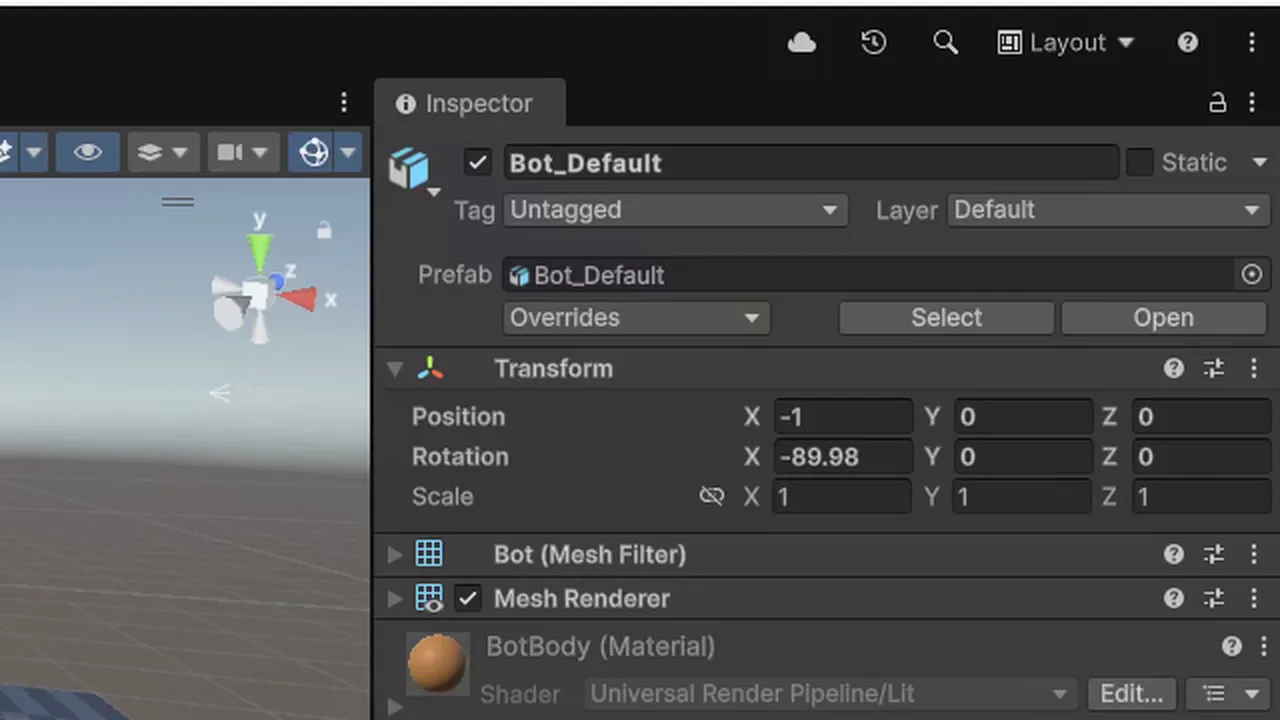
You import a model from Blender, drag it into the scene, and the Inspector says Rotation X = -90. Or worse, the model lies flat on its back, faces sideways, or stands up fine until you set its rotation to zero in code and it tips over. A Blender model rotated 90 degrees in Unity is the most common import problem there is, and it has a clear cause. This guide explains where the -90 comes from and gives you four ways to get rid of it, from the one-checkbox fix for static props to the safe options for rigged characters.
Where the -90 X Rotation Comes From
Blender uses a Z-up coordinate system: Z points to the sky. Unity uses Y-up: Y points to the sky. On top of that, Blender is right-handed and Unity is left-handed. So every model needs a 90 degree turn around X (plus a handedness flip) on its way into Unity.
The FBX exporter can put that turn in one of two places:
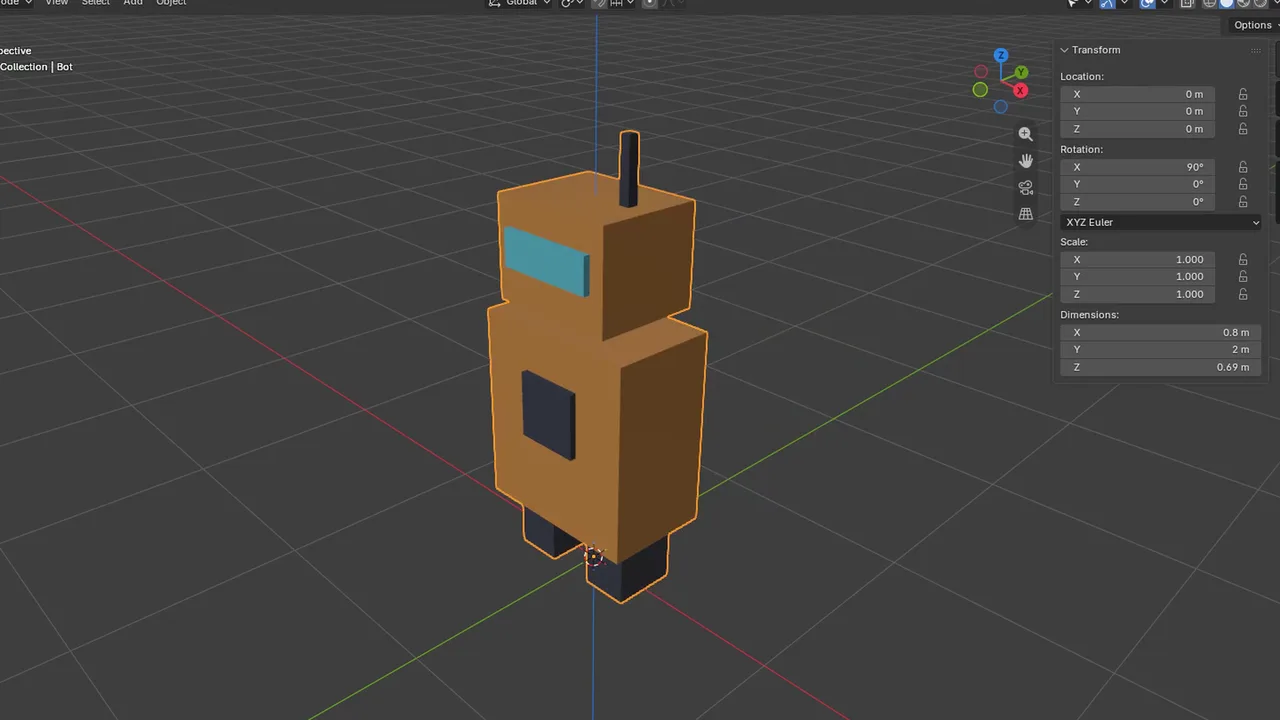
- On the object’s transform. This is the default. The mesh data stays in Blender’s Z-up layout, and the root object gets a -90 X rotation to stand it up. In Unity you see Rotation (-90, 0, 0).
- In the mesh data itself. The vertices are rotated so the mesh is already Y-up. The object rotation can then be 0. This is what Blender’s Apply Transform option does. Unity’s Bake Axis Conversion does the same on import, but only for Z-up exports (see Fix 2).
Only root objects get the -90. Children are expressed relative to their parent, so a child of a rotated root often shows a normal rotation. That’s why you sometimes see -90 on the top object and sensible numbers below it.
A second source of odd rotations is unapplied rotation in Blender. If you rotated the object in Object Mode and never applied it, that rotation is exported too and stacks with the axis conversion. You might then see -90 combined with another 90 or 180 on a different axis.
Why It Matters If It Looks Fine
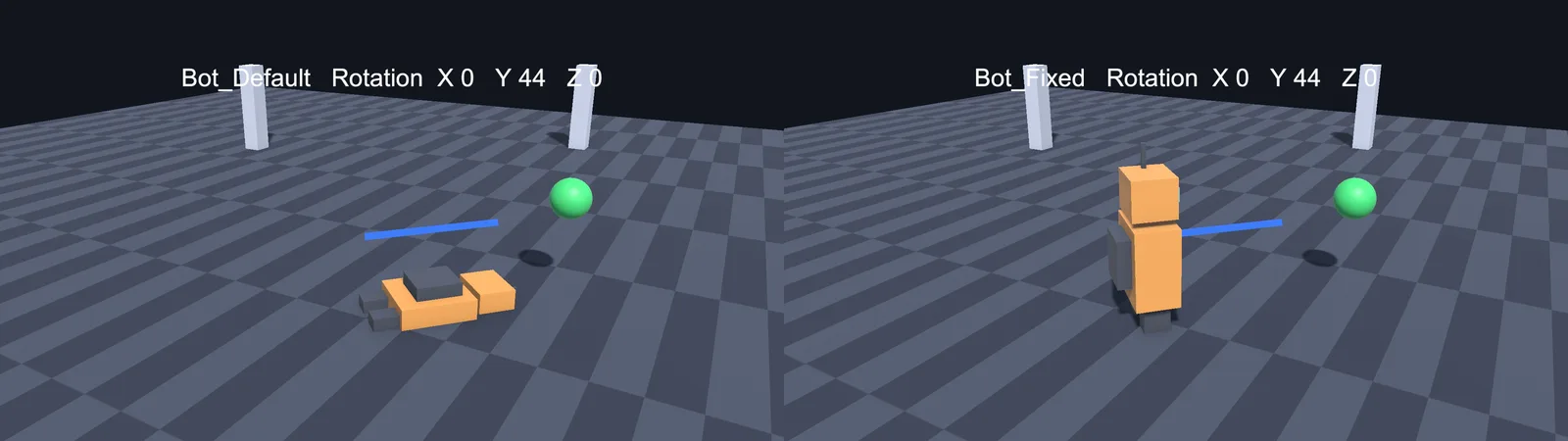
A -90 X model looks correct in the Scene view, so it’s tempting to ignore it. It bites you later:
- Code like
transform.rotation = Quaternion.identityortransform.rotation = Quaternion.LookRotation(dir)resets the -90 and the model tips over. transform.forwardpoints up or down instead of where the model faces, so movement and aiming code breaks.- Colliders and child objects you add are rotated too, so a Box Collider’s Y size is actually the model’s depth.
- Swapping one model for another in a prefab gives inconsistent orientations.
If rotations in code already confuse you, our quaternions guide shows why a hidden base rotation makes everything harder. The fix is to make the imported root sit at Rotation 0,0,0.
Fix 1: Apply Transforms and Apply Transform on Export
This is the best fix for static meshes: props, buildings, weapons, level pieces.
- In Blender, select the objects in Object Mode.
- Use Object > Apply > All Transforms (Ctrl+A). The N panel should show Rotation 0 and Scale 1.
- Make sure the front of the model faces Blender’s -Y axis (the side you see in Front view, numpad 1).
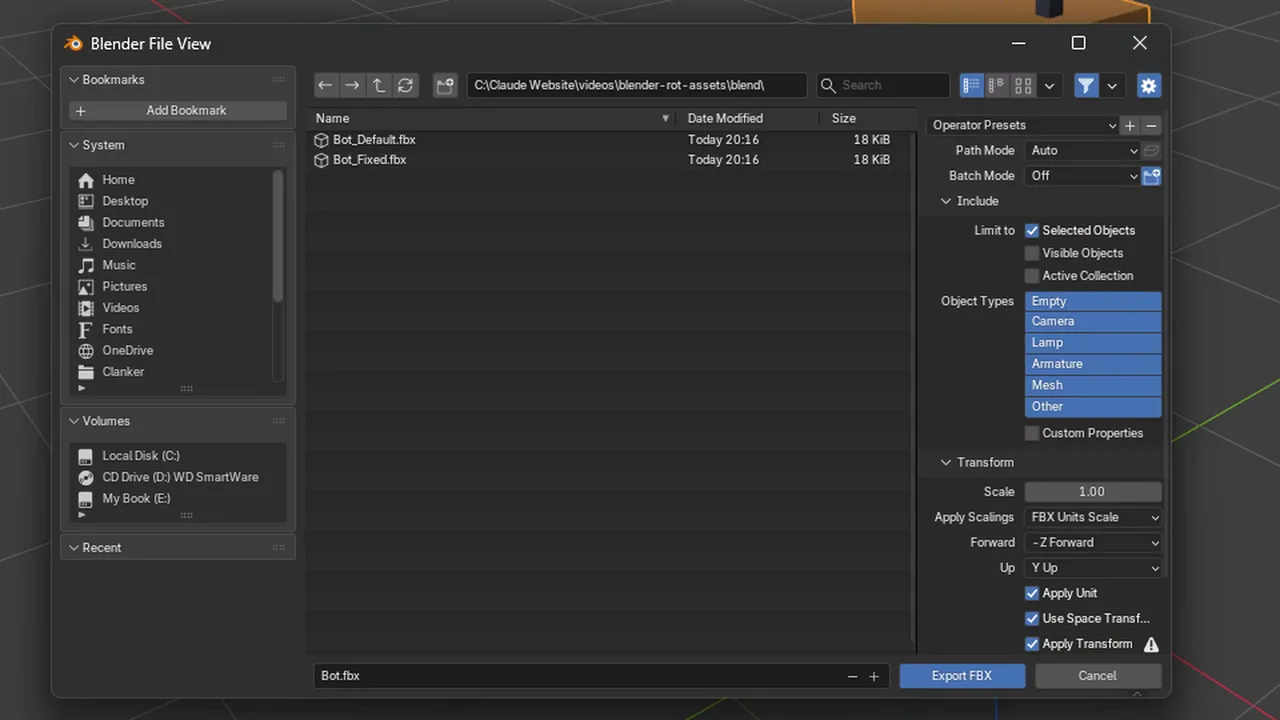
- Open File > Export > FBX (.fbx). In the Transform panel, set Forward to -Z Forward, Up to Y Up, and tick Apply Transform.
- Also set Apply Scalings to FBX Units Scale so you don’t trade a rotation problem for a scale problem.
- Export and let Unity reimport.
The root now imports at Rotation 0,0,0 and Scale 1,1,1, facing Unity’s +Z. Our Blender to Unity FBX export settings guide lists every other option in the dialog and shows how to save them as a preset so you never forget the checkbox.
The same thing in a script, if you batch-export:
import bpy

bpy.ops.object.transform_apply(location=False, rotation=True, scale=True)

bpy.ops.export_scene.fbx(
    filepath=r"C:/MyGame/Assets/Art/Models/Crate.fbx",
    use_selection=True,
    axis_forward='-Z',
    axis_up='Y',
    bake_space_transform=True,      # "Apply Transform" in the UI
    apply_unit_scale=True,
    apply_scale_options='FBX_SCALE_UNITS',
)
Blender labels Apply Transform as experimental. The warning is about armatures and animation. For meshes it’s reliable.
Fix 2: Bake Axis Conversion in Unity (Z-Up Exports Only)
Unity’s Model import tab has a Bake Axis Conversion checkbox (select the FBX in the Project window, open the Model tab in the Inspector, tick it, click Apply). It’s often recommended for Blender files, but it only helps when the FBX was exported Z-up. We tested it with Blender 5.2 and Unity 6.5:
- Blender’s default export (-Z Forward, Y Up): the root imports at -90 X. With Bake Axis Conversion ticked it imports at +90 X instead, and the mesh is still lying in Blender’s Z-up layout. It does not fix the problem.
- Exported with Forward = Y Forward, Up = Z Up: the root also imports at -90 X, and with Bake Axis Conversion ticked it imports at 0, 0, 0 with the mesh standing upright.
So Bake Axis Conversion only makes sense if you deliberately export Z-up from Blender, or you receive Z-up FBX files from someone else. For normal Blender exports, use Fix 1 for static meshes or Fix 3 for rigged characters. Don’t mix Z-up exports and Bake Axis Conversion with Apply Transform: pick one approach per project and write it down.
If you do use it, you can save the import settings as a Preset (the slider icon at the top of the Inspector) and add it to Edit > Project Settings > Preset Manager as the default for FBX files, optionally filtered by folder.
Whichever fix you use on an existing asset, check what’s already built on it. Objects you dragged into a scene before the fix keep their old -90 root rotation as an override (drop in a fresh copy, or reset the rotation), and prefabs built on the old model may show children or colliders in the wrong place.
Fix 3: The Rotate-Apply-Rotate Trick
This is the old manual workaround, and it still works with any exporter settings. It’s useful for rigged characters when you want to keep Apply Transform off:
- Select the object (or the armature with its mesh children) in Object Mode.
- Rotate it -90 on X: press R, X, type -90, Enter. The model now lies on its back in Blender.
- Apply rotation: Object > Apply > Rotation.
- Rotate it back +90 on X: R, X, 90, Enter. It looks upright again, but the N panel shows Rotation X 90.
- Export with the default axis settings (-Z Forward, Y Up) and Apply Transform off.
The +90 left on the object cancels the exporter’s -90, so Unity sees 0. The downside is that the Blender file now has a non-zero rotation you must not apply, and anyone else working on the file needs to know that. For rigged characters with existing animations, applying rotation on the armature can also change how the actions behave, so test on a copy first.
Fix 4: A Parent Object in Unity
The quickest fix of all is to leave the import alone and wrap it. Create an empty GameObject, put the model under it as a child, and put your scripts, colliders and Rigidbody on the parent. The parent sits at rotation 0 and the child keeps its -90.
This is fine for one or two assets or for a game jam. It doesn’t scale: every prefab needs the extra level, and the hidden rotation still causes trouble if anyone animates or replaces the child. For a real project, prefer Fix 1 or Fix 2.
📚 Want the maths behind rotations?
Coordinate systems, handedness and quaternions make a lot more sense once you’ve seen them explained properly. Our book list has a few picks that cover 3D maths for game developers.
Model Faces the Wrong Way (Not Just Tipped Over)
Sometimes the rotation is 0 and the model stands upright, but it faces backwards or sideways. That’s a forward-axis problem, not an up-axis problem.
Unity’s forward is +Z: transform.forward, the blue arrow in the Move gizmo (in Local mode), and what LookRotation aims. With Blender’s default export axes (-Z Forward, Y Up), the side of the model that faces Blender’s -Y ends up facing Unity’s +Z.
- Faces backwards in Unity: the model faces +Y in Blender. Rotate it 180 around Z in Blender, apply rotation, export again.
- Faces sideways: the model faces X or -X in Blender. Rotate 90 or -90 around Z, apply, export.
Don’t fix facing by changing the exporter’s Forward axis to something else. It works for one model but makes your export preset model-specific. Fix the model in Blender so every asset follows the same rule: front faces -Y.
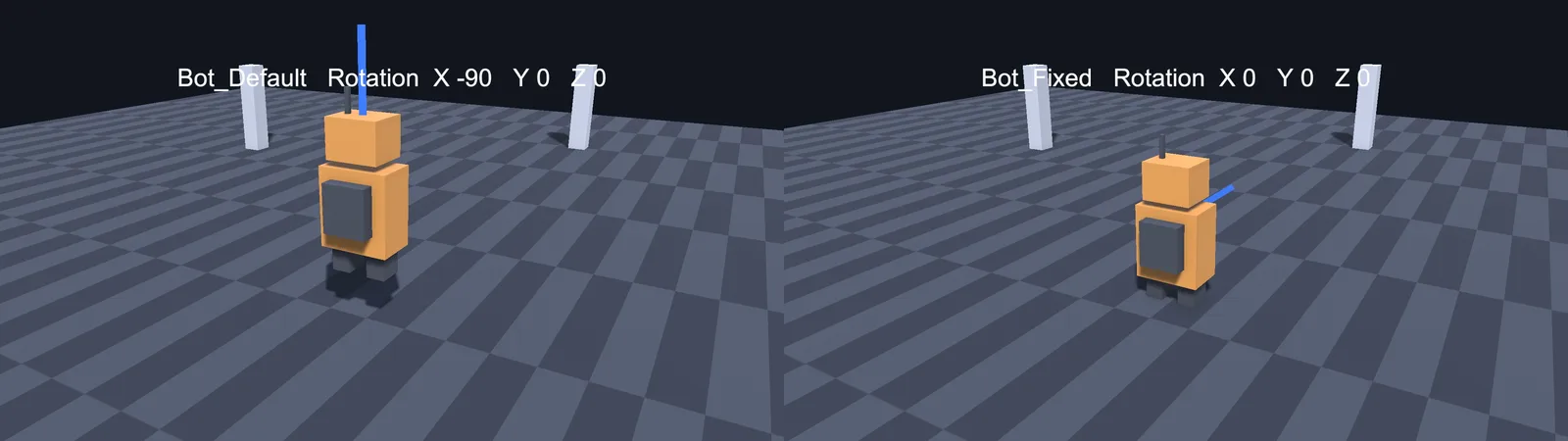
A quick test in Unity: select the object, set the gizmo to Local, and check that the blue Z arrow comes out of the model’s face. Here’s a tiny editor helper that draws the forward direction so you can spot wrong-facing models in a scene at a glance:
using UnityEngine;

public class ForwardGizmo : MonoBehaviour
{
    [SerializeField] float length = 1.5f;

    void OnDrawGizmosSelected()
    {
        Gizmos.color = Color.blue;
        Vector3 start = transform.position + Vector3.up * 0.1f;
        Gizmos.DrawLine(start, start + transform.forward * length);
        Gizmos.DrawWireSphere(start + transform.forward * length, 0.05f);
    }
}
Troubleshooting
Rotation is still -90 after ticking Apply Transform
You exported over a different file, or Unity didn’t reimport. Check the file path and right-click the FBX > Reimport. Also make sure the object had its rotation applied in Blender first.
Rotation is 0 but the model lies on its back
You applied rotation in Blender while the model was lying down, or combined two fixes. Stand it upright in Blender, apply, and use one fix only. If you see +90 instead of 0, you ticked Bake Axis Conversion on a normal Y-up export: untick it and use Fix 1 or Fix 3.
Character mesh is upright but the skeleton is rotated
Apply Transform rotated the mesh but the armature kept a different orientation. Turn Apply Transform off for rigs and use the rotate-apply-rotate trick on the whole rig (test on a copy first).
Animation flips the model when it starts playing
The clip contains keys on the root object’s rotation that were recorded with the old orientation. Re-export after fixing, and make sure the root bone, not the armature object, carries the motion.
Child objects show strange rotations but the root is fine
Those child objects had unapplied rotation in Blender. Select them, apply rotation, export again.
Rotation shows -89.98 instead of -90
Floating-point rounding from the axis conversion. It’s the same problem; apply one of the fixes above rather than typing in -90 by hand.
FAQ
Why are my Blender models rotated -90 in Unity?
Blender is Z-up and Unity is Y-up. By default the FBX exporter stores the conversion as a -90 X rotation on the root object instead of rotating the mesh data.
What does Apply Transform do in the FBX exporter?
It bakes the axis conversion into the exported mesh data, so objects import with rotation 0. Blender marks it experimental because of armature edge cases.
Is Bake Axis Conversion better than Apply Transform?
Not for normal Blender exports. In our test, Bake Axis Conversion turned the default export’s -90 into +90; it only produced 0, 0, 0 on an FBX exported with Y Forward and Z Up. Use Apply Transform for static meshes and rotate-apply-rotate for rigs.
Which way should my model face in Blender?
Towards -Y, the side you see in Front view. With default export axes, that becomes Unity’s +Z forward.
Can I just rotate the model in Unity?
You can wrap it in a parent object, but the hidden -90 on the child stays and causes problems with code that sets rotation directly.
Reader questions
Asked by readers of this article and answered by AI. Behavior can differ between Unity versions, so test in yours.



Leave a Reply