
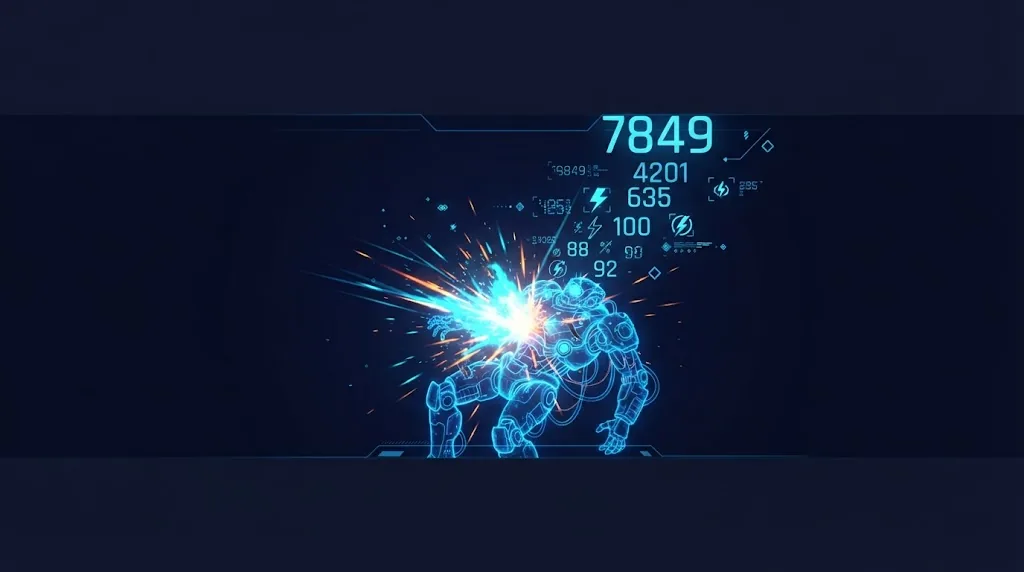
Numbers popping off enemies when you hit them are pure feedback candy. They tell players how hard they’re hitting, when they land a critical, and that the hit counted at all. This guide builds Unity floating damage numbers with world-space TextMeshPro: a pop, rise and fade animation, critical hit styling, numbers that always face the camera, and pooling so a flurry of hits doesn’t tank performance.
World Space or Screen Space?
- World space: the number is a 3D object in the scene, using the TextMeshPro component (not the UI version). It naturally sticks to the enemy’s position, gets hidden behind walls, and scales with distance. Simple and usually the best choice.
- Screen space: the number is a UI element in a Canvas, positioned each frame by converting the world position to the screen. Constant size and always on top. Better when numbers must be readable at any distance, as in many RPGs and MOBAs.
This guide builds the world-space version, then shows the conversion for screen space.
The Damage Number Prefab
- Create GameObject > 3D Object > Text – TextMeshPro. This is the non-UI text that renders in the world.
- Set alignment to center/middle, font size around 6 to 8 (world-space units differ from UI), and enable a bold font.
- In the text’s material, add an Outline (Thickness around 0.2, black) so numbers read on any background. Use a material preset so you don’t change every text in the game.
- Set the RectTransform width wide enough for your biggest number so it doesn’t wrap. Turn off Wrapping.
- Add the popup script below, then save as a prefab.
For sorting on top of geometry, you can give the text a material using the TextMeshPro/Distance Field Overlay shader, which draws over everything. Normal shaders let walls hide numbers, which some games prefer.
The Popup Script
using TMPro;
using UnityEngine;

[RequireComponent(typeof(TextMeshPro))]
public class DamagePopup : MonoBehaviour
{
    [SerializeField] float lifetime = 0.8f;
    [SerializeField] float riseSpeed = 1.5f;
    [SerializeField] float popScale = 1.6f;
    [SerializeField] AnimationCurve scaleCurve = AnimationCurve.EaseInOut(0, 1, 1, 0.8f);
    [SerializeField] AnimationCurve alphaCurve = new AnimationCurve(new Keyframe(0, 1), new Keyframe(0.6f, 1), new Keyframe(1, 0));

    TextMeshPro text;
    Transform cam;
    float age;
    Vector3 velocity;
    Vector3 baseScale;
    float sizeMul = 1f;
    Color baseColor;
    System.Action<DamagePopup> release;

    void Awake()
    {
        text = GetComponent<TextMeshPro>();
        baseScale = transform.localScale;
    }

    public void Show(int amount, Vector3 position, Color color, float sizeMultiplier,
                     System.Action<DamagePopup> onDone)
    {
        cam = Camera.main.transform;
        release = onDone;
        age = 0f;
        transform.position = position;
        sizeMul = sizeMultiplier;
        transform.localScale = baseScale * sizeMul;
        baseColor = color;
        text.color = color;
        text.SetText("{0}", amount);
        // random sideways drift so stacked hits don't overlap
        velocity = new Vector3(Random.Range(-0.5f, 0.5f), riseSpeed, 0f);
    }

    void LateUpdate()
    {
        age += Time.deltaTime;
        float t = age / lifetime;
        if (t >= 1f) { release?.Invoke(this); return; }

        // face the camera
        transform.rotation = cam.rotation;

        // move: drift in camera space so "up" and "sideways" are screen-relative
        Vector3 worldVel = cam.right * velocity.x + Vector3.up * velocity.y;
        transform.position += worldVel * Time.deltaTime;
        velocity.y = Mathf.Lerp(velocity.y, 0f, 3f * Time.deltaTime); // ease out

        // pop at the start then settle
        float pop = t < 0.1f ? Mathf.Lerp(popScale, 1f, t / 0.1f) : 1f;
        transform.localScale = baseScale * sizeMul * pop * scaleCurve.Evaluate(t);

        var c = baseColor;
        c.a = alphaCurve.Evaluate(t);
        text.color = c;
    }
}
Copying the camera’s rotation is the simplest billboard: the text always faces the screen and never mirrors. SetText with a format avoids allocating a string per hit. The animation curves let you tune the feel in the Inspector without touching code.
The size multiplier comes from the spawner, so crits can be bigger without a separate prefab. The scale is rebuilt from baseScale every frame rather than multiplied onto the current scale, so pooled popups never drift in size between uses.
Spawning With a Pool
A shotgun or a damage-over-time effect can spawn dozens of numbers per second. Pool them with ObjectPool<T>:
using UnityEngine;
using UnityEngine.Pool;

public class DamageNumbers : MonoBehaviour
{
    public static DamageNumbers Instance { get; private set; }

    [SerializeField] DamagePopup prefab;
    [SerializeField] Color normalColor = Color.white;
    [SerializeField] Color critColor = new Color(1f, 0.8f, 0.1f);
    [SerializeField] Vector3 offset = new Vector3(0f, 1.8f, 0f);

    ObjectPool<DamagePopup> pool;

    void Awake()
    {
        Instance = this;
        pool = new ObjectPool<DamagePopup>(
            () => Instantiate(prefab, transform),
            p => p.gameObject.SetActive(true),
            p => p.gameObject.SetActive(false),
            p => Destroy(p.gameObject),
            false, 32, 128);
    }

    public void Show(int amount, Vector3 worldPos, bool crit = false)
    {
        var p = pool.Get();
        p.Show(amount, worldPos + offset, crit ? critColor : normalColor, crit ? 1.5f : 1f, pool.Release);
    }
}
Call it from wherever damage is applied. With the damage system guide‘s Health component, listen to the Damaged event and call DamageNumbers.Instance.Show(info.Amount, info.Point). The object pooling guide explains the pool parameters.
Critical Hits and Colours
Make important numbers different at a glance:
- Crits: bigger, yellow or orange, a stronger pop, maybe an exclamation mark via
SetText("{0}!", amount). - Damage types: fire orange, poison green, ice cyan. Use the same colours as your effects.
- Healing: green with a plus sign.
- Player taking damage: red, so it’s never confused with damage dealt.
- Misses and immunity: show “Miss” or “Immune” in grey with
text.SetText("Miss").
TextMeshPro rich text tags also work for one-off styling, like <size=120%>, but colour via text.color is cheaper and easier to fade.
Readability Tips
- Combine rapid hits. For damage over time or fast weapons, add to the number already showing on that target instead of spawning new ones. Keep a dictionary from target to its active popup and update the text.
- Random offsets. The sideways drift stops stacked numbers overlapping.
- Short lifetimes. 0.6 to 1 second. Numbers that linger clutter the screen.
- Setting to turn them off. Some players dislike them. Add an option.
- Font. A chunky, high-contrast font with an outline reads best. The TextMeshPro guide shows how to make font assets and material presets.
Screen-Space Alternative
For numbers that stay the same size, use TextMeshPro – Text (UI) in an overlay Canvas, and position it each frame:
Vector3 screen = Camera.main.WorldToScreenPoint(worldPos);
if (screen.z < 0f) { /* behind the camera: hide it */ }
rectTransform.position = screen + new Vector3(0f, risePixels, 0f);
For a Screen Space – Overlay Canvas, setting rectTransform.position to screen coordinates works directly. For Screen Space – Camera, convert with RectTransformUtility.ScreenPointToLocalPointInRectangle. Put damage numbers on their own Canvas so their constant movement doesn’t rebuild the rest of the HUD.
🔧 Feedback tools
Some Asset Store feedback tools include damage numbers, screen shake and hit flashes ready to use. Here are the Asset Store tools we recommend.
Troubleshooting
Numbers appear mirrored
You used LookAt(camera), which faces the text’s front away from the camera. Copy the camera’s rotation instead.
Text is huge or invisible in the world
World-space TMP sizes differ from UI. Try font size 4 to 10 and check scale is 1.
Numbers hidden behind the enemy
Raise the offset, or use the Distance Field Overlay shader so text draws on top.
Frame rate drops during big fights
Instantiate and Destroy per number. Use the pool, and combine rapid hits.
Text blurry at a distance
Normal for small world text. Use the screen-space version or scale numbers by distance.
FAQ
TextMeshPro or TextMeshPro – Text (UI)?
TextMeshPro for world-space numbers. The UI version for screen-space numbers in a Canvas.
Can I use an Animator instead of code?
Yes. Animate scale and color on the prefab and disable it with an animation event at the end. Code is lighter for many numbers.
How do I make them work in 2D?
Same approach. The text faces the orthographic camera by default, so you can skip the billboard line.
Does SetText allocate?
SetText with numeric arguments avoids creating new strings, unlike string concatenation or interpolation.
Should numbers be affected by hit stop?
With Time.deltaTime they freeze during hit stop, which usually looks right.
Reader questions
Asked by readers of this article and answered by AI. Behavior can differ between Unity versions, so test in yours.
Leave a Reply