
TextMeshPro (TMP) is Unity’s text system for both UI and 3D text, and in Unity 6 it ships as part of the uGUI package. It renders crisp text at any size, but it brings its own vocabulary (font assets, atlases, SDF, fallbacks) and its own classic problems: blurry text, missing characters showing as squares, and “TMP Essentials” pop-ups. This TextMeshPro tutorial covers setup, scripting with TMP_Text, creating font assets that include every character you need, rich text, and fixes for the common errors.
Setup and TMP Essentials
The first time you create a TMP object (GameObject > UI > Text – TextMeshPro), Unity asks you to Import TMP Essentials. Do it. This adds the default font asset (LiberationSans SDF), shaders and settings to Assets/TextMesh Pro. The Examples & Extras package is optional, and it’s good for learning but adds clutter.
If you skipped the dialog, use Window > TextMeshPro > Import TMP Essential Resources. Text that renders as nothing or pink is usually missing these resources.
In Unity 6 the old UI > Legacy > Text component still exists, but TMP is the standard for uGUI. UI Toolkit has its own text renderer based on the same tech, so see UI Toolkit vs uGUI if you’re choosing a UI system.
UI Text vs 3D Text
| TextMeshProUGUI | TextMeshPro | |
|---|---|---|
| Menu | UI > Text – TextMeshPro | 3D Object > Text – TextMeshPro |
| Lives on | A Canvas | Any GameObject in the world |
| Renders with | CanvasRenderer | MeshRenderer |
| Use for | Menus, HUD, buttons | Signs, floating damage numbers, labels in 3D |
Both inherit from TMP_Text, so scripts that reference TMP_Text work with either.
Changing Text From Code
using TMPro;
using UnityEngine;

public class ScoreDisplay : MonoBehaviour
{
    [SerializeField] TMP_Text scoreText;

    public void SetScore(int score)
    {
        scoreText.text = $"Score: {score}";
    }
}
Add using TMPro; at the top. Without it you get CS0246: the type or namespace ‘TMP_Text’ could not be found. Declare the field as TMP_Text, not the legacy Text. Dragging a TMP object into a Text field simply doesn’t work, which is the number one “I can’t assign my text” question.
Other useful properties: color, fontSize, alignment, maxVisibleCharacters (great for typewriter effects), and ForceMeshUpdate() if you need correct bounds right after changing text.
Creating a Font Asset
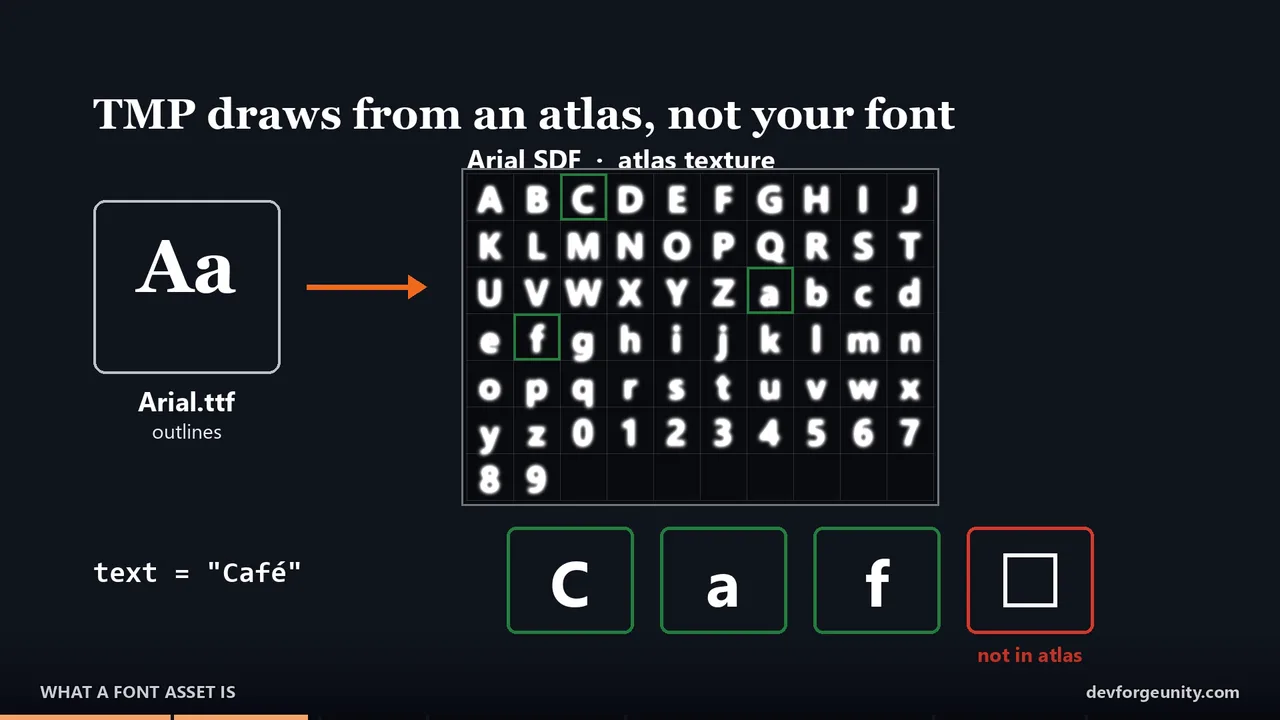
TMP can’t use a .ttf or .otf directly. It needs a font asset containing an SDF atlas: a texture of every glyph stored as a signed distance field, which is why it stays sharp when scaled.
- Import your font file (.ttf/.otf) into the project.
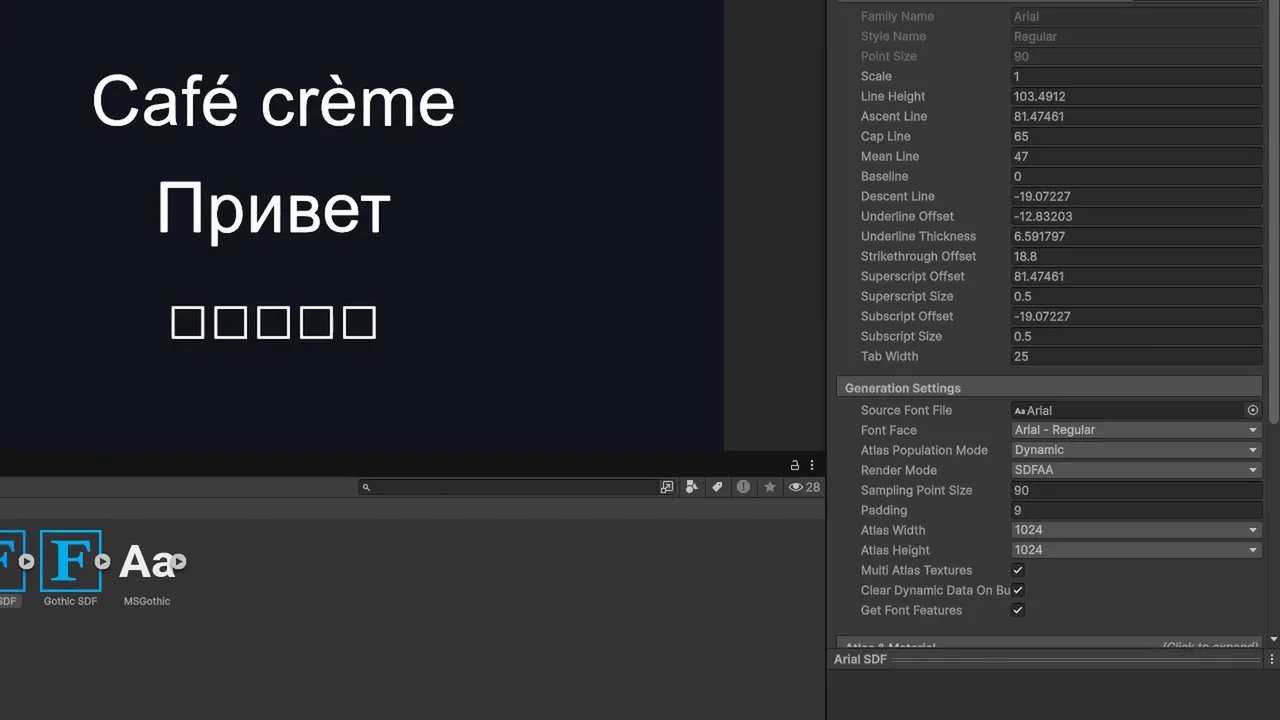
- Right-click it and choose Create > TextMeshPro > Font Asset > SDF. This makes a dynamic font asset that adds glyphs to its atlas as they’re used.
- Assign the new asset to your text’s Font Asset field.
Dynamic assets are convenient, but for shipping builds you often want a static atlas created with Window > TextMeshPro > Font Asset Creator:
- Sampling Point Size: Auto Sizing, or 64–90 for body fonts.
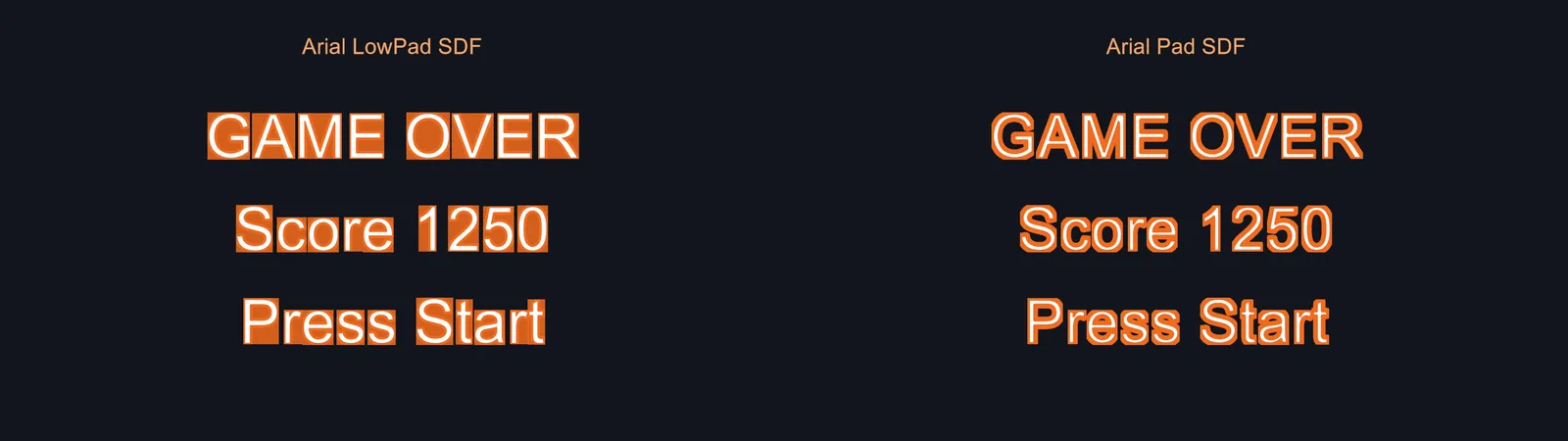
- Padding: about 10% of the sampling size (needed for outlines and glow).
- Atlas Resolution: 1024×1024 for Latin. CJK needs 4096 or several atlases.
- Character Set: ASCII, Extended ASCII, or Characters from File containing every string in your game.
- Render Mode: SDFAA is the standard choice.
Missing Characters and Fallback Fonts
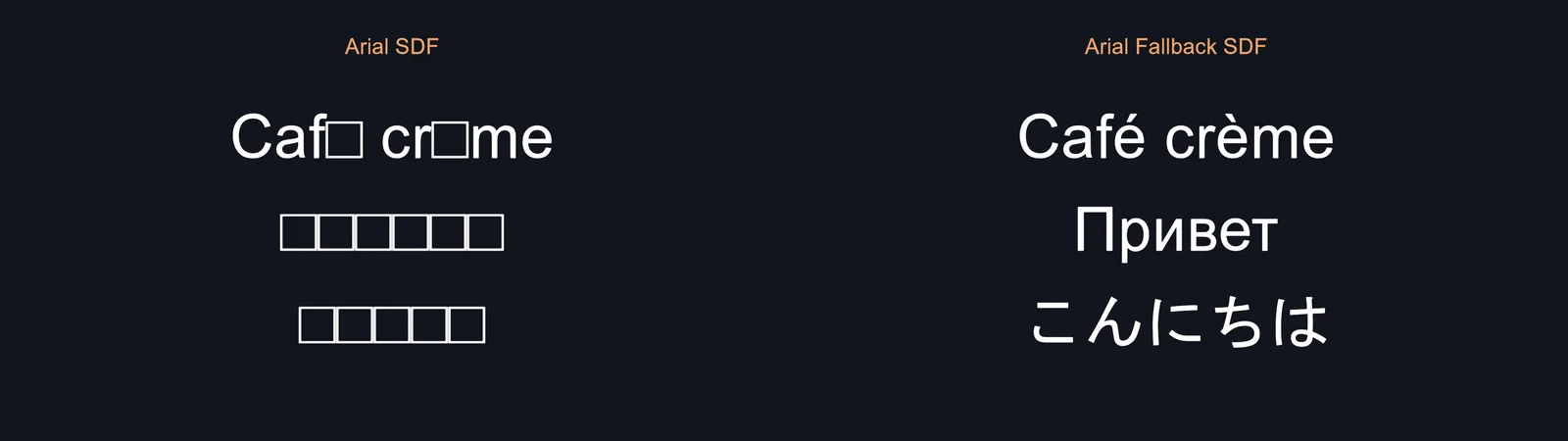
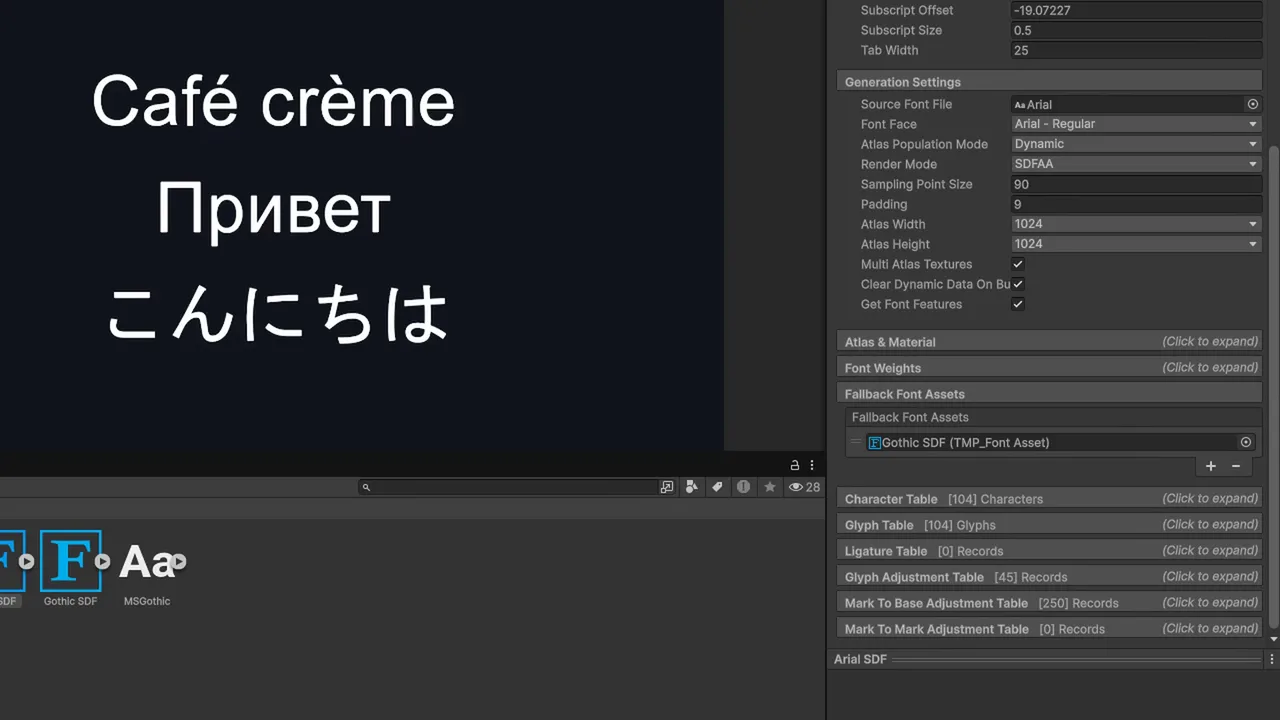
If text shows squares (□) or logs The character with Unicode value é was not found in the [LiberationSans SDF] font asset or any potential fallbacks, the glyph isn’t in the atlas. Fixes in order of preference:
- Make the font asset dynamic (Atlas Population Mode: Dynamic) so glyphs are added on demand, as long as the source font contains them.
- Add a fallback font asset in the font’s Fallback Font Assets list, for example a Noto Sans SDF for accented, Cyrillic or CJK characters. You can also set global fallbacks in Project Settings > TextMesh Pro > Settings.
- Regenerate a static atlas including the missing characters.
Fallbacks are essential for localization. See our Unity localization tutorial for the full multi-language setup, including per-locale fonts.
Rich Text, Sprites and Links
TMP supports tags inside strings:
scoreText.text = "Deal <b><color=#ff5555>25</color></b> fire damage <sprite name=\"fire\">";
// <i>, <u>, <s>, <size=150%>, <mark=#ffff0055>, <align=center>, <link="id">...</link>
Inline icons come from a Sprite Asset (right-click a sprite sheet and choose Create > TextMeshPro > Sprite Asset, then assign it in the text’s Extra Settings or as the default). Clickable words use <link> plus TMP_TextUtilities.FindIntersectingLink(text, mousePos, camera) in a click handler. If you display player-entered text, turn off Rich Text so players can’t inject tags.
Outlines, Shadows and Material Presets
Outline, underlay (drop shadow), glow and bevel are properties of the font material, not the text component. Changing them in one text’s material changes every text using that font. To give one text a different style, create a material preset: duplicate the font’s material (keep the name prefix so TMP finds it), adjust it, and select it from the text’s Material Preset dropdown.
Outlines eat into the padding around each glyph. If thick outlines get clipped into squares, regenerate the atlas with more padding.
📝 Typography matters more than you think
Readable, well-spaced UI text is a big part of how professional a game feels. Our game design reading list includes great books on UI and UX for games.
Performance: Avoiding Garbage
Setting text every frame with string concatenation allocates garbage, which leads to GC spikes. For counters that change constantly (timers, FPS, ammo), TMP offers a non-allocating SetText:
timerText.SetText("{0:1}", timeRemaining);     // one decimal place, no allocation
ammoText.SetText("{0} / {1}", ammo, maxAmmo);
Also only update when the value changes, avoid Auto Size on frequently changing text (it re-lays out repeatedly), and keep text that changes often on its own Canvas so it doesn’t force the whole UI to rebuild. The Profiler shows these as Canvas.SendWillRenderCanvases costs.
Troubleshooting
Text is blurry
Usually the font asset was generated at a small sampling size, or the canvas is scaled oddly. Regenerate with a larger sampling point size, and check the Canvas Scaler isn’t stretching a tiny reference resolution. For 3D text, don’t scale the object up. Increase font size instead.
Characters show as squares
The glyph isn’t in the font asset or its fallbacks. Make the asset dynamic, add a fallback font, or regenerate the atlas with the characters.
Can’t drag a TextMeshPro object into my script field
The field is typed as UnityEngine.UI.Text. Change it to TMP_Text and add using TMPro;.
Text is invisible
Check the text box isn’t too small (Overflow set to Truncate hides everything), the colour alpha isn’t zero, the font asset is assigned, and TMP Essentials are imported.
Text appears pink
The TMP shader isn’t compatible or is missing in the build. Reimport TMP Essentials and make sure the TMP shaders are included (they’re referenced by the font materials, so they ship automatically unless the materials were stripped).
FAQ
Is TextMeshPro included in Unity 6?
Yes. In Unity 6 TMP is part of the uGUI package, so there’s no separate package to install. You just import TMP Essentials once.
TMP_Text vs TextMeshProUGUI: which type should my script use?
TMP_Text. It’s the base class, so the script works with both UI text and 3D text.
How do I use my own font in TextMeshPro?
Import the .ttf/.otf, right-click and create a TextMeshPro SDF font asset, and assign it to your text.
How do I make a typewriter effect?
Set the full text once, then increase maxVisibleCharacters over time in a coroutine. This avoids rebuilding the string and keeps rich-text tags intact.
Does TextMeshPro support emoji?
Not from the system font. Use a Sprite Asset with emoji images, or a colour-emoji font as a fallback in newer TMP versions.
Reader questions
Asked by readers of this article and answered by AI. Behavior can differ between Unity versions, so test in yours.



Leave a Reply