
You set up an Input Action, pressed the key, and nothing happened. No log, no error, just silence. The Unity Input System not working problem almost always comes down to one of a few causes: the wrong Active Input Handling setting, an action that was never enabled, a PlayerInput component using a different behaviour than your code expects, a control scheme that doesn’t match your device, or a UI input module conflict. This guide walks through each one in the order you should check them, with code that works in Unity 6 and Input System 1.x.
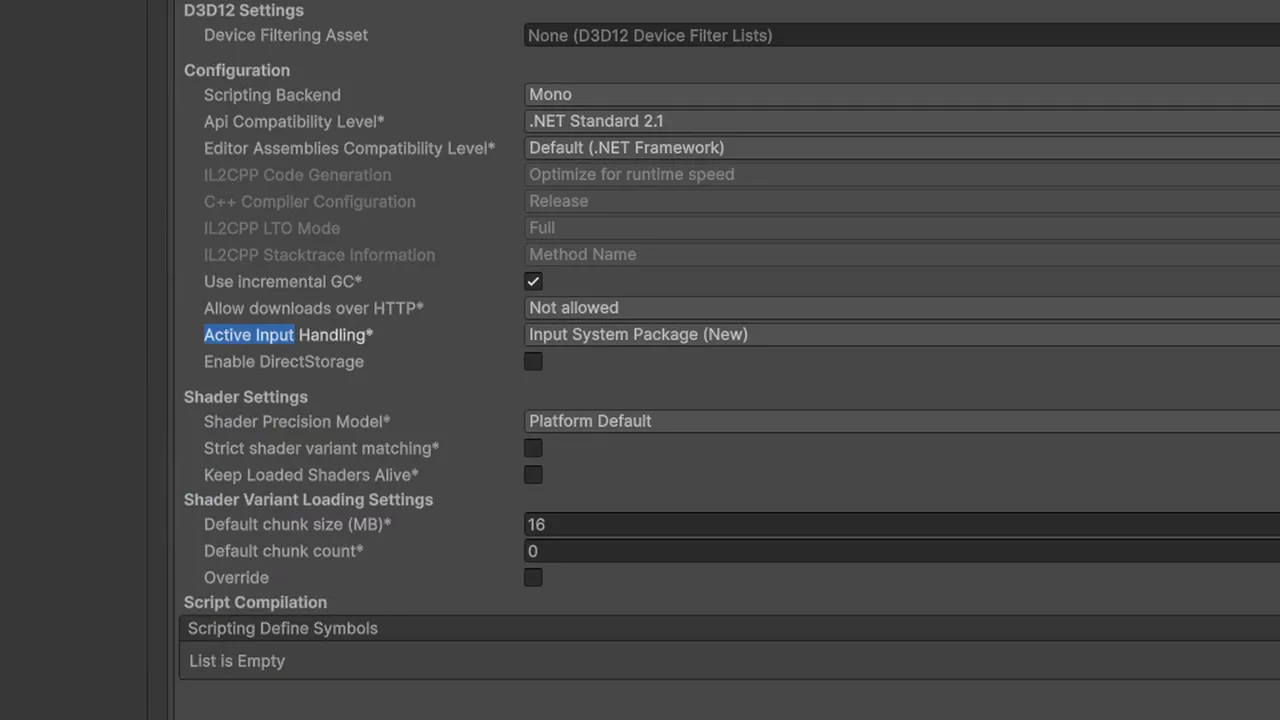
Check Active Input Handling First
Open Edit > Project Settings > Player > Other Settings and find Active Input Handling. It has three values:
- Input Manager (Old): only the legacy
UnityEngine.Inputclass works. The Input System package compiles but receives no input. - Input System Package (New): only the new system works. Calls to
Input.GetKeythrow an exception. - Both: both work. Handy during migration, but slightly more overhead.
New Unity 6 projects from the default templates use the Input System Package. Older projects upgraded to Unity 6, or projects where you installed the package manually and clicked “No” on the restart prompt, may still be set to Old. Change it and let the editor restart. If you are new to the package, our beginner’s guide to the new Input System covers the setup from scratch.
The InvalidOperationException
This is the most searched Input System error:
InvalidOperationException: You are trying to read Input using the UnityEngine.Input class,
but you have switched active Input handling to Input System package in Player Settings.
Something is still calling the old API. Double-click the error to find the line. Common sources:
- Your own scripts using
Input.GetAxis,Input.GetKeyDownorInput.mousePosition. - The Standalone Input Module on your EventSystem (see the UI section).
- Old Asset Store scripts or sample code.
Either replace the calls or set Active Input Handling to Both. The direct-device replacements are simple:
using UnityEngine;
using UnityEngine.InputSystem;

public class QuickInput : MonoBehaviour
{
    void Update()
    {
        var kb = Keyboard.current;
        var mouse = Mouse.current;
        if (kb == null || mouse == null) return;   // no device connected

        if (kb.spaceKey.wasPressedThisFrame) Debug.Log("Jump");
        Vector2 mousePos = mouse.position.ReadValue();
        if (mouse.leftButton.isPressed) Debug.Log($"Held at {mousePos}");
    }
}
Note the null checks. Keyboard.current and Gamepad.current are null when no such device exists, which causes a NullReferenceException on many phones and on PCs with no gamepad plugged in.
Actions That Were Never Enabled
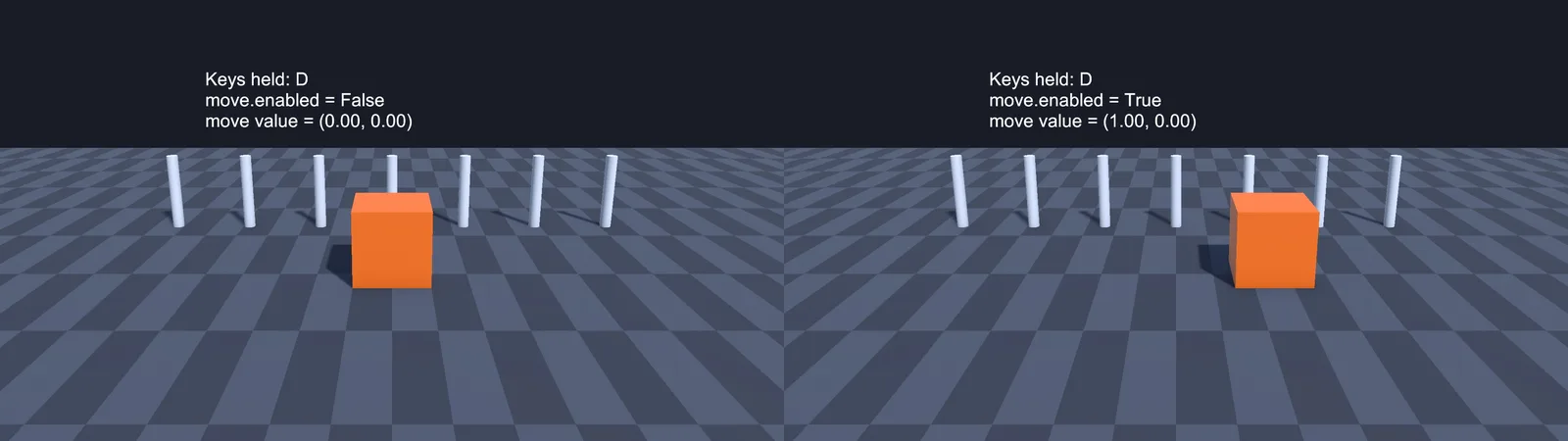
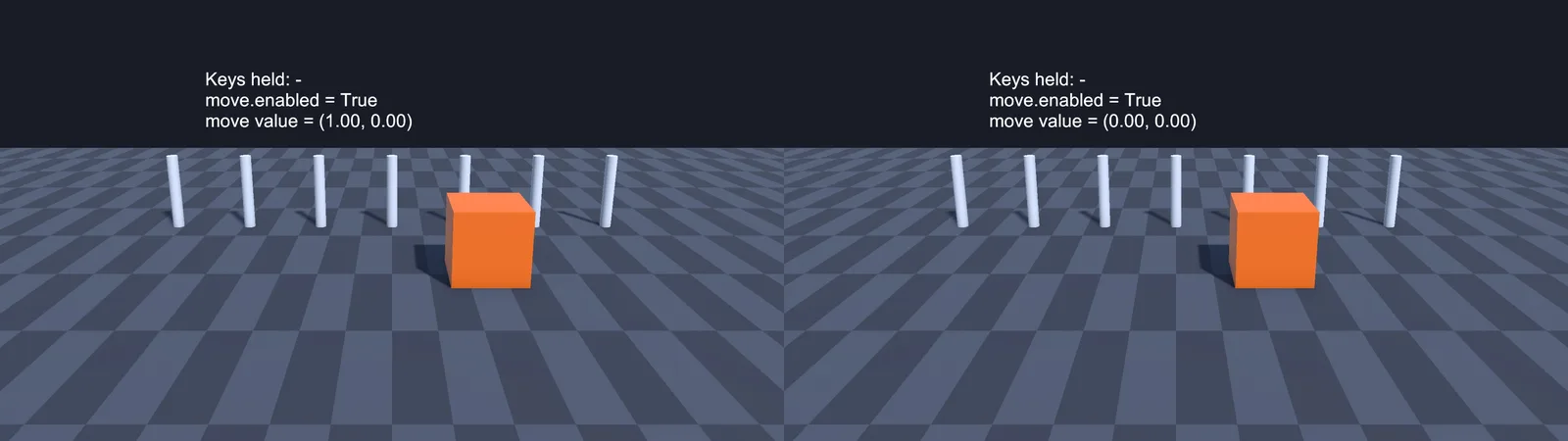
If you create Input Actions in code, or use the generated C# class from an .inputactions asset, the actions start disabled. A disabled action never fires and ReadValue returns zero. This is the number one reason “my callback never runs”.
using UnityEngine;
using UnityEngine.InputSystem;

public class PlayerControls : MonoBehaviour
{
    [SerializeField] InputActionReference move;
    [SerializeField] InputActionReference jump;

    void OnEnable()
    {
        move.action.Enable();
        jump.action.Enable();
        jump.action.performed += OnJump;
    }

    void OnDisable()
    {
        jump.action.performed -= OnJump;
        move.action.Disable();
        jump.action.Disable();
    }

    void Update()
    {
        Vector2 dir = move.action.ReadValue<Vector2>();
        transform.Translate(new Vector3(dir.x, 0f, dir.y) * 5f * Time.deltaTime);
    }

    void OnJump(InputAction.CallbackContext ctx) => Debug.Log("Jump!");
}
With a generated class (say GameControls), the same rule applies: create the instance, then call controls.Enable() or controls.Player.Enable(). Creating a new GameControls() and forgetting Enable is extremely common.
In Unity 6, the project-wide actions asset (Project Settings > Input System Package) is enabled automatically, and you can read it with InputSystem.actions.FindAction("Move"). If you mix project-wide actions with a separate asset, make sure you are enabling and reading the same one.
Also watch for subscribing after the event fires. If you subscribe in Start but another script disables and re-enables the map, or you subscribe to started on a Value action that is already held, the callback can seem to miss presses.
PlayerInput Behaviour Mismatch
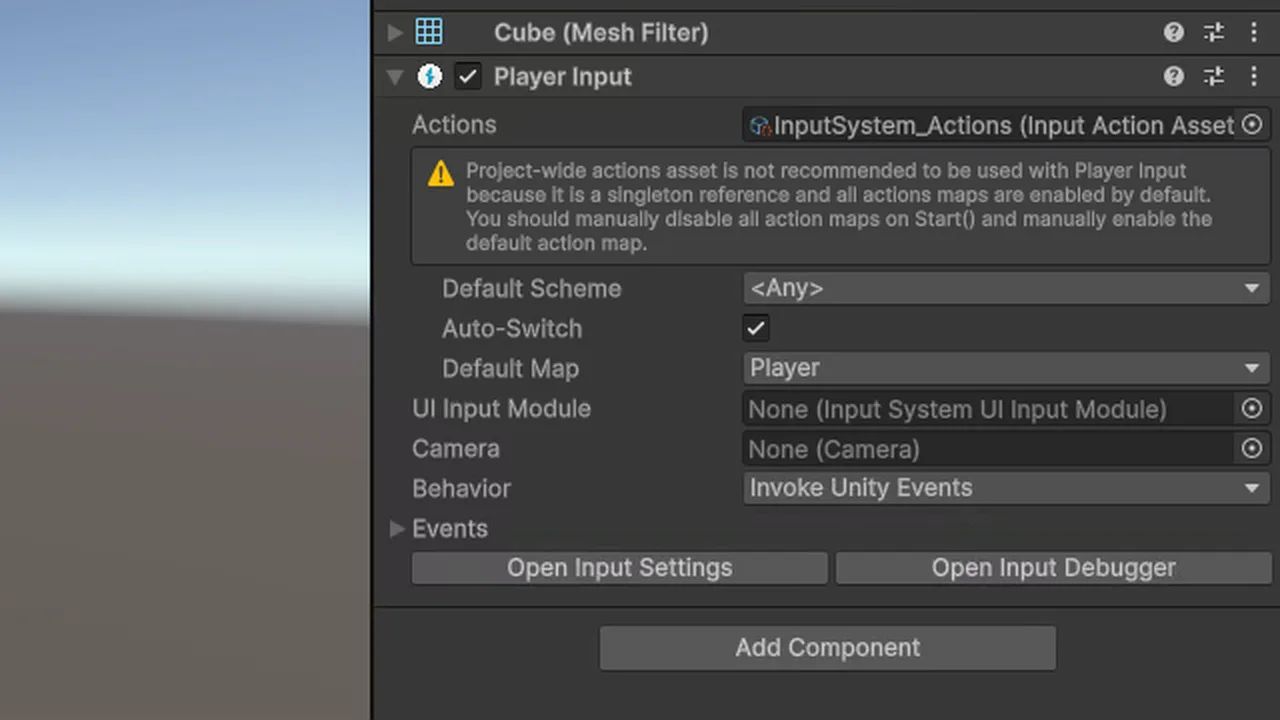
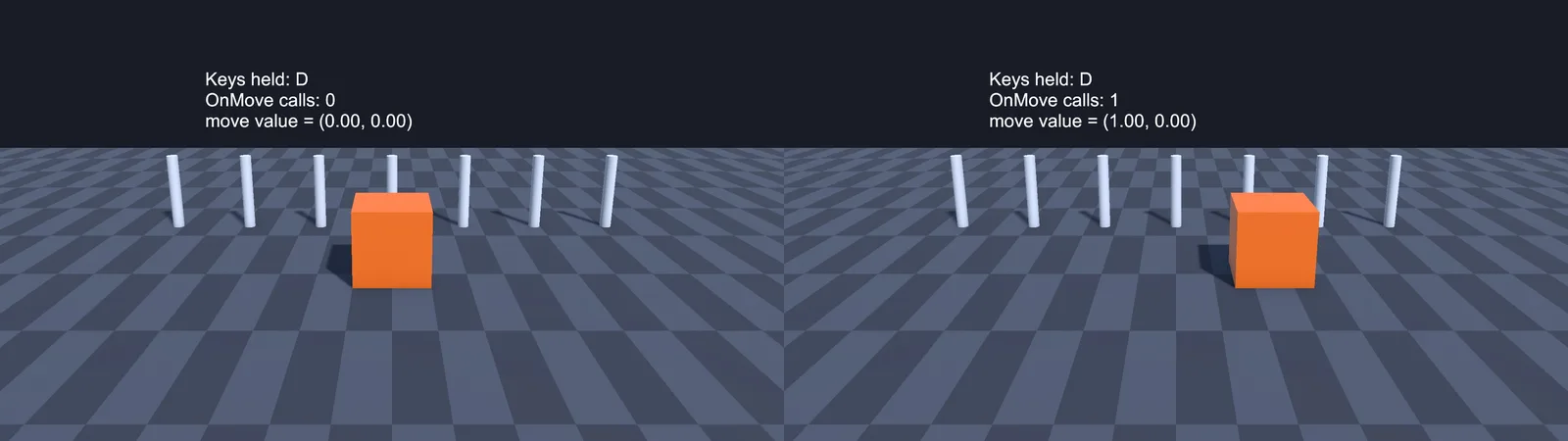
The PlayerInput component enables its actions for you, but it delivers them in one of four ways, set by its Behavior dropdown. Your code must match:
- Send Messages: calls methods named
On+ action name on the same GameObject. An action called “Jump” callsOnJump(InputValue value). The name must match exactly, including case. - Broadcast Messages: the same, but also on child objects.
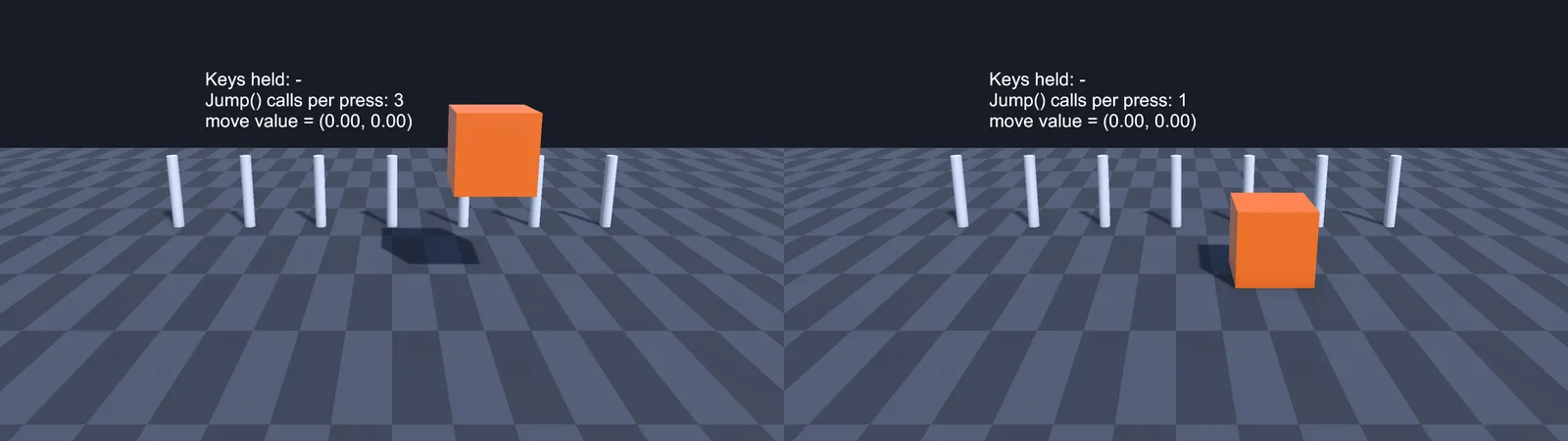
- Invoke Unity Events: you wire each action in the Events foldout. Your method must take
InputAction.CallbackContext, and it fires for started, performed and canceled, so filter withctx.performed. - Invoke C# Events: subscribe to
playerInput.onActionTriggered.
// Works with Behavior = Send Messages
public void OnMove(InputValue value)
{
    moveInput = value.Get<Vector2>();
}

// Works with Behavior = Invoke Unity Events
public void Jump(InputAction.CallbackContext ctx)
{
    if (ctx.performed) DoJump();
}
Classic mistakes: using OnMove(InputAction.CallbackContext) with Send Messages (wrong parameter type, so it never matches), putting the script on a different object from PlayerInput, or renaming the action in the asset without renaming the method. Also check the Default Map on PlayerInput. If it is set to “UI”, your Player actions are disabled.
Control Schemes and Devices
Control schemes say which devices a set of bindings uses, such as “Keyboard&Mouse” or “Gamepad”. If your bindings are tagged with a scheme but PlayerInput pairs the player with a different device, those bindings are ignored.
- Open the .inputactions asset and click each binding. In the Binding Properties panel, check Use in control scheme. A binding with no scheme ticked won’t be used when PlayerInput has schemes.
- Check that the scheme’s device requirements include the device you are testing with. A “Gamepad” scheme that requires a Gamepad won’t activate from a keyboard.
- On PlayerInput, set Default Scheme to <Any> while testing and leave Auto-Switch on so it switches to whichever device you touched.
Split-screen with PlayerInputManager pairs each player with specific devices, so the second player’s keyboard presses are ignored by player one. That is by design.
Binding, Action Type and Interaction Mistakes
- Action Type Button with a Vector2 binding. Movement must be Action Type Value with Control Type Vector2, using an “Up/Down/Left/Right Composite” for WASD. A Button-type action only reports pressed or not.
- Reading the wrong type.
ReadValue<float>()on a Vector2 action throws an exception. Match the control type. - Hold interaction. Adding a Hold interaction means
performedonly fires after the hold duration. A quick tap gives started then canceled, never performed. - Listening to performed on a Value action. For a stick, performed fires every time the value changes, but when you let go you get canceled, not performed with zero. Reset your stored value in the canceled callback, or just poll with ReadValue in Update.
- Unsaved asset. Changes in the Input Actions editor aren’t applied until you click Save Asset (unless Auto-Save is ticked), and the generated C# class isn’t rebuilt until you save.
- Listen button grabbed the wrong path. The Listen feature sometimes binds to a specific device instance. Prefer generic paths like
<Gamepad>/buttonSouth.
UI and EventSystem Conflicts
An EventSystem with the old Standalone Input Module throws the InvalidOperationException every frame in a New-only project, and the UI stops responding. Select the EventSystem object and click Replace with InputSystemUIInputModule in the Inspector.
Other UI-related gotchas:
- The InputSystemUIInputModule uses its own actions (DefaultInputActions by default). If you assign your own asset, make sure its UI map has Point, Click and Navigate bound, or buttons won’t react.
- If your gameplay script reads the mouse click while hovering a button, both fire. Check
EventSystem.current.IsPointerOverGameObject()before handling world clicks. - Disabling the Player map when a menu opens and enabling a UI map is the clean approach. Just remember to switch back with
playerInput.SwitchCurrentActionMap("Player")when the menu closes.
📚 Want to understand input design properly?
Good controls are as much design as code. Books on game feel and game programming patterns explain why input buffering, coyote time and rebinding matter, and how to structure input code that scales.
Using the Input Debugger
When you can’t tell whether the problem is the device, the binding or your code, open Window > Analysis > Input Debugger.
- Under Devices, check your device is listed. Double-click it to see live control values. If nothing changes when you press keys, the editor isn’t receiving input at all (often a focus issue or a missing driver).
- Enter Play Mode and expand Users to see which devices and control scheme each PlayerInput is paired with.
- Expand Actions to see every enabled action. If yours is missing, it was never enabled.
Also check Project Settings > Input System Package > Background Behavior and the Game View focus setting. By default, input stops when the Game view loses focus, which looks exactly like broken input if you clicked into the Inspector.
Troubleshooting
Nothing fires at all, no errors
Active Input Handling is set to Old, or the action is disabled. Check Project Settings, then confirm the action appears in the Input Debugger’s enabled actions.
OnJump never gets called with PlayerInput
Behavior is Send Messages but the method name, parameter type or GameObject doesn’t match. Use OnJump(InputValue value) on the same object, or switch to Invoke Unity Events and wire it explicitly.
Callback fires three times per press
Invoke Unity Events sends started, performed and canceled. Check ctx.performed before acting.
Movement value is stuck after releasing the key
You only update the value in performed. Also handle canceled, or read the value every frame.
Works in the editor, not in a build
The editor had focus with a gamepad paired that the build doesn’t, or your code relies on Keyboard.current on a touch device. Add null checks and test the control scheme on the target hardware.
Gamepad works, keyboard doesn’t (or the reverse)
The bindings aren’t assigned to the active control scheme. Tick the scheme on each binding.
FAQ
Should I set Active Input Handling to Both?
It is fine during migration or when an old asset needs the legacy API. For a finished project, New only is cleaner.
Do I need the PlayerInput component?
No. You can use InputActionReference or a generated class and enable the actions yourself. PlayerInput is mainly useful for local multiplayer and automatic scheme switching.
Why does ReadValue always return zero?
The action is disabled, bound to the wrong control type, or no binding matches your device.
Why does input stop when I click the Inspector?
The Game view lost focus. Click back into it, or change the Background Behavior setting.
Is the old Input Manager deprecated?
It still works in Unity 6, but new features and platforms target the Input System package.
Reader questions
Asked by readers of this article and answered by AI. Behavior can differ between Unity versions, so test in yours.

Leave a Reply