

Beginner Unity tutorials make every field public so it shows up in the Inspector. It works, but it also lets any script in the project change that value, which is how “something keeps resetting my speed” bugs are born. [SerializeField] gives you Inspector editing without exposing the field to other code. This guide explains how Unity serialization works, why [SerializeField] private is the professional default, and the Inspector attributes that turn messy components into clean, designer-friendly ones.
Quick answer
[SerializeField] makes Unity save a private field and show it in the Inspector, without letting other scripts change it: [SerializeField] private float moveSpeed = 5f;. Prefer it to public fields. If a field still doesn’t show, it’s probably static, readonly, a property, or a type Unity can’t serialize such as a Dictionary.
What Serialization Means in Unity
Serialization is how Unity saves the values you set in the Inspector into scenes, prefabs and ScriptableObject assets, then restores them when loading. A field shows in the Inspector because it’s serialized. If Unity doesn’t serialize a field, its value isn’t saved, and it resets to the code default every time the scene loads.
A field is serialized if it is public or marked [SerializeField], is not static, const or readonly, and has a type Unity can serialize.
Public vs [SerializeField] Private
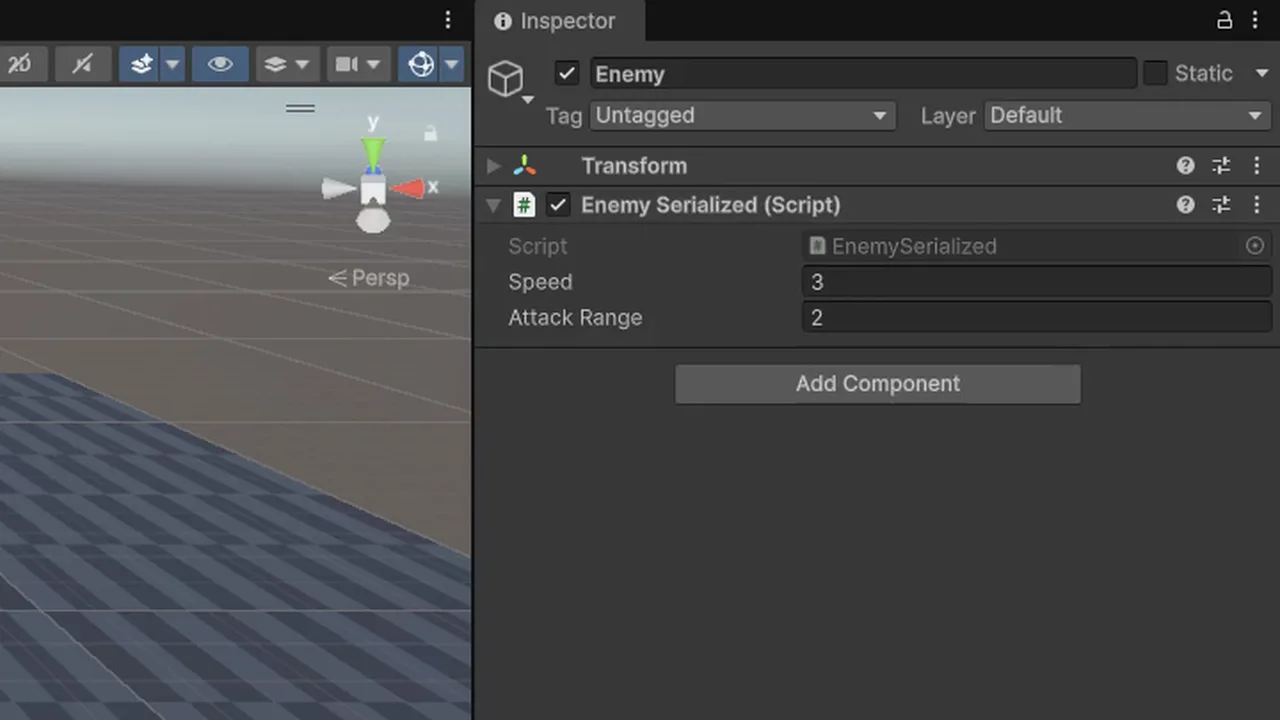
public class Enemy : MonoBehaviour
{
    public float speed = 3f;                 // visible in Inspector AND writable by any script

    [SerializeField] float attackRange = 2f; // visible in Inspector, private to this class

    public float AttackRange => attackRange;  // read-only access for other scripts
}
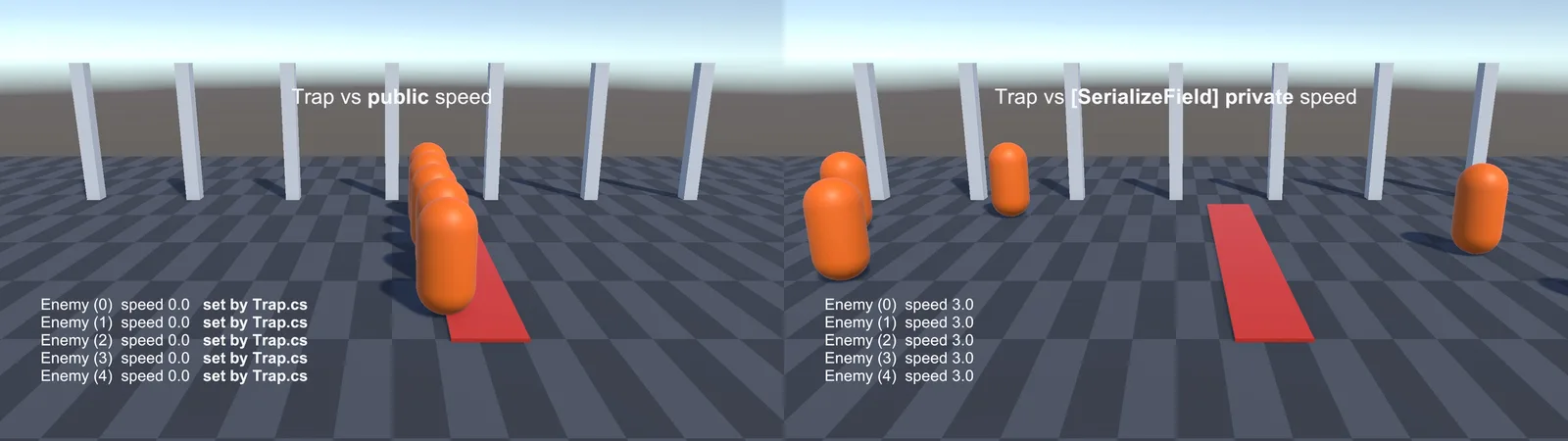
Both appear in the Inspector, but speed can be changed by enemy.speed = 0 anywhere in the project. With attackRange, other scripts can read it through the property but can’t change it. When a value is wrong, you only have one class to check.
The convention most studios follow: fields are private, and anything that needs editing in the Inspector gets [SerializeField]. Expose data to other scripts through properties or methods. It’s the same principle as in our C# naming and style guide.
The reverse also exists: [System.NonSerialized] public makes a public field that Unity doesn’t save or show, and [HideInInspector] hides a serialized field while still saving it.
What Unity Can and Can’t Serialize
| Serializable | Not serializable (by default) |
|---|---|
| int, float, bool, string, enums, double, long | Dictionary, HashSet, Queue, Stack |
| Vector2/3/4, Quaternion, Color, Rect, Bounds, AnimationCurve, Gradient, LayerMask | Properties (get/set) |
| References to UnityEngine.Object (GameObject, components, assets, ScriptableObjects) | Static, const and readonly fields |
| Arrays and List<T> of serializable types | Nested lists (List<List<T>>) and multidimensional arrays |
| Your classes and structs marked [System.Serializable] | Interfaces and abstract types (without [SerializeReference]) |
Need a dictionary in the Inspector? Serialize a list of key/value structs and build the Dictionary in Awake, or use one of the serializable-dictionary tools in our Asset Store tools roundup.
Inspector Attributes You’ll Use Every Day
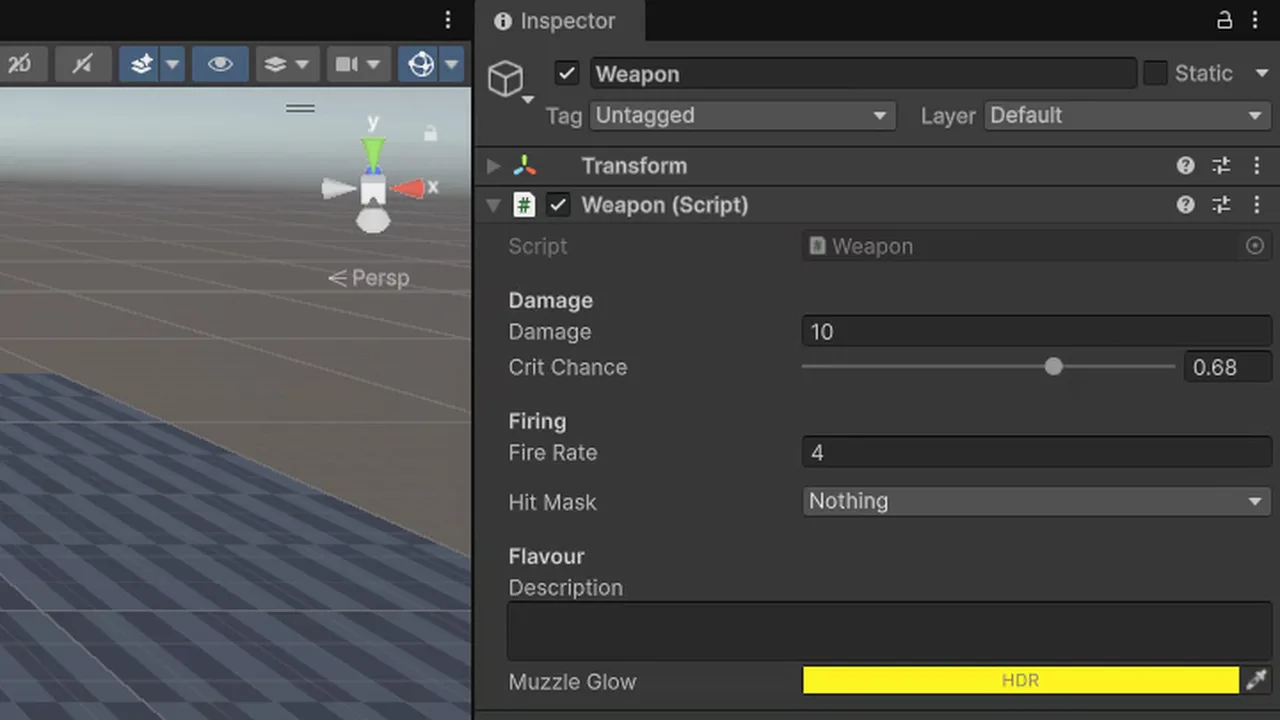
public class Weapon : MonoBehaviour
{
    [Header("Damage")]
    [Tooltip("Damage dealt per hit before armor.")]
    [SerializeField, Min(0)] float damage = 10f;
    [SerializeField, Range(0f, 1f)] float critChance = 0.1f;

    [Header("Firing")]
    [SerializeField] float fireRate = 4f;
    [Space(8)]
    [SerializeField] LayerMask hitMask;

    [Header("Flavour")]
    [SerializeField, TextArea(2, 4)] string description;
    [SerializeField, ColorUsage(false, true)] Color muzzleGlow = Color.yellow;   // HDR colour

    [SerializeField, HideInInspector] int internalVersion;
}| Attribute | What it does |
|---|---|
[Header("...")] |
Bold section heading above the field |
[Tooltip("...")] |
Hover text explaining the field |
[Range(min, max)] |
Slider, clamped in the Inspector |
[Min(x)] |
Prevents values below x |
[Space(px)] |
Vertical gap |
[TextArea] / [Multiline] |
Multi-line text box |
[ColorUsage] / [GradientUsage] |
Alpha and HDR options |
[HideInInspector] |
Saved but hidden |
[FormerlySerializedAs("oldName")] |
Keeps values after renaming a field |
[ContextMenu("Name")] (on a method) |
Adds a method to the component’s ⋮ menu |
[RequireComponent(typeof(T))] (on a class) |
Auto-adds a needed component |
Ranges and Min only clamp values entered in the Inspector, not values set from code. Validate in code too if it matters. For more advanced Inspector customization, see our Editor scripting 101 guide.
Serializing Your Own Classes and Structs
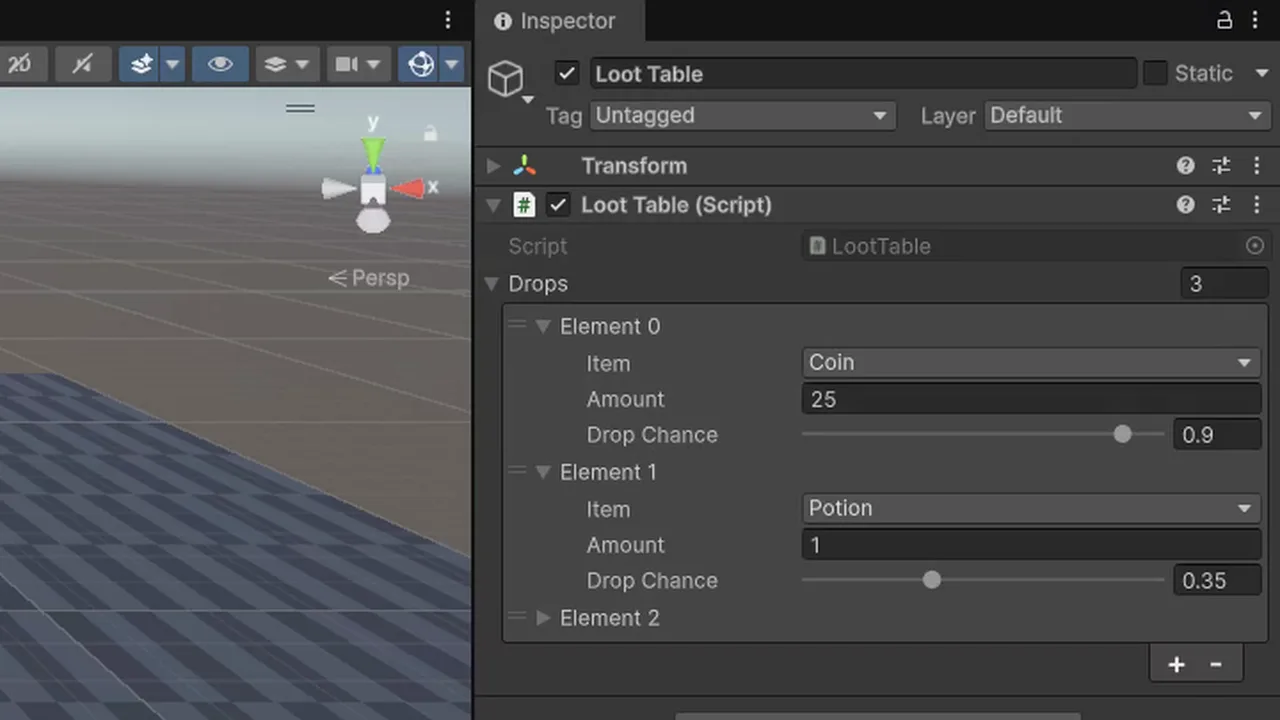
Group related settings into a class or struct and mark it [System.Serializable]. It shows as a foldout:
[System.Serializable]
public class Loot
{
    public ItemType item;
    [Min(1)] public int amount = 1;
    [Range(0f, 1f)] public float dropChance = 0.5f;
}

public class LootTable : MonoBehaviour
{
    [SerializeField] Loot[] drops;
}
Plain serializable classes are stored by value: two fields can’t share the same instance, and null becomes a default instance after serialization. For shared data, use a ScriptableObject reference instead (see our ScriptableObjects guide).
Properties, Renaming and SerializeReference
Auto-properties aren’t serialized, but you can target their hidden backing field:
[field: SerializeField] public int MaxHealth { get; private set; } = 100;This shows “Max Health” in the Inspector and gives a public getter with a private setter in one line.
Renaming a field loses every value already set in scenes and prefabs, because Unity saves values by field name. Add [FormerlySerializedAs("oldName")] (from UnityEngine.Serialization) before renaming, open and save the affected assets, then remove it later.
[SerializeReference] serializes fields by reference, which allows interfaces, abstract base classes, polymorphic lists and shared or null instances:
public interface IEffect { void Apply(GameObject target); }
[System.Serializable] public class DamageEffect : IEffect { public float amount; public void Apply(GameObject t) { } }
[System.Serializable] public class SlowEffect : IEffect { public float duration; public void Apply(GameObject t) { } }

public class Ability : MonoBehaviour
{
    [SerializeReference] List<IEffect> effects = new();
}
Unity’s default Inspector doesn’t offer a “choose type” dropdown for these. You can add elements from code, use a small custom drawer, or use an Inspector extension package.
OnValidate and Reset
OnValidate runs in the Editor whenever a value changes in the Inspector, which makes it great for enforcing rules or updating previews:
void OnValidate()
{
    if (maxAmmo < clipSize) maxAmmo = clipSize;
    if (!rb) rb = GetComponent<Rigidbody>();
}

void Reset()   // runs when the component is first added, or via Reset in the ⋮ menu
{
    hitMask = LayerMask.GetMask("Default", "Enemy");
}
Keep OnValidate light, and don’t create or destroy objects in it, since it runs often, including during asset imports.
🔧 Want a much better Inspector?
Inspector extensions add buttons, conditional fields, validation and dictionary support with simple attributes. We cover the ones worth buying in our tools roundup.
Troubleshooting
My field doesn’t show in the Inspector
It’s private without [SerializeField], it’s a property, static or readonly, or its type isn’t serializable (Dictionary, or a custom class missing [System.Serializable]). A compile error also stops the Inspector updating, so check the Console.
Changing the default value in code does nothing
Existing components keep their serialized Inspector value, and the code default only applies to newly added components. Change it in the Inspector, or use the component’s Reset.
Values reset after I renamed a field
Unity matches saved data by name. Rename back, add [FormerlySerializedAs], then rename again.
Values I set in Play mode were lost
Play mode changes to scene objects are discarded when you stop. Copy the component (⋮ > Copy Component) before stopping, then Paste Component Values after. Note that changes to ScriptableObject assets in Play mode do persist.
A List of my class shows as empty foldouts
The class’s fields are private without [SerializeField], or the class lacks [System.Serializable].
FAQ
What does [SerializeField] do in Unity?
It tells Unity to save a private field’s value and show it in the Inspector, without making the field accessible to other scripts.
Should I use public fields or SerializeField?
Use [SerializeField] private fields for Inspector values, and expose them through properties only when other scripts need them.
Can Unity serialize a Dictionary?
Not natively. Serialize a list of key/value pairs and build the dictionary at runtime, or use a serializable dictionary package.
How do I show a property in the Inspector?
Use an auto-property with [field: SerializeField], or a private serialized backing field with a public getter.
What is SerializeReference?
An attribute that serializes a field by reference, which supports interfaces, abstract classes, polymorphic lists and null values.
Reader questions
Asked by readers of this article and answered by AI. Behavior can differ between Unity versions, so test in yours.



Leave a Reply