
Every game needs a settings menu with Master, Music and Sound Effects volume sliders, and players expect them to remember their values. In Unity the right tool is the Audio Mixer, but it has a few traps: the slider seems to do nothing for most of its range, volume settings reset on startup, and SetFloat silently fails in Awake. This Unity Audio Mixer tutorial sets up mixer groups, exposed parameters and volume sliders that sound right and save between sessions, then covers snapshots, ducking and the fixes for the usual problems.
How Unity Audio Is Wired
Three pieces make sound in Unity:
- An AudioClip is the sound file.
- An AudioSource plays a clip from a GameObject. Its Spatial Blend decides whether it’s 2D (music, UI) or 3D (footsteps, explosions that get quieter with distance).
- One AudioListener, usually on the camera, is the “ears”.
Without a mixer, each AudioSource goes straight to the listener, and the only way to turn all music down is to find every music source. The Audio Mixer adds a routing layer: each AudioSource outputs to a group (Music, SFX, UI, Voice), and groups feed a Master group. Change one group’s volume and every sound routed through it follows.
Create the Mixer and Groups
- Assets > Create > Audio Mixer, name it
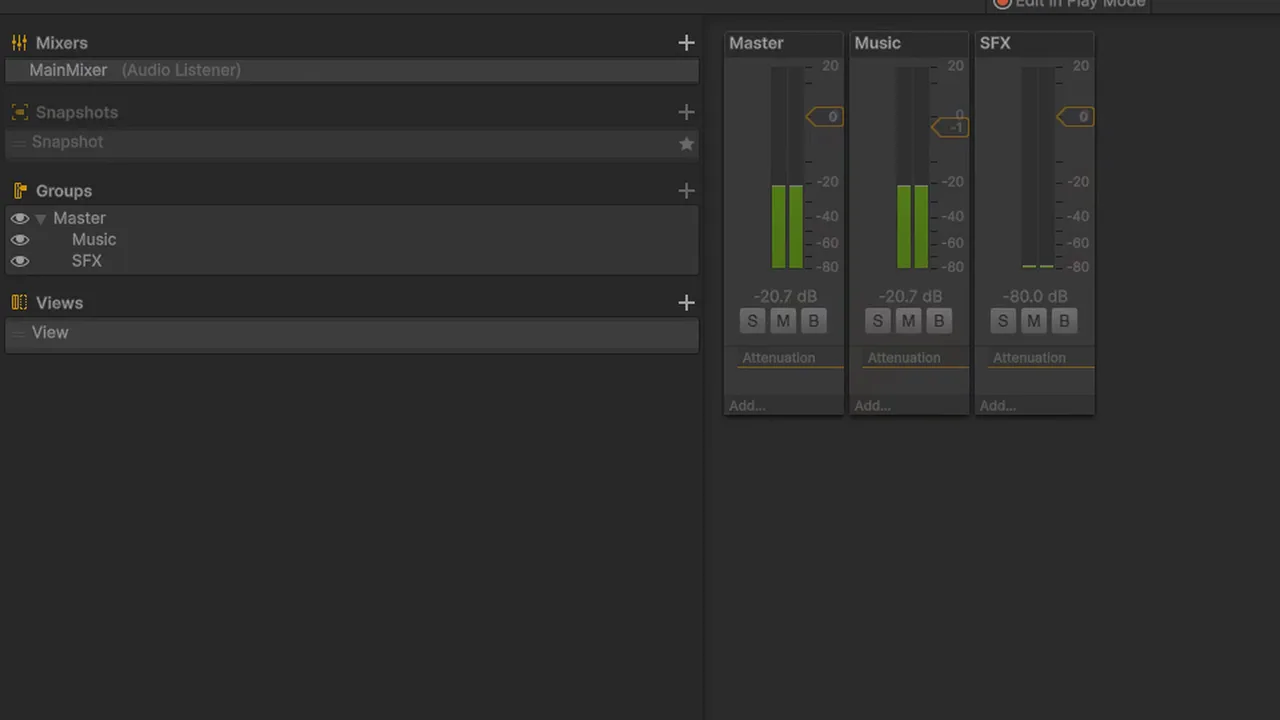
MainMixer, and double-click to open the Audio Mixer window. - The mixer starts with a Master group. In the Groups panel, select Master and click + to add children:
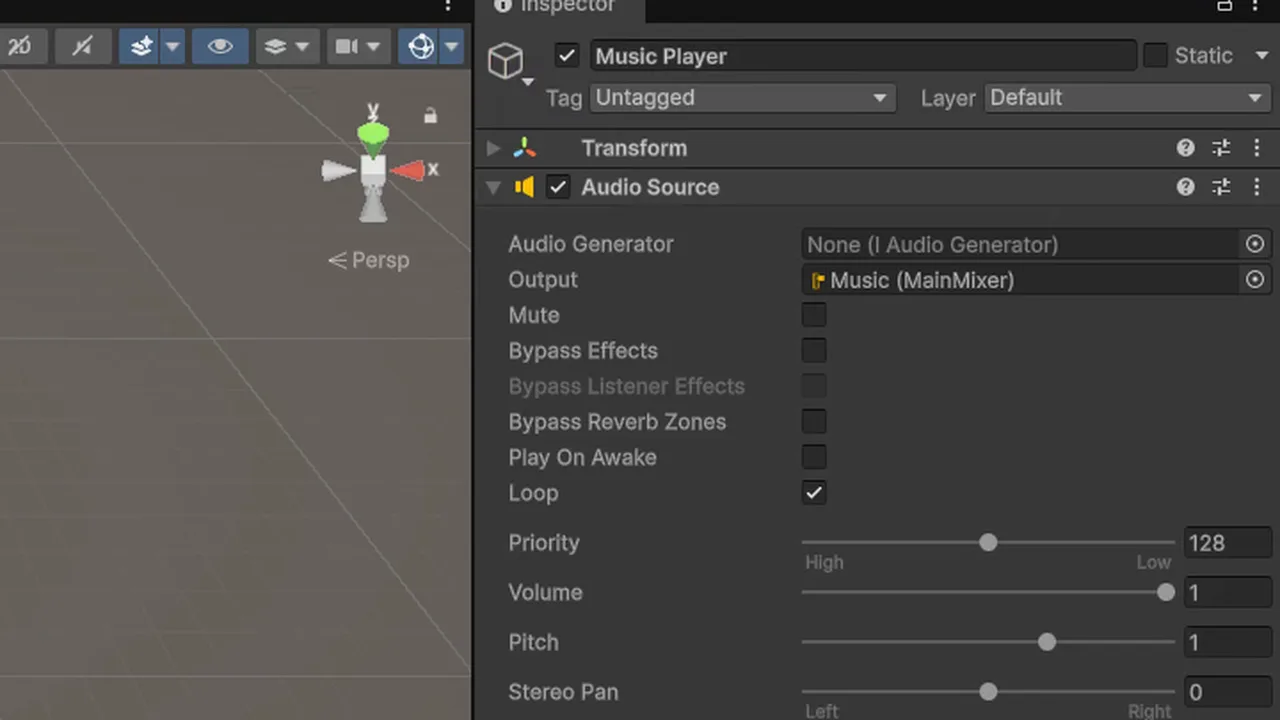
Music,SFX, and optionallyUIandVoice. - On every AudioSource, set Output to the matching group. Music players go to Music, gunshots and footsteps to SFX, button clicks to UI.
Press Play and you’ll see each group’s meter move in the mixer window. You can also tick Edit in Play Mode to adjust levels live while listening, which is the fastest way to balance a mix.
Expose Volume Parameters
Scripts can’t change a mixer group’s volume until you expose it:
- Select the
Mastergroup in the mixer window. In the Inspector, right-click the Volume label and choose Expose ‘Volume (of Master)’ to script. - Repeat for Music and SFX (and any others).
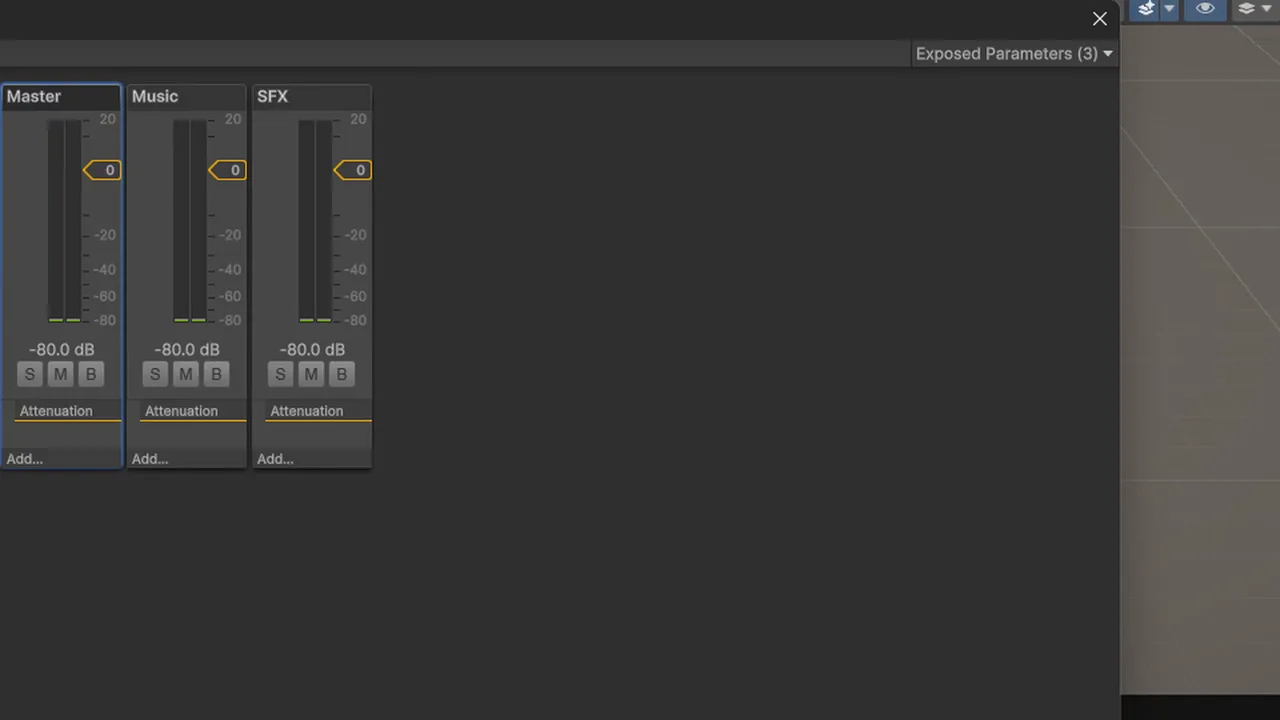
- At the top right of the Audio Mixer window, open the Exposed Parameters dropdown. Each one has a default name like “MyExposedParam”. Right-click each and rename it:
MasterVolume,MusicVolume,SFXVolume.
The names are case-sensitive strings, and typos fail silently (SetFloat just returns false), so copy them exactly.
Why Sliders Need a Log Conversion
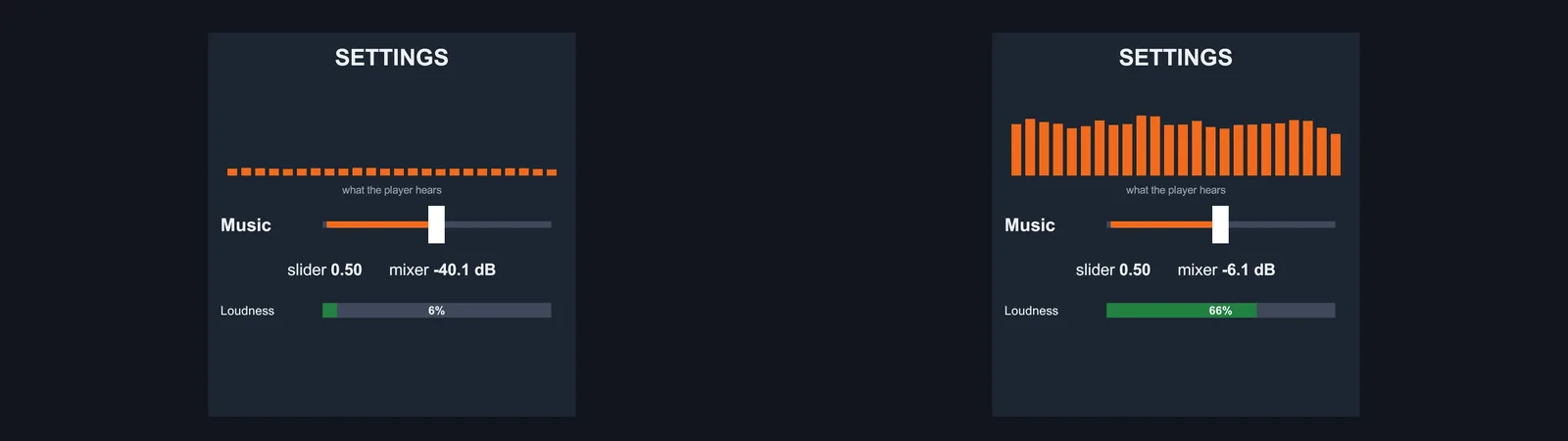
Mixer volume is in decibels, from -80 dB (silent) to +20 dB, with 0 dB meaning “unchanged”. Human hearing is logarithmic: -10 dB sounds roughly half as loud, -20 dB a quarter. If you map a slider linearly from -80 to 0, the middle of the slider is already -40 dB: the sound fades out quickly in the top half, and the whole bottom half is near silence. That’s the “my volume slider doesn’t work properly” bug.
The fix is to keep the slider in a linear 0–1 range and convert it to decibels with a logarithm:
float dB = Mathf.Log10(Mathf.Max(sliderValue, 0.0001f)) * 20f;Now 1 gives 0 dB (full), 0.5 gives about -6 dB, 0.1 gives -20 dB and 0.0001 gives -80 dB (silent). The Max guard matters, because Log10(0) is negative infinity, which the mixer doesn’t accept. Set your UI Slider’s Min Value to 0.0001 and Max Value to 1.
The Volume Settings Script
This script handles any number of sliders, saves to PlayerPrefs and restores values on startup:
using UnityEngine;
using UnityEngine.Audio;
using UnityEngine.UI;

public class VolumeSettings : MonoBehaviour
{
    [System.Serializable]
    public class Channel
    {
        public string parameter;   // e.g. "MusicVolume" (exposed parameter name)
        public Slider slider;
        [Range(0.0001f, 1f)] public float defaultValue = 0.8f;
    }

    [SerializeField] AudioMixer mixer;
    [SerializeField] Channel[] channels;

    void Start() // not Awake: see Troubleshooting
    {
        foreach (Channel c in channels)
        {
            float saved = PlayerPrefs.GetFloat(c.parameter, c.defaultValue);
            Apply(c.parameter, saved);

            if (c.slider == null) continue;
            c.slider.minValue = 0.0001f;
            c.slider.maxValue = 1f;
            c.slider.SetValueWithoutNotify(saved);

            string param = c.parameter; // capture for the lambda
            c.slider.onValueChanged.AddListener(v => { Apply(param, v); PlayerPrefs.SetFloat(param, v); });
        }
    }

    void Apply(string parameter, float linear)
    {
        mixer.SetFloat(parameter, Mathf.Log10(Mathf.Max(linear, 0.0001f)) * 20f);
    }

    void OnDisable() => PlayerPrefs.Save();
}
Set it up by adding the script to your settings menu, assigning the mixer, and adding one channel per slider with the exposed parameter name. A few deliberate choices:
SetValueWithoutNotifysets the slider’s starting position without firingonValueChanged, so it doesn’t write back the value it just read.- Values are stored linearly (0–1), not in dB. That keeps the conversion in one place and makes the saved values easy to read.
PlayerPrefs.Save()on disable ensures values are written even if the game crashes later. PlayerPrefs is ideal for small settings like these; for full game progress use a proper JSON save system.
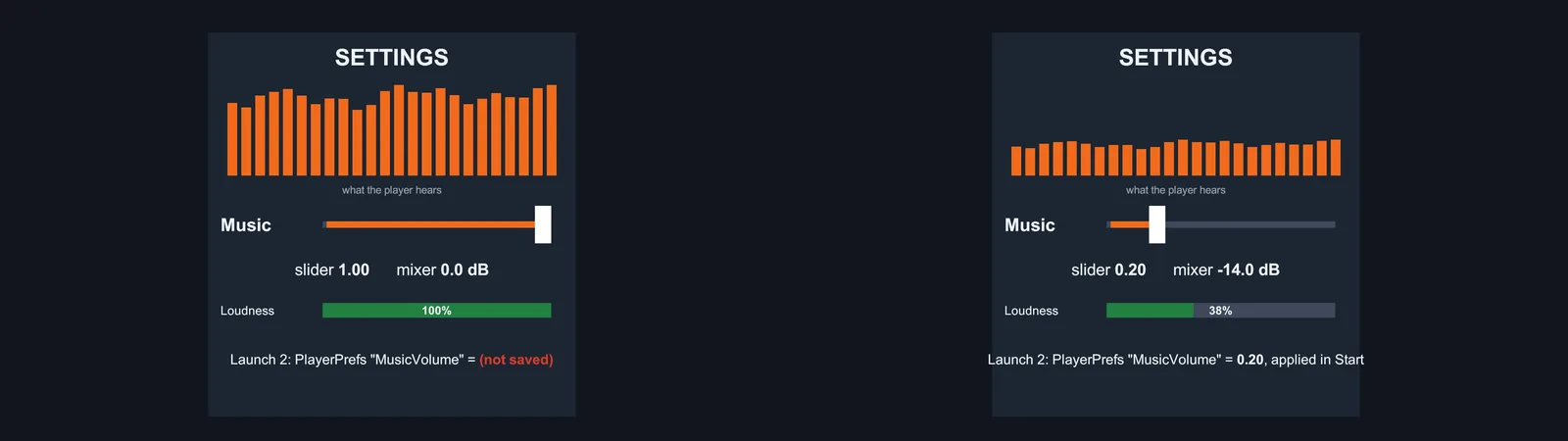
Important: the settings menu might not exist until the player opens it, but volume must be applied as soon as the game starts. Put a copy of the “apply saved values” loop in a startup object (a bootstrap scene or game manager) as well, or the game plays at full volume until the menu is opened once.
If your menu uses UI Toolkit instead of uGUI, the same logic applies with a Slider element and RegisterValueChangedCallback. Our UI Toolkit vs uGUI guide helps you choose.
Mute Toggles and Sensible Defaults
A mute toggle should remember the slider position so unmuting restores it:
public void SetMusicMuted(bool muted)
{
    float v = muted ? 0.0001f : PlayerPrefs.GetFloat("MusicVolume", 0.8f);
    mixer.SetFloat("MusicVolume", Mathf.Log10(v) * 20f);
    PlayerPrefs.SetInt("MusicMuted", muted ? 1 : 0);
}
Default to around 0.7–0.8 rather than 1 for music, so the first launch isn’t blasting. Many players also appreciate a separate “mute when the game is in the background” option: AudioListener.pause = !hasFocus in OnApplicationFocus.
Snapshots, Pause Menus and Ducking
Snapshots save the whole mixer state (every volume, effect setting and send level). Use them for moods: Normal, Paused (music lowered, a low-pass filter on SFX for a muffled feel), Underwater. Create them in the Snapshots panel, change values while that snapshot is selected, then blend between them from code:
[SerializeField] AudioMixerSnapshot normal, paused;

public void Pause(bool isPaused)
{
    (isPaused ? paused : normal).TransitionTo(0.3f);
}
A catch: snapshots also store the exposed volume parameters, and exposed parameters set by script override snapshot values. If the player’s Music slider drives the Music group volume, a snapshot can’t also change that same volume. The usual fix is an extra layer: let the player’s slider control the group’s volume, and put the snapshot change on a child group or on an effect (Low Pass, Duck Volume) instead.
Ducking lowers music automatically when dialogue plays. Add a Duck Volume effect to the Music group, add a Send effect on the Voice group targeting it, and tune Threshold and Ratio. The music now dips whenever voice is playing, with no code.
🎧 Mixing on laptop speakers?
A decent pair of headphones reveals clipping and balance problems that tiny speakers hide. Our gear guides cover what’s worth buying for a dev setup.
Organising Sounds in a Real Project
- Use one music player that persists across scenes (DontDestroyOnLoad) and crossfades between tracks with two AudioSources.
- Play one-shots with PlayOneShot on a few pooled AudioSources rather than adding a source to every object.
PlayOneShotlets clips overlap on one source. - Randomise pitch slightly (0.95–1.05) on repeated sounds such as footsteps and gunshots so they don’t sound robotic.
- Import settings: long music as Streaming with Vorbis compression; short, frequent SFX as Decompress On Load; medium sounds as Compressed In Memory. Wrong load types are a common cause of memory spikes on mobile.
- Limit voices: Project Settings > Audio > Max Real Voices caps how many sounds play at once; lower-priority sources get virtualised.
Troubleshooting
AudioMixer.SetFloat doesn’t work at startup
Calling SetFloat in Awake gets overwritten when the mixer initialises its snapshot. Apply saved volumes in Start (or later). This is a long-standing Unity behaviour, not a bug in your code.
SetFloat returns false and nothing changes
The parameter isn’t exposed or the name doesn’t match. Check the Exposed Parameters dropdown in the Audio Mixer window and copy the name exactly; it’s case-sensitive.
The volume slider goes silent halfway down
The slider maps linearly to decibels, so its middle is already -40 dB. Use a 0.0001–1 slider and convert with Mathf.Log10(value) * 20.
Some sounds ignore the volume slider
Their AudioSource Output isn’t set to a mixer group, so they bypass the mixer. Check prefabs and sounds spawned at runtime, including AudioSource.PlayClipAtPoint, which creates a temporary source with no output group. Use your own pooled sources instead.
Volume resets every time the game starts
Values are never saved, saved under a different key, or applied only when the settings menu opens. Save on change with PlayerPrefs and apply from a startup script.
Audio crackles or pops
Usually clipping: too many loud sounds summing above 0 dB on the Master group. Lower group levels, add a Compressor or Limiter-style effect on Master, and check the Master meter during busy moments.
FAQ
How do I make a volume slider in Unity?
Route AudioSources into Audio Mixer groups, expose each group’s Volume parameter, then call mixer.SetFloat with Mathf.Log10(sliderValue) * 20 from the slider’s onValueChanged event.
Why convert the slider value with Log10?
Mixer volume is in decibels, and hearing is logarithmic. The log conversion makes the slider sound even across its range instead of going silent halfway down.
How do I save volume settings in Unity?
Store the linear slider value with PlayerPrefs.SetFloat when it changes, then read it with PlayerPrefs.GetFloat and apply it in Start when the game launches.
What is the minimum volume of an Audio Mixer group?
-80 dB, which is effectively silent. Maximum is +20 dB. Zero dB means no change to the sound’s level.
Can I change AudioSource.volume instead of using a mixer?
Yes for a single source, but a mixer lets one slider control every sound in a category, and adds effects, snapshots and ducking.
What are Audio Mixer snapshots for?
Saving and blending between complete mixer states, such as a muffled pause-menu mix or an underwater filter, using TransitionTo with a fade time.
Reader questions
Asked by readers of this article and answered by AI. Behavior can differ between Unity versions, so test in yours.



Leave a Reply