

Prefabs are Unity’s reusable building blocks: make an enemy once, place it fifty times, change the original and all fifty update. They’re simple at first, then nested prefabs, variants and overrides arrive and suddenly changes “don’t apply” or a level designer’s tweak vanishes. This guide explains Unity prefabs properly: Prefab Mode, overrides and how to apply or revert them, nested prefabs, prefab variants, unpacking, and fixes for the common prefab headaches.
Quick answer
A prefab is a GameObject saved as a reusable asset; editing it updates every instance. A prefab variant (right-click a prefab > Create > Prefab Variant) inherits everything from a base prefab and stores only its differences, such as a faster enemy. A nested prefab is a prefab instance placed inside another prefab. Changes made on an instance are overrides: use Overrides > Apply All to push them to the prefab.
What a Prefab Is
A prefab is a GameObject saved as an asset, with all its components, children and settings. Drag any object from the Hierarchy into the Project window to create one. Its name in the Hierarchy turns blue, and copies placed in scenes are instances linked to the asset.
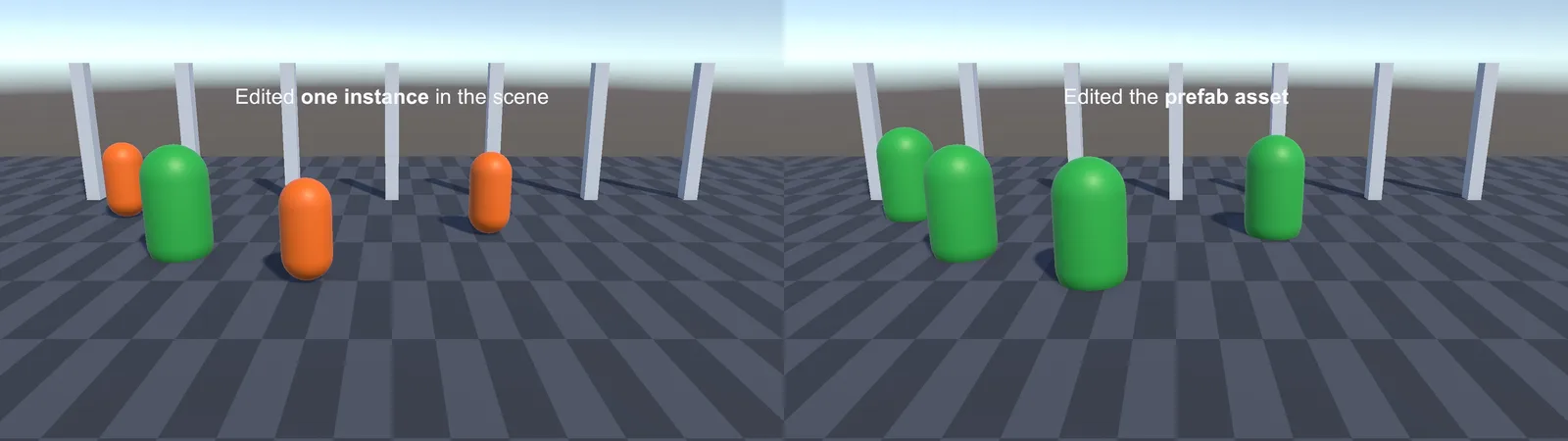
When you change the prefab asset, every instance updates, in every scene, unless that instance has overridden the property you changed. That override rule is the source of most confusion, so it gets its own section below.
Editing in Prefab Mode
Double-click a prefab asset, or click the arrow next to an instance in the Hierarchy, to open Prefab Mode. You’re now editing the asset itself, and changes save to it (with Auto Save on, as soon as you make them).
- In Isolation (opened from the Project window) shows just the prefab on a plain background.
- In Context (opened from an instance) shows the prefab in place in the scene, with the rest of the scene greyed out, which is handy for lining things up.
Use the breadcrumb or back arrow at the top of the Hierarchy to leave Prefab Mode.
Instance Overrides: Apply and Revert
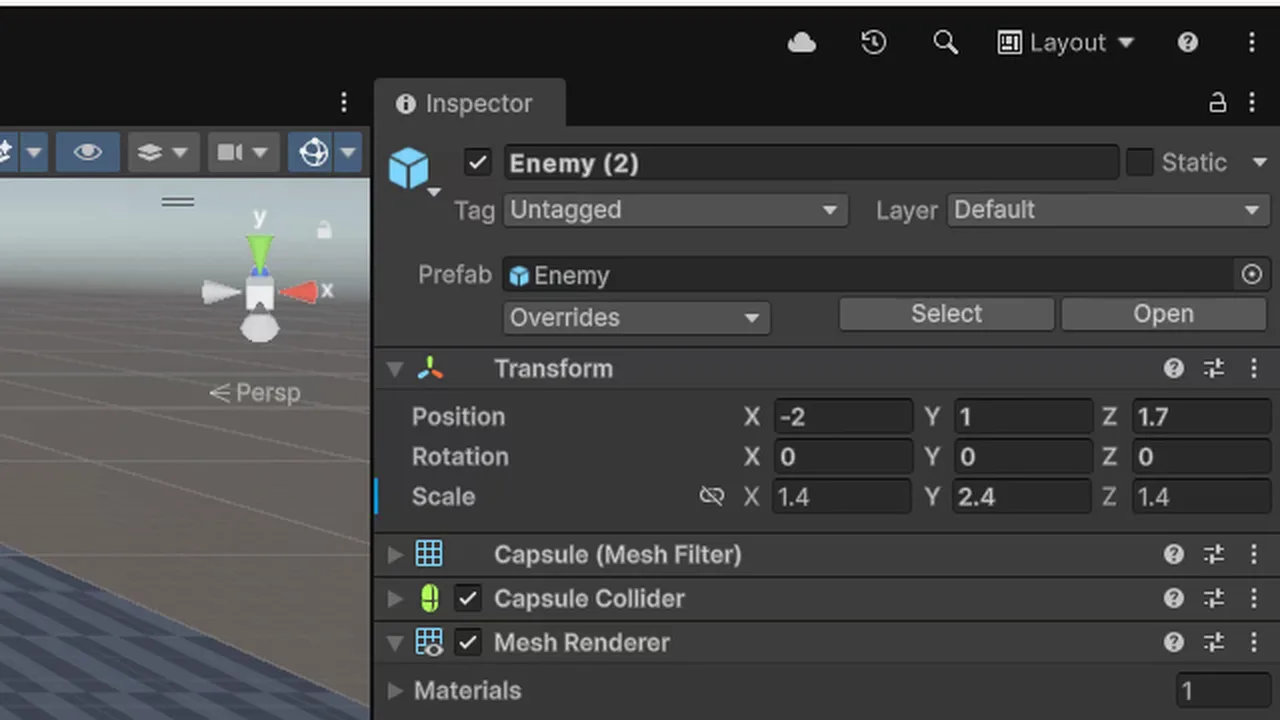
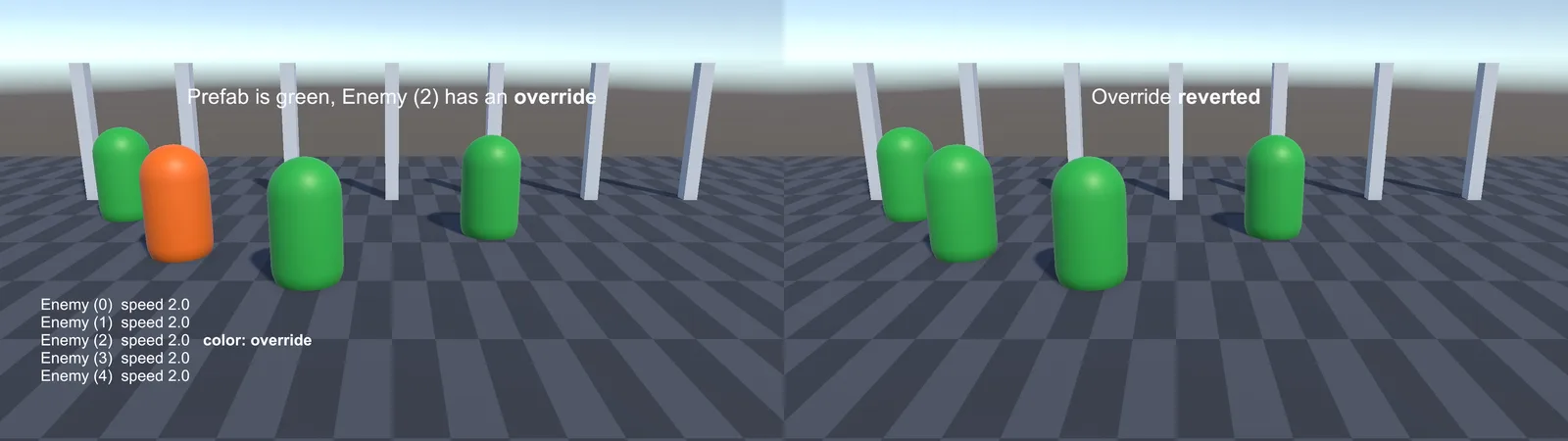
Changing something on an instance in the scene creates an override. The changed property shows in bold with a blue line in the Inspector margin. Overrides belong to that one instance and are kept even when the prefab asset changes.
The Overrides dropdown at the top of an instance’s Inspector lists every override:
- Apply All pushes the instance’s changes into the prefab asset, so every instance gets them.
- Revert All discards the changes and returns to the asset’s values.
- Click individual items to apply or revert just one. Right-click any property for Apply to Prefab / Revert.
| Override type | Example |
|---|---|
| Property value | This enemy has speed 5 instead of 3 |
| Added component | A light added to just this instance |
| Removed component | The AudioSource removed from just this instance |
| Added GameObject | A child added under the instance |
The position, rotation and name of an instance’s root are always per-instance, so they never apply to the prefab. That’s expected, since otherwise every instance would jump to the same place.
Nested Prefabs
Prefabs can contain other prefab instances. A Car prefab can contain four instances of a Wheel prefab. Change the Wheel prefab and every car’s wheels update. Change something on a wheel inside the Car, and you choose when applying whether it goes to the Car (an override on the nested wheel) or all the way down to the Wheel prefab.
Nested prefabs are perfect for modular levels: a Room prefab made of Wall, Door and Light prefabs. Keep nesting a few levels deep at most, since very deep chains get hard to reason about.
Prefab Variants
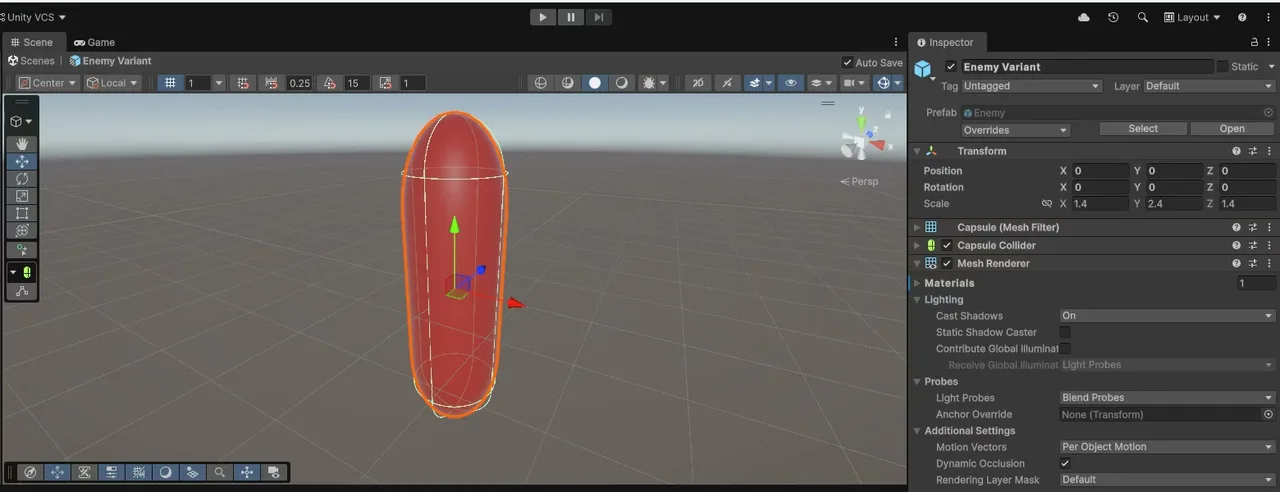
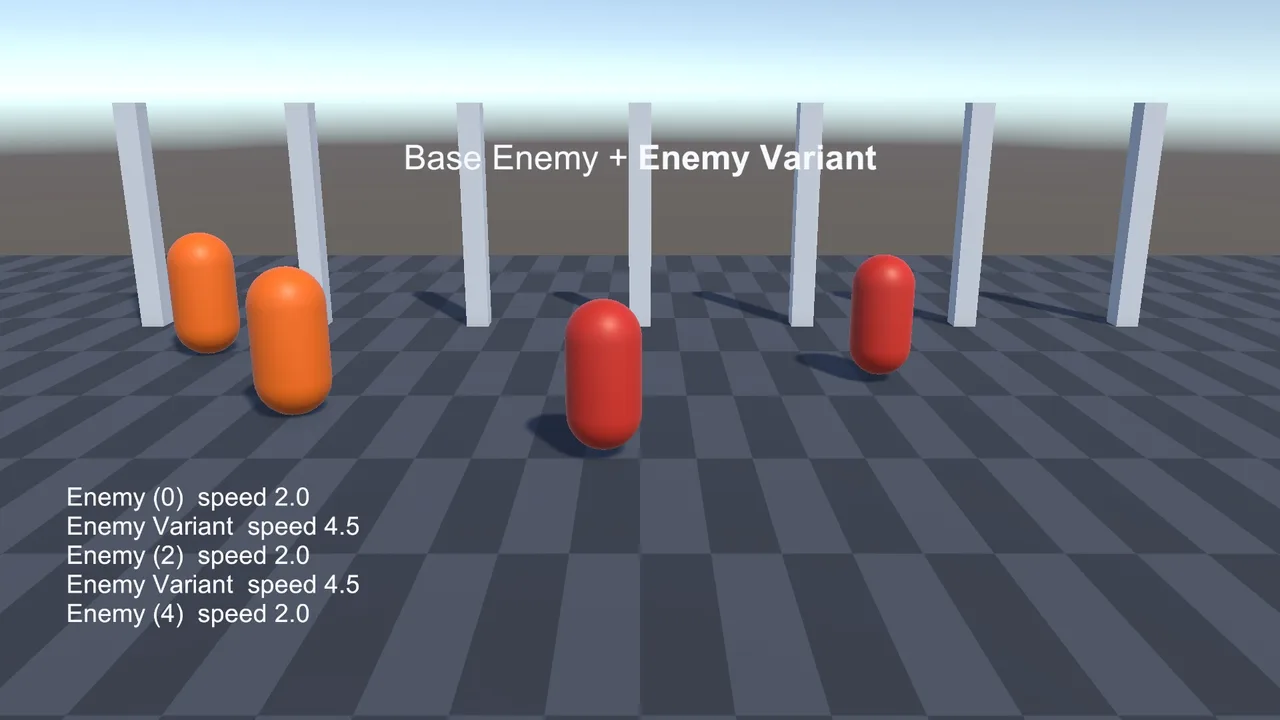
A prefab variant is a prefab based on another prefab that stores only its differences. Right-click a prefab and choose Create > Prefab Variant, or drag an instance with overrides into the Project window and choose Prefab Variant.
Example: a base Enemy prefab with the AI, health and collider set up, then variants for Enemy_Fast (higher speed, smaller), Enemy_Tank (more health, bigger mesh) and Enemy_Boss (extra components). Fix a bug in the base Enemy and all variants get it. Values a variant overrode stay as they are.
Variants vs ScriptableObjects: variants are great when objects differ in components or structure. If they differ only in numbers, a single prefab plus different ScriptableObject data assets is often cleaner (see our ScriptableObjects guide).
Unpacking Prefabs
Right-click an instance and choose Prefab > Unpack to break the link, turning it into ordinary GameObjects (nested prefabs inside stay linked). Unpack Completely breaks every level. Unpacking is permanent for that object, and it will never receive prefab updates again, so do it only when an object truly needs to become unique. If you just want to tweak values, an override or a variant is almost always better.
Imported models (FBX) behave like read-only prefabs (“model prefabs”). To add components, create a variant of the model or place it inside a new prefab, rather than unpacking.
Prefabs in Code
[SerializeField] GameObject enemyPrefab;        // or a component type, e.g. Enemy
[SerializeField] Enemy typedPrefab;

void Spawn(Vector3 pos)
{
    GameObject go = Instantiate(enemyPrefab, pos, Quaternion.identity);
    Enemy e = Instantiate(typedPrefab, pos, Quaternion.identity);   // returns the component directly
    e.Setup(player);
}
Referencing the prefab by its main component type saves a GetComponent call and prevents assigning the wrong prefab. Never modify the prefab asset from code at runtime (enemyPrefab.GetComponent<Enemy>().speed = 10). In the Editor that change sticks to the asset. Modify the instance returned by Instantiate. For things spawned constantly, pool them (see object pooling). The execution order of Instantiate (Awake runs immediately) is explained in our Awake vs Start guide.
🧱 Building modular levels?
Modular asset kits are built around prefabs and save huge amounts of time. Our Asset Store roundup includes level-building tools indies love.
A Workflow That Scales
- Make everything placed more than once a prefab, even simple props.
- Edit the asset, not instances, for changes meant for everyone. Review the Overrides dropdown before applying, so you don’t push a level-specific tweak to every instance.
- Use variants for families (enemy types, weapon tiers), with one base prefab per family.
- Keep scenes thin: a scene full of prefab instances produces small, readable diffs and fewer merge conflicts in version control. Prefabs also let teammates work on separate assets (see Git for Unity).
- Name clearly:
PFB_Enemy_Base,PFB_Enemy_Tank, or a folder per category.
Troubleshooting
Changes to the prefab don’t show on an instance
That instance has an override for that property (shown in bold). Right-click the property and choose Revert, or use Overrides > Revert All.
“Missing Prefab” (red object in the Hierarchy)
The prefab asset was deleted or its .meta file was lost (often by moving files outside Unity or a bad Git commit). Restore the asset with its original .meta file. Always move assets inside the Unity Project window. Our missing script references guide covers the same GUID problem for scripts.
Can’t delete or reorder a child in an instance
Children that come from the prefab can’t be removed or reordered on an instance. Open Prefab Mode to change the structure, or unpack if the instance really must differ.
Scene references are lost when applying to the prefab
Prefab assets can’t reference objects in a scene (scene objects don’t exist when the prefab loads elsewhere). Assign scene references at runtime, for example in a spawner, or through a manager.
My edit in Prefab Mode didn’t save
Auto Save is off. Click Save at the top of the Scene view, or turn on Auto Save.
FAQ
What is a prefab in Unity?
A GameObject saved as a reusable asset. Instances placed in scenes stay linked, so changes to the prefab update them all.
What’s the difference between a nested prefab and a prefab variant?
A nested prefab is a prefab instance inside another prefab. A variant is a prefab that inherits from a base prefab and stores only its differences.
How do I apply changes from an instance to the prefab?
Use the Overrides dropdown at the top of the instance’s Inspector and click Apply All, or right-click a single property and apply it.
Should I unpack prefabs?
Rarely. Unpacking permanently breaks the link. Prefer overrides or variants.
Can a prefab reference objects in a scene?
Not as a saved asset. Assign scene references to instances after placing or spawning them.
Reader questions
Asked by readers of this article and answered by AI. Behavior can differ between Unity versions, so test in yours.



Leave a Reply