

A pause menu sounds like a five-minute job: set Time.timeScale = 0, show a panel, done. Then the music keeps playing, the camera still turns with the mouse, the menu’s own animations freeze, and resuming makes the player jump. This Unity pause menu tutorial builds a pause system that handles all of that: timeScale, input with the Input System, audio, unscaled UI animation, and a checklist for everything that keeps moving when it shouldn’t.
How Time.timeScale Works
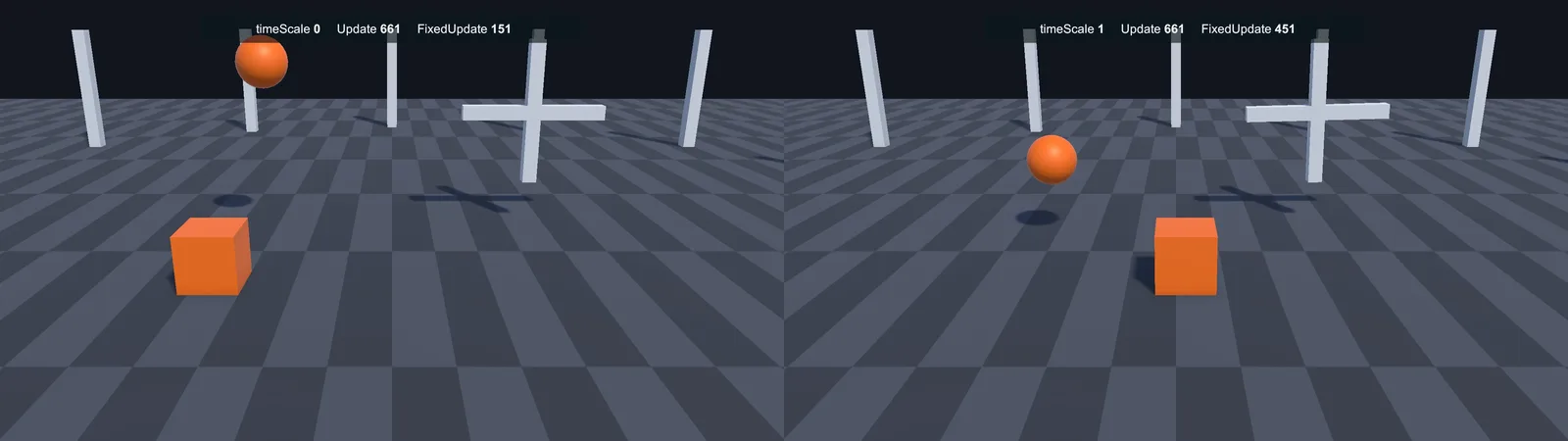
Time.timeScale scales how fast game time passes. At 1 it’s normal, at 0.5 slow motion, and at 0 frozen. When it’s 0:
Time.deltaTimebecomes 0, so anything moved byspeed * Time.deltaTimestops.- FixedUpdate stops running, so physics freezes.
- Animators using Normal update mode freeze. Particle systems pause.
- Coroutines using
WaitForSecondsstall.
But Update still runs every frame. Anything in Update that doesn’t use deltaTime, such as reading input, moving the camera by mouse delta, or setting positions directly, keeps working. That’s why “pausing” with timeScale alone isn’t enough.
The Pause Menu UI
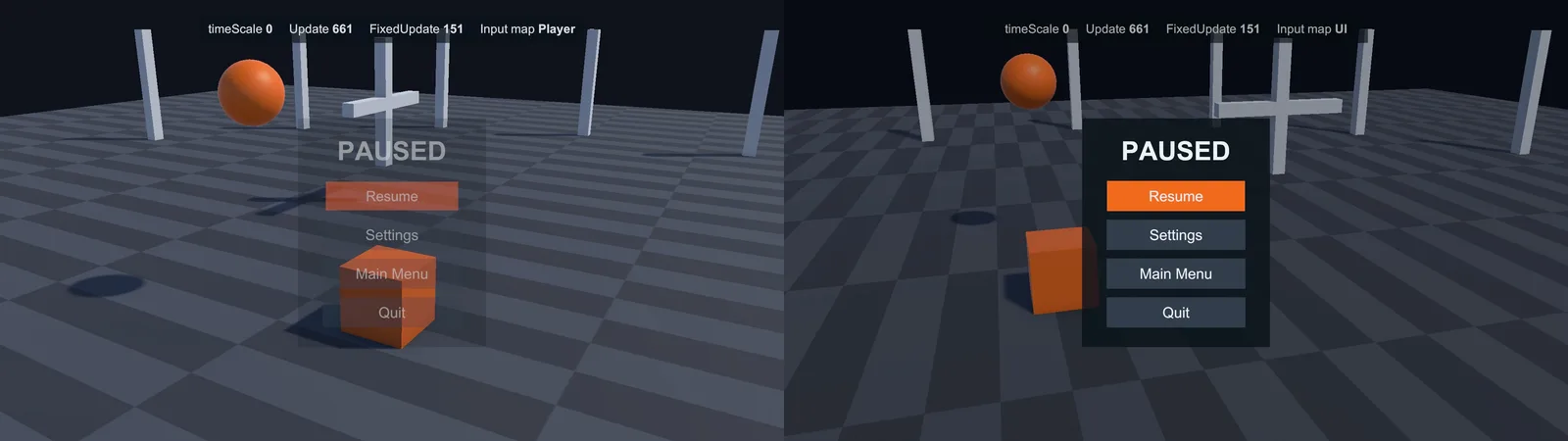
Under your HUD Canvas, create a PauseMenu panel that covers the screen with a semi-transparent dark Image, holding a vertical layout of buttons: Resume, Settings, Main Menu, Quit. Give the panel a CanvasGroup for fading, and disable the panel by default.
The Settings button can open the volume sliders from our Audio Mixer volume slider tutorial.
The PauseManager Script
using System;
using UnityEngine;
using UnityEngine.InputSystem;
using UnityEngine.SceneManagement;

public class PauseManager : MonoBehaviour
{
    public static bool IsPaused { get; private set; }
    public static event Action<bool> PauseChanged;

    [SerializeField] GameObject pauseMenu;
    [SerializeField] GameObject firstSelected;     // Resume button, for gamepad navigation
    [SerializeField] InputActionReference pauseAction;
    [SerializeField] PlayerInput playerInput;      // optional: switch action maps
    [SerializeField] string mainMenuScene = "MainMenu";

    void OnEnable()
    {
        pauseAction.action.Enable();
        pauseAction.action.performed += OnPausePressed;
    }

    void OnDisable() => pauseAction.action.performed -= OnPausePressed;

    void OnPausePressed(InputAction.CallbackContext _) => SetPaused(!IsPaused);

    public void SetPaused(bool paused)
    {
        if (paused == IsPaused) return;
        IsPaused = paused;

        Time.timeScale = paused ? 0f : 1f;
        AudioListener.pause = paused;
        pauseMenu.SetActive(paused);

        Cursor.lockState = paused ? CursorLockMode.None : CursorLockMode.Locked;
        Cursor.visible = paused;

        if (playerInput) playerInput.SwitchCurrentActionMap(paused ? "UI" : "Player");
        if (paused) UnityEngine.EventSystems.EventSystem.current.SetSelectedGameObject(firstSelected);

        PauseChanged?.Invoke(paused);
    }

    public void Resume() => SetPaused(false);   // hook to the Resume button

    public void LoadMainMenu()
    {
        SetPaused(false);                         // always restore timeScale before leaving
        SceneManager.LoadScene(mainMenuScene);
    }

    public void Quit()
    {
#if UNITY_EDITOR
        UnityEditor.EditorApplication.isPlaying = false;
#else
        Application.Quit();
#endif
    }

    void OnDestroy()
    {
        // Don't leave the game frozen if this object is destroyed while paused
        if (IsPaused) { Time.timeScale = 1f; AudioListener.pause = false; IsPaused = false; }
    }
}
The PauseChanged event lets any system react, such as hiding the HUD, stopping a timer or muting a voice line, without the PauseManager knowing about them. If events are new to you, see C# events in Unity.
Input: Pausing and Blocking Gameplay
Bind the Pause action to Escape and Gamepad Start. It needs to work in both action maps (Player and UI), so either add it to both maps, or keep it in a separate always-enabled action map (as in the script, which enables it directly).
Switching to the UI action map while paused is the cleanest way to stop gameplay input: the player can’t shoot, jump or turn the camera because those actions are disabled. If you don’t use action maps, check PauseManager.IsPaused at the top of your input handling. Our Input System guide covers action maps.
Also watch for the resume-click bug: clicking “Resume” with the mouse can also register as “Fire” on the same frame. Switching action maps avoids it, or ignore gameplay input for one frame after resuming.
Pausing Audio
AudioListener.pause = true pauses every AudioSource at once. To keep some sounds playing (menu music, UI clicks), set audioSource.ignoreListenerPause = true on those sources.
A nicer touch is to muffle the game audio instead of silencing it. Use an Audio Mixer snapshot with a low-pass filter on the SFX and Music groups, and transition to it on pause with pausedSnapshot.TransitionTo(0.2f). Mixer transitions use unscaled time, so they work at timeScale 0.
Animating UI While Paused
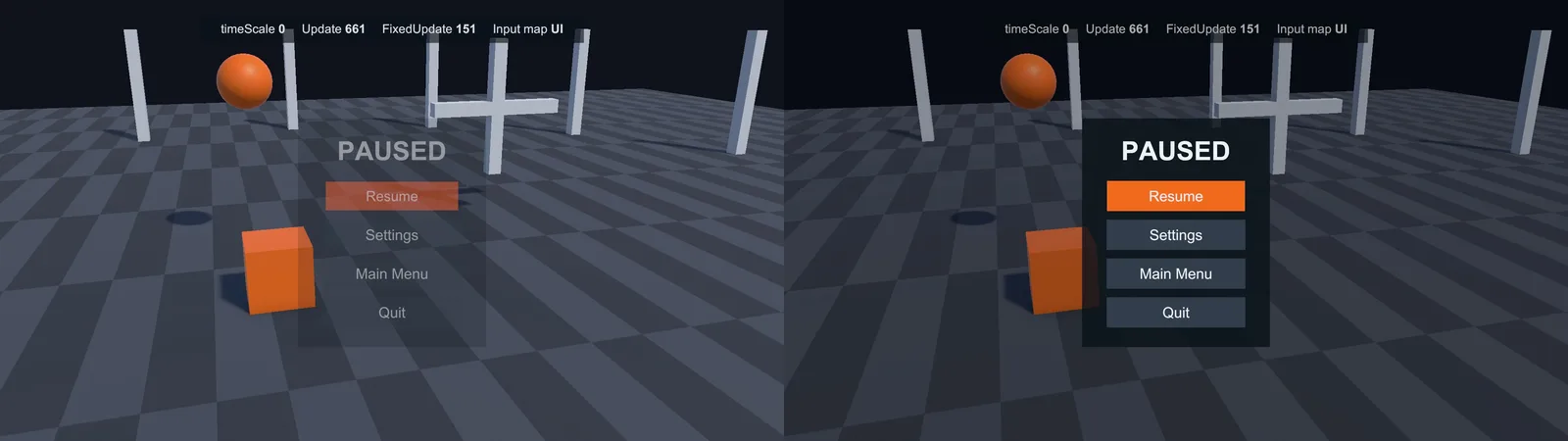
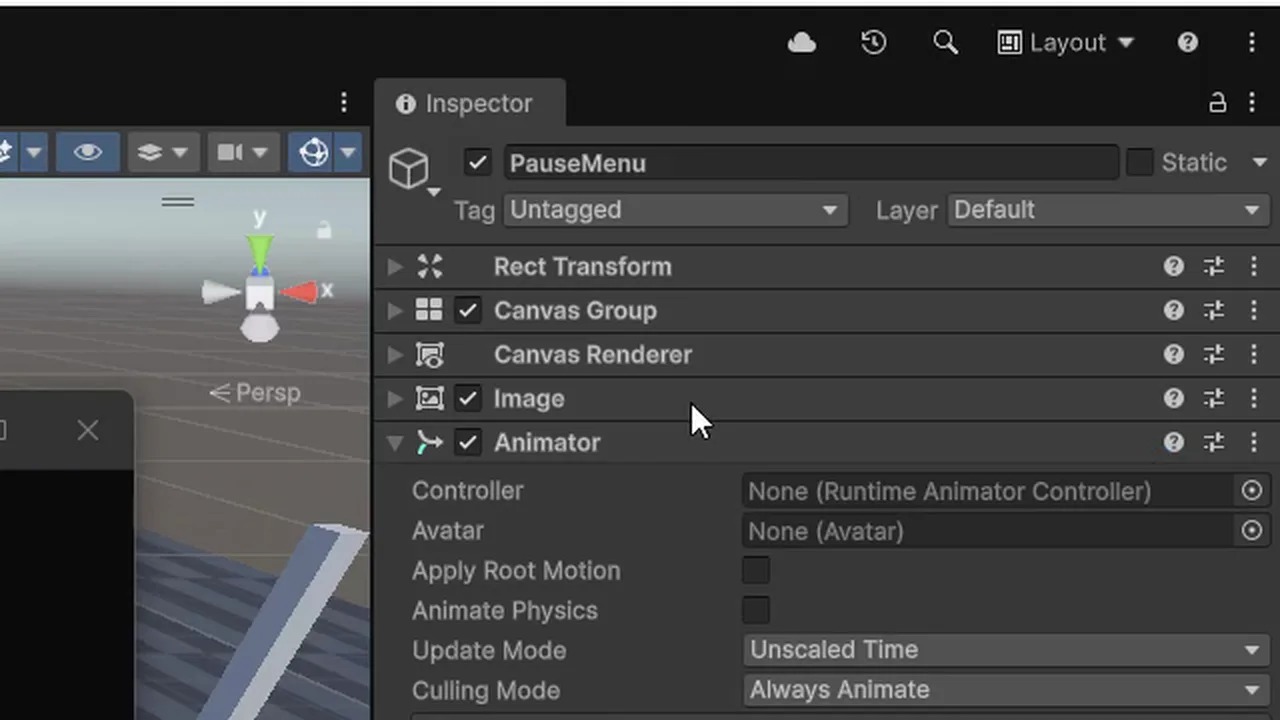
With timeScale at 0, your pause menu’s own animations freeze too. Fixes:
- Animator on menu elements: set Update Mode to Unscaled Time.
- Coroutines: use
WaitForSecondsRealtimeinstead of WaitForSeconds, andTime.unscaledDeltaTimein loops. - Particle systems in the menu: tick Use Unscaled Time in the Main module.
- Tween libraries: use their unscaled/independent update option.
IEnumerator FadeIn(CanvasGroup group, float duration)
{
    for (float t = 0; t < duration; t += Time.unscaledDeltaTime)
    {
        group.alpha = t / duration;
        yield return null;
    }
    group.alpha = 1f;
}
Auto-Pause on Focus Loss
Pause automatically when the player alt-tabs, or when a phone call or notification interrupts a mobile game:
void OnApplicationFocus(bool hasFocus)
{
    if (!hasFocus) SetPaused(true);
}

void OnApplicationPause(bool pauseStatus)   // mobile: app sent to background
{
    if (pauseStatus) SetPaused(true);
}
Don’t auto-resume when focus returns. Let the player press Resume when they’re ready. This is also a good moment to save progress on mobile (see our JSON save system guide).
🎨 Want polished menus without the grind?
Complete UI and menu kits on the Asset Store include pause, settings and transition screens ready to restyle. We’ve picked out the good ones.
Things That Keep Moving When Paused
The camera still turns with the mouse
Mouse delta doesn’t use deltaTime, so it ignores timeScale. Switch action maps on pause, or skip camera input when IsPaused. Unlocking the cursor helps too.
Objects moved with transform.position keep moving
They don’t multiply by Time.deltaTime. Movement in Update should always scale by deltaTime, which also fixes frame-rate dependence.
Animations keep playing
The Animator’s Update Mode is Unscaled Time. Set gameplay Animators to Normal or Animate Physics.
Everything is frozen after returning to the main menu
timeScale is still 0, because it persists across scene loads. Always set it back to 1 before loading another scene, as the script does.
The player jumps or shoots when I click Resume
The click is read as gameplay input on the same frame. Use action maps, or ignore input for one frame after resuming.
Physics objects jolt when resuming
Something kept adding force or changing velocity while paused. Guard physics code with the pause state, or move it fully into FixedUpdate, which stops at timeScale 0. The execution order is explained in Awake vs Start and the Unity lifecycle.
FAQ
How do I pause the game in Unity?
Set Time.timeScale to 0, pause audio with AudioListener.pause, show a menu, and disable gameplay input. Set everything back when resuming.
Does Update run when timeScale is 0?
Yes. Update still runs every frame, but Time.deltaTime is 0. FixedUpdate stops.
How do I animate UI while the game is paused?
Use Unscaled Time on Animators, WaitForSecondsRealtime in coroutines, and Time.unscaledDeltaTime in your own loops.
Why is my game frozen after loading a new scene?
Time.timeScale was left at 0. It isn’t reset by scene loads, so restore it to 1 first.
Should multiplayer games pause?
Online games usually can’t pause the shared simulation. Show a menu but keep timeScale at 1, and just block local input.
Reader questions
Asked by readers of this article and answered by AI. Behavior can differ between Unity versions, so test in yours.
Leave a Reply