
Raycasting is one of the most useful tools in Unity. It answers a simple question: “if I fire an invisible line from here in this direction, what does it hit first?” That one question powers shooting, ground checks, line-of-sight, mouse picking, interaction prompts and AI vision. It also causes a lot of confusion, because a raycast that silently hits nothing looks exactly like a raycast that never ran. This Unity raycast tutorial covers Physics.Raycast and its relatives, layer masks done properly, mouse picking with the Input System, 2D raycasts, and a debugging checklist for when your ray just won’t hit.
Quick answer
A raycast fires an invisible line and returns the first collider it hits: if (Physics.Raycast(transform.position, transform.forward, out RaycastHit hit, 100f, hitMask)) Debug.Log(hit.collider.name);. hit.point, hit.normal and hit.distance tell you where. Make hitMask a [SerializeField] LayerMask so the ray skips the player, and draw it with Debug.DrawRay when it seems to hit nothing.
How a Raycast Works
A ray has an origin (a point in world space) and a direction (a vector). Physics.Raycast asks the physics engine to trace that line up to a maximum distance and report the first collider it touches. Three facts explain most raycast behaviour:
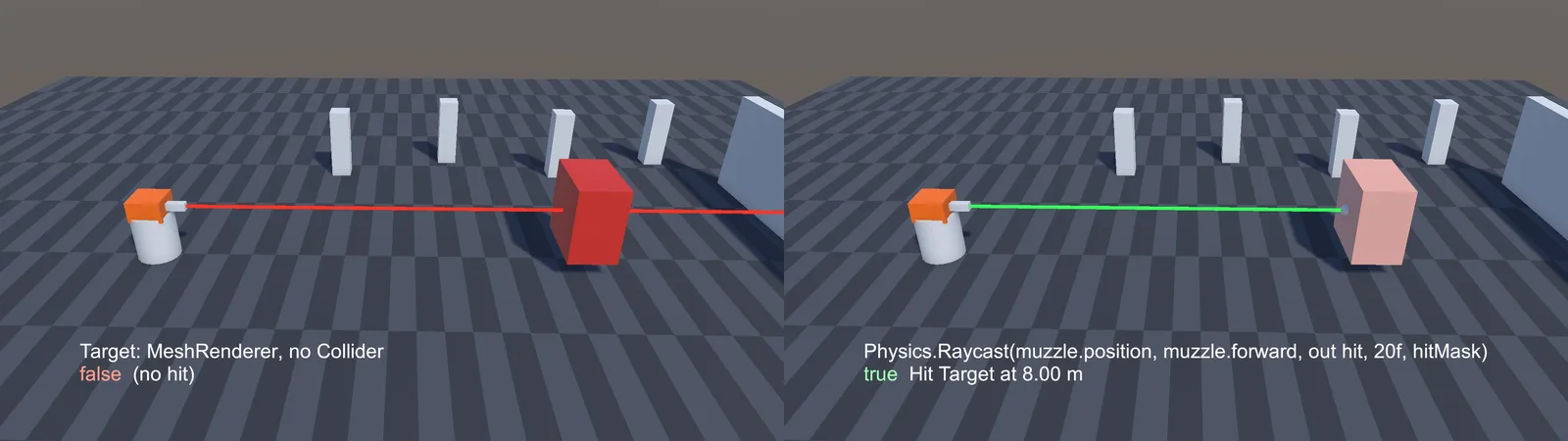
- Raycasts only hit colliders. A mesh without a collider is invisible to them, no matter how solid it looks.
- 3D raycasts (
Physics) only see 3D colliders. 2D raycasts (Physics2D) only see 2D colliders. They never mix. - A ray that starts inside a collider does not hit that collider. This is why a raycast from the centre of your player doesn’t hit the player.
Your First Raycast
This script fires a ray forward from the object every frame and logs what it hits:
using UnityEngine;

public class ForwardRay : MonoBehaviour
{
    [SerializeField] float maxDistance = 20f;

    void Update()
    {
        if (Physics.Raycast(transform.position, transform.forward, out RaycastHit hit, maxDistance))
        {
            Debug.Log($"Hit {hit.collider.name} at {hit.distance:F2} m");
        }
    }
}
The method returns true if something was hit, and fills hit with the details. Always pass a max distance. Without it the ray is infinite, which is slower and often hits things you didn’t intend, like a distant wall behind the target.
A classic use is a ground check. Cast a short ray down from just above the feet:
[SerializeField] LayerMask groundMask;

bool IsGrounded()
{
    Vector3 origin = transform.position + Vector3.up * 0.1f;
    return Physics.Raycast(origin, Vector3.down, 0.2f, groundMask);
}
Starting the ray slightly above the feet matters: if the origin is exactly on or below the ground surface, the ray starts inside the ground collider and misses it.
Reading RaycastHit
The RaycastHit struct gives you everything you need to react to the hit:
| Field | What it is | Typical use |
|---|---|---|
point |
World position where the ray hit | Spawn bullet holes, impact effects, move a cursor |
normal |
Surface direction at the hit point | Align decals, measure slope angle, reflect bullets |
distance |
Distance from origin to hit | Damage falloff, interaction range checks |
collider |
The collider that was hit | Get components, check tags |
rigidbody |
The Rigidbody on the hit object, if any | Apply force on impact |
transform |
Transform of the hit collider (or its Rigidbody) | Parent objects to what you hit |
To damage what you hit, look for a component rather than comparing names:
if (Physics.Raycast(ray, out RaycastHit hit, range, hitMask))
{
    if (hit.collider.TryGetComponent(out Health health))
        health.TakeDamage(damage);

    if (hit.rigidbody != null)
        hit.rigidbody.AddForceAtPosition(ray.direction * force, hit.point, ForceMode.Impulse);

    Instantiate(impactPrefab, hit.point, Quaternion.LookRotation(hit.normal));
}
If the collider is on a child object and the script is on the parent, use hit.collider.GetComponentInParent<Health>() instead.
Layer Masks (the Part Everyone Gets Wrong)
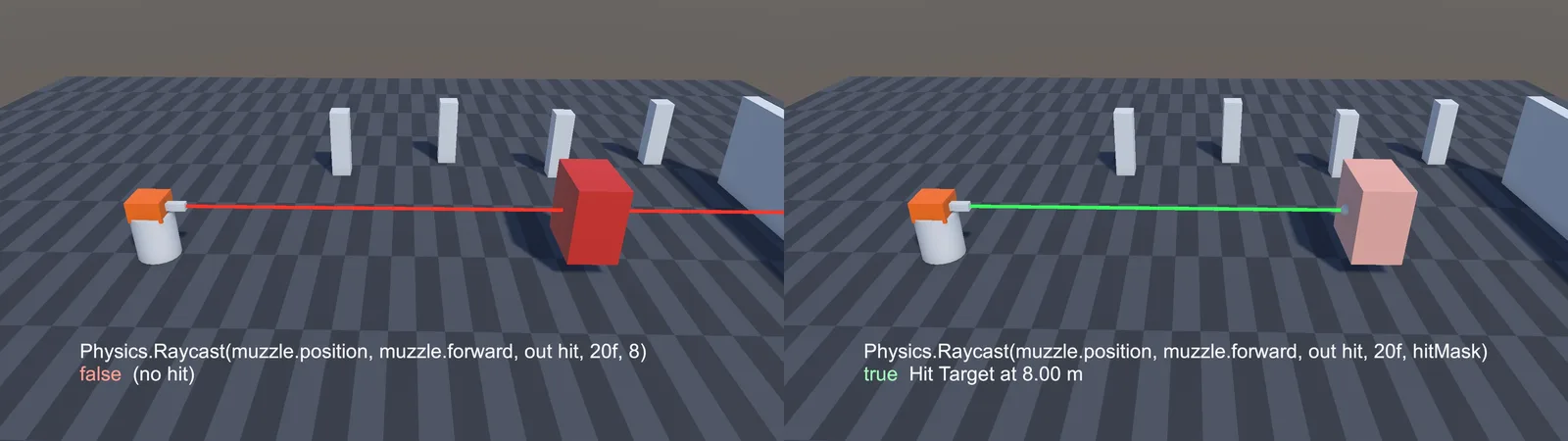
Layer masks decide which layers the ray can hit. The single most common raycast bug is passing a layer index where Unity expects a mask.
// WRONG: layer 8 as an int is treated as a bitmask (layer 3 only)
Physics.Raycast(origin, dir, out hit, 10f, 8);

// RIGHT: build a mask from the layer index
int mask = 1 << 8;

// BETTER: by name
int mask = LayerMask.GetMask("Ground", "Enemy");

// BEST: a LayerMask field you tick in the Inspector
[SerializeField] LayerMask hitMask;
A mask is a 32-bit number where each bit is one layer. 1 << 8 sets bit 8. 8 on its own is binary 1000, which is bit 3. Use a serialized LayerMask field: it shows a dropdown in the Inspector, stays correct if layers are renamed, and removes the bit maths entirely.
To hit everything except some layers, invert the mask:
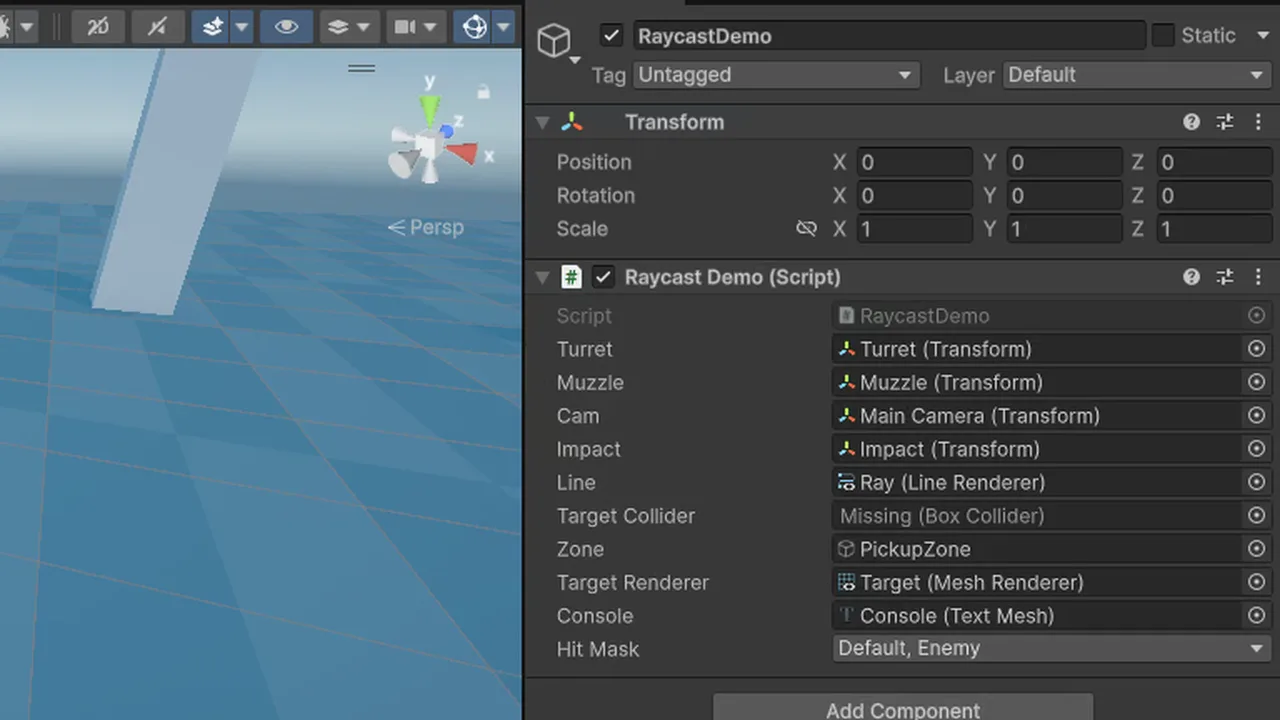
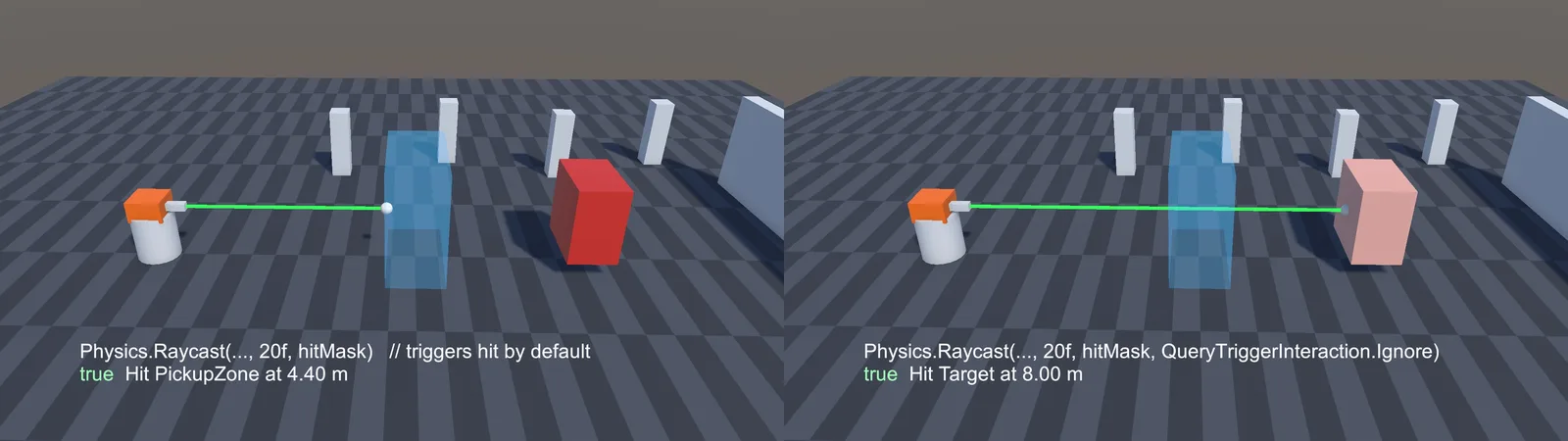
int mask = ~LayerMask.GetMask("Player", "Ignore Raycast");Two more things to know. The built-in Ignore Raycast layer is skipped by the default mask, so objects on it won’t be hit unless you include it explicitly. And by default raycasts hit trigger colliders (controlled by Project Settings > Physics > Queries Hit Triggers). To override that per call, pass a QueryTriggerInteraction:
Physics.Raycast(origin, dir, out hit, 50f, hitMask, QueryTriggerInteraction.Ignore);Ignoring triggers is usually what you want for shooting, otherwise bullets stop at invisible pickup zones and checkpoint volumes. If you’re not sure why an object isn’t being hit, our OnTriggerEnter checklist covers the same collider and layer pitfalls from the collision side.
Raycast from the Mouse or Screen Centre
To click on objects, convert the mouse position to a ray with Camera.ScreenPointToRay. With the Input System package (the default in Unity 6):
using UnityEngine;
using UnityEngine.InputSystem;

public class ClickSelect : MonoBehaviour
{
    [SerializeField] Camera cam;
    [SerializeField] LayerMask selectable;

    void Update()
    {
        if (Mouse.current == null || !Mouse.current.leftButton.wasPressedThisFrame) return;

        Ray ray = cam.ScreenPointToRay(Mouse.current.position.ReadValue());
        if (Physics.Raycast(ray, out RaycastHit hit, 500f, selectable))
            Debug.Log($"Selected {hit.collider.name}");
    }
}
If you’re still on the old Input Manager, Input.mousePosition works the same way. Our Input System tutorial covers wiring this to an action instead of polling the mouse.
For a first-person shooter, fire from the centre of the screen instead:
Ray ray = cam.ViewportPointToRay(new Vector3(0.5f, 0.5f, 0f));A common FPS pattern is to raycast from the camera to find what the crosshair is pointing at, then fire the visible projectile from the gun muzzle toward that point. Raycasting from the muzzle directly makes shots miss what the crosshair shows, because the gun isn’t at the eye.
Clicking through UI: a raycast doesn’t know about Canvas buttons, so clicking a button can also select the object behind it. Check EventSystem.current.IsPointerOverGameObject() first and skip the world raycast if it returns true.
SphereCast, BoxCast and RaycastAll
A ray is infinitely thin, so it can slip through gaps or miss small, fast targets. Shape casts sweep a volume along the line instead:
| Method | What it does | Good for |
|---|---|---|
Physics.Raycast |
Thin line, first hit | Bullets, mouse picking, line of sight |
Physics.SphereCast |
Sweeps a sphere, first hit | Forgiving ground checks, “fat” bullets, camera collision |
Physics.CapsuleCast |
Sweeps a capsule | Checking whether a character fits before moving |
Physics.BoxCast |
Sweeps a box | Vehicles, crates, melee hit volumes |
Physics.RaycastAll |
Every hit along the line (unsorted) | Piercing shots, X-ray scans |
Physics.Linecast |
Ray between two points | “Can the enemy see the player?” |
Two gotchas: shape casts don’t detect colliders that already overlap the shape at its start position (use Physics.OverlapSphere for that), and RaycastAll results are not sorted by distance. Sort them yourself if order matters.
A line-of-sight check for an AI enemy uses Linecast with a mask that includes walls but not the enemy itself:
bool CanSee(Transform target)
{
    Vector3 eye = transform.position + Vector3.up * 1.6f;
    Vector3 targetPoint = target.position + Vector3.up * 1.0f;
    return !Physics.Linecast(eye, targetPoint, obstacleMask, QueryTriggerInteraction.Ignore);
}
Raycasting in 2D
2D raycasts live in Physics2D and return a RaycastHit2D instead of using an out parameter:
RaycastHit2D hit = Physics2D.Raycast(transform.position, Vector2.down, 0.6f, groundMask);
if (hit.collider != null)
{
    Debug.Log($"Standing on {hit.collider.name}");
}
Check hit.collider != null (or just if (hit), since RaycastHit2D converts to bool). Two 2D-specific traps:
- By default, 2D raycasts that start inside a collider do hit it (Project Settings > Physics 2D > Queries Start In Colliders). That’s why a 2D ground check fired from the player’s centre keeps hitting the player. Untick the setting or exclude the player’s layer from the mask.
- For mouse picking in 2D, use
Physics2D.GetRayIntersection(cam.ScreenPointToRay(...))or convert the mouse to world space and callPhysics2D.OverlapPoint.
Visualising Rays
You can’t fix what you can’t see. Draw the ray every time you cast it:
bool didHit = Physics.Raycast(origin, dir, out RaycastHit hit, range, mask);
Debug.DrawRay(origin, dir.normalized * (didHit ? hit.distance : range),
              didHit ? Color.green : Color.red);
Debug.DrawRay and Debug.DrawLine show in the Scene view during Play mode, and in the Game view only if Gizmos are enabled there. Pass a duration (Debug.DrawRay(origin, dir, Color.red, 2f)) for one-off rays like gunshots, otherwise they vanish after one frame. For persistent visuals, draw in OnDrawGizmos with Gizmos.DrawLine and Gizmos.DrawWireSphere at the hit point.
🔧 Skip the boilerplate
Tools such as Odin Inspector and Physics debuggers on the Asset Store make it far easier to inspect masks, hits and gizmos while you play. We tested the ones worth paying for.
Performance: Non-Allocating Queries
A single raycast is cheap: you can do hundreds per frame on desktop. The allocations are what hurt. RaycastAll, OverlapSphere and similar methods return a new array every call, which creates garbage and eventually GC spikes. Use the NonAlloc versions with a reused buffer:
readonly RaycastHit[] hits = new RaycastHit[16];

void Scan()
{
    int count = Physics.RaycastNonAlloc(origin, dir, hits, range, mask);
    for (int i = 0; i < count; i++)
    {
        // hits[i] is valid; anything past count is stale data
    }
}
Other tips: keep ranges short, use tight layer masks so the physics engine can skip whole layers, and don’t raycast every frame for things that can be checked a few times per second (AI vision is fine at 5–10 Hz). For thousands of rays, RaycastCommand runs them as a batch on worker threads with the Job System. Measure before optimising with the Unity Profiler.
Raycast Not Hitting Anything? Troubleshooting
Physics.Raycast always returns false
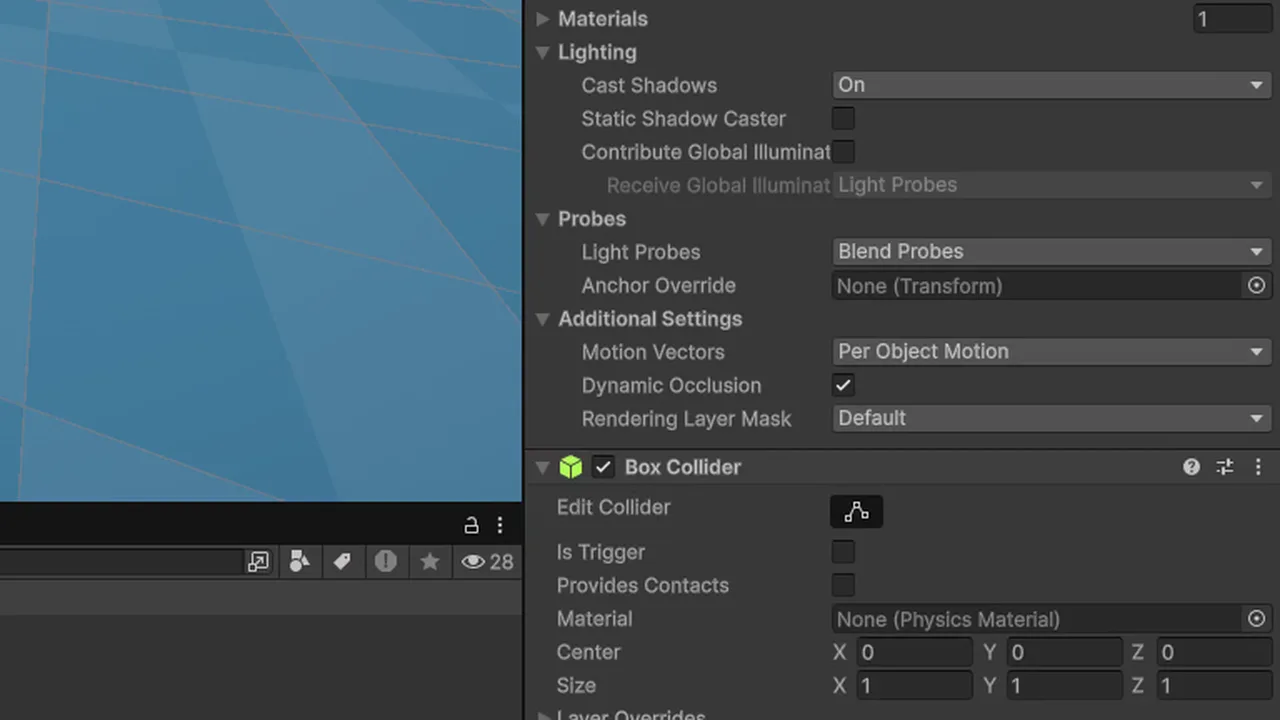
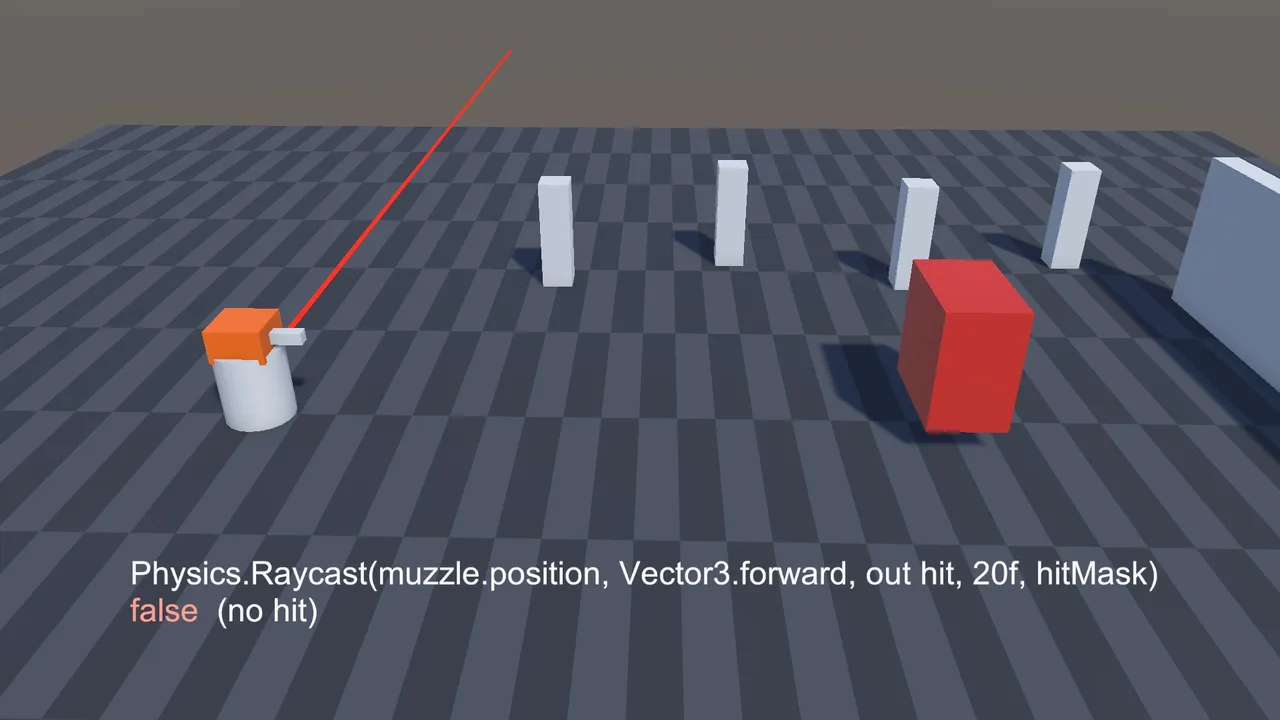
Work through these in order: the target has no collider; the collider is 2D and you’re using Physics (or the reverse); the max distance is too short; the layer mask excludes the target’s layer (or you passed a layer index instead of a mask); the direction is wrong, for example Vector3.forward (world forward) instead of transform.forward (the object’s forward). Draw the ray with Debug.DrawRay and most of these become obvious in seconds.
The raycast hits the player itself
The origin is inside or on the edge of the player’s own collider, or a child collider such as a weapon. Move the origin outside the collider, or put the player on its own layer and exclude it from the mask. In 2D, untick Queries Start In Colliders.
The raycast hits invisible things
It’s hitting trigger colliders (pickup zones, audio volumes, checkpoints). Pass QueryTriggerInteraction.Ignore, or move triggers to a layer the mask excludes.
Mouse raycast hits the wrong object or nothing
You’re using the wrong camera (Camera.main returns the camera tagged MainCamera, which may not be the one rendering), or the mouse position is being read from the old Input class while only the Input System is active, which throws InvalidOperationException. Also check that a UI element isn’t covering the screen.
Raycast works in the Editor but misses in the build
Usually frame-rate dependence: a fast object moves further per frame in a fast build and passes through the ray’s range between checks. Cast from the previous position to the current one (a Linecast) instead of a fixed short ray, or use shape casts. Also check that scenes in the build have the same layers (layers are project-wide, but prefabs from other projects can arrive on unexpected layers).
Raycast ignores a moving object
If you move objects by setting transform.position on a collider without a Rigidbody, the physics scene may not know about the new position until the next simulation step. Enable Auto Sync Transforms (slower) or call Physics.SyncTransforms() before the cast, and move physics objects with a Rigidbody instead.
FAQ
What is raycasting in Unity?
Raycasting fires an invisible line from a point in a direction and reports the first collider it hits, including the hit point, surface normal and distance. It’s used for shooting, ground checks, mouse picking and line of sight.
Does a raycast need a Rigidbody to hit an object?
No. A raycast hits any enabled collider on a layer included in the mask. A Rigidbody is only needed if you want to apply forces to what you hit.
How do I make a raycast ignore a layer?
Pass a layer mask that excludes it, for example ~LayerMask.GetMask("Player"), or use a serialized LayerMask field and untick the layer in the Inspector.
Why does my raycast hit triggers?
Queries hit triggers by default. Pass QueryTriggerInteraction.Ignore to the call, or turn off Queries Hit Triggers in Project Settings > Physics.
Should I raycast in Update or FixedUpdate?
Input-driven raycasts (clicking, shooting) belong in Update so no input is missed. Raycasts that feed physics movement, such as ground checks for a Rigidbody controller, fit better in FixedUpdate.
How many raycasts per frame is too many?
Hundreds are fine on desktop and dozens on mobile, as long as they’re non-allocating with short ranges and tight masks. For thousands, batch them with RaycastCommand.
Reader questions
Asked by readers of this article and answered by AI. Behavior can differ between Unity versions, so test in yours.

Leave a Reply