

Nearly every game needs a health bar, and Unity gives you several ways to build one, each with its own gotchas: Sliders with a stubby fill that won’t reach zero, world-space bars that face the wrong way, or bars that update every frame for no reason. This Unity health bar tutorial builds a clean screen-space bar with an Image fill, adds a smooth “damage trail” effect, then makes floating world-space enemy health bars that always face the camera, all driven by events instead of polling.
A Health Component With Events
Keep health logic separate from the UI. The Health component knows nothing about bars. It just announces changes:
using System;
using UnityEngine;

public class Health : MonoBehaviour
{
    [SerializeField] float maxHealth = 100f;
    public float Current { get; private set; }
    public float Max => maxHealth;

    public event Action<float, float> Changed;   // current, max
    public event Action Died;

    void Awake() => Current = maxHealth;

    public void TakeDamage(float amount)
    {
        if (Current <= 0f) return;
        Current = Mathf.Max(Current - amount, 0f);
        Changed?.Invoke(Current, maxHealth);
        if (Current == 0f) Died?.Invoke();
    }

    public void Heal(float amount)
    {
        Current = Mathf.Min(Current + amount, maxHealth);
        Changed?.Invoke(Current, maxHealth);
    }
}
Any number of UI elements, sound effects or achievements can listen without Health caring. If C# events are new to you, see our events and delegates guide.
Screen-Space Bar With a Filled Image
A filled Image is the most flexible approach and avoids the Slider’s quirks.
- Create a Canvas (Screen Space – Overlay) and under it an empty HealthBar object anchored top-left.
- Add a child Background Image (dark colour), stretched to fill.
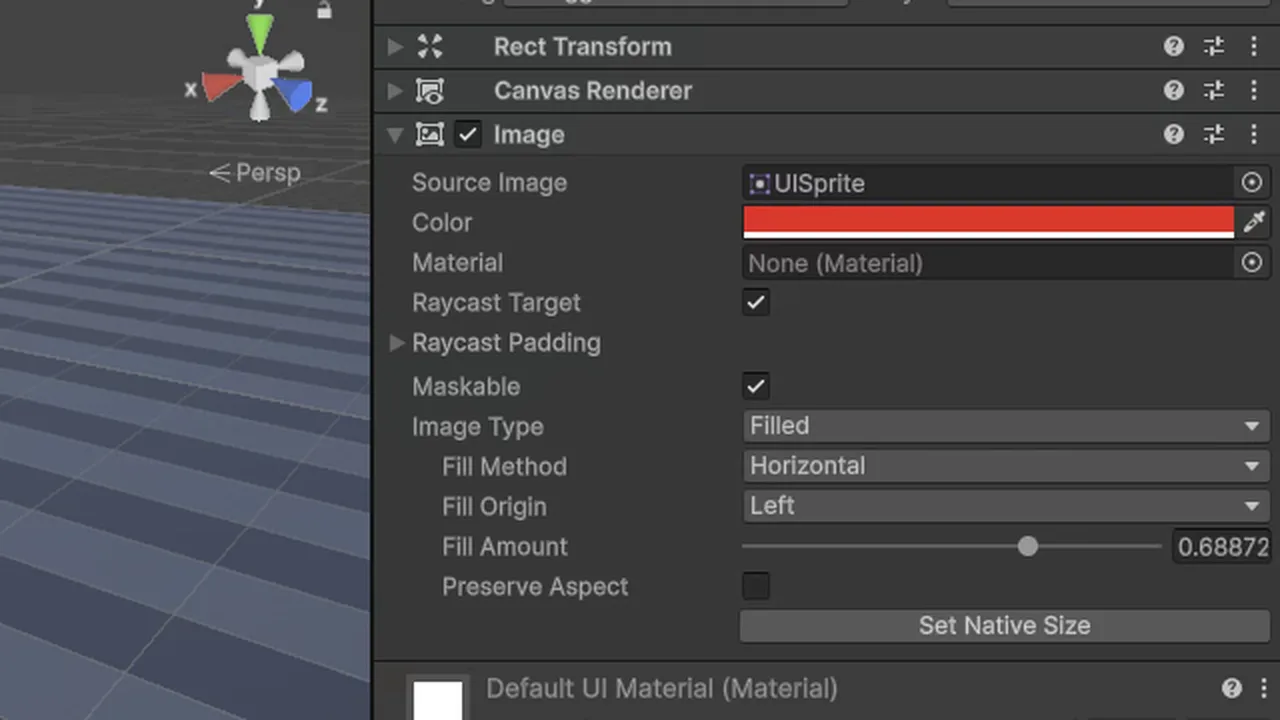
- Add a child Fill Image, stretched to fill. Assign any sprite (the built-in UISprite or a white square works). Set Image Type: Filled, Fill Method: Horizontal, Fill Origin: Left.
Image Type Filled only appears once a sprite is assigned, which is a common source of confusion. Now the script:
using UnityEngine;
using UnityEngine.UI;

public class HealthBar : MonoBehaviour
{
    [SerializeField] Health health;
    [SerializeField] Image fill;

    void OnEnable()
    {
        health.Changed += OnChanged;
        OnChanged(health.Current, health.Max);
    }

    void OnDisable() => health.Changed -= OnChanged;

    void OnChanged(float current, float max) => fill.fillAmount = current / max;
}
Always unsubscribe in OnDisable. Forgetting to do so leaves a dangling listener that throws a MissingReferenceException after the bar is destroyed.
If Health.Awake hasn’t run yet when the bar’s OnEnable fires, Current is 0 and the bar starts empty. Either set Current in the field initializer, or call the first update from Start.
Using a Slider Instead
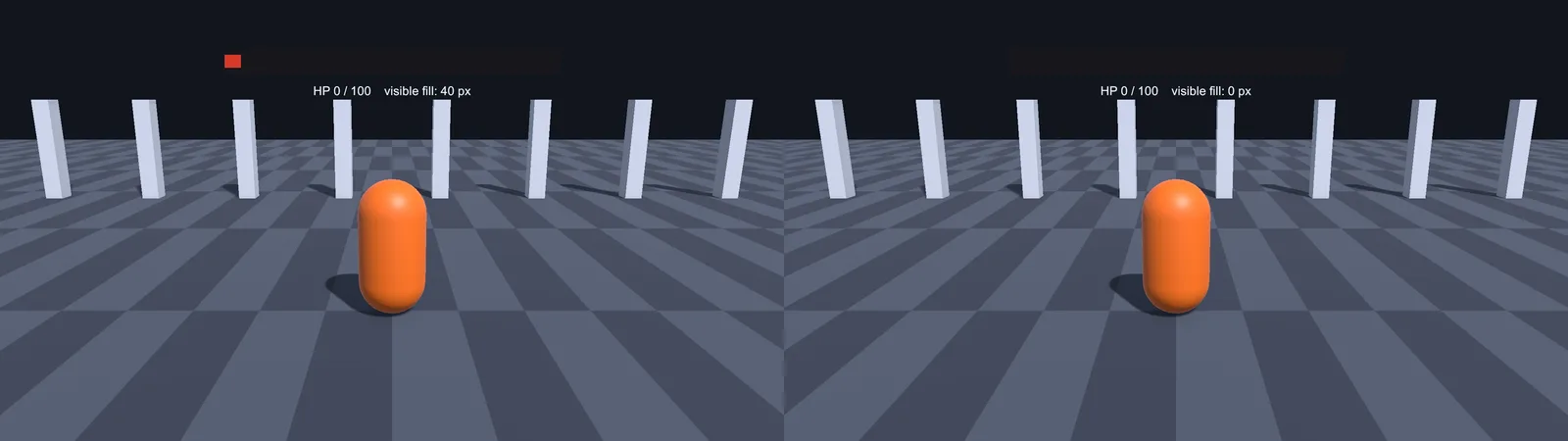
A UI > Slider works too. Delete the Handle Slide Area, untick Interactable, set Transition to None, then set slider.value = current / max (with Min 0, Max 1). The famous Slider problem: at value 0 a sliver of fill remains visible. That’s because the Fill Area has left and right padding and the fill sprite has a minimum width. Set the Fill Area’s Left and Right to 0 and the Fill rect’s Left and Right to 0, or just use the filled Image method above.
Smooth Drain and Damage Trail
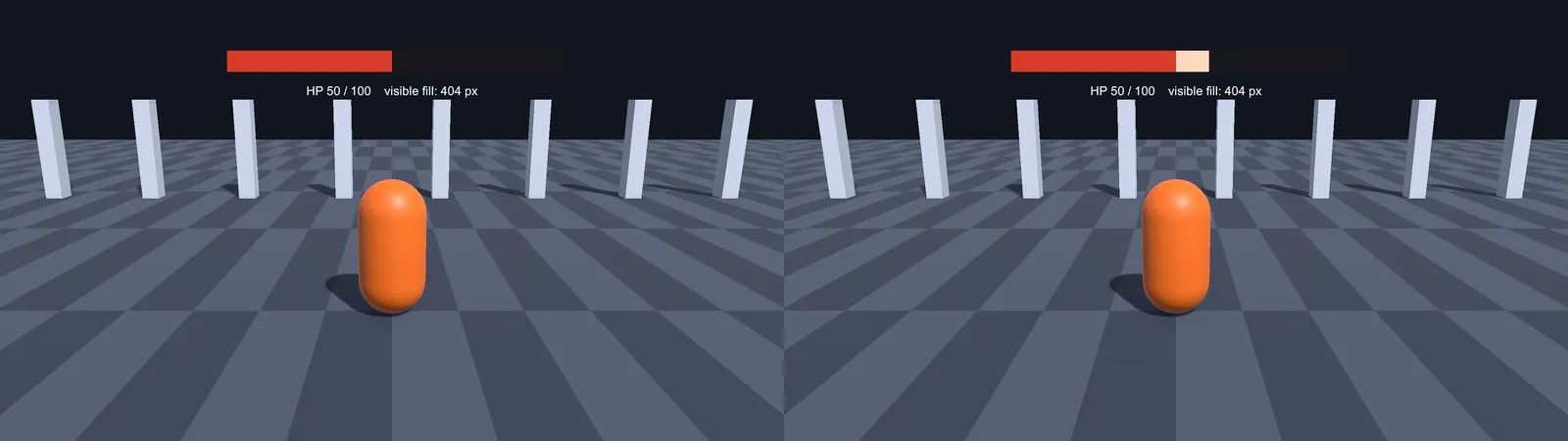
Many games show a bright bar that drops instantly plus a second bar behind it that drains slowly, so the player can see how much they lost. Add a second filled Image called Trail behind Fill (lighter red or white), then:
[SerializeField] Image trail;
[SerializeField] float trailDelay = 0.4f;
[SerializeField] float trailSpeed = 0.8f;   // fill units per second
float target, delayTimer;

void OnChanged(float current, float max)
{
    target = current / max;
    fill.fillAmount = target;
    if (target < trail.fillAmount) delayTimer = trailDelay;   // took damage
    else trail.fillAmount = target;                           // healed: snap trail
}

void Update()
{
    if (trail.fillAmount <= target) return;
    if (delayTimer > 0f) { delayTimer -= Time.deltaTime; return; }
    trail.fillAmount = Mathf.MoveTowards(trail.fillAmount, target, trailSpeed * Time.deltaTime);
}
The early return means Update does almost nothing when the bar is idle.
Colour by Health
Expose a Gradient and colour the fill from green to red:
[SerializeField] Gradient colourByHealth;

void OnChanged(float current, float max)
{
    float pct = current / max;
    fill.fillAmount = pct;
    fill.color = colourByHealth.Evaluate(pct);
}
Set the gradient in the Inspector: red at 0%, yellow at 40%, green at 100%. Don’t rely on colour alone: some players are colour-blind, so keep the bar length (and perhaps a number) as the main signal.
World-Space Enemy Health Bars
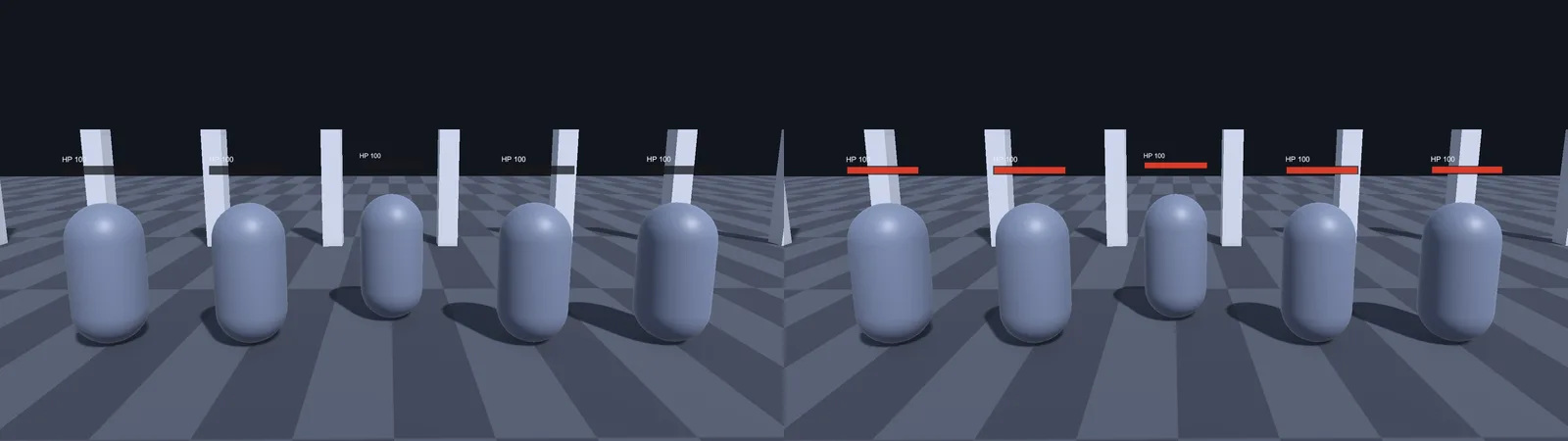
For bars above enemies’ heads, build the same bar under a World Space canvas that’s a child of the enemy:
- Create a Canvas as a child of the enemy prefab, set Render Mode to World Space, and assign the Event Camera.
- Set its Rect Transform to something like width 100, height 12, and Scale 0.01 so it’s about 1 unit wide. (Large world-space canvases at scale 1 are 100 m wide.)
- Position it above the head and add the Background/Fill images as before.
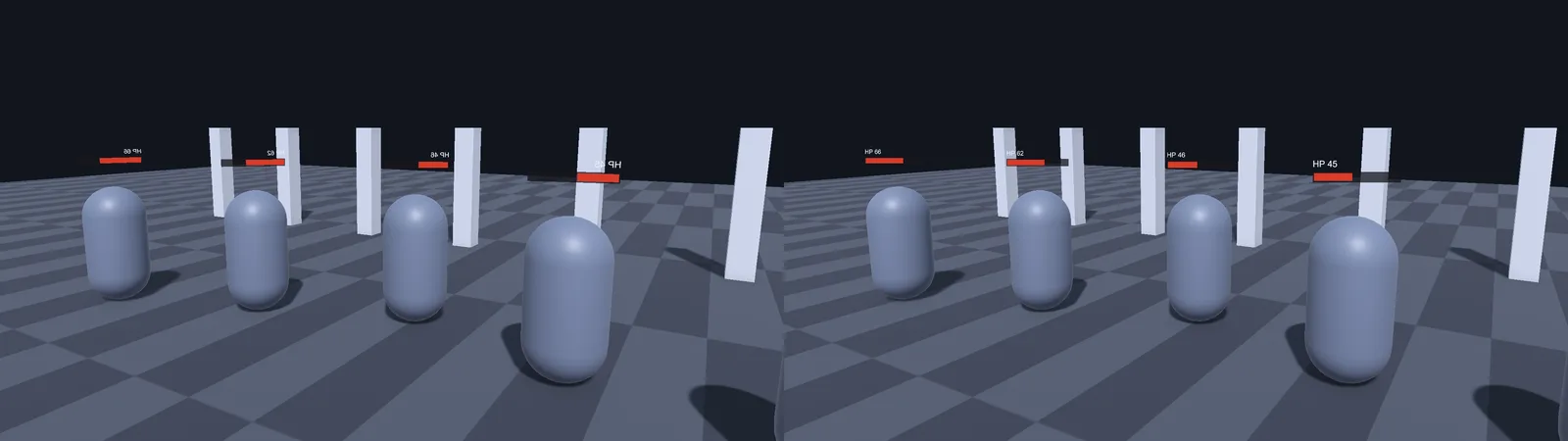
To make it face the camera (billboarding), copy the camera’s rotation in LateUpdate:
public class Billboard : MonoBehaviour
{
    Transform cam;
    void Start() => cam = Camera.main.transform;
    void LateUpdate() => transform.rotation = cam.rotation;
}
Copying the rotation is better than LookAt(cam), which mirrors the UI (it points the canvas’s front away from the camera) and makes bars at screen edges look skewed. Hide bars at full health with canvasGroup.alpha = pct < 1f ? 1f : 0f to reduce clutter.
✨ Want polished UI faster?
Ready-made UI packs and tween libraries save hours of fiddling with bars, popups and damage numbers. Here are the tools we think are worth paying for.
Lots of Enemies: Performance
- Event-driven updates (as above) mean a bar costs nothing when health doesn’t change. Avoid setting fillAmount in every Update.
- Each world-space canvas is a separate batch. With 100+ enemies, use one screen-space canvas and position pooled bars with
Camera.WorldToScreenPointin LateUpdate instead. Hide bars when the point is behind the camera (screenPos.z < 0). - Pool the bars with
ObjectPoolrather than instantiating per enemy (see object pooling in Unity). - Untick Raycast Target on every bar Image, since they don’t need clicks and it saves UI raycast work.
Troubleshooting
Image Type “Filled” option is missing
The Image has no Source Image. Assign any sprite and the Image Type dropdown appears.
fillAmount changes but the bar doesn’t
Image Type isn’t set to Filled (Simple images ignore fillAmount), or you’re editing a different Image than the one you see.
Slider never reaches zero
Padding in the Fill Area and the fill’s minimum width. Zero the Fill Area offsets, or switch to a filled Image.
World-space bar is huge or invisible
The canvas scale is 1 (enormous) or it’s facing away from the camera. Scale to around 0.01, and use the Billboard script.
Bar starts empty
The bar read health before Health.Awake set it. Initialize Current in its declaration or read health in Start.
FAQ
Slider or Image for a health bar?
A filled Image is simpler and avoids the Slider’s padding problem. A Slider is fine if you already have one styled.
How do I make a health bar face the camera?
Set the world-space canvas’s rotation to the camera’s rotation in LateUpdate.
How do I show health as a number?
Add a TextMeshPro text and set text = $"{current:0}/{max:0}" in the same Changed handler.
Should the health bar update in Update?
No, only when health changes. Use an event. Only the trail animation needs per-frame work, and only while it’s moving.
How do I make a circular health bar?
Use a filled Image with Fill Method Radial 360 and a ring sprite.
Reader questions
Asked by readers of this article and answered by AI. Behavior can differ between Unity versions, so test in yours.


Leave a Reply