

A red line in Unity’s Console that starts with error CS stops everything: you can’t enter Play Mode, you can’t build, and sometimes other scripts show as missing. These are C# compiler errors, and the good news is that each code means one specific thing. This guide decodes the ones Unity developers hit most (CS0246, CS0103, CS1061, CS0234, CS0117, CS0029 and CS0619), shows the Unity-specific cause behind each, and gives a before-and-after fix you can copy.
Quick answer
CS0246 (type or namespace not found): add the missing using line, install the package, or fix the spelling. CS0103 (name doesn’t exist in the current context): the variable or method is misspelled, out of scope, or declared in another class. CS1061 (type doesn’t contain a definition): you called a member that type doesn’t have, often a capitalisation typo or the wrong type. Always fix the first red error in the Console first.
How to Read a Unity Compiler Error
Every compiler error in the Console has the same shape:
Assets/Scripts/PlayerController.cs(14,9): error CS0103: The name 'speed' does not exist in the current contextAssets/Scripts/PlayerController.cs: the file.(14,9): line 14, column 9. Double-click the error in the Console and your code editor opens at that spot.CS0103: the error code. Search this, not the whole message.- The rest is the compiler’s description, with the names from your code filled in.
Three rules save a lot of time:
- Fix the first error first. One missing brace or
usingline can produce dozens of follow-on errors. Clear the top one, let Unity recompile, and many of the rest disappear. - Nothing runs until all errors are gone. While any compiler error exists, Unity shows “All compiler errors have to be fixed before you can enter playmode!” and keeps running the last successfully compiled version of your code. That’s why a change you just made “does nothing”.
- Warnings (yellow) don’t block anything. Only red
error CSlines need fixing right away.
If a project opens with compiler errors, Unity 6 offers to open it in Safe Mode. Safe Mode loads only enough of the Editor to fix scripts, which is exactly what you want when a package upgrade breaks compilation. Choose Enter Safe Mode, fix the errors, and Unity leaves Safe Mode automatically once everything compiles.
Quick Reference Table
| Code | Message starts with | Most common Unity cause |
|---|---|---|
| CS0246 | The type or namespace name ‘X’ could not be found | Missing using line or package not installed |
| CS0103 | The name ‘X’ does not exist in the current context | Typo or variable declared in a different scope |
| CS1061 | ‘Type’ does not contain a definition for ‘X’ | Wrong capitalization, or calling a component method on a GameObject |
| CS0234 | The type or namespace name ‘X’ does not exist in the namespace ‘Y’ | Package missing, or UnityEditor used in a build |
| CS0117 | ‘Type’ does not contain a definition for ‘X’ | Enum typo, or your own class hides a Unity class |
| CS0029 | Cannot implicitly convert type ‘A’ to ‘B’ | GameObject vs component mix-up |
| CS0619 | ‘X’ is obsolete: ‘…’ | Code from an old tutorial using a removed API |
CS0246: The Type or Namespace Name Could Not Be Found
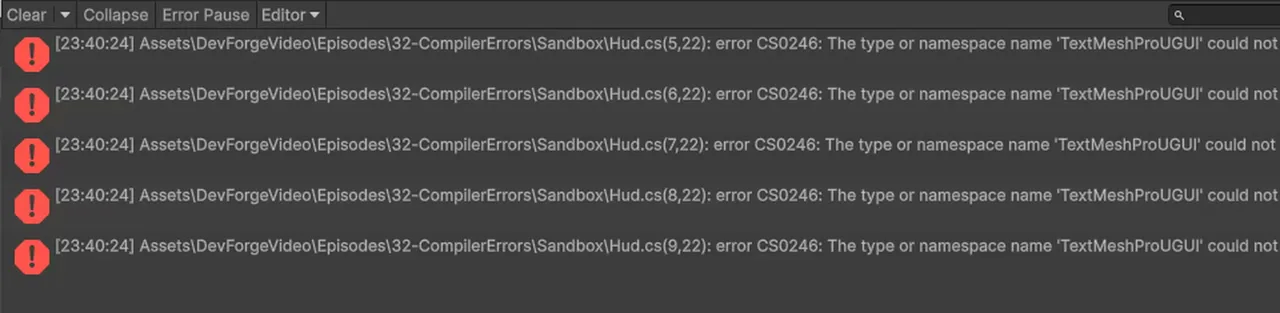
error CS0246: The type or namespace name 'TextMeshProUGUI' could not be found (are you missing a using directive or an assembly reference?)The compiler has never heard of the type you wrote. In Unity that almost always means one of these:
- A missing
usingdirective. The type exists, but it lives in a namespace you didn’t import. - The package isn’t installed. Input System, Cinemachine, AI Navigation and Addressables are packages. If the package isn’t in Window > Package Manager > In Project, its types don’t exist.
- A typo or wrong capitalization. C# is case-sensitive:
rigidbodyis notRigidbody. - The class you’re referencing failed to compile or has a different name. If
EnemyAI.csactually declaresclass EnemyAi, other scripts must useEnemyAi. - An assembly definition boundary. See assembly definitions below.
The namespaces Unity developers forget most often:
| Type | Add this line |
|---|---|
List<T>, Dictionary<K,V> |
using System.Collections.Generic; |
IEnumerator (coroutines) |
using System.Collections; |
TextMeshProUGUI, TMP_Text |
using TMPro; |
Image, Button, Slider |
using UnityEngine.UI; |
SceneManager |
using UnityEngine.SceneManagement; |
InputAction, Keyboard, PlayerInput |
using UnityEngine.InputSystem; |
NavMeshAgent |
using UnityEngine.AI; |
NavMeshSurface |
using Unity.AI.Navigation; |
CinemachineCamera (Cinemachine 3) |
using Unity.Cinemachine; |
ObjectPool<T> |
using UnityEngine.Pool; |
Before and after:
// Before: CS0246 on TextMeshProUGUI
using UnityEngine;

public class ScoreDisplay : MonoBehaviour
{
    [SerializeField] TextMeshProUGUI scoreText;
}

// After
using TMPro;
using UnityEngine;

public class ScoreDisplay : MonoBehaviour
{
    [SerializeField] TextMeshProUGUI scoreText;
}
A very common CS0246 after a package upgrade: Cinemachine 3 moved from the Cinemachine namespace to Unity.Cinemachine and renamed CinemachineVirtualCamera to CinemachineCamera, so every Cinemachine 2 script breaks. Our Cinemachine 3 guide covers the renames.
CS0103: The Name Does Not Exist in the Current Context
error CS0103: The name 'speed' does not exist in the current contextYou used a name (a variable, field or method) that isn’t visible from where you used it. Causes, most common first:
- Typo.
moveSpeeddeclared,movespeedused. - Scope. A variable declared inside
Start(), anifblock or a loop only exists inside those braces. - It lives on another script. You can’t use another component’s field by name alone. You need a reference to that component first.
- A missing
usingfor a static helper, less common, but it produces the same message.
// Before: CS0103, 'speed' only exists inside Start()
public class Mover : MonoBehaviour
{
    void Start()
    {
        float speed = 5f;
    }

    void Update()
    {
        transform.Translate(Vector3.forward * speed * Time.deltaTime);
    }
}

// After: make it a field, visible to every method (and editable in the Inspector)
public class Mover : MonoBehaviour
{
    [SerializeField] float speed = 5f;

    void Update()
    {
        transform.Translate(Vector3.forward * speed * Time.deltaTime);
    }
}
For “it’s on another script”, get a reference and go through it:
[SerializeField] PlayerHealth playerHealth; // drag the player in, in the Inspector

void OnHit()
{
    playerHealth.TakeDamage(10); // not TakeDamage(10) on its own
}
CS1061: Type Does Not Contain a Definition
error CS1061: 'GameObject' does not contain a definition for 'velocity' and no accessible extension method 'velocity' accepting a first argument of type 'GameObject' could be found (are you missing a using directive or an assembly reference?)The type exists, but the member you asked for doesn’t exist on that type. The usual Unity reasons:
- Calling a component member on a GameObject. A
GameObjecthas novelocity; itsRigidbodydoes. UseGetComponent<Rigidbody>()or a serializedRigidbodyfield. - Capitalization. Unity’s API uses PascalCase for methods:
AddForce, notaddForce;GetComponent, notgetComponent. Fields and properties on Unity types are usually camelCase:transform.position,rb.mass. - A renamed member. Unity 6 renamed
Rigidbody.velocitytolinearVelocityanddragtolinearDamping. The old names still compile with an obsolete warning, but third-party code that expects the new names fails with CS1061 in older Unity versions. - A missing
using System.Linq;: LINQ methods like.Where(),.First()and.ToList()are extension methods, so without the using line you get CS1061 on your list. - You named your own class after a Unity class. If your project contains a script called
ButtonorRigidbody, the compiler picks yours, and yours doesn’t have the members you expect. Rename your class.
// Before: CS1061
public class Launcher : MonoBehaviour
{
    [SerializeField] GameObject ball;

    void Launch()
    {
        ball.velocity = Vector3.up * 10f;
    }
}

// After: reference the component that owns the member (Unity 6 name)
public class Launcher : MonoBehaviour
{
    [SerializeField] Rigidbody ball;

    void Launch()
    {
        ball.linearVelocity = Vector3.up * 10f;
    }
}
Changing the field type from GameObject to Rigidbody is the cleanest fix. You can still drag the same object into the slot in the Inspector, and Unity picks up its Rigidbody.

CS0234: The Type or Namespace Does Not Exist in the Namespace
error CS0234: The type or namespace name 'InputSystem' does not exist in the namespace 'UnityEngine' (are you missing an assembly reference?)The first part of the using line is valid, but the rest isn’t there. In Unity this means:
- The package isn’t installed.
UnityEngine.InputSystemneeds the Input System package;UnityEngine.UIneeds the Unity UI (uGUI) package, which some templates remove. Install it from the Package Manager. - Editor code in a build. The build fails with
The type or namespace name 'UnityEditor' could not be found(CS0246) or a CS0234 on aUnityEditor.*namespace. TheUnityEditorassembly doesn’t exist in players. Move editor-only scripts into a folder namedEditor, or wrap editor-only code in#if UNITY_EDITOR. - An assembly definition is missing a reference to the package’s assembly.
using UnityEngine;
#if UNITY_EDITOR
using UnityEditor;
#endif

public class SpawnPoint : MonoBehaviour
{
#if UNITY_EDITOR
    void OnDrawGizmos()
    {
        Handles.Label(transform.position, name); // editor-only API
    }
#endif
}
This error is the reason “it works in the Editor but the build fails”. The Editor compiles everything together, while a player build leaves out the Editor assemblies. For more on editor code, see Unity Editor Scripting 101.
CS0117: Type Does Not Contain a Definition (Static Members)
error CS0117: 'KeyCode' does not contain a definition for 'Spacebar'CS0117 is CS1061’s sibling for things you access through the type itself: static methods, constants and enum values. Unity causes:
- Enum typos. It’s
KeyCode.Space,KeyCode.LeftShift,KeyCode.Return(not Enter). - Your class hides a Unity class. A script named
Input,Debug,RandomorTimein your project turnsInput.GetAxisinto “‘Input’ does not contain a definition for ‘GetAxis’”. Rename your script (and its file) or wrap your code in your own namespace. - A static member that was removed or never existed, often from an AI-generated or outdated snippet. Check the Scripting API for your Unity version.
// Before
if (Input.GetKeyDown(KeyCode.Spacebar)) Jump();

// After
if (Input.GetKeyDown(KeyCode.Space)) Jump();
If your project uses the new Input System only, Input.GetKeyDown compiles but throws at runtime. See our Input System guide for the replacement.

CS0029: Cannot Implicitly Convert Type
error CS0029: Cannot implicitly convert type 'UnityEngine.GameObject' to 'UnityEngine.Transform'You’re storing a value in a variable of an incompatible type. In Unity it’s usually GameObjects and components getting mixed up:
// CS0029: a GameObject is not a Transform
Transform target = GameObject.FindWithTag("Player");
// Fix: ask for its transform
Transform target = GameObject.FindWithTag("Player").transform;

// CS0029: Instantiate returns the same type you pass in
[SerializeField] Bullet bulletPrefab;
GameObject b = Instantiate(bulletPrefab);   // returns Bullet, not GameObject
// Fix: use the returned type
Bullet b = Instantiate(bulletPrefab);

// CS0029: GetComponent returns the type you ask for
Rigidbody rb = GetComponent<Collider>();
// Fix
Rigidbody rb = GetComponent<Rigidbody>();
Number conversions have their own codes. int hp = 7.5f; gives CS0266 (“An explicit conversion exists (are you missing a cast?)”), so use (int), Mathf.RoundToInt or Mathf.FloorToInt. float speed = 5.5; gives CS0664, because 5.5 is a double. Write 5.5f.

CS0619 and CS0618: Obsolete APIs
error CS0619: 'Component.rigidbody' is obsolete: 'Property rigidbody has been deprecated. Use GetComponent<Rigidbody>() instead. (UnityUpgradable)'Unity marks old APIs as obsolete before removing them. CS0618 is a warning (the API still works for now). CS0619 is an error: the API is gone and the message tells you what replaced it. This is the classic “I copied code from a 2014 tutorial” error. The old shortcut properties rigidbody, renderer, collider, audio and animation were removed long ago:
// Before: CS0619
rigidbody.AddForce(Vector3.up * 5f);

// After: cache the component once
Rigidbody rb;

void Awake()
{
    rb = GetComponent<Rigidbody>();
}

void Jump()
{
    rb.AddForce(Vector3.up * 5f, ForceMode.Impulse);
}
Unity 6 obsolete warnings (CS0618) you’ll see in older code:
| Old API | Unity 6 replacement |
|---|---|
FindObjectsOfType<T>() |
FindObjectsByType<T>(FindObjectsSortMode.None) |
FindObjectOfType<T>() |
FindFirstObjectByType<T>() or FindAnyObjectByType<T>() |
Rigidbody.velocity |
Rigidbody.linearVelocity |
Rigidbody.drag / angularDrag |
linearDamping / angularDamping |
When you open an older project, Unity’s API Updater offers to rewrite many of these automatically (the ones marked UnityUpgradable). Accept it, but commit to version control first so you can review the changes.
📚 Most of these errors disappear once C# clicks
Scope, types, static vs instance and namespaces cause nearly every error on this page. A good C# book teaches those basics in a weekend, and it’s much faster than learning them one red error at a time.
More Compiler Errors You’ll See in Unity
| Code | Message | Fix |
|---|---|---|
| CS1002 | ; expected | Missing semicolon at the end of the line above the reported position. |
| CS1513 / CS1022 | } expected / Type or namespace definition, or end-of-file expected | Unbalanced braces. Your editor’s brace highlighting finds the mismatch fastest. |
| CS0101 | The namespace ‘<global namespace>’ already contains a definition for ‘X’ | Two scripts declare the same class, often a sample or asset imported twice. Delete the duplicate or put one in a namespace. |
| CS0104 | ‘Random’ is an ambiguous reference between ‘UnityEngine.Random’ and ‘System.Random’ | Write the full name (UnityEngine.Random.Range) or add using Random = UnityEngine.Random;. Debug and Object cause the same error. |
| CS0120 | An object reference is required for the non-static field, method, or property | You called an instance method on the class name (PlayerController.Jump()). Get a reference to the actual component instead. |
| CS1612 | Cannot modify the return value of ‘Transform.position’ because it is not a variable | transform.position.x = 5 isn’t allowed. Copy, change, assign: var p = transform.position; p.x = 5; transform.position = p; |
| CS0165 | Use of unassigned local variable ‘X’ | Give the local a value on every code path before reading it. |
| CS0115 | ‘X’: no suitable method found to override | The base method’s name or signature differs, or it isn’t virtual/abstract. |
| CS0122 | ‘X’ is inaccessible due to its protection level | The member is private. Make it public, or better, add a public method that does what you need. |
| CS1503 | Argument 1: cannot convert from ‘A’ to ‘B’ | You passed the wrong type into a method, for example a Vector3 where a float is expected. |
| CS0019 | Operator ‘*’ cannot be applied to operands of type ‘Vector3’ and ‘Vector3’ | Use Vector3.Scale(a, b) for component-wise multiplication, or Vector3.Dot/Cross. |
Errors Caused by Assembly Definitions
If your project uses Assembly Definition files (.asmdef), each folder with one compiles into its own assembly, and it can only see assemblies it explicitly references. The symptom is a CS0246 or CS0234 on a type you know exists and works in other scripts.
- Select the
.asmdefthat owns the failing script. - Under Assembly Definition References, click + and add the assembly that contains the type:
Unity.InputSystem,Unity.TextMeshPro,Unity.Cinemachine,Unity.AI.Navigation, or your own game assembly. - Click Apply.
Two rules that trip people up: an assembly definition can’t reference the default Assembly-CSharp (scripts outside any asmdef), so shared code must move into its own asmdef; and two assemblies can’t reference each other in a circle.
Errors in Your Code Editor but Not in Unity (or the Reverse)
Unity’s Console is the source of truth. If VS Code or Visual Studio shows red squiggles everywhere but Unity compiles fine, your editor isn’t connected to the Unity project properly. If Unity shows errors but your editor doesn’t, the editor has stale project files. Both are fixed by regenerating the project files. Our IntelliSense fix guide walks through it.
FAQ
How do I fix error CS0246 in Unity?
Add the missing using line for the type’s namespace (for example using TMPro; or using UnityEngine.InputSystem;), install the package that provides the type, and check the spelling and capitalization. If you use assembly definitions, add a reference to the package’s assembly.
Why can’t I enter Play Mode?
Unity blocks Play Mode while any compiler error exists and shows “All compiler errors have to be fixed before you can enter playmode!”. Open the Console, clear the Collapse filter, and fix the first red error CS line.
Why does my game build fail but work in the Editor?
Usually a script outside an Editor folder uses the UnityEditor namespace. Players don’t include editor assemblies, so the build fails with CS0246 or CS0234. Move the script into an Editor folder or wrap the code in #if UNITY_EDITOR.
What’s the difference between CS1061 and CS0117?
Both mean “that member doesn’t exist”. CS1061 is for members accessed on an instance (myObject.Something); CS0117 is for members accessed on a type (SomeClass.Something, enum values, static methods).
Should I fix yellow warnings too?
They don’t block you, but read them. Obsolete warnings (CS0618) tell you which APIs will break in a future Unity version, and “variable assigned but never used” warnings often point at real bugs.
Can I ignore the errors and keep testing?
No. Until the errors are fixed, Unity keeps running the last version of your scripts that compiled, so any change you make won’t show up in Play Mode.
Reader questions
Asked by readers of this article and answered by AI. Behavior can differ between Unity versions, so test in yours.


Leave a Reply