
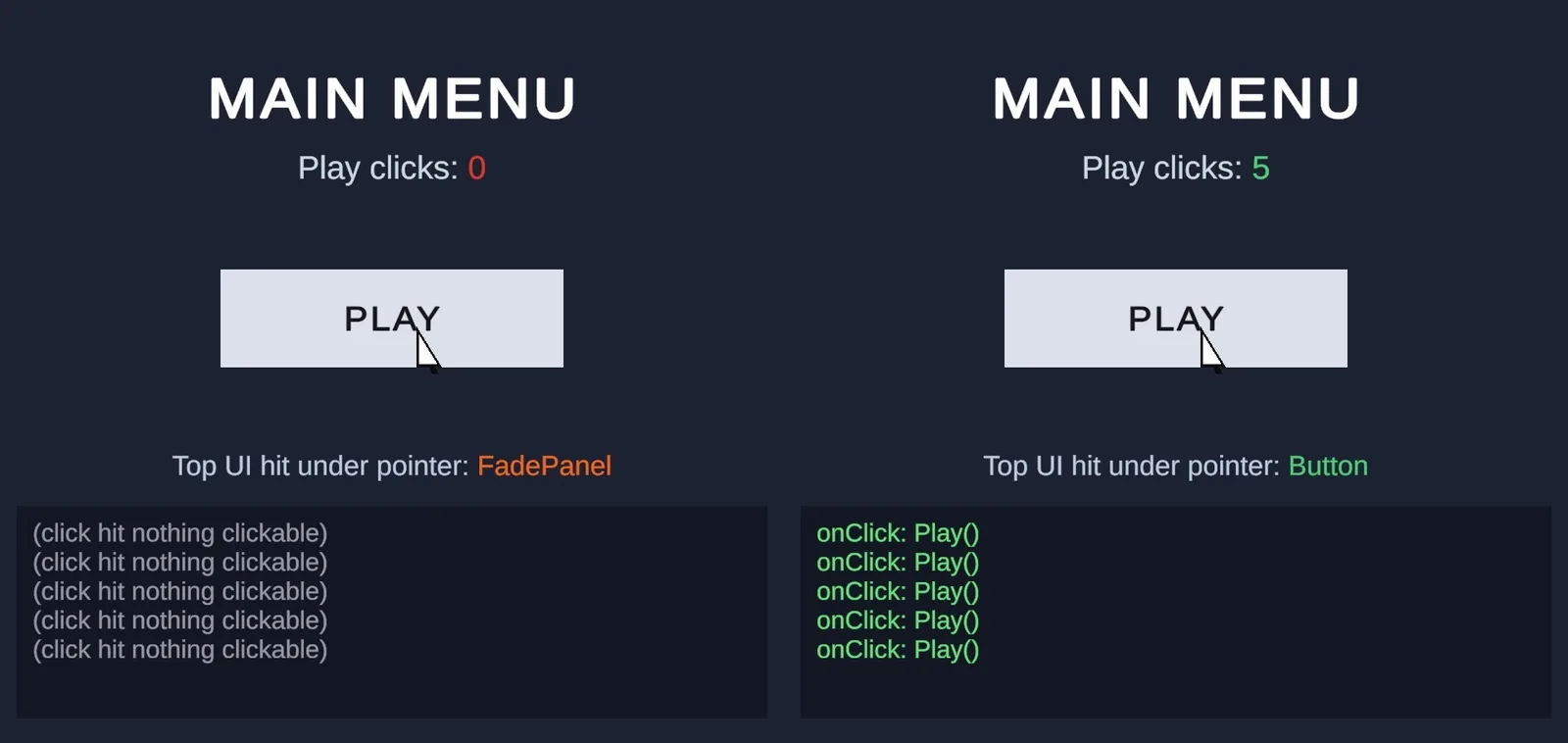
Few things are as frustrating as a button that looks perfect and does nothing when you click it. No highlight, no onClick, no error in the Console. The good news is that a Unity UI button not working almost always comes down to one of a dozen causes, and you can check them all in a few minutes. This guide goes through every one, roughly in the order you’re most likely to hit them, for uGUI buttons in Unity 6.
The 30-Second Checklist
Enter Play mode, then check these in order:
- Is there an EventSystem in the Hierarchy? Exactly one?
- Does the EventSystem’s input module match your Active Input Handling setting?
- Does the button’s Canvas have a Graphic Raycaster?
- Does the button turn grey-highlighted when you hover? If not, something is in front of it or it can’t be raycast.
- Is Interactable ticked on the Button, and on every parent CanvasGroup?
- Is the onClick listener assigned to an object in the scene with the right function?
The hover test in step 4 is the most useful single clue. If the button highlights on hover but onClick doesn’t run, your input setup is fine and the problem is wiring (step 6). If it doesn’t even highlight, the click never reaches the button (steps 1 to 5).
Missing or Duplicate EventSystem
uGUI needs an EventSystem GameObject to turn mouse, touch and gamepad input into UI events. Creating your first Canvas through GameObject > UI adds one automatically, but it’s easy to lose:
- You built the UI in one scene and load it additively into a scene without an EventSystem, or deleted it while tidying up.
- You instantiated a UI prefab that doesn’t include one.
- Your EventSystem was on a
DontDestroyOnLoadobject that got destroyed.
Fix: GameObject > UI > Event System. The opposite problem also breaks things: two EventSystems (for example one in each additively loaded scene, or one per menu prefab). Unity logs “There are 2 event systems in the scene” and only one is active. Keep a single EventSystem in a bootstrap scene, or make sure each scene’s is the only one when it loads. If you load scenes additively, our async scene loading guide covers the structure.
Wrong Input Module for the Input System
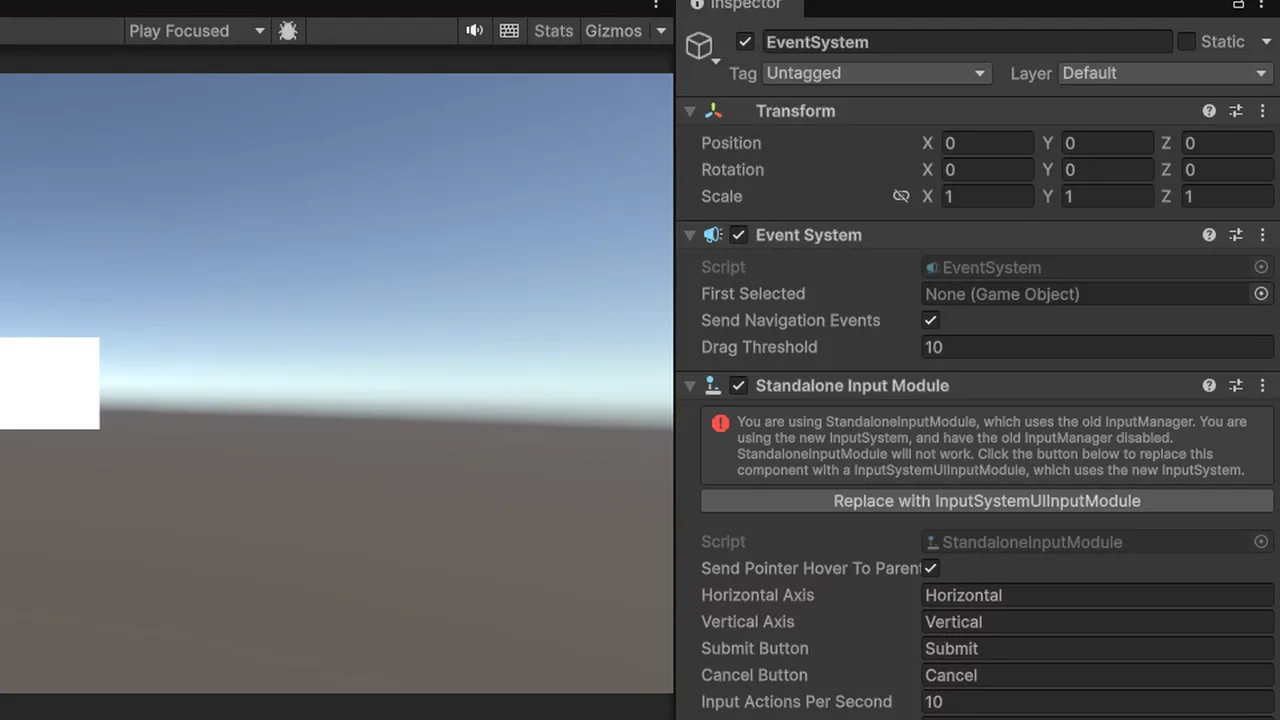
This is the number one cause in Unity 6 projects. The EventSystem needs an input module that reads the same input backend your project uses:
- Input System Package (New) active: the EventSystem needs Input System UI Input Module.
- Input Manager (Old) active: it needs Standalone Input Module.
Check Edit > Project Settings > Player > Other Settings > Active Input Handling. If it’s set to the Input System and your EventSystem still has the old Standalone Input Module, Unity shows a warning on the component and a button labelled Replace with InputSystemUIInputModule. Click it. With “Both” enabled, either module works, but use the Input System one if the rest of your game uses actions.
The Input System UI Input Module also needs its Actions Asset assigned. By default it uses the package’s built-in DefaultInputActions. If you assigned your own actions asset, it must contain a UI action map with Point, Click, Navigate and Submit actions bound correctly, and that map must be enabled. A custom asset with a missing Click binding gives you exactly the symptom of hover working but clicks doing nothing. See our Input System beginner’s guide for setting up actions.
Graphic Raycaster and World-Space Canvases
The EventSystem asks each Canvas’s Graphic Raycaster what’s under the pointer. No Graphic Raycaster, no clicks. It’s added automatically with a Canvas, but gets lost when people build canvases by hand or copy components between objects. Add it back with Add Component > Graphic Raycaster.
For World Space canvases, two extra things matter:
- Assign the Event Camera on the Canvas. Without it, Unity falls back to Camera.main, and if your main camera isn’t tagged MainCamera, or you’re using a different camera, rays come from the wrong place.
- World-space UI behind 3D objects can be blocked by them if the Graphic Raycaster’s Blocking Objects is set to 3D or All. Leave it at None unless you want world geometry to block UI.
For Screen Space – Camera canvases, the Render Camera must be assigned and the canvas’s Plane Distance must place it inside that camera’s clipping range, or the UI is invisible and unclickable.
Something Invisible Is Blocking the Click
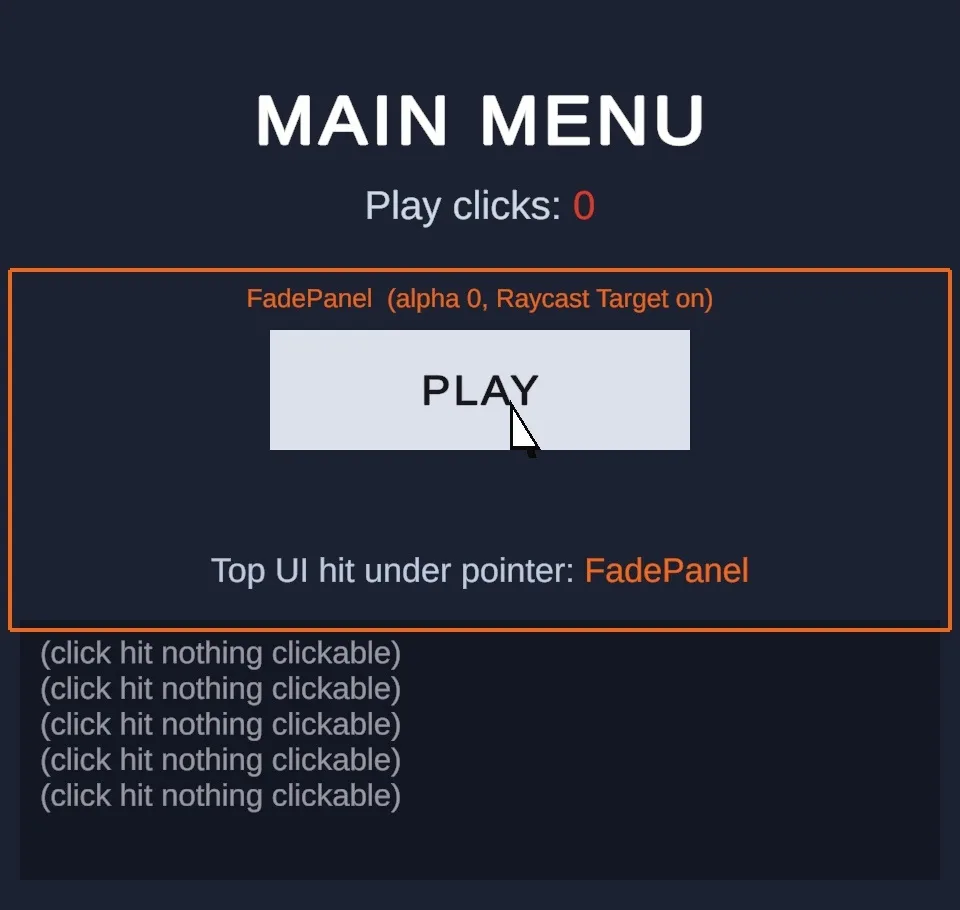
UI raycasts hit the top-most graphic with Raycast Target ticked. Anything drawn in front of your button that’s a raycast target eats the click, even if it’s fully transparent. Common offenders:
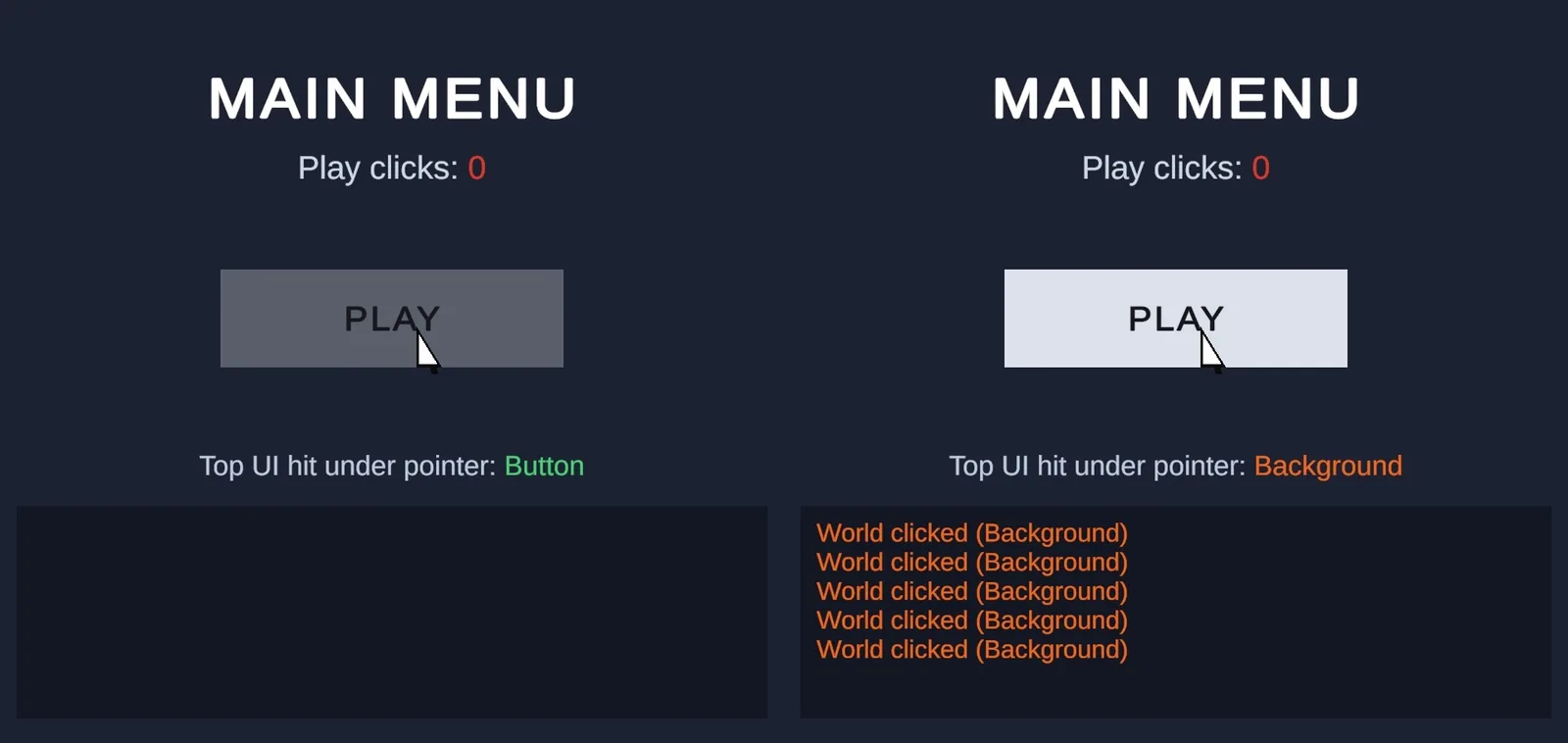
- A full-screen fade panel or overlay Image with alpha 0 that’s still active. Transparent Images still block raycasts. Disable the GameObject, untick Raycast Target, or set its CanvasGroup’s Blocks Raycasts to false when it’s not in use.
- A TextMeshPro text whose rectangle is larger than the visible text, sitting over the button. TMP text has Raycast Target ticked by default. Untick it on any text that isn’t meant to be clicked, including the button’s own label if it overflows.
- A sibling lower in the Hierarchy. Within a Canvas, objects later in the Hierarchy draw on top. A panel that’s below the button in the list is in front of it.
- Another Canvas with a higher Sort Order, covering the screen. Nested canvases with Override Sorting count too.
As a rule, untick Raycast Target on every Image and text that doesn’t need input. It prevents accidental blocking and saves raycast work. Our UI Toolkit vs uGUI guide explains how the uGUI hierarchy and canvases fit together if this is new to you.
CanvasGroup and Interactable
A CanvasGroup on any parent of the button can silently disable it:
- Interactable unticked: the button is drawn with its Disabled colour and ignores clicks.
- Blocks Raycasts unticked: clicks pass straight through the whole group, as if it weren’t there.
- A parent group with Ignore Parent Groups off inherits restrictions from further up.
Menu and fade scripts often set these and forget to restore them, for example a fade-in that sets interactable = false at the start and never sets it back when interrupted. Also check the Button’s own Interactable box, and its Transition colours: if the Normal and Highlighted colours are identical, the button may be working with no visible hover, which sends you looking in the wrong place.
💻 Editor lagging while you debug UI?
Big canvases and constant play-mode restarts are painful on a weak machine. If your laptop struggles with Unity 6, our budget picks hit the sweet spot of RAM and CPU.
onClick Wiring Mistakes
If the button highlights on hover and presses visually but nothing happens, it’s the listener. In the Button’s On Click () list:
- The object field points at a prefab or script asset in the Project window, not the instance in the scene. The function runs on the asset, so the scene doesn’t change. Drag the scene object in instead.
- The function dropdown says “No Function”, or shows Missing because you renamed the method.
- The method isn’t public, or has parameters the Inspector can’t provide. Only public methods with zero or one parameter of type int, float, string, bool or Object appear in the dropdown.
- The runtime dropdown is set to Off instead of Runtime Only.
Wiring in code avoids most of these, but has its own trap: closures in loops.
using UnityEngine;
using UnityEngine.UI;

public class LevelSelect : MonoBehaviour
{
    [SerializeField] Button[] levelButtons;

    void Start()
    {
        for (int i = 0; i < levelButtons.Length; i++)
        {
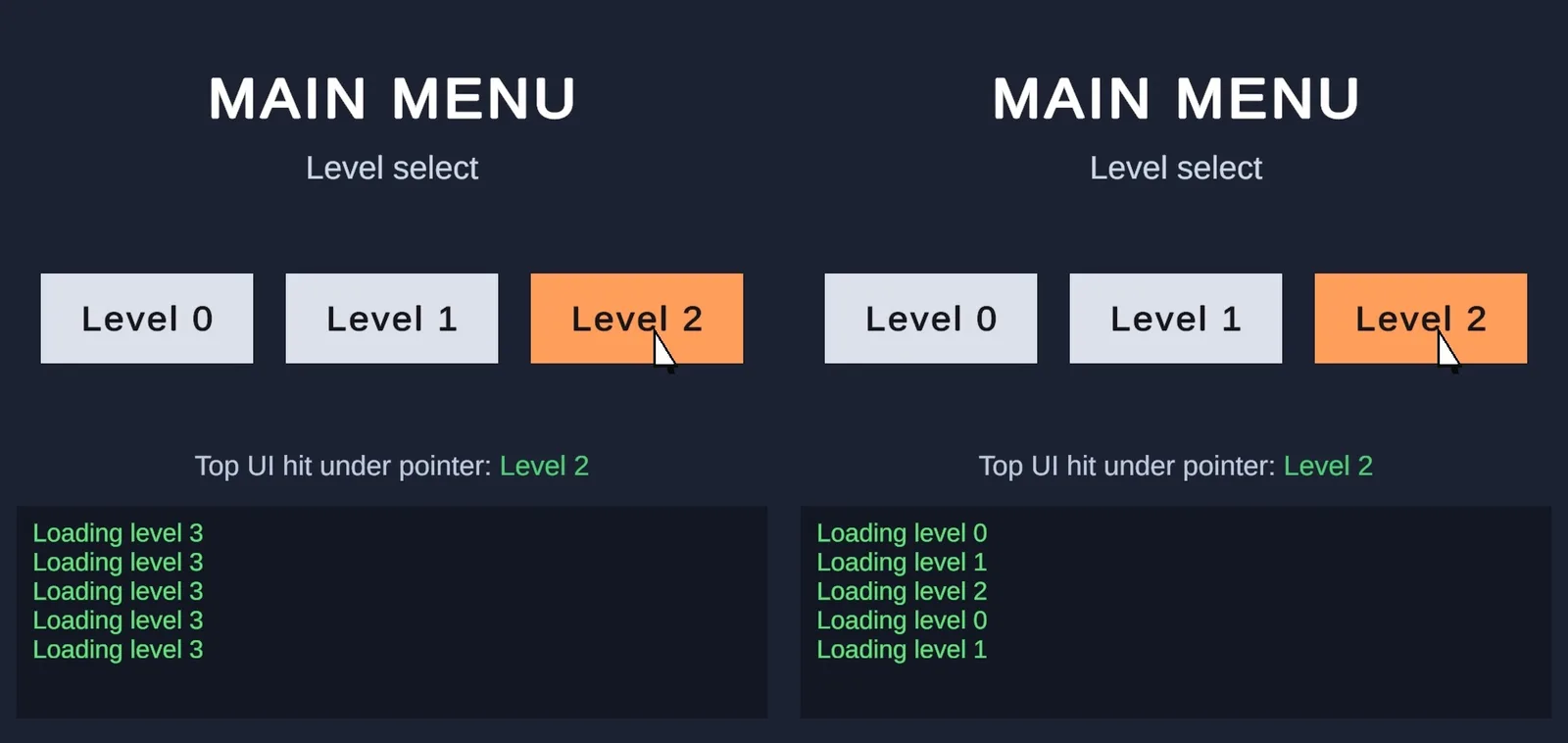
            int level = i;   // copy! capturing 'i' directly makes every button use the last value
            levelButtons[i].onClick.AddListener(() => LoadLevel(level));
        }
    }

    void OnDestroy()
    {
        foreach (Button b in levelButtons)
            if (b != null) b.onClick.RemoveAllListeners();
    }

    void LoadLevel(int level) => Debug.Log($"Loading level {level}");
}
In a for loop, C# lambdas capture the variable, not its value, so without the local copy every button would report the final index. Also note that AddListener listeners don’t show up in the Inspector’s On Click list, so an empty list in the Inspector doesn’t mean the button has no listeners. If listener code throws, check for a NullReferenceException in the Console, which stops the rest of the handler from running.
One more: Time.timeScale = 0 does not stop buttons from working, since the EventSystem runs on unscaled time. But if your pause menu’s buttons use an Animator transition, set the Animator’s Update Mode to Unscaled Time or the hover animation freezes.
Find the Blocker With a Debug Script
When you can’t find what’s eating clicks, ask the EventSystem directly. Drop this on any object and click:
using System.Collections.Generic;
using UnityEngine;
using UnityEngine.EventSystems;
using UnityEngine.InputSystem;

public class UIRaycastDebugger : MonoBehaviour
{
    readonly List<RaycastResult> results = new();

    void Update()
    {
        if (Mouse.current == null || !Mouse.current.leftButton.wasPressedThisFrame) return;
        if (EventSystem.current == null) { Debug.LogWarning("No EventSystem!"); return; }

        var data = new PointerEventData(EventSystem.current)
        {
            position = Mouse.current.position.ReadValue()
        };
        results.Clear();
        EventSystem.current.RaycastAll(data, results);

        if (results.Count == 0) Debug.Log("UI raycast hit nothing");
        foreach (RaycastResult r in results)
            Debug.Log($"Hit: {r.gameObject.name} (canvas sort {r.sortingOrder})", r.gameObject);
    }
}
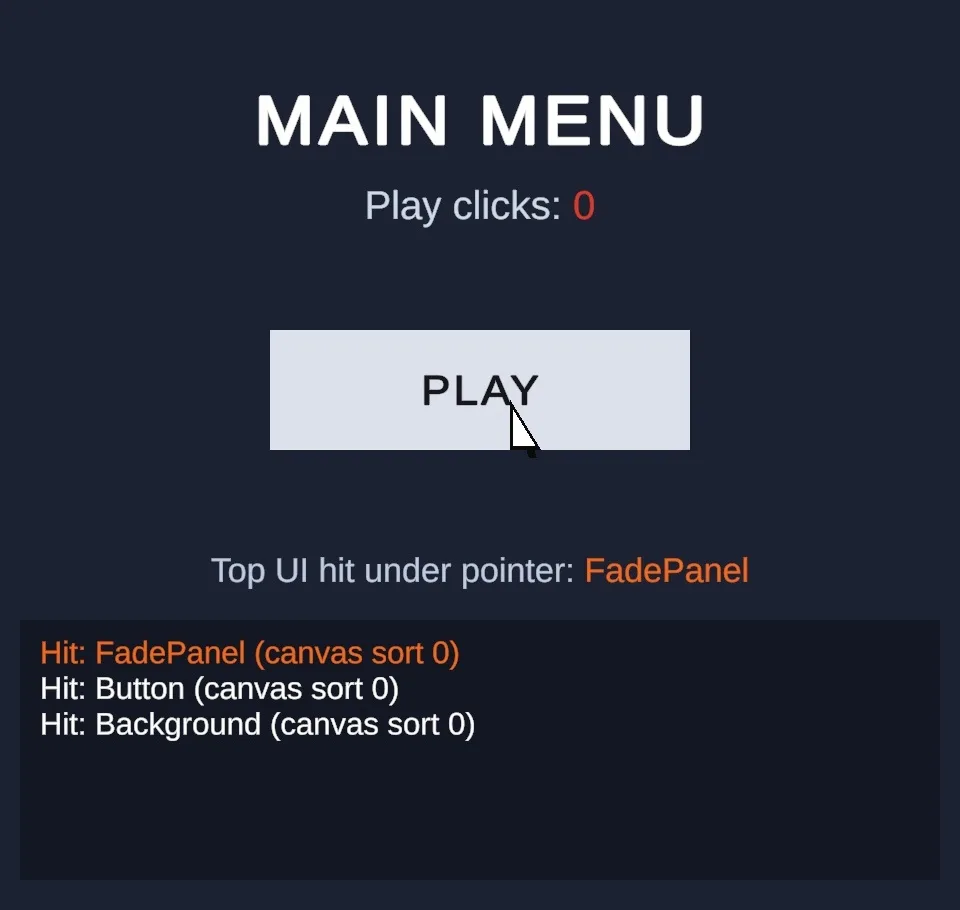
The first entry is what receives the click. If it’s not your button, click the log message to ping the culprit in the Hierarchy. You can also select the EventSystem during Play mode: its Inspector preview pane shows the current pointer target and pressed object live. This script uses the Input System; with the old Input Manager, swap in Input.GetMouseButtonDown(0) and Input.mousePosition.
Troubleshooting
Button works in the editor but not on mobile
Touch requires the Input System UI Input Module (or Standalone with touch). Check that a Canvas Scaler isn’t pushing the button off-screen on that aspect ratio, and that safe-area panels aren’t covering it.
Only the first click works
The handler disables the button, opens a panel that covers it, or throws an exception. Check the Console and any CanvasGroup the handler changes.
Buttons stop working after loading a scene
The EventSystem was destroyed with the old scene, or the new scene brought a second one. Keep exactly one.
Clicks go through UI to the game world
Guard world input with EventSystem.current.IsPointerOverGameObject() before handling gameplay clicks.
Gamepad can’t select the button
No button is selected initially. Set EventSystem.current.SetSelectedGameObject(firstButton) when the menu opens, and check the Navigation setting on each button.
Button highlights but onClick never fires
The Click action in a custom UI actions asset is missing or unbound, or the On Click list targets a prefab asset instead of the scene instance.
FAQ
Why is my Unity button not clickable?
Most often: no EventSystem, the wrong input module for the Input System, or an invisible Image with Raycast Target ticked covering it.
Do transparent images block clicks?
Yes. Alpha doesn’t matter. Untick Raycast Target or disable the object.
Does Time.timeScale = 0 disable buttons?
No. UI input runs on unscaled time. Only scaled-time animations on the buttons freeze.
Do I need a Collider on a UI button?
No. uGUI uses the Graphic Raycaster, not physics. Colliders are only for 3D objects clicked with physics raycasts.
How do I stop clicks passing through a panel?
Give the panel a background Image with Raycast Target on, or a CanvasGroup with Blocks Raycasts ticked.
Reader questions
Asked by readers of this article and answered by AI. Behavior can differ between Unity versions, so test in yours.

Leave a Reply