

You drag a script onto a GameObject and Unity refuses: “Can’t add script behaviour”, or “the script class cannot be found”, or a warning that the file name doesn’t match the class name. It’s one of the most common beginner roadblocks, and almost always one of five small causes. This guide walks through every reason you can’t add a script in Unity, what each error message actually means, and how to fix it in under a minute.
Quick answer
Clear every red error in the Console first: no new script can be added while any script fails to compile. Then make sure the class derives from MonoBehaviour, isn’t abstract or generic, and isn’t inside an Editor folder. A file name that doesn’t match the class name is rarely the cause any more: in our Unity 6.5 test, mismatched scripts were added without an error. Keep the names matching anyway, because it’s the clean convention and older Unity versions require it.
The Error Messages and What They Mean
Unity phrases this problem a few different ways depending on the cause:
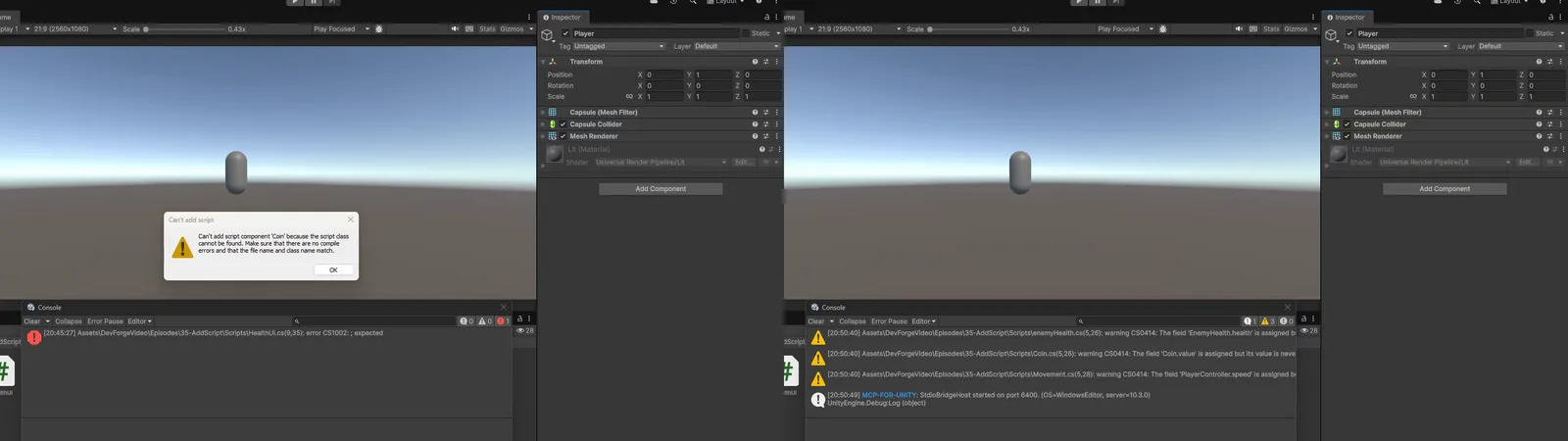
- “Can’t add script component ‘PlayerMove’ because the script class cannot be found. Make sure that there are no compile errors and that the file name and class name match.” Unity looked inside
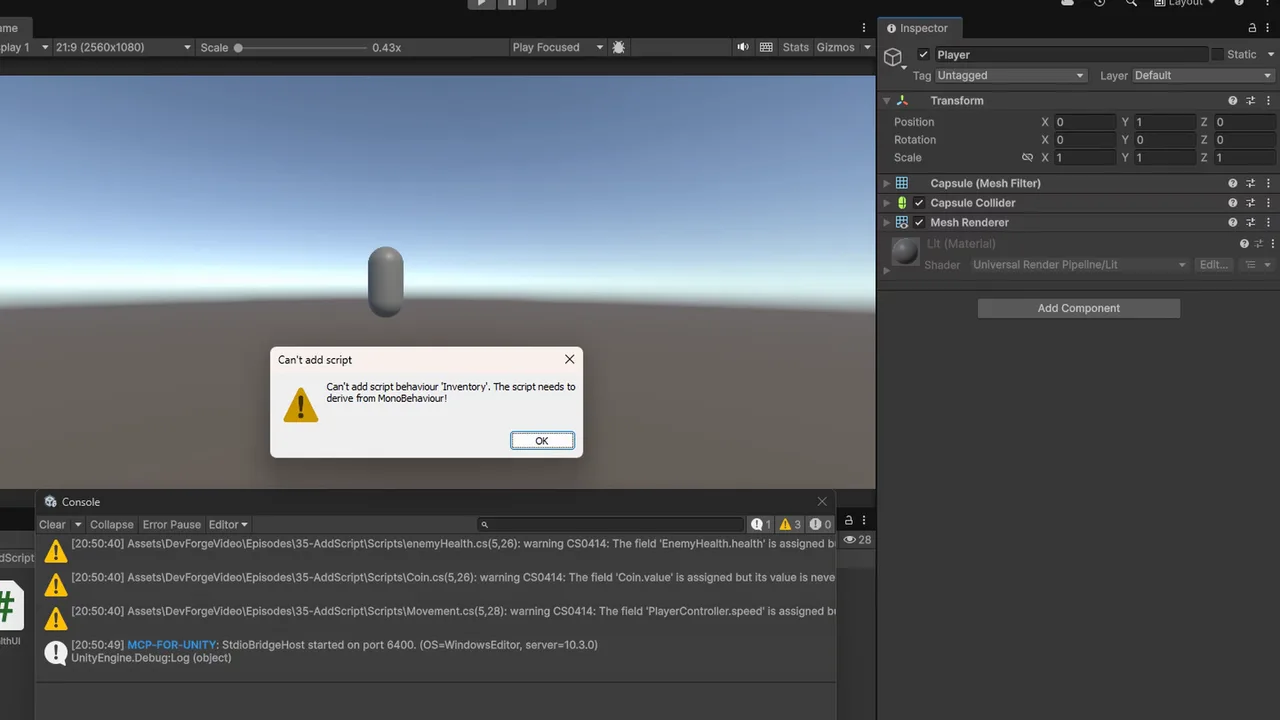
PlayerMove.csand found no usable class calledPlayerMove. Either the names differ, or compilation failed so no classes exist at all. - “Can’t add script behaviour ‘PlayerMove’. The script needs to derive from MonoBehaviour!” The class exists but isn’t a component.
- “The script don’t inherit a native class that can manage a script” or “No MonoBehaviour scripts in the file, or their names do not match the file name” in the script’s Inspector. Same root causes, seen from the asset side.
The key mental model: when you add a script to a GameObject, Unity doesn’t add the file. It adds the class inside it. That class has to exist (so everything must compile), and it has to be something Unity can create as a component. Everything below follows from that rule.
Fix 1: File Name and Class Name (Less Strict in Unity 6)
The classic rule is that a MonoBehaviour’s class name must match its file name exactly: PlayerMove.cs must contain public class PlayerMove : MonoBehaviour. Older Unity versions refused to add a script when the names differed, and Unity’s own error message still mentions it.
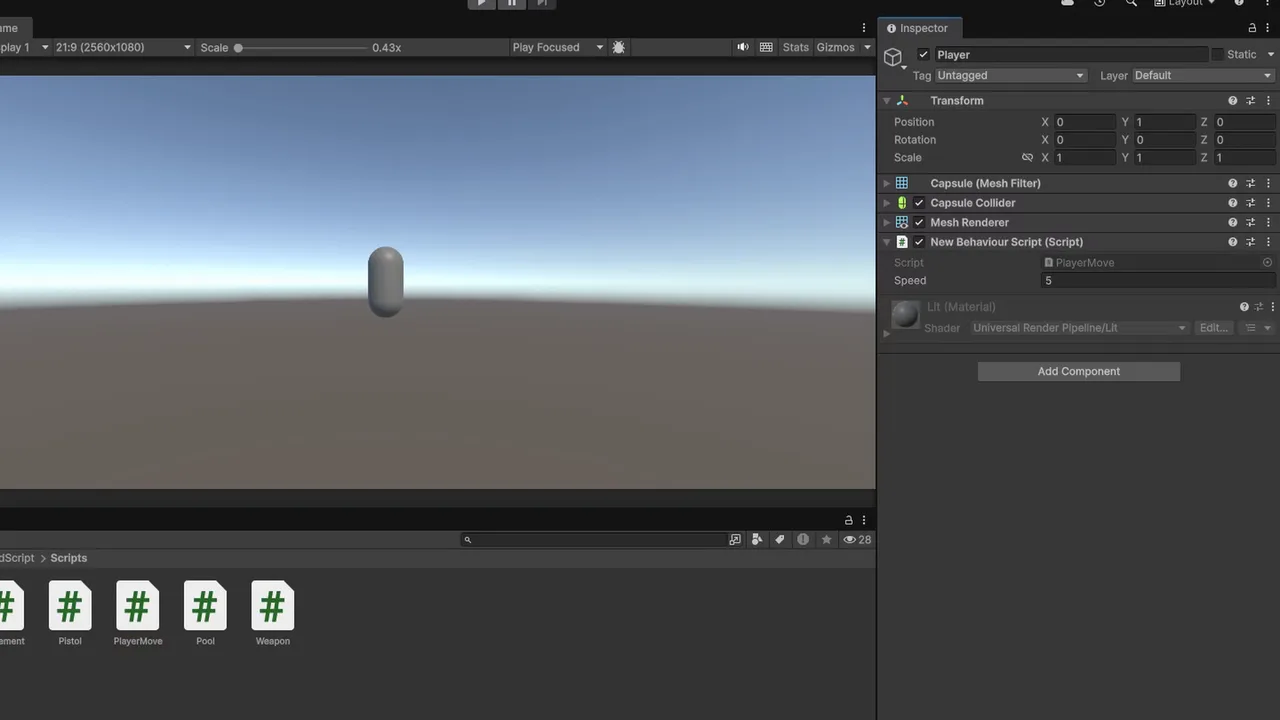
We tested this in Unity 6.5, and a mismatch no longer blocks the script. Using Unity’s normal drag-onto-the-Inspector path:
PlayerMove.csstill containingclass NewBehaviourScript(what you get after renaming a file) was added, and showed up as “New Behaviour Script”.enemyHealth.cscontainingclass EnemyHealth(a case difference) was added.Movement.cscontaining two MonoBehaviours,PlayerControllerandPlayerAnimator, neither matching the file, was added as the first class,PlayerController.
All of them were still attached after saving and reopening the scene. So if Unity refuses your script in Unity 6, check compile errors, MonoBehaviour, abstract and generic classes and Editor folders before you start renaming.
Still keep the names matching. It’s the convention every Unity project and tutorial assumes, it keeps Add Component search and the Inspector readable, it’s required on older Unity versions, and a file holding several classes is ambiguous about which one you get. The usual ways they drift apart:
- You renamed the file after creating it. Unity writes the class name from the name you typed when you created the script. Rename
NewBehaviourScript.cstoPlayerMove.csand the class inside is stillNewBehaviourScript. Open the file and rename the class too. - Spaces or symbols in the file name.
Player Move.cscan never match because C# class names can’t contain spaces. Stick to letters and numbers, PascalCase, as in our C# naming conventions. - Pasted code from a tutorial. You created
Movement.csand pasted in code that declaresclass PlayerController. Rename one to match the other.
To fix it: rename the class in the code editor, save, and wait for Unity to finish compiling (the spinner in the bottom-right corner). If your IDE offers “rename file to match type”, do it with Unity open so the .meta file is renamed alongside.
// File: Assets/Scripts/PlayerMove.cs
using UnityEngine;

public class PlayerMove : MonoBehaviour   // same name as the file: the clean convention
{
    [SerializeField] float speed = 5f;

    void Update()
    {
        transform.Translate(Vector3.forward * speed * Time.deltaTime);
    }
}
Fix 2: Clear Every Compile Error
This is the cause people miss most. If any script in the project has a compile error, Unity can’t build the assembly, so it can’t load any new or changed class. Your new script may be perfect, yet it can’t be added because a different file, maybe one you haven’t touched in days, is broken.
- Open the Console (Window > General > Console) and make sure the red error filter is enabled.
- Click Clear. Compile errors stay; runtime errors disappear. What’s left is what’s blocking you.
- Double-click each error to jump to it and fix it, starting with the first one listed. Later errors are often side effects of the first.
The usual culprits are a missing using directive, a typo in a type name, or a package that was removed. Our guide to CS0246, CS0103 and CS1061 compiler errors covers the most common codes. If the errors appear only in your IDE but not in Unity’s Console, the problem is your IDE setup, not your code.
Also check for two classes with the same name in the same namespace. Downloading an asset that includes its own PlayerController while you already have one triggers “The namespace already contains a definition for PlayerController” (CS0101), which blocks everything.
Fix 3: The Class Must Derive From MonoBehaviour
Only classes deriving from MonoBehaviour (directly or through a parent class) can be added to GameObjects. Each of these is a valid C# class but not a component:
public class Inventory { }                         // plain C# class
public class WeaponData : ScriptableObject { }     // asset, not a component
public static class MathHelpers { }                // static utility
public struct DamageInfo { }                       // struct
Plain classes are used from other scripts with new Inventory(). ScriptableObjects are created as assets with a [CreateAssetMenu] attribute and referenced from components, as explained in our ScriptableObjects guide. If you meant the class to be a component, add : MonoBehaviour and using UnityEngine;.
A sneaky variant: a class inheriting from another of your classes, where the parent doesn’t derive from MonoBehaviour. class Enemy : Character is only a component if Character itself is a MonoBehaviour.
Fix 4: Abstract, Generic and Nested Classes
Some MonoBehaviours still can’t be added directly:
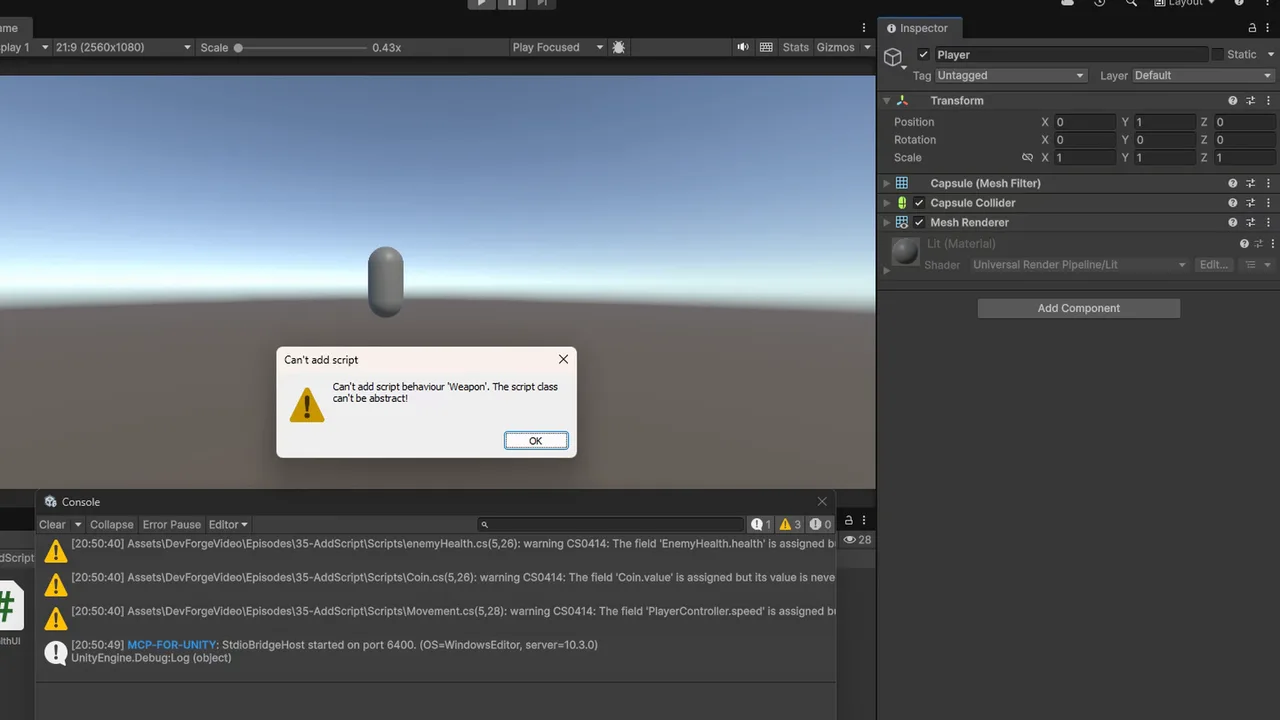
- Abstract classes:
public abstract class Weapon : MonoBehaviouris a base for other scripts. Add a concrete subclass likePistol : Weaponinstead, and give the subclass its own file namedPistol.cs. - Generic classes:
public class Pool<T> : MonoBehaviourcan’t be attached because Unity doesn’t know what T is. Create a non-generic subclass:public class BulletPool : Pool<Bullet> { }inBulletPool.cs. - Multiple classes in one file: Unity attaches one class per script file, so the others can’t be added from that file (in our Unity 6.5 test, a file with no matching name gave the first class). Give every MonoBehaviour its own file.
- Nested classes: a MonoBehaviour declared inside another class can’t be added. Move it to its own top-level class and file.
📚 Building a solid C# foundation?
Inheritance, abstract classes and generics trip up most new Unity devs. A good C# book makes these errors obvious. Here are the titles we recommend.
Fix 5: Editor Folders and Assembly Definitions
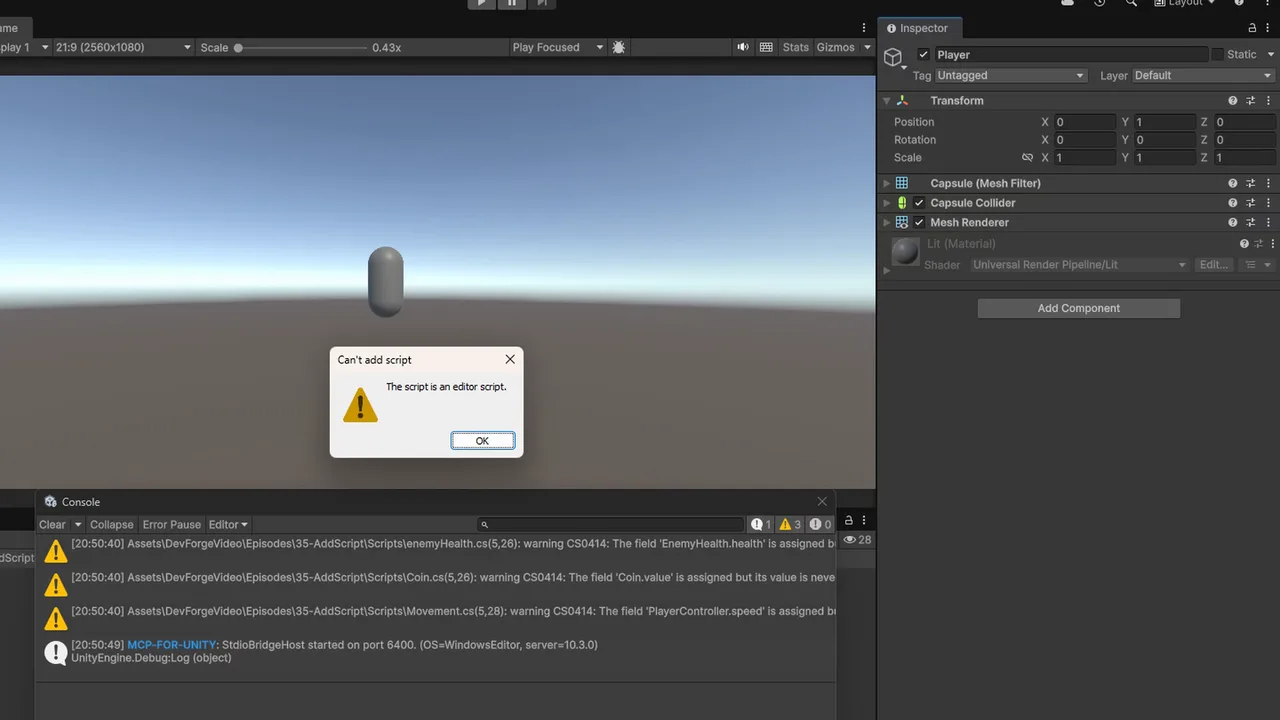
Unity treats some folder names specially. Any script inside a folder named Editor, at any depth, goes into the editor-only assembly. Editor code is stripped from builds, so Unity won’t let you attach a MonoBehaviour from an Editor folder to a GameObject (it would vanish in the build). Move runtime scripts out of any folder called Editor. Assets/Scripts/Editor/PlayerMove.cs is the classic accident.
Assembly definition files (.asmdef) can cause the same problem:
- An asmdef with only the Editor platform ticked makes every script in its folder editor-only.
- If your script references types from another asmdef that isn’t listed in its Assembly Definition References, it fails to compile, which brings you back to Fix 2.
Select the asmdef in the folder (or a parent folder) and check its Platforms list. For a deeper explanation, see Unity assembly definitions.
Namespaces and Renaming Safely
Namespaces are fine. namespace MyGame.Player { public class PlayerMove : MonoBehaviour { } } in PlayerMove.cs works, because Unity matches the class name, not the full namespace path. Older Unity versions had bugs with namespaces in certain cases, but Unity 6 handles them correctly. Just don’t put two classes with the same name in the same namespace.
Renaming a script that’s already used in scenes and prefabs needs care. Unity links components to scripts through the script’s GUID stored in the .meta file, not by name. To rename safely:
- Rename the file inside the Unity Project window, which keeps the .meta file and GUID.
- Rename the class in code to the same new name.
- Save and let Unity recompile.
Rename in Windows Explorer or a terminal without the .meta, and every reference breaks. If you rename serialized fields at the same time, add [FormerlySerializedAs("oldName")] (from UnityEngine.Serialization) to keep their saved values.
When a Component Shows “Missing Script”
A related symptom: the component is already on the GameObject but shows “The associated script can not be loaded. Please fix any compile errors and assign a valid script.” That has the same causes as above (compile errors, name mismatch, class moved to an Editor folder), plus one more: the .meta file was deleted or regenerated, so the GUID changed. Fix the compile errors first. If the reference is still broken, our missing script references guide shows how to reassign or bulk-repair them.
Troubleshooting
The console is clear, but it still won’t add
Unity may not have recompiled. Click in the Unity window to give it focus, or use Assets > Refresh (Ctrl+R). If Auto Refresh is off in Preferences > Asset Pipeline, Unity only recompiles when you refresh manually.
The script doesn’t appear in Add Component search
It isn’t a concrete MonoBehaviour, it’s in an Editor folder, or it doesn’t compile. A [AddComponentMenu("")] attribute also hides it from the menu (dragging still works).
“The namespace already contains a definition”
Two classes share a name. Rename one, or put one in its own namespace.
Error only after importing an asset or package
The import brought in a script with compile errors or a duplicate class. Check the first Console error’s file path to find the culprit.
Works in the editor, broken in a build
The script, or something it uses, lives in an Editor folder or uses UnityEditor APIs. Wrap editor-only code in #if UNITY_EDITOR.
FAQ
Does the file name really have to match the class name?
Not any more in Unity 6: in our Unity 6.5 test, scripts whose file and class names differed were still added and survived a scene reload. Older Unity versions did require it, so keep them matching as a convention. If Unity refuses a script, look for compile errors, a missing MonoBehaviour base, an abstract or generic class, or an Editor folder first.
Can I put two MonoBehaviours in one file?
It compiles, but Unity attaches only one class per script file, so you can’t choose the others. Use one file per component.
Why can’t I add a script that’s in a folder named Editor?
Editor folders compile into an editor-only assembly that isn’t included in builds, so Unity blocks attaching its classes to GameObjects.
Is it case sensitive?
C# class names are case sensitive, but in our Unity 6.5 test a case-only difference between file and class (enemyHealth.cs with class EnemyHealth) didn’t stop the script being added. Match the case anyway; older versions are strict.
How do I rename a script without breaking references?
Rename it in the Unity Project window so the .meta file and GUID follow, then rename the class to match.
Reader questions
Asked by readers of this article and answered by AI. Behavior can differ between Unity versions, so test in yours.



Leave a Reply