

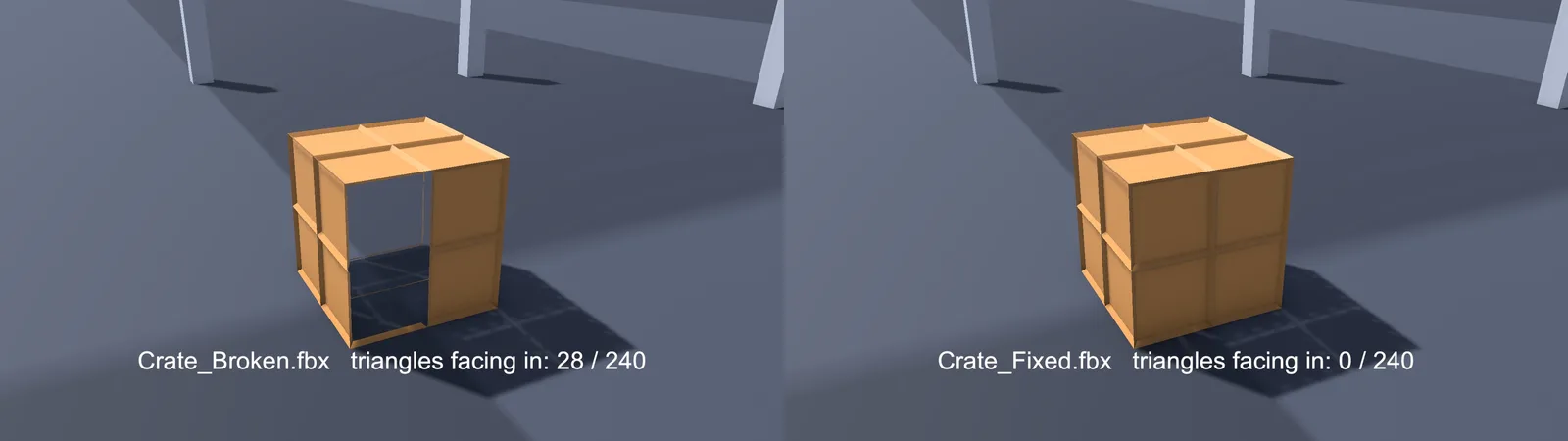
You export a model from Blender, drop it into Unity, and parts of it vanish. You can see straight through walls from one side, a character’s inner mouth renders on the outside, or a whole object looks like you are viewing it from the inside. That is almost always a Blender model inside out in Unity because of flipped normals. Blender draws both sides of every face by default, so the problem is invisible while you model. Unity draws only the front side, so it shows up the moment you import. This guide shows how to see flipped normals in Blender, fix them properly, deal with negative scale and single-sided planes, and decide when a double-sided material is the right answer instead.
Why Faces Disappear in Unity but Not in Blender
Every polygon has a front and a back. The front is decided by the order of its vertices (the winding order), and the face normal points out of the front. When a mesh is built correctly, every normal points away from the inside of the object.
Game engines use backface culling: the GPU skips any triangle whose back is facing the camera. It roughly halves the work for closed meshes, because you can never see the inside of a solid rock anyway. Unity’s default URP Lit material culls back faces.
Blender’s viewport does not cull back faces unless you ask it to. So a face whose normal points inward looks completely normal in Blender. In Unity, that face is treated as a back face from the outside and gets skipped. You see through it to whatever is behind, which often looks like the object is inside out.
Common ways normals end up flipped:
- Extruding inward, or using Solidify and then deleting faces.
- Mirroring an object with a scale of -1 on one axis.
- Joining meshes that were built with opposite winding.
- Imported or kitbashed parts from other tools.
- Filling holes (F) where Blender guessed the wrong direction.
See Flipped Normals With the Face Orientation Overlay
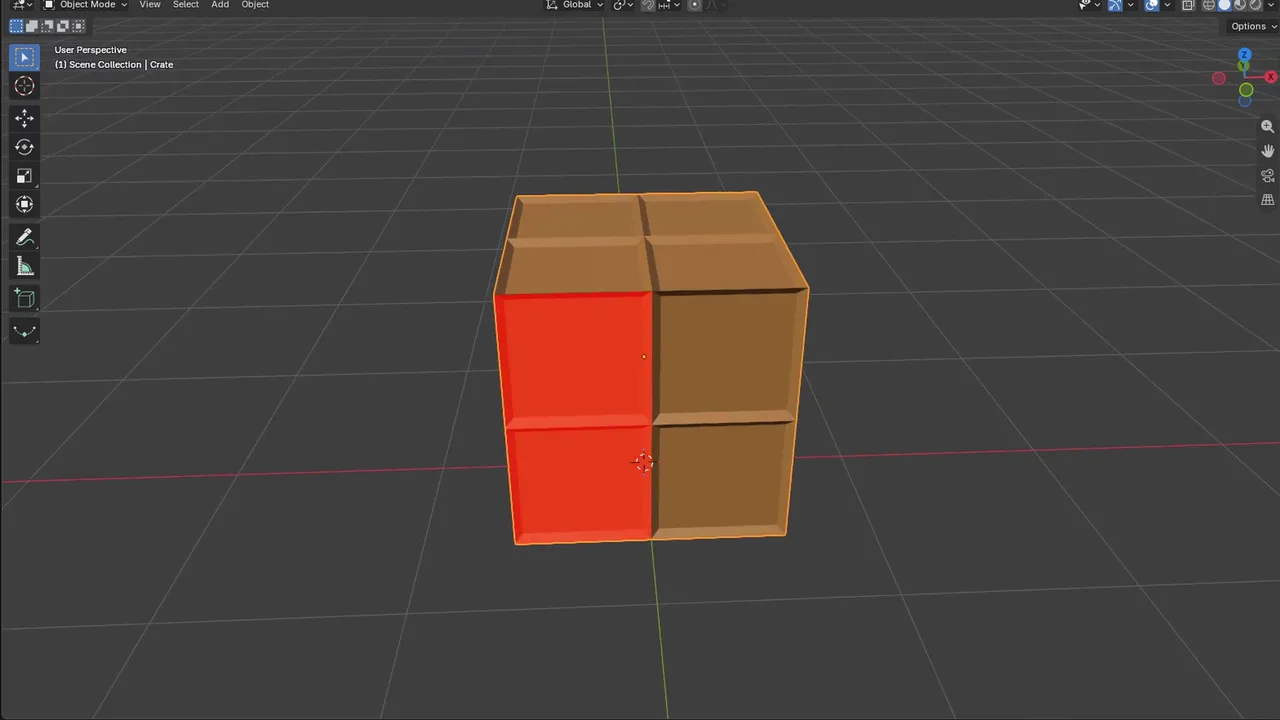
Stop guessing and turn on the overlay that shows face direction:
- In the 3D Viewport header, open the Viewport Overlays dropdown (the arrow next to the two-circles icon).
- Under Geometry, tick Face Orientation.
Back faces now show in red. Front faces show in blue, or stay uncoloured depending on your theme. On a correct closed mesh you should see no red from the outside. Any red patch you can see while orbiting around the model is a face that will vanish in Unity.
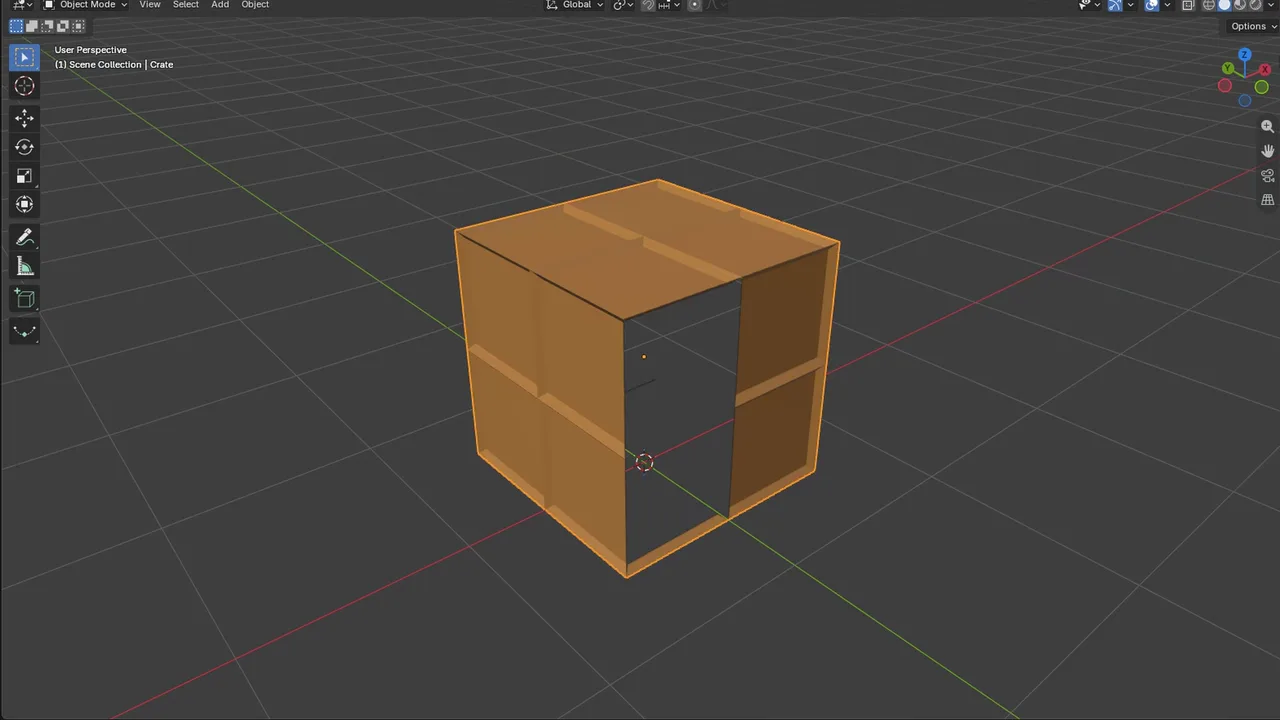
A second check is to make Blender behave like Unity. Open the Viewport Shading popover (the arrow next to the shading mode buttons) in Solid mode and tick Backface Culling. Now flipped faces disappear in Blender too, exactly as they will in the engine.
If you want to see the actual normal direction, enter Edit Mode and open the Mesh Edit Mode overlays popover (next to Viewport Overlays). Under Normals, turn on the face normal display. Short lines appear sticking out of each face. Increase the size if they are too small to read.
Fix Them: Recalculate Outside and Flip
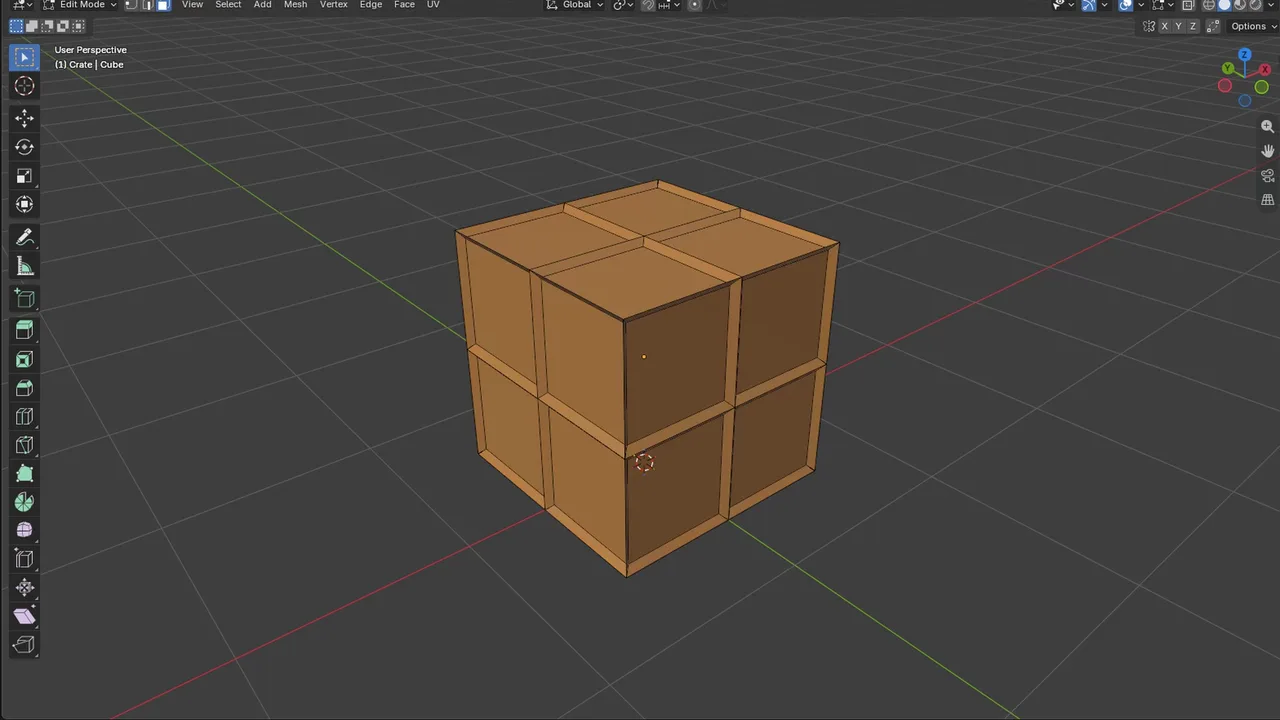
For a closed mesh, Blender can work out which way is “out” for you:
- Select the object and press Tab for Edit Mode.
- Press A to select everything.
- Choose Mesh > Normals > Recalculate Outside (shortcut Shift+N).
- Tab back to Object Mode and check the Face Orientation overlay again.
Recalculate Outside makes the normals consistent and points them away from the volume. It works best on closed, manifold meshes. On open meshes (a terrain patch, a single wall, a cloth sheet) it can guess wrong, because there is no clear inside.
When it guesses wrong, fix faces by hand. Select only the red faces in Face select mode and use Mesh > Normals > Flip. Selecting one face and pressing Ctrl+L (Select Linked) is a quick way to grab a whole flipped island.
Before recalculating, clean up duplicate vertices. Two overlapping vertices that are not merged split the mesh into separate pieces, and Recalculate Outside may treat each piece differently. In Edit Mode, select all and use Mesh > Clean Up > Merge by Distance. The status bar tells you how many vertices were removed.
If you have many objects to fix, a short script saves clicks. Paste this in the Scripting workspace and run it with your meshes selected:
import bpy

meshes = [o for o in bpy.context.selected_objects if o.type == 'MESH']
for o in bpy.context.selected_objects:
    if o.type != 'MESH':
        o.select_set(False)

if meshes:
    bpy.context.view_layer.objects.active = meshes[0]
    # Edit Mode with several meshes selected edits them all at once
    bpy.ops.object.mode_set(mode='EDIT')
    bpy.ops.mesh.select_all(action='SELECT')
    bpy.ops.mesh.remove_doubles(threshold=0.0001)
    bpy.ops.mesh.normals_make_consistent(inside=False)
    bpy.ops.object.mode_set(mode='OBJECT')
    print(f"Fixed normals on {len(meshes)} mesh(es)")
remove_doubles is the operator behind Merge by Distance, and normals_make_consistent(inside=False) is Recalculate Outside. Check the result with the overlay afterwards. A script cannot know that your open wall should face the room.
Negative Scale and Mirrored Objects
Scaling an object by -1 on one axis is a fast way to mirror it, but it flips the winding order of every face. Blender still draws it fine. The exported result depends on how the scale is handled, and it is easy to end up with an inside-out mirror copy in Unity.
The clean fix is to bake the scale into the mesh. Select the object and use Object > Apply > Scale (or All Transforms). When Blender applies a negative scale it corrects the face winding as part of the operation, so the result has positive scale and outward normals. Check with the Face Orientation overlay, then export.
Better still, mirror with the Mirror modifier instead of negative scale. It produces correct normals for the mirrored half automatically. The FBX exporter applies modifiers by default (the Apply Modifiers option), so Unity receives the finished mesh.
Unapplied transforms cause plenty of other import problems too, like the -90 degree rotation and wrong scale. Our Blender to Unity FBX export settings guide covers the full export checklist, so apply everything there once and you avoid a whole family of bugs.
Single-Sided Planes: Leaves, Cloth and Cards
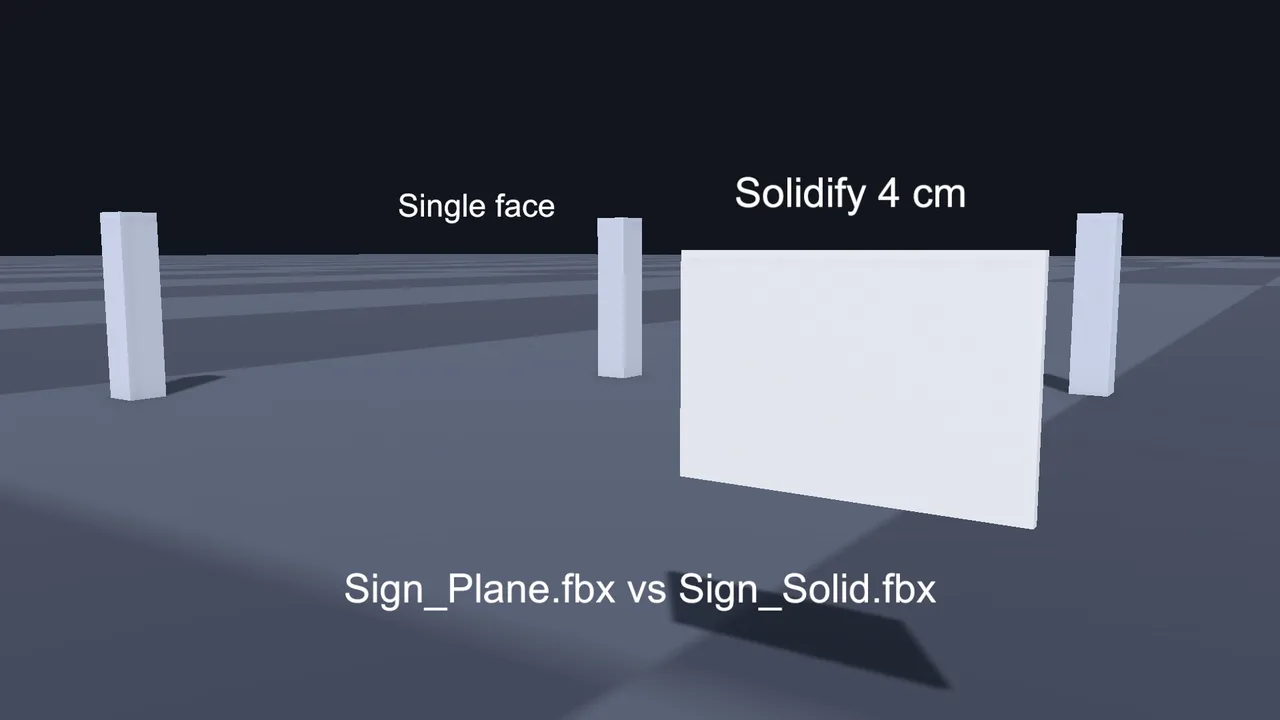
A plane has no inside. Recalculate Outside cannot help it, and with backface culling it will always be invisible from one side. You have three real options.
1. Give it thickness. Add a Solidify modifier with a small Thickness. Now it is a closed shape with outward normals on both sides. This is the right answer for walls, signs, doors, and anything the camera sees from both sides at close range. It costs extra triangles, but usually not many.
2. Duplicate and flip. In Edit Mode, select the plane, Shift+D to duplicate, right-click to cancel the move, then Mesh > Normals > Flip on the copy. You now have two faces back to back. Each side lights correctly because each has its own normal. Use this for cloth, flags and capes.
3. Use a double-sided material in Unity. Cheapest in triangles, but the back side uses the front side’s normal, so lighting on the back can look wrong. Fine for foliage cards, grass and leaves where nobody looks closely. See the double-sided section below.
💻 Blender and Unity open side by side?
Round-tripping models between Blender and Unity means two heavy apps open at once, plus baking and rendering in between. More RAM and a decent GPU make that loop far less painful. We picked laptops that handle both without costing a fortune.
Unity Import Settings That Affect Normals
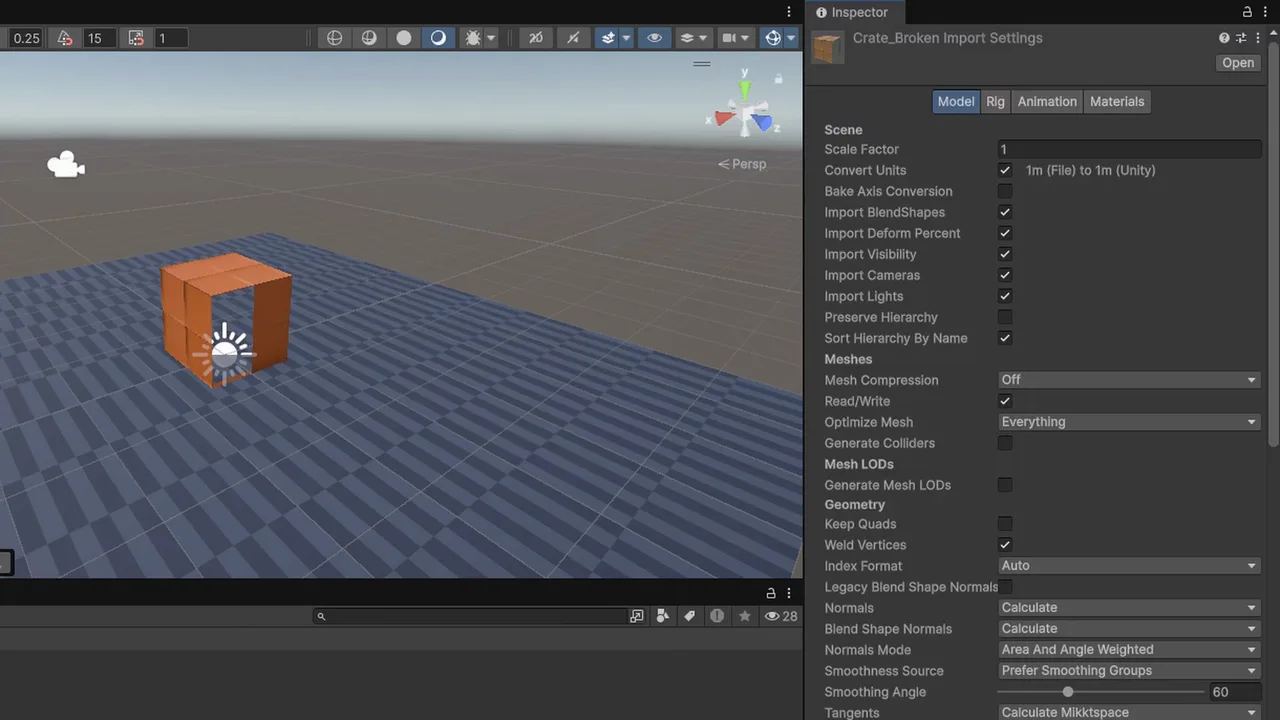
Select the FBX in Unity and open the Model tab of the Import Settings. Under Geometry, these settings matter:
- Normals: Import uses the normals from Blender (recommended once they are correct). Calculate makes Unity rebuild them using the Smoothing Angle. None removes them, which breaks lighting on lit materials.
- Normals Mode: how Unity weights face normals when it calculates them. Only relevant with Calculate.
- Tangents: needed for normal maps. Calculate Mikktspace matches Blender’s tangent space, which keeps baked normal maps looking right.
Important: Calculate only changes smoothing. It never fixes winding order. If a face is flipped in Blender, it is still culled in Unity whatever you choose here. Fix flipped faces in Blender.
If shading looks faceted or has dark smears rather than missing faces, that is a smoothing problem, not flipped faces. In Blender 4.1 and later, use Object > Shade Auto Smooth, which adds a Smooth by Angle modifier. Keep Apply Modifiers ticked on export so the custom normals are baked into the FBX, and leave Unity’s Normals on Import.
Another trap: n-gons. Unity triangulates every face on import, and a concave or non-planar n-gon can triangulate into overlapping or missing triangles. If a face looks torn only in Unity, triangulate it in Blender first (Face > Triangulate Faces, or a Triangulate modifier) so you control the result.
Double-Sided Materials in URP
When you really want both sides drawn from a single face, change the material, not the mesh.
For the URP Lit or Simple Lit shader: select the material, open Surface Options, and set Render Face to Both. Front draws only the front (the default), Back draws only the back, and Both turns off culling.
For a Shader Graph: open the graph, go to the Graph Inspector’s Graph Settings tab, and set Render Face to Both. For foliage, also turn on Alpha Clipping so the leaf texture cuts out properly.
Shadows are separate. A single plane with Cast Shadows set to On may still cast patchy shadows, because shadow rendering has its own culling. On the Mesh Renderer, set Lighting > Cast Shadows to Two Sided for planes that need solid shadows.
Don’t use Render Face: Both to hide broken normals on solid objects. You double the pixel work for those materials, and the back faces will still be lit as if they faced the other way, so they look dark or blotchy.
Physics follows the same rule. Mesh Colliders built from a mesh with flipped faces make raycasts pass through from one side, because by default queries don’t hit back faces. If shots or clicks go straight through a wall, check the normals before blaming your code. Our Mesh Collider guide covers the other collider pitfalls.
If you want to check normals directly inside Unity, this small component draws them as gizmo lines when the object is selected:
using UnityEngine;

[RequireComponent(typeof(MeshFilter))]
public class NormalsGizmo : MonoBehaviour
{
    [SerializeField] float length = 0.1f;
    [SerializeField] int maxLines = 2000;

    void OnDrawGizmosSelected()
    {
        Mesh mesh = GetComponent<MeshFilter>().sharedMesh;
        if (mesh == null) return;

        Vector3[] verts = mesh.vertices;
        Vector3[] normals = mesh.normals;
        if (normals.Length != verts.Length) return;

        Gizmos.color = Color.cyan;
        Gizmos.matrix = transform.localToWorldMatrix;
        int step = Mathf.Max(1, verts.Length / maxLines);

        for (int i = 0; i < verts.Length; i += step)
            Gizmos.DrawLine(verts[i], verts[i] + normals[i] * length);
    }
}
These are vertex normals, which control shading. They don’t show winding directly, but lines pointing into the mesh are a strong sign that area was flipped in Blender.
Troubleshooting
Model looks inside out in Unity but fine in Blender
Flipped normals. Turn on Face Orientation in Blender, find the red faces, and run Mesh > Normals > Recalculate Outside on the whole mesh. Re-export and let Unity reimport.
Only the mirrored half of the model is invisible
The mirrored copy has negative scale. Apply Scale in Blender, or rebuild the mirror with a Mirror modifier.
Recalculate Outside made it worse
The mesh is open or has separate loose pieces. Merge by Distance first, then fix the remaining faces with Flip on selected faces only.
Plane is invisible from one side
That is expected for a single-sided face. Add a Solidify modifier, duplicate and flip it, or set the material’s Render Face to Both.
Faces look fine but some triangles are missing or torn
Probably a concave n-gon triangulating badly. Triangulate in Blender before export. Also check for zero-area faces with Mesh > Clean Up > Degenerate Dissolve.
Whole object is invisible, not just some faces
That’s usually not normals. Check scale, layers, camera clipping and the renderer. Our object not showing in Game view guide walks through those causes.
FAQ
What do the red and blue colours mean in Face Orientation?
Red is the back of a face and blue is the front. From outside a solid object, you should only see blue (or no colour, depending on theme).
Can Unity fix flipped normals on import?
No. Setting Normals to Calculate only changes smoothing. Face winding comes from the file, so fix it in Blender.
Is a double-sided material bad for performance?
It draws both sides of every face, so it costs more on pixel-heavy objects. It’s fine for foliage and small cards, but don’t use it to hide broken solid meshes.
Should I import or calculate normals in Unity?
Import, once your Blender normals and smoothing are correct. That keeps what you see in Blender and what you see in Unity the same.
Do .blend files have the same problem as FBX?
Yes. Unity converts .blend files to FBX in the background using Blender, so flipped faces come through either way.
Reader questions
Asked by readers of this article and answered by AI. Behavior can differ between Unity versions, so test in yours.


Leave a Reply