

It’s one of the most common Unity questions: the object is right there in the Scene view, but the Game view shows nothing. Or a sprite vanishes behind the background, or a spawned object never appears. The cause is almost never a bug in Unity. It’s one of a dozen settings. This checklist covers every reason an object is not showing in the Game view, for 3D, 2D and UI, roughly in order of how often each one is the culprit.
Quick answer
If an object shows in the Scene view but not the Game view, check in this order: the camera’s Culling Mask includes the object’s layer; the object is inside the camera’s view and between its near and far Clipping Planes; in 2D, it’s in front of the camera on Z (camera at Z -10) and its Sorting Layer / Order in Layer puts it above the background; and its material and Renderer are enabled.
Quick Checks First
- Is the object active? The checkbox next to its name in the Inspector, and every parent’s. A disabled parent hides all its children.
- Is the renderer enabled? MeshRenderer, SpriteRenderer or SkinnedMeshRenderer must be ticked.
- Is it hidden only in the Scene view? The eye icon in the Hierarchy hides objects in the Scene view only. It doesn’t affect the Game view, but it confuses people in reverse.
- Is the Game view showing the right camera? Check the Display dropdown at the top of the Game view (Display 1 vs 2).
- Are there errors in the Console? A script that throws before spawning or enabling the object is a common cause.
Camera Problems
The object is behind the camera or outside its view. Select the camera and look at its preview, or double-click the object in the Hierarchy and use GameObject > Align With View on the camera to point it at the object.
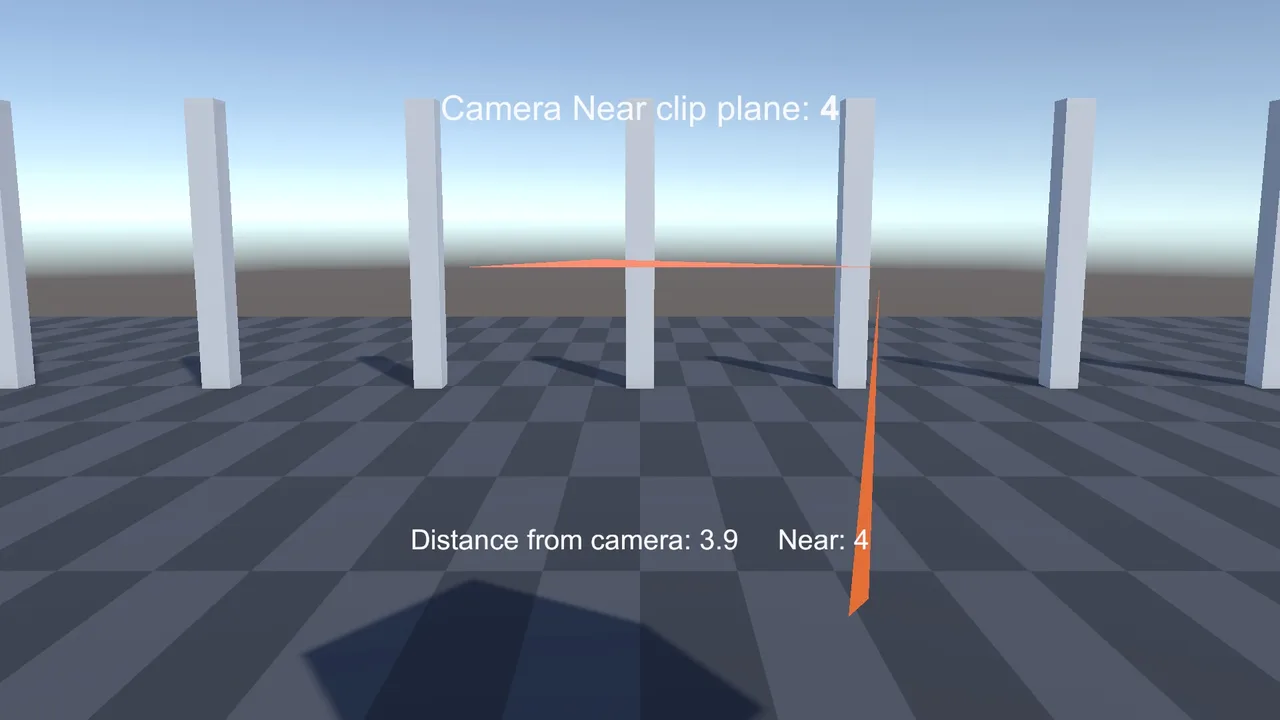
Clipping planes. The camera only renders between its Near and Far clip planes. Objects closer than Near (default 0.3) or further than Far (default 1000) aren’t drawn. Huge worlds or tiny objects right in front of the lens hit this.
Multiple cameras. If two cameras render to the same display, the one with the higher Priority (Built-in: Depth) draws last and covers the other. A second camera with a Skybox or Solid Color background hides everything rendered before it. In URP, use camera stacking (Base plus Overlay cameras) instead of multiple base cameras.
The camera is disabled or missing its tag. Scripts using Camera.main need a camera tagged MainCamera.
Culling Mask and Layers
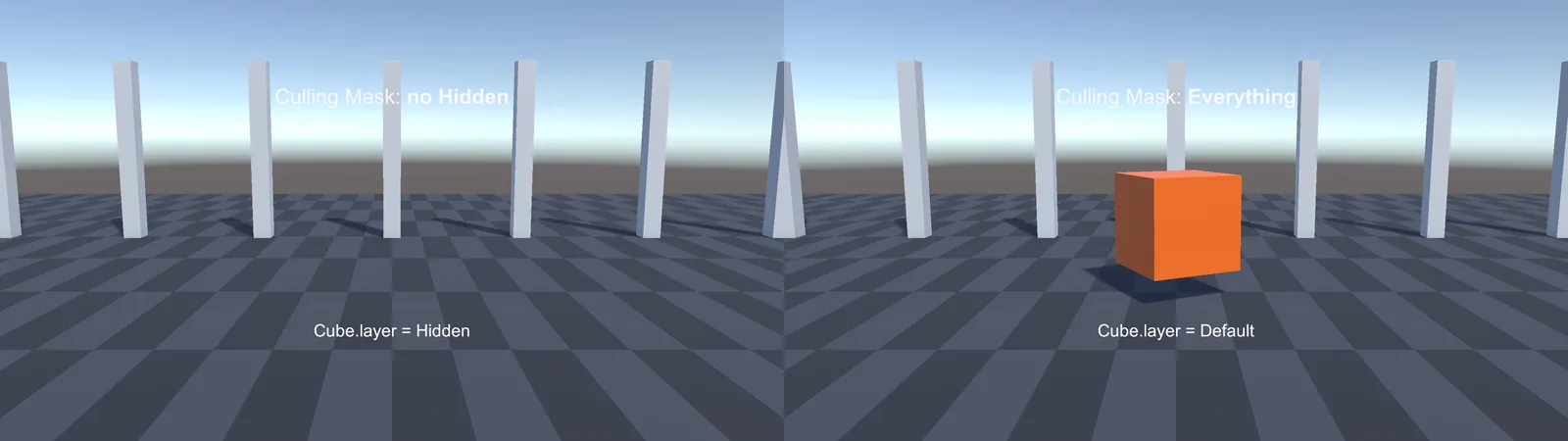
Each camera has a Culling Mask listing which layers it renders. If the object’s layer isn’t ticked, the camera skips it, while the Scene view still shows it. This is very common after creating custom layers or copying cameras from other projects.
Also check the Layers dropdown at the top-right of the Editor. It controls Scene view visibility per layer, a separate setting from the camera’s mask. Layers are explained in more depth in our collision layers guide.
2D: Z Position and Sorting Order
In 2D projects, objects disappear for different reasons:
| Problem | Fix |
|---|---|
| Sprite hidden behind the background | Raise its Order in Layer, or put it on a higher Sorting Layer than the background |
| Camera Z equals the sprite’s Z | Keep the camera at Z = -10 and sprites at Z = 0. A camera at Z 0 renders nothing in front of it |
| Sprite behind the camera | Sprites with Z less than the camera’s Z (e.g. -20) are behind it |
| Tilemap covers sprites | The Tilemap Renderer’s sorting layer or order is higher than your sprites’ |
| Sprite has no image | The Sprite field is empty, or the texture’s import type isn’t Sprite (2D and UI) |
For top-down games, set Transparency Sort Mode to Custom Axis (0, 1, 0) in the URP 2D Renderer, so objects lower on screen draw in front. See our Tilemap guide for sorting tilemaps.
Materials, Shaders and Normals
- Pink object: visible but broken. The shader doesn’t match your render pipeline (see fixing pink materials).
- Fully transparent: a transparent material with alpha 0, or a texture whose alpha channel is empty. Check Base Color alpha and Surface Type.
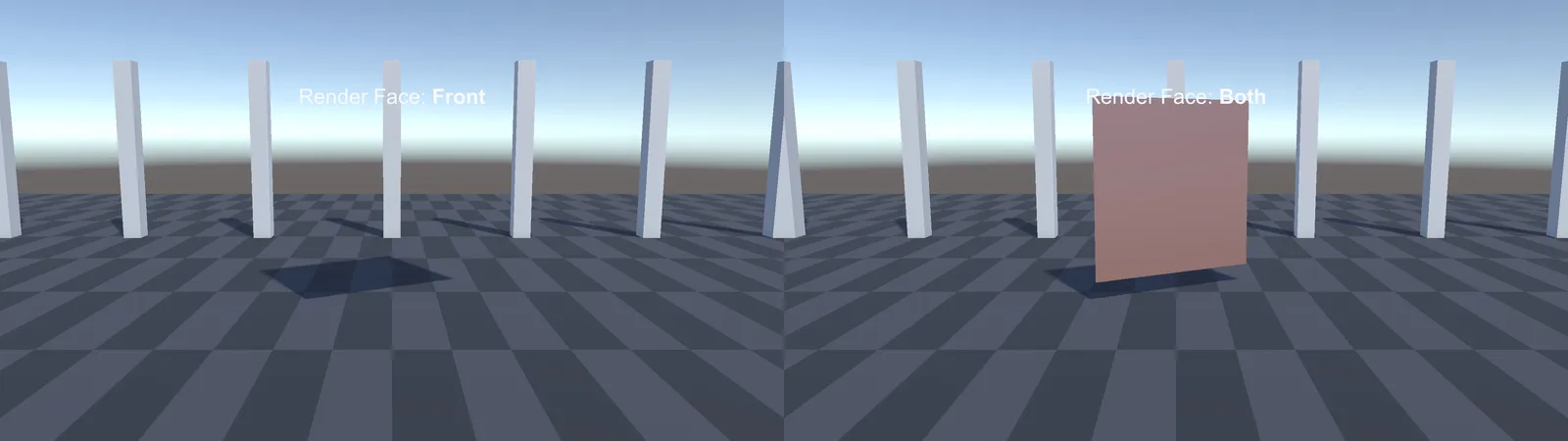
- Back-face culling: a plane or quad is only visible from its front side. Look from the other side and it disappears. Rotate it, or use a double-sided material (Render Face: Both in URP).
- Flipped normals from a modelling tool make a mesh invisible from outside. Recalculate normals in Blender, or tick Swap UVs / Normals import options as appropriate.
- Black or unlit: not invisible, just unlit. Check scene lighting (see Unity 6 lighting).
Scale, Size and Position
- Scale of 0 on the object or any parent makes it invisible. A negative scale can flip it inside out.
- Import scale: models from some tools import at 0.01 or 100× size. Check Scale Factor in the model’s import settings.
- Far away: the object may be at (5000, 0, 0). Select it and press F in the Scene view to frame it and see where it is.
- Inside another object: hidden inside a wall or the ground.
UI Not Visible
- The element isn’t under a Canvas, or is under a disabled one.
- Canvas Render Mode: Screen Space – Camera needs a Render Camera assigned, and the plane distance must be within that camera’s clip range. World Space canvases are often enormous (scale 1 = 1 unit per pixel) or behind the camera.
- Anchors push the element off-screen at the current resolution. Check different aspect ratios.
- A CanvasGroup with alpha 0, or a Mask/RectMask2D parent clipping it.
- Sort order: another canvas with a higher Sort Order is drawn on top.
- TextMeshPro text with a box too small and Overflow set to Truncate shows nothing.
Spawned at Runtime but Invisible
- Wrong position:
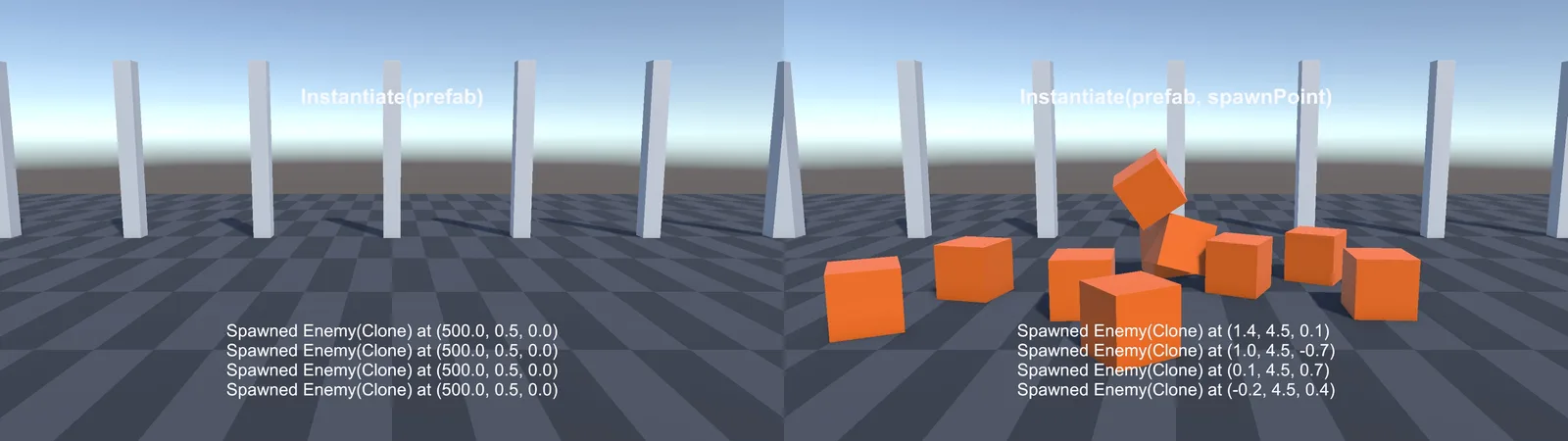
Instantiate(prefab)without a position uses the prefab’s saved position, which might be far away. Pass position and rotation explicitly. - Spawned as a child of a scaled, rotated or inactive parent.
- The prefab asset itself is disabled, so instances spawn inactive.
- It was destroyed: a script, a physics fall into the void, or a “destroy after seconds” timer. Pause the game (Ctrl/Cmd+Shift+P) right after spawning and inspect the Hierarchy.
- Additive scenes: it spawned in an unloaded scene or another scene’s camera isn’t active (see scene loading).
🔍 Debugging a lot of scenes?
Hierarchy and scene-view tools on the Asset Store make finding hidden, disabled or misplaced objects much faster. Here are the ones we recommend.
Visible in Editor, Missing in the Build
- Shader stripped: materials created or assigned only from code may lose their shader in the build. Add the shader to Always Included Shaders, or reference the material from a scene or prefab.
- Quality settings differ: the build uses a different Quality level, with a lower LOD Bias, shorter shadow distance, or a different URP Asset.
- Resolution or aspect ratio: the object or UI is outside the view at the build’s resolution.
- Scene not in the build: the scene containing the object isn’t in the Build Profile’s scene list.
- Check the Player log for errors (see reading NullReferenceExceptions).
FAQ
Why can I see my object in the Scene view but not the Game view?
Usually the camera’s culling mask excludes its layer, it’s outside the camera’s view or clip planes, or in 2D it’s sorted behind the background or at the camera’s Z.
Why is my sprite invisible in Unity?
Check Order in Layer and Sorting Layer, make sure the camera is at Z -10 with sprites in front of it, and confirm the SpriteRenderer has a sprite assigned.
Why is my plane invisible from one side?
Back-face culling. Planes and quads render only their front face. Use a double-sided material or rotate them.
Why is my UI not showing?
Check it’s under an active Canvas, the render mode and camera are correct, anchors keep it on screen, and no CanvasGroup alpha or mask hides it.
How do I find where an object is?
Select it in the Hierarchy and press F in the Scene view to frame it.
Reader questions
Asked by readers of this article and answered by AI. Behavior can differ between Unity versions, so test in yours.


Leave a Reply