

No autocomplete, no red squiggles, MonoBehaviour underlined as unknown, or every script opening as a loose file: when IntelliSense stops working, writing Unity code feels like typing in Notepad. The cause is almost always the same. Your code editor isn’t connected to the C# project files that Unity generates. This guide explains how that connection works and gives step-by-step fixes for VS Code, Visual Studio and Rider in Unity 6, including the Mac-specific problems and a clean reset that fixes the stubborn cases.
Quick answer
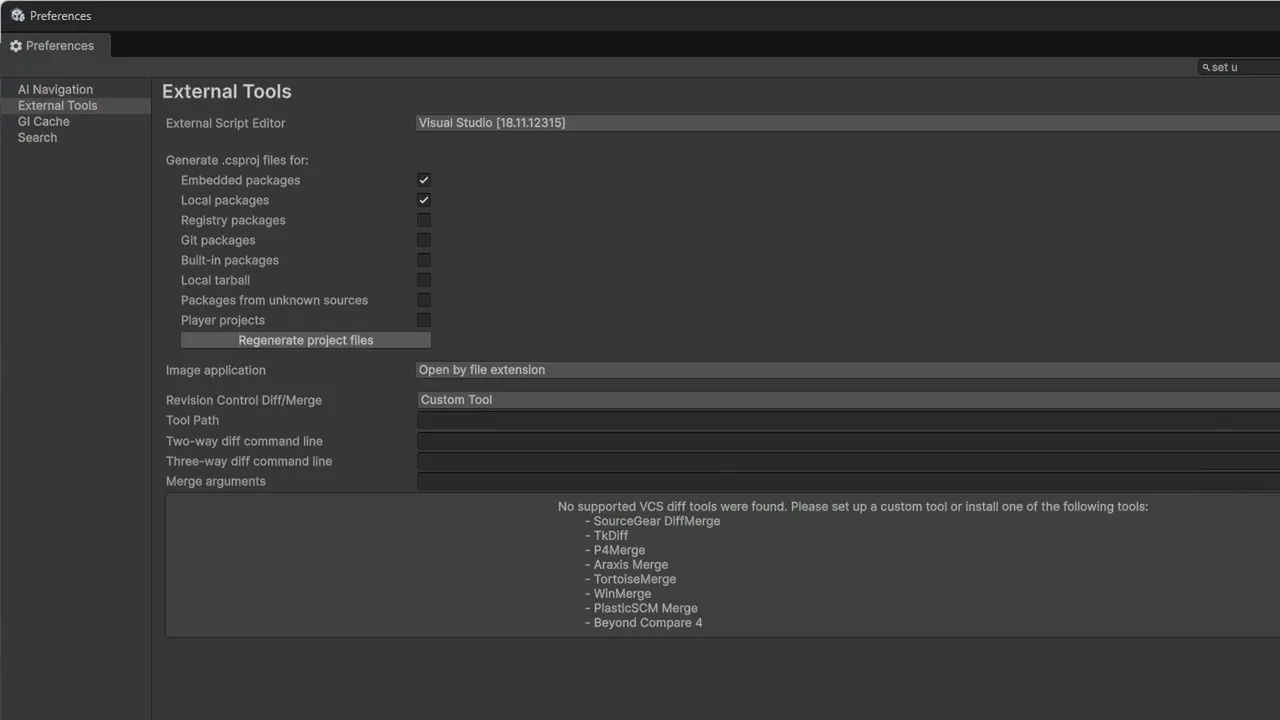
In Unity, open Edit > Preferences > External Tools, set External Script Editor to your editor (not “Open by file extension”) and click Regenerate project files. Then close your editor and reopen it from Unity with Assets > Open C# Project. For VS Code you also need Microsoft’s Unity extension and the Visual Studio Editor package 2.0.20 or newer, not the old VS Code Editor package. Step-by-step quick fix
How Unity and Your Code Editor Connect
Your code editor doesn’t understand Unity directly. It understands C# project files. Unity writes these for you: a .sln solution file in the project root and one .csproj file per assembly (Assembly-CSharp.csproj, Assembly-CSharp-Editor.csproj, plus one per assembly definition). Those files tell the editor which scripts belong together and where to find UnityEngine.dll, packages and the .NET libraries.
Three things have to line up for IntelliSense to work:
- An IDE integration package in Unity that generates the project files. For VS Code and Visual Studio that’s the Visual Studio Editor package; for Rider it’s the JetBrains Rider Editor package.
- Unity’s External Script Editor setting pointing at your editor, so Unity generates the right flavour of project files and opens scripts in the right place.
- C# tooling in the editor that loads those project files: C# Dev Kit in VS Code, the Unity workload in Visual Studio, and Rider’s built-in Unity support.
If any link is missing or out of date, you get a text editor with syntax colouring and nothing else.
The 3-Step Quick Fix (Try This First)
- In Unity, open Edit > Preferences > External Tools (on macOS: Unity > Settings > External Tools) and set External Script Editor to your editor. Don’t leave it on “Open by file extension”.
- In the same panel, click Regenerate project files.
- Close your code editor completely, then reopen it from Unity: Assets > Open C# Project, or double-click a script in the Project window.
Step 3 matters. Opening a single .cs file from Explorer or Finder opens it without the project around it, and no amount of settings will give it IntelliSense. If the quick fix doesn’t do it, go to your editor’s section below.
Fix IntelliSense in VS Code
VS Code’s Unity setup changed in 2023, and most broken setups are still using the old one. The current, supported setup is:
1. Install the Unity extension
In VS Code’s Extensions view, install Unity published by Microsoft. It automatically installs C# Dev Kit and the C# extension it depends on. If you have old Unity-related extensions installed (such as the deprecated “Debugger for Unity” or “Unity Tools”), disable them.
2. Use the Visual Studio Editor package, not the VS Code one
Counter-intuitive but important: VS Code uses Unity’s Visual Studio Editor package (com.unity.ide.visualstudio), version 2.0.20 or newer. The old Visual Studio Code Editor package (com.unity.ide.vscode) is legacy and no longer maintained.
- Open Window > Package Manager and select In Project.
- If Visual Studio Code Editor is listed, click Remove.
- Find Visual Studio Editor. Install it if it’s missing, or Update it if it’s below 2.0.20.
3. Point Unity at VS Code and regenerate
In External Tools, choose Visual Studio Code as the External Script Editor. If it isn’t in the list, pick Browse… and select the VS Code executable. Click Regenerate project files, then open the project with Assets > Open C# Project.
4. Confirm the project loaded
In VS Code, open the Explorer sidebar and look for the Solution Explorer section. You should see Assembly-CSharp and your other assemblies. If it’s empty or shows errors:
- Open View > Output and pick C# Dev Kit or Projects in the dropdown. The log says why a project failed to load.
- If the log says the .NET SDK couldn’t be found, install the current .NET SDK from Microsoft’s .NET download page, then fully restart VS Code. C# Dev Kit needs an SDK on the machine to load projects.
- Make sure you opened the project root folder (the one containing
Assetsand the.sln), not theAssetsfolder or a single script.
VS Code shows no errors (only autocomplete)
By default the C# extension only reports compiler errors for files you have open. To see errors across the whole project in the Problems panel, open Settings, search for compiler diagnostics scope (dotnet.backgroundAnalysis.compilerDiagnosticsScope) and set it to fullSolution. Unity’s Console remains the final word on what compiles.
VS Code IntelliSense not working on Mac
On macOS the usual extra culprit is the .NET SDK:
- Install the SDK build that matches your Mac: Arm64 for Apple Silicon (M1 and later), x64 for Intel.
- Open Terminal and run
dotnet --info. If the command isn’t found, the SDK isn’t on your PATH. The Microsoft installer puts it in/usr/local/share/dotnet; reinstalling with the official package usually fixes the PATH. - Quit VS Code fully with Cmd+Q (closing the window leaves it running) and reopen it from Unity.
Fix IntelliSense in Visual Studio
- Install the Unity workload. Open the Visual Studio Installer, click Modify on your Visual Studio 2022 install, and tick Game development with Unity. This installs Visual Studio Tools for Unity.
- Check the Unity package. In Unity’s Package Manager, make sure Visual Studio Editor is installed and up to date.
- Select it in Unity. In External Tools, pick your Visual Studio version (for example “Visual Studio Community 2022”) and click Regenerate project files.
- Open from Unity. Close Visual Studio and double-click a script in Unity.
The “Miscellaneous Files” sign. Look at the project dropdown at the top-left of the code window. If it says Miscellaneous Files instead of Assembly-CSharp, the file isn’t part of the loaded solution, so it gets no IntelliSense. It happens when a script was created while Visual Studio was open and the solution didn’t reload, or when the file was opened from outside Unity. Close Visual Studio, regenerate project files in Unity, and reopen from Unity. If the Solution Explorer shows a project as “(unloaded)”, right-click it and choose Reload Project.
If IntelliSense is still stuck, close Visual Studio and delete the hidden .vs folder in the project root. It holds Visual Studio’s cache and is safe to delete; Visual Studio rebuilds it on the next launch.
Fix IntelliSense in Rider
- In Unity’s Package Manager, install or update JetBrains Rider Editor (
com.unity.ide.rider). - In External Tools, choose Rider and click Regenerate project files.
- Open the project from Unity. Rider’s Unity support is built in; check that the Unity icon in Rider’s status bar shows it’s connected to the Editor.
If Rider shows unresolved symbols, use File > Invalidate Caches and restart.
💻 Slow autocomplete is often your hardware
The C# language server loads every assembly in your project. With Unity, a browser and your editor open, 8 GB of RAM runs out quickly, and IntelliSense lags or stops responding. 16 GB and an SSD make a noticeable difference.
The Clean Reset (For Stubborn Cases)
When nothing else works, delete the generated files and let Unity recreate them. Everything below is generated and safe to delete:
- Close your code editor and Unity.
- In the project root, delete all
*.slnand*.csprojfiles, the.vsfolder (Visual Studio), the.ideafolder (Rider) and theobjfolder if there is one. Keep.vscodeif you have custom settings or launch configurations in it. - Open the project in Unity and wait for it to finish importing.
- In External Tools, confirm your editor and click Regenerate project files.
- Open the editor with Assets > Open C# Project.
These files are also why they belong in .gitignore. Our Git setup guide for Unity has a .gitignore that already excludes them.
Test That It Really Works (and Set Up Debugging)
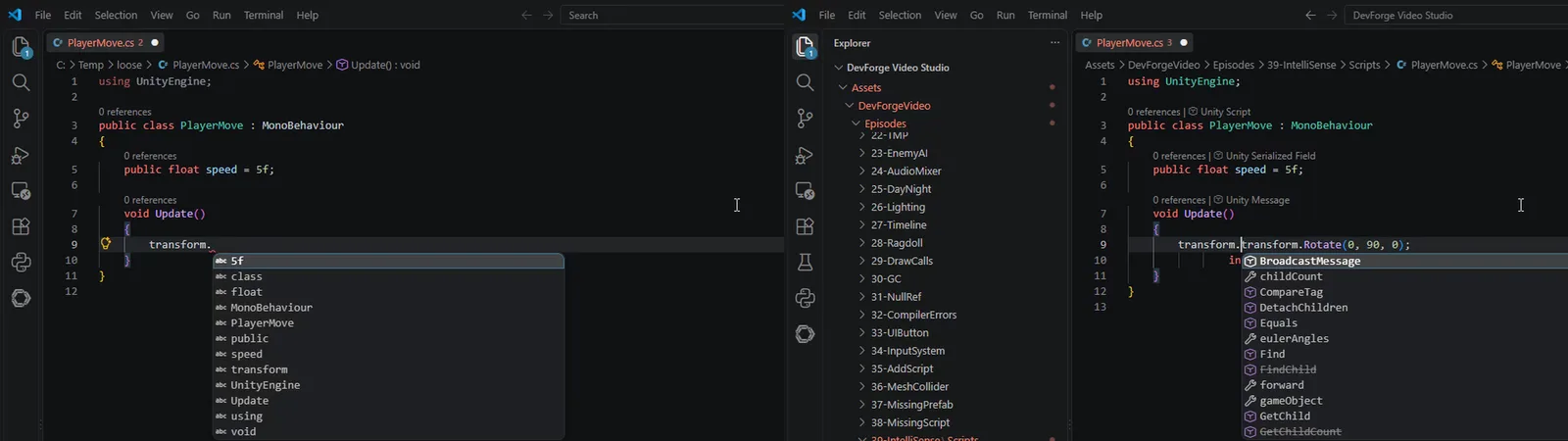
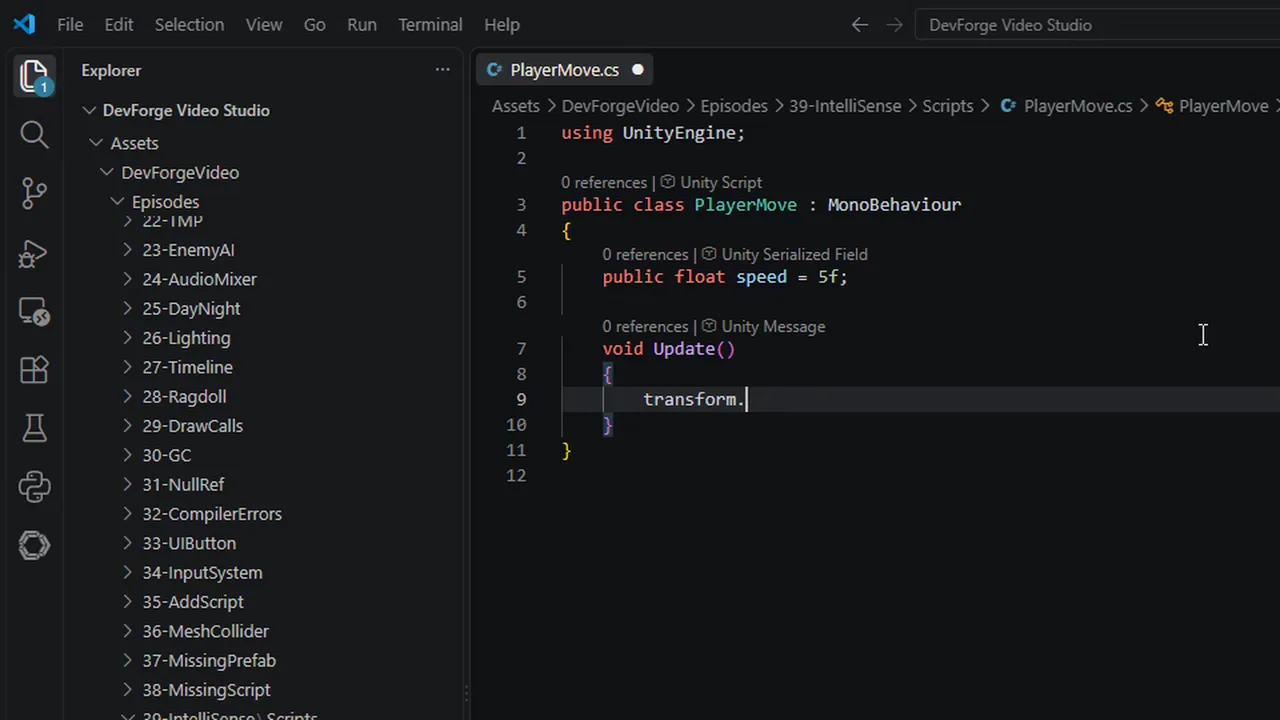
Don’t trust a green status bar alone. Run this 30-second test in any script:
- Inside a method, type
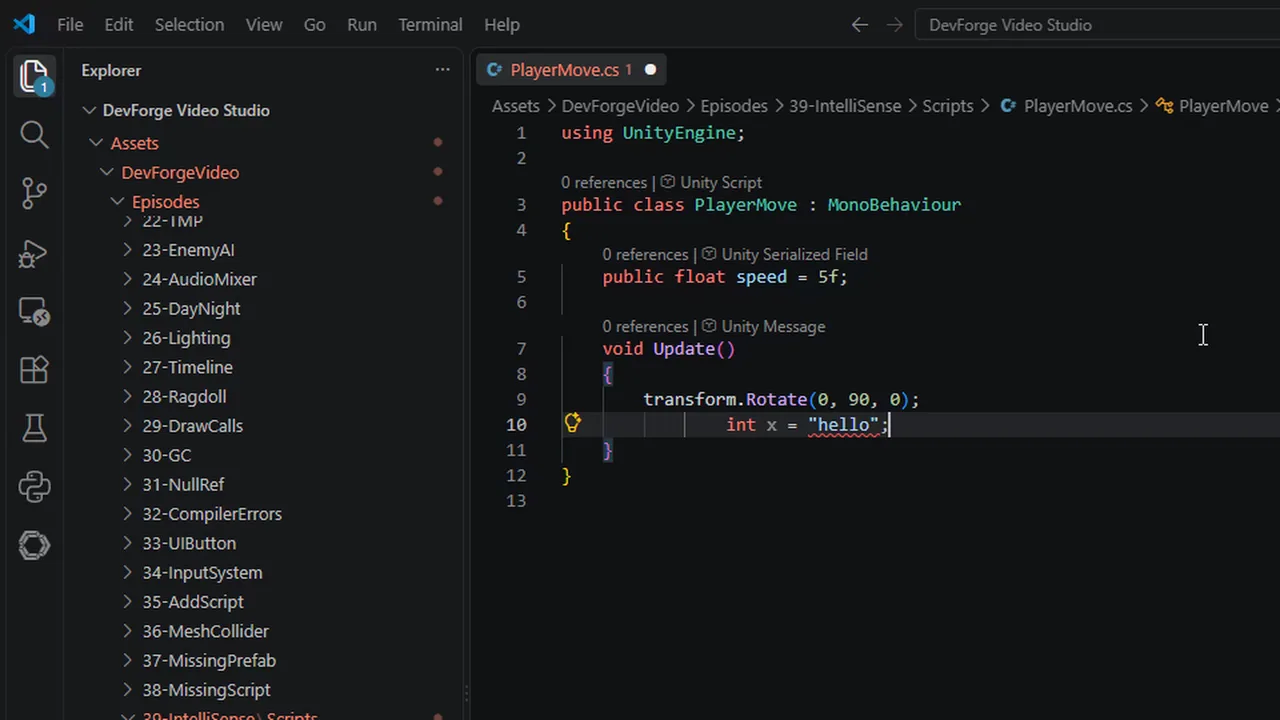
transform.and check that a list of members likepositionandRotateappears. - Type a deliberate mistake such as
int x = "hello";. A red squiggle should appear within a few seconds. Delete it afterwards. - Hover over
MonoBehaviour. You should see its documentation tooltip, and Go to Definition (F12) should open the metadata for it.
If all three work, IntelliSense is fully connected. Once it is, you get debugging almost for free, which is worth setting up now because it makes bugs like a NullReferenceException far quicker to track down:
- Unity side: the bug icon at the bottom-right of the Unity Editor switches between Release and Debug code optimization. Choose Debug so breakpoints hit reliably.
- VS Code: the Unity extension includes a debugger. Open Run and Debug, choose Attach to Unity, set a breakpoint, then press Play in Unity.
- Visual Studio: click Attach to Unity in the toolbar, set a breakpoint, then press Play.
- Rider: use the Attach to Unity Editor run configuration Rider creates for Unity projects.
When execution stops at the breakpoint, hover over variables to see their values. It beats scattering Debug.Log calls everywhere.
Fixes by Symptom
‘UnityEngine’ or ‘MonoBehaviour’ could not be found (in the editor only)
Your editor loaded the file without Unity’s references. Unity itself compiles fine. Regenerate project files and reopen from Unity. If you use VS Code, make sure the old Visual Studio Code Editor package is removed.
No IntelliSense for package code (Input System, Cinemachine…)
Your own scripts autocomplete package types through references, so that should work. If you need to navigate or edit inside a package, open External Tools and, under Generate .csproj files for, tick the kinds of packages you need (for example Registry packages or Git packages), then click Regenerate. Leave them off otherwise, since extra projects slow the editor down.
A new script has no IntelliSense, but older ones do
The editor loaded the solution before the file existed. Unity updates the .csproj on the next refresh; most editors pick that up automatically, but if not, regenerate project files or reload the solution. This is also typical of the “Miscellaneous Files” problem in Visual Studio.
Double-clicking a script opens Notepad or the wrong editor
External Script Editor is set to “Open by file extension” or points at an old editor. Select the right one in External Tools. If your editor isn’t listed, its Unity package isn’t installed.
IntelliSense stopped after upgrading Unity
Upgrading Unity can leave an old IDE package version behind. Update Visual Studio Editor or JetBrains Rider Editor in the Package Manager, regenerate project files, and do the clean reset if needed.
IntelliSense works in some folders but not others
Folders with an assembly definition compile into their own .csproj. If a script in that folder uses types from another assembly or package, the asmdef needs a reference to it, or both Unity and your editor will report the type as missing. See assembly definition errors.
FAQ
Why is IntelliSense not working in Unity?
Your code editor isn’t loading the C# project files Unity generates. Set the External Script Editor in Unity’s Preferences, click Regenerate project files, and reopen the editor from Unity with Assets > Open C# Project.
Which Unity package does VS Code need?
The Visual Studio Editor package, version 2.0.20 or newer, plus Microsoft’s Unity extension in VS Code. The older Visual Studio Code Editor package is legacy and should be removed.
Do I need the .NET SDK for Unity in VS Code?
C# Dev Kit uses the .NET SDK to load projects. If the Output panel reports that no SDK was found, install the current .NET SDK and restart VS Code. Unity itself doesn’t need it to compile your game.
What does “Miscellaneous Files” mean in Visual Studio?
The open file isn’t part of the loaded Unity solution, so it gets no IntelliSense. Close Visual Studio, regenerate project files in Unity, and open the script from Unity.
Is it safe to delete .sln and .csproj files?
Yes. Unity regenerates them. They shouldn’t be committed to version control either.
Which editor is best for Unity?
All three work well. Visual Studio Community is free and the most common on Windows, VS Code is free and lighter, and Rider (now free for non-commercial use) has the deepest Unity-specific features.
Reader questions
Asked by readers of this article and answered by AI. Behavior can differ between Unity versions, so test in yours.



Leave a Reply