

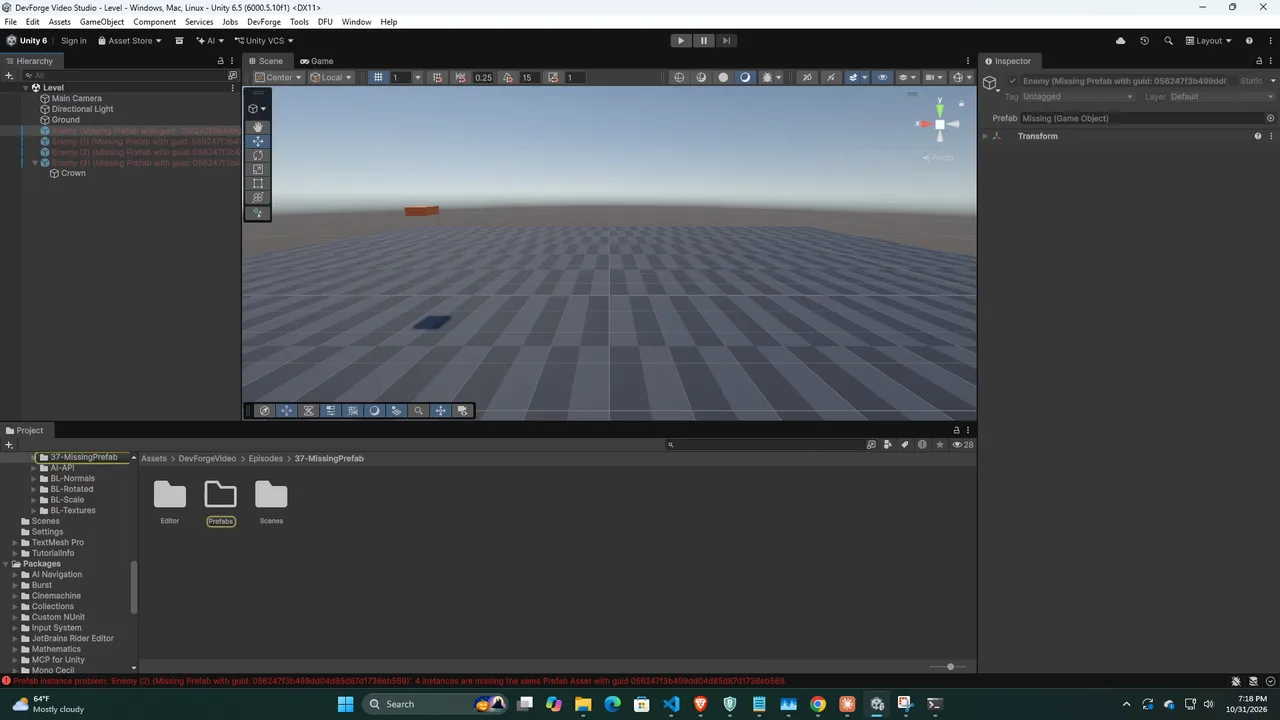
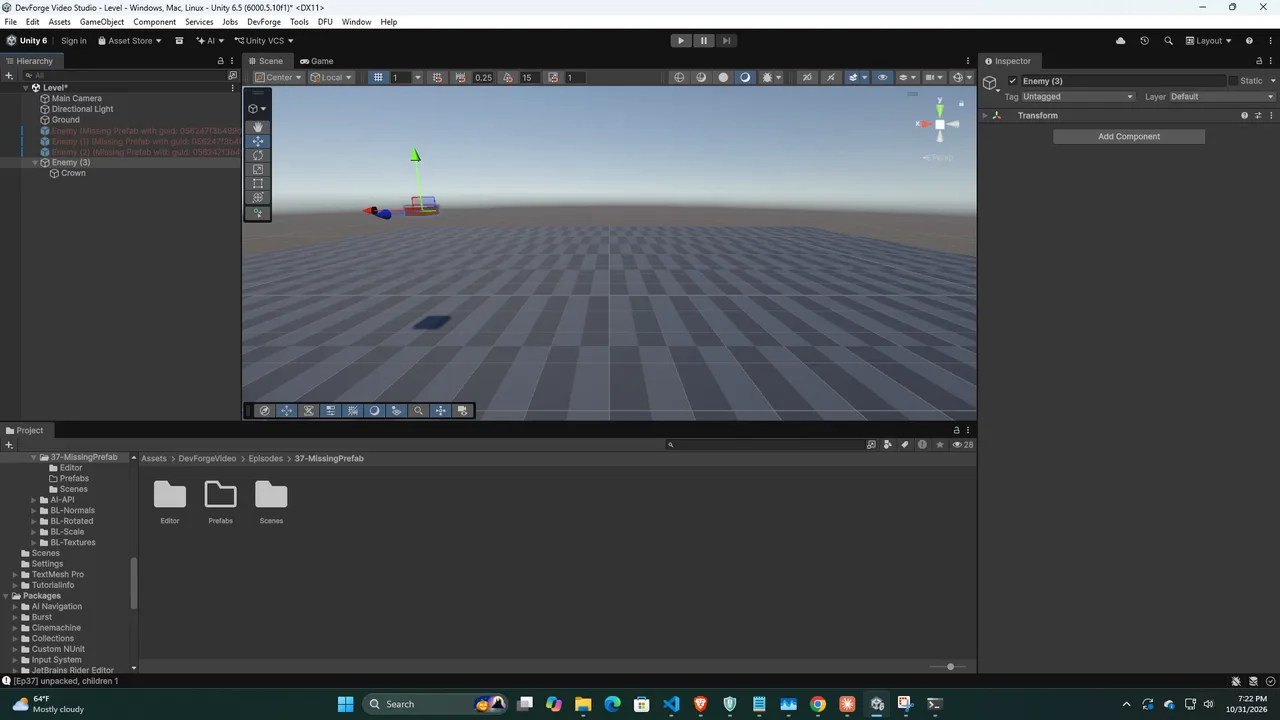
You open a scene and some objects show up red in the Hierarchy with the label Missing Prefab. The objects are still there, but they no longer link to any prefab asset, and their children may be gone. This guide explains why a missing prefab in Unity happens, how to get the link back (often in under a minute with git), how to replace broken instances when the asset is truly gone, and how to stop it happening again.
What “Missing Prefab” Means
A prefab instance in a scene doesn’t store a copy of the prefab. It stores a reference to the prefab asset’s GUID plus a list of overrides (the things you changed on this instance). The GUID lives in the prefab’s .meta file.
When Unity loads the scene and can’t find any asset with that GUID, it can’t rebuild the instance. Since Unity 2018.3 it keeps a placeholder object called a Missing Prefab instance so your overrides aren’t thrown away. That placeholder shows in red text with the prefab’s old name, and the Inspector shows a warning that the prefab asset could not be found.
The key point: the scene is fine. It’s pointing at a GUID that no longer exists. If you can make that GUID exist again, everything comes back, including overrides.
This is the same family of problem as a missing script, which also comes down to GUIDs. If you’ve read the missing script references guide, a lot of this will feel familiar.
The Usual Causes
- The prefab was deleted. Someone removed it, maybe thinking it was unused.
- The .meta file was lost or regenerated. The prefab was moved or renamed outside Unity (in Explorer, Finder or a git client) without its .meta file. Unity makes a new .meta with a new GUID, and every reference to the old GUID breaks.
- The .meta file was never committed. A teammate pulls a prefab without its .meta. Their Unity generates a fresh GUID that doesn’t match yours.
- A package or asset was removed. The prefab came from an Asset Store package or a UPM package that’s no longer in the project.
- A bad merge. A merge conflict resolved by picking the wrong side of a .meta file swaps the GUID.
- Copying scenes between projects. The scene came across but the prefab didn’t, or the prefab was copied without its .meta.
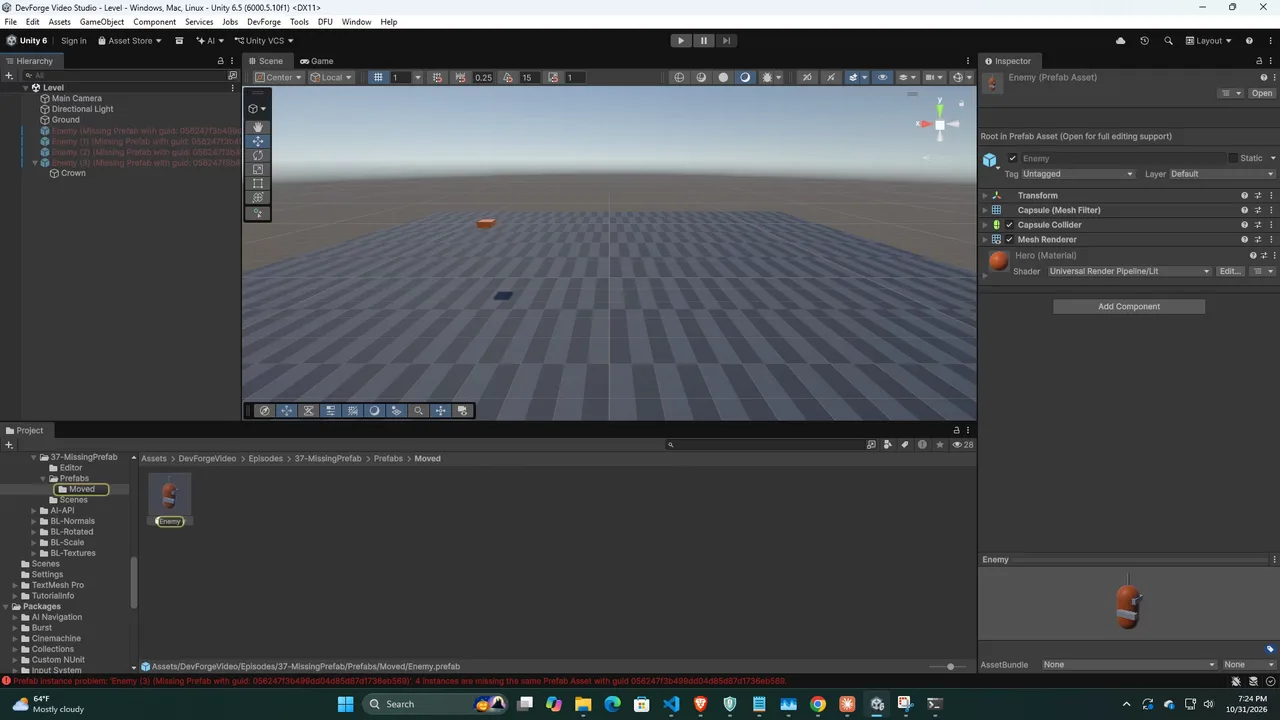
Fix 1: Restore the Original Asset and .meta
If you use version control, this is the fastest and safest fix, because it restores the exact GUID.
- Close Unity, or at least don’t save the broken scene.
- Find the commit where the prefab still existed. In git:
git log --diff-filter=D --name-only -- "*.prefab"lists deleted prefabs. - Restore both files:
git checkout <commit>^ -- "Assets/Prefabs/Enemy.prefab" "Assets/Prefabs/Enemy.prefab.meta". - Reopen Unity. The red objects turn blue again with all overrides intact.
If the prefab still exists but the .meta has a new GUID, restore just the old .meta from history. Make sure nothing else now references the new GUID before you do, or you’ll break those references instead.
No version control? This is the moment to set it up. The git for Unity guide walks through it in about ten minutes.
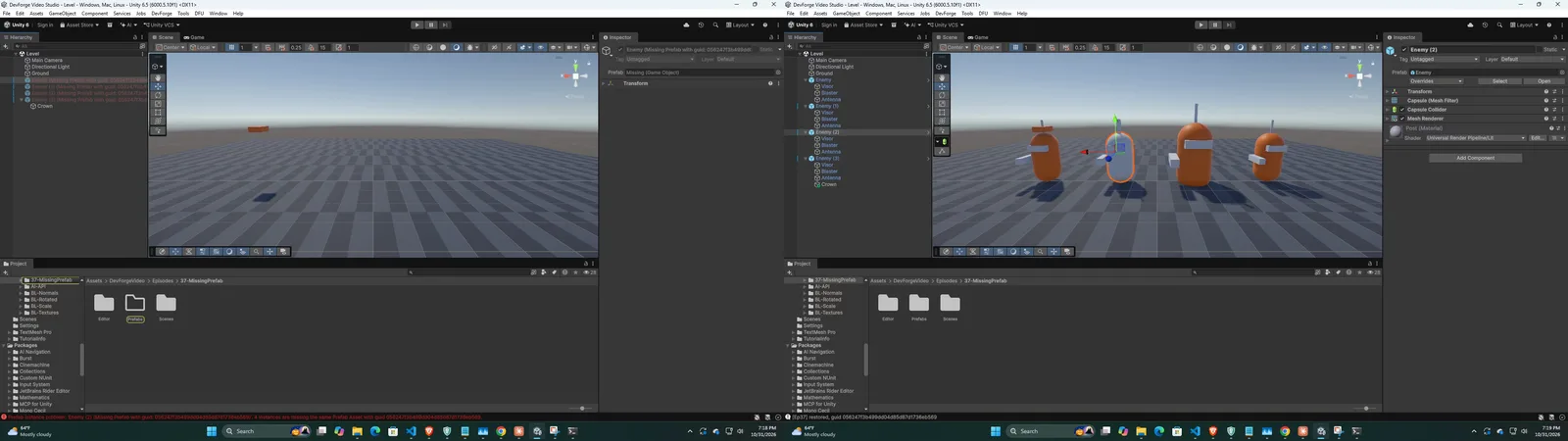
Fix 2: Point the Scene at the Right GUID
If the prefab exists but under a different GUID, you can edit the reference by hand. Scenes are text files when Asset Serialization is set to Force Text (the default).
- Open the prefab’s
.metaand copy its currentguidvalue. - Find the old GUID. Open the scene file in a text editor and search for
PrefabInstance:blocks. Each has am_SourcePrefab: {fileID: 100100000, guid: ...}line. - Replace the old GUID with the new one in every place it appears (overrides also reference it in
target:lines). - Save and return to Unity, which reimports the scene.
Back up the scene first. This works well because GUIDs are unique, so a find and replace on the old GUID is safe. It’s also the fix when several scenes and prefabs all reference the lost GUID: run the replace across all of them.
The inverse is often even simpler: open the prefab’s .meta and change its guid back to the old value. Every old reference reconnects at once. Only do this if nothing new references the current GUID yet.
Fix 3: Replace the Broken Instances
If the prefab is really gone, or you want to swap to a different prefab, Unity has a built-in tool. Since Unity 2022.2 you can right-click a prefab instance in the Hierarchy and use Prefab > Replace, then pick the new prefab asset. It keeps the transform and tries to keep matching overrides.
For many broken instances, a small editor script does the job in one go:
using UnityEditor;
using UnityEngine;

public static class ReplaceSelectedWithPrefab
{
    [MenuItem("Tools/Replace Selected With Prefab...")]
    static void Replace()
    {
        string path = EditorUtility.OpenFilePanel("Prefab", "Assets", "prefab");
        if (string.IsNullOrEmpty(path)) return;
        path = "Assets" + path.Substring(Application.dataPath.Length);
        var prefab = AssetDatabase.LoadAssetAtPath<GameObject>(path);

        foreach (var old in Selection.gameObjects)
        {
            var t = old.transform;
            var inst = (GameObject)PrefabUtility.InstantiatePrefab(prefab, t.parent);
            Undo.RegisterCreatedObjectUndo(inst, "Replace with prefab");
            inst.transform.SetPositionAndRotation(t.position, t.rotation);
            inst.transform.localScale = t.localScale;
            inst.transform.SetSiblingIndex(t.GetSiblingIndex());
            Undo.DestroyObjectImmediate(old);
        }
    }
}
Put it in an Editor folder. Select all the red objects, run the menu item, pick the prefab, and each one is replaced at the same position, rotation, scale and hierarchy slot. Overrides are lost, so re-apply any important ones afterwards.
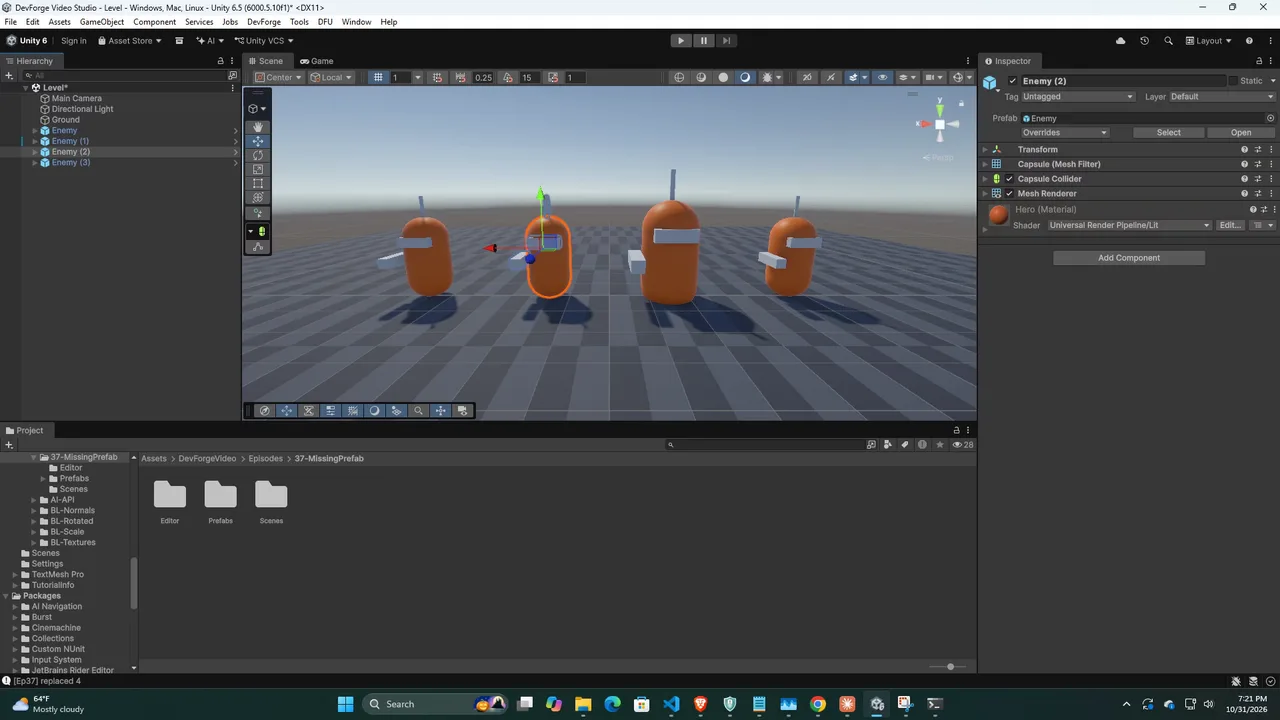
Fix 4: Unpack and Rebuild
Sometimes you don’t need the prefab link at all. Right-click a Missing Prefab instance and choose Prefab > Unpack. Unity turns the placeholder into a normal GameObject with whatever it could keep. In practice that’s often only the root and objects you added as overrides, because the rest of the content lived in the missing asset.
You can also delete the missing instance and drag in a fresh prefab. For a handful of objects this is quickest.
Preventing It
- Move and rename assets inside Unity. The Project window moves the .meta file with the asset. File explorers and some IDEs don’t.
- Always commit .meta files. Every asset and every folder has one. Your
.gitignoreshould ignoreLibrary/,Temp/and friends, but never*.meta. - Keep Visible Meta Files on. In Project Settings > Version Control, the mode should be Visible Meta Files (the default).
- Check for usages before deleting. Right-click an asset and choose Find References In Scene, or use a reference finder tool from the Asset Store. Scenes not currently open won’t be checked by the built-in search.
- Review merges of .meta files. A .meta with a changed GUID in a diff is almost always a mistake.
- Use nested prefabs and variants on purpose. Fewer one-off prefabs means fewer things to break. The prefabs and variants guide explains how to structure them.
🔧 Find broken references before they bite
Reference finders and project auditing tools can list every scene that uses an asset before you delete it. See our pick of the best Unity Asset Store tools for indie devs.
Troubleshooting
“The prefab asset could not be found”
This Inspector message on a red instance means the GUID lookup failed. Use Fix 1 or Fix 2 to bring the GUID back, or Fix 3 to replace the instance.
Missing Prefab only on a teammate’s machine
The prefab’s .meta file wasn’t committed, so their Unity generated a different GUID. Commit the .meta from the machine where things work, and have the teammate delete their generated .meta and pull again.
Prefab missing after removing a package
Reinstall the package at the same version to restore its GUIDs, then replace or unpack the instances before removing it again.
Children disappeared from the missing instance
Those children were part of the prefab asset, not the scene. Only restoring the original asset (Fix 1) or GUID (Fix 2) brings them back.
Instances are fine but nested prefab inside is missing
The outer prefab references a nested prefab with a lost GUID. Open the outer prefab in Prefab Mode and apply the same fixes there. The nested reference lives inside the outer .prefab file.
FAQ
Will saving the scene make it worse?
Saving keeps the Missing Prefab placeholder and its overrides, so you can still fix it later. It won’t throw data away, but restoring from git is easiest before you save.
Can I find all missing prefabs in a project?
In an open scene, search the Hierarchy and look for red entries. Project-wide, search scene and prefab files for GUIDs that have no matching .meta, or use an Asset Store auditing tool.
Why is the object red but the prefab exists?
The prefab’s GUID changed, usually because its .meta was regenerated. Use Fix 2 to reconnect it.
Does Unity 6 handle this differently?
The behaviour is the same in Unity 6. Missing Prefab placeholders keep your overrides, and Prefab Replace is available from the context menu.
Is it safe to edit scene files by hand?
Yes, for GUID swaps, as long as the project uses Force Text serialization and you keep a backup. Avoid hand-editing anything more complex.
Reader questions
Asked by readers of this article and answered by AI. Behavior can differ between Unity versions, so test in yours.



Leave a Reply