
Your Blender model shows up in Unity as a speck you can barely see, or as a giant that fills the whole scene. Or it looks the right size but the Inspector says Scale 100, and the moment you set it to 1 it shrinks to nothing. A Blender model with the wrong scale in Unity always comes down to how units are converted between Blender, the FBX file and Unity. This guide explains the conversion in plain terms, then fixes each case: Scale 100, Scale 0.01, too big, too small, and characters whose animation breaks after you fix the scale.
How Units Travel From Blender to Unity
Three systems are involved:
- Blender uses metres by default. One Blender unit is one metre when Unit Scale is 1.0.
- FBX files store a unit setting. The format’s native unit is the centimetre, and Blender writes a unit conversion into the file.
- Unity treats one unit as one metre. Physics, gravity, lights and the NavMesh agent sizes all assume that.
Two settings decide where the metre-to-centimetre conversion ends up:
- Blender’s FBX exporter option Apply Scalings. The default, All Local, writes the conversion onto the object transforms. FBX Units Scale writes it into the file’s unit setting instead.
- Unity’s Convert Units checkbox in the Model tab, which reads the file’s unit setting and converts it to metres.
When these agree, you get a model at its real size with Scale 1. When they don’t, the conversion lands on the transform as 100 or 0.01. Add unapplied scale in Blender or a changed scene Unit Scale and the numbers multiply together, which is how you end up with sizes like 10,000 or 0.0001.
Check the Real Size First
Before changing settings, find out which problem you have. In Unity:
- Create a cube with GameObject > 3D Object > Cube. It’s exactly 1 m on each side.
- Drag your model in next to it at position 0,0,0.
- Look at the model’s Scale in the Inspector and compare its size to the cube.
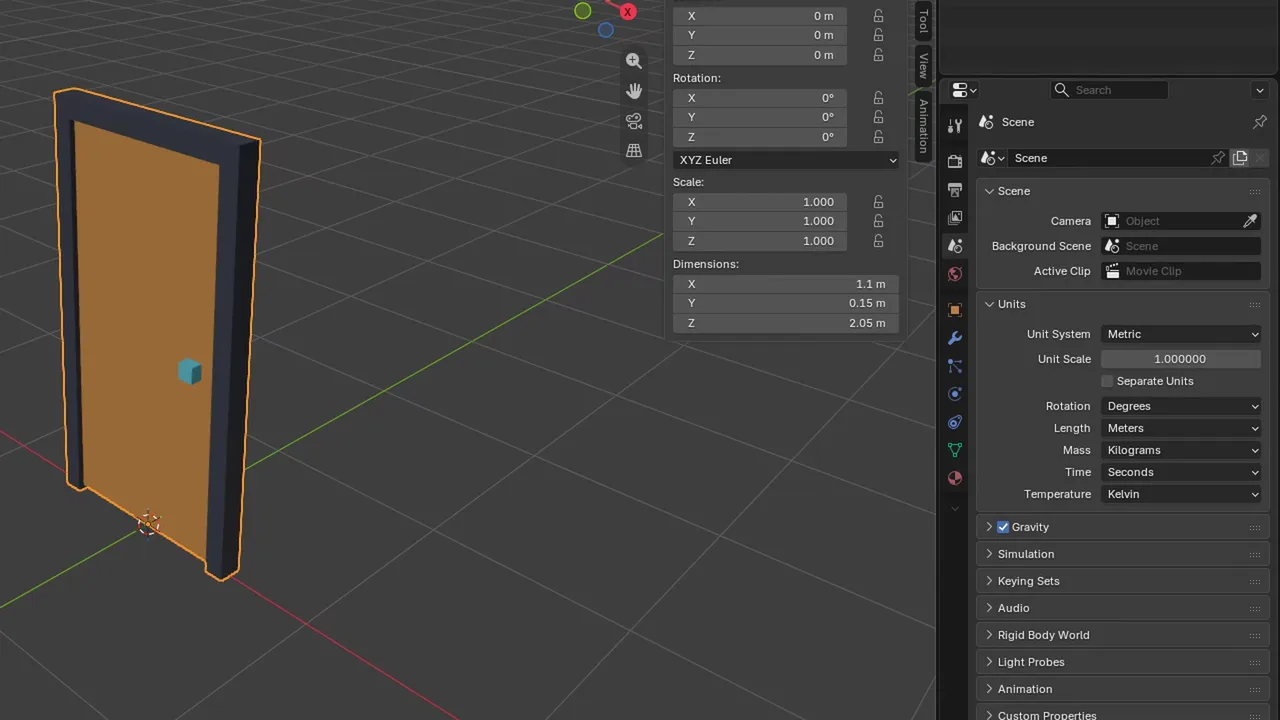
In Blender, select the object and press N. The Dimensions field shows the real size including scale. A human should read around 1.8 m tall. Also check Properties > Scene > Units: Unit System Metric, Unit Scale 1.0, Length Meters.
Now match your case:
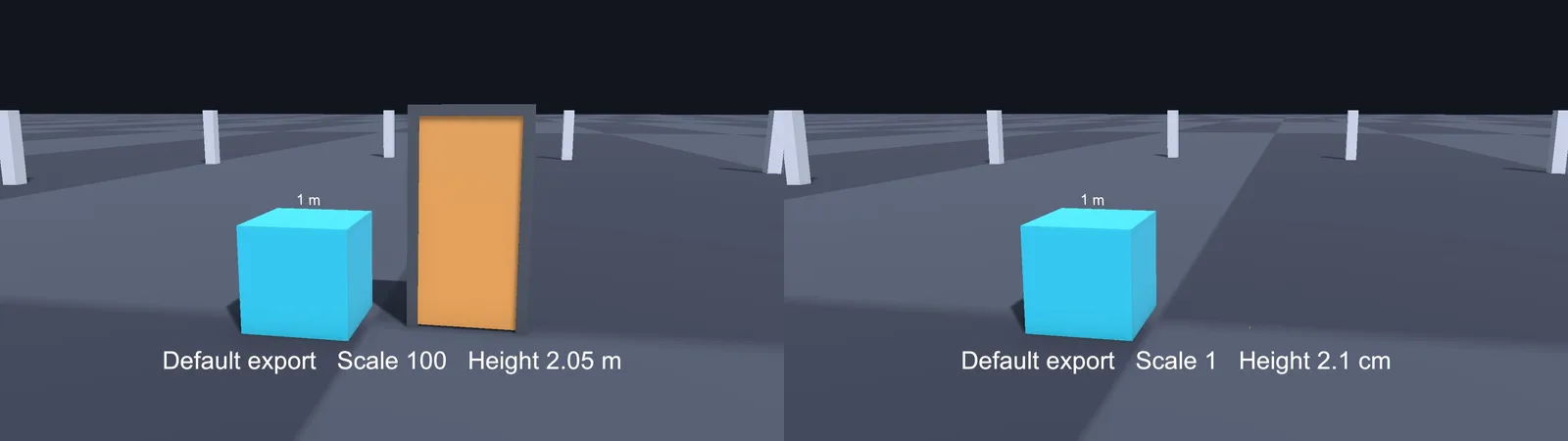
- Right size, but Scale reads 100: Scale 100 fix.
- Tiny (a 2 m door looks 2 cm): too small fix.
- Huge: too big fix.
Fix Scale 100 on Import
This is the classic. The model looks the right size, but its root transform says 100, 100, 100 (often together with Rotation X -90). The mesh data is stored 100 times smaller and the transform scales it back up. It causes problems as soon as you instantiate it with a different scale, add child objects (which inherit the 100), or set transform.localScale = Vector3.one in code.
Fix it in Blender’s exporter:
- Select the objects and apply scale: Object > Apply > Scale (or All Transforms for static meshes).
- Open File > Export > FBX (.fbx).
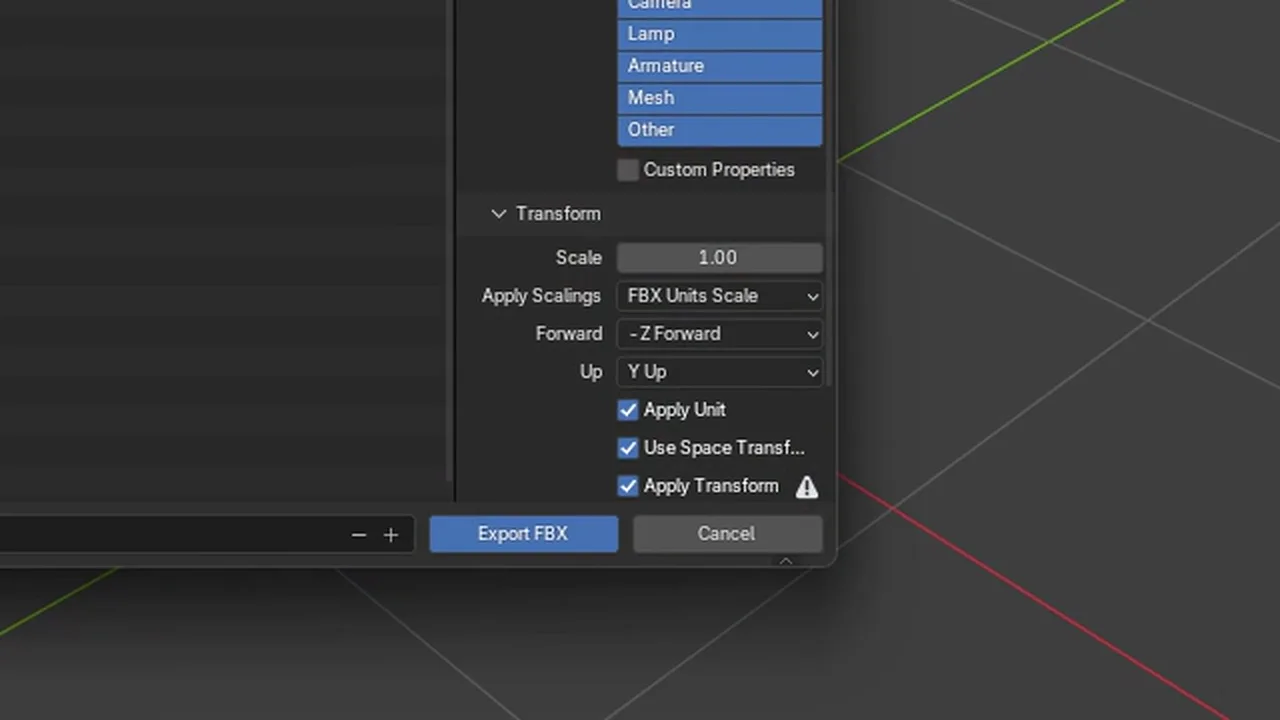
- In the Transform panel, keep Scale at 1.00, set Apply Scalings: FBX Units Scale, and keep Apply Unit ticked.
- Export over the old file.
Unity reimports and the root now shows Scale 1,1,1 at the correct size. While you’re in the dialog, tick Apply Transform as well to remove the -90 rotation. Our -90 rotation fix explains that one, and the FBX export settings guide covers the full preset.
The script version, for batch exports:
import bpy

bpy.ops.object.transform_apply(location=False, rotation=True, scale=True)

bpy.ops.export_scene.fbx(
    filepath=r"C:/MyGame/Assets/Art/Models/Door.fbx",
    use_selection=True,
    global_scale=1.0,
    apply_unit_scale=True,
    apply_scale_options='FBX_SCALE_UNITS',
    bake_space_transform=True,
)
Can’t re-export? Wrap the model in an empty parent in Unity and put your components on the parent. It hides the 100 rather than fixing it, so treat it as a stopgap.
Fix Models That Are 100 Times Too Small
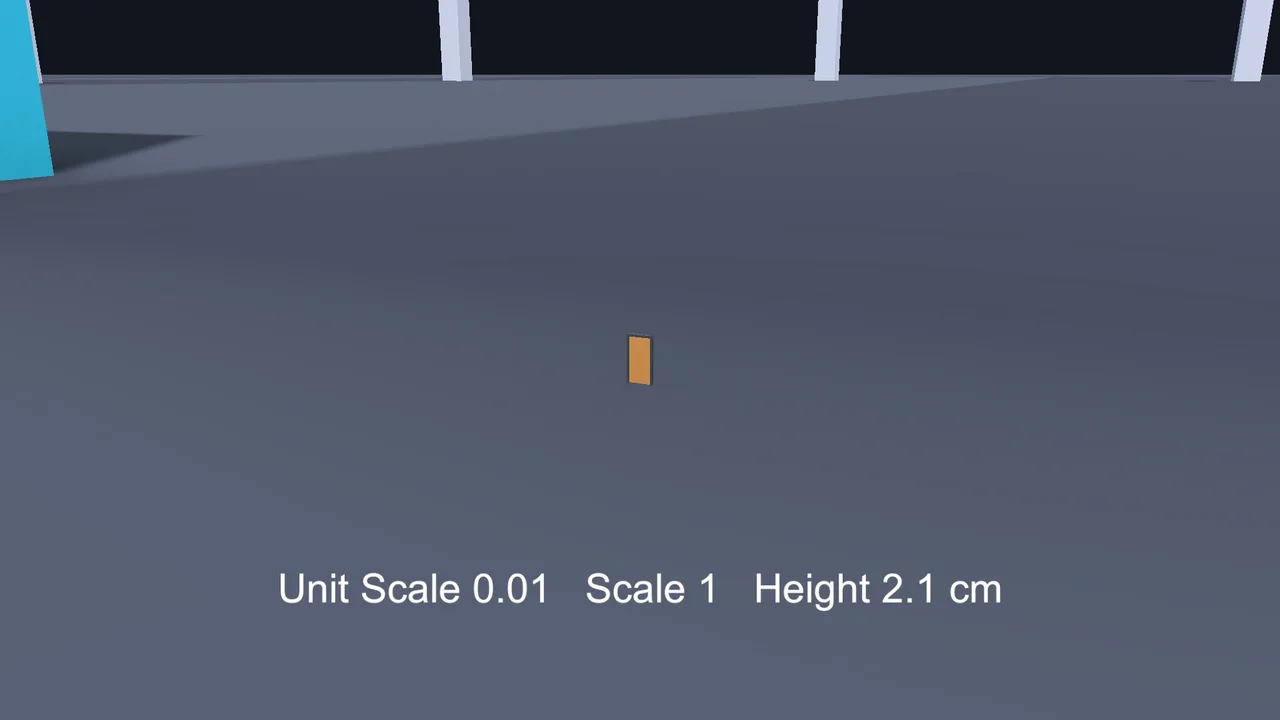
The model imports at Scale 1 but it’s tiny, or it imports at Scale 0.01. Common causes, in order of likelihood:
Unapplied 0.01 scale in Blender
Models that came into Blender from another tool often arrive with an object scale of 0.01. Character packs and FBX downloads are frequent offenders: you import them into Blender, they look fine, but the N panel shows Scale 0.01 on the armature. Export that and Unity gets a 0.01 scale too.
Fix: select the object, check Dimensions are realistic, then Object > Apply > Scale. Scale becomes 1 and the size stays the same. For rigged models, read the rig section first.
Modelled at the wrong size
If the Dimensions in Blender say 0.02 m for a door, the model really is 2 cm. Scale it up in Object Mode (S, type 100, Enter), then apply scale. Get used to checking Dimensions while modelling.
Scene Unit Scale set to 0.01
Some tutorials tell you to set Scene > Units > Unit Scale to 0.01 so Blender “works in centimetres”. With Apply Unit on, that shrinks every export by 100. Set Unit Scale back to 1.0. If your models were built at that setting, check their size afterwards and rescale if needed.
Unity’s Scale Factor was changed
Select the FBX, open the Model tab and check Scale Factor is 1. Someone may have typed 0.01 to fix a different problem.
Fix Models That Are 100 Times Too Big
The mirror image of the above. Check:
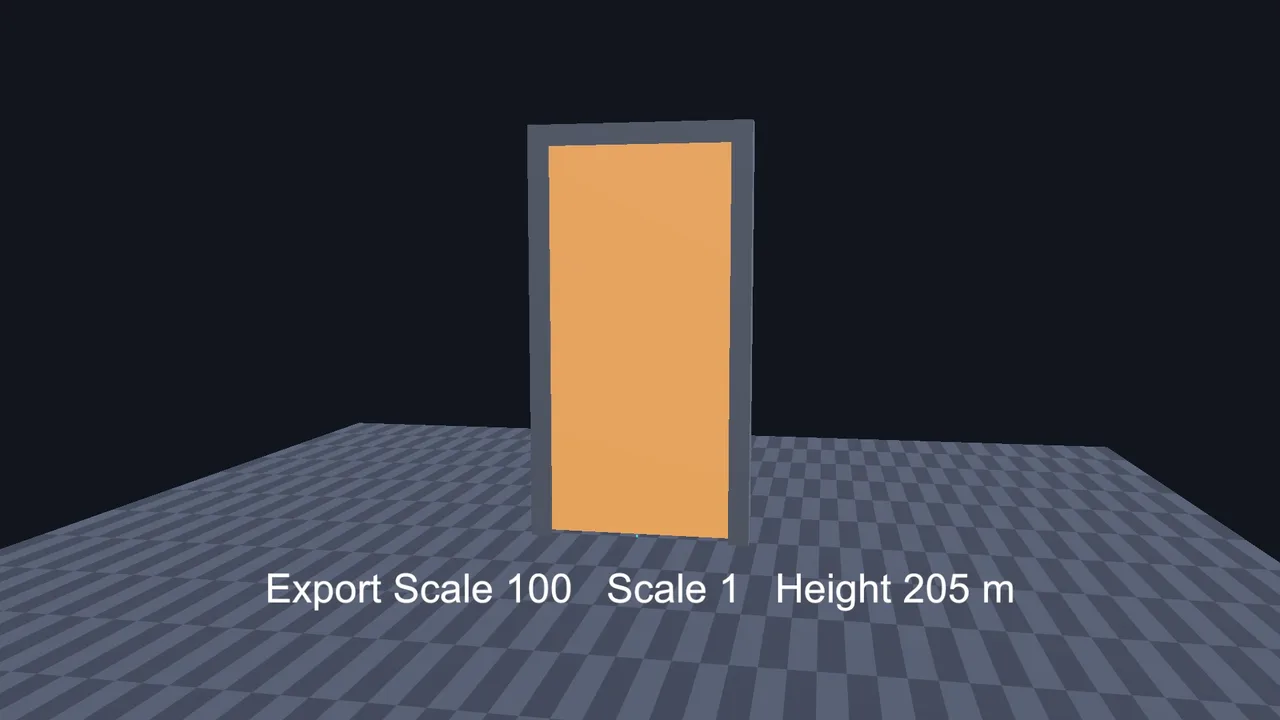
- Convert Units is off in Unity. Turn it back on in the Model tab and click Apply.
- Unapplied scale of 100 in Blender, for example from an earlier attempt to fix a tiny model. Apply it, or set it to 1 if the Dimensions are then correct.
- Exporter Scale isn’t 1.00. The Scale field at the top of the Transform panel multiplies everything. Reset it to 1.00.
- Apply Scalings set to FBX All or FBX Custom Scale from an old preset. Switch to FBX Units Scale.
- Scene Unit Scale above 1. Set it to 1.0.
🔧 Importing lots of third-party models?
If you mix Blender assets with store packs, a few editor tools make batch-fixing import settings, prefabs and scale much faster. Our list covers the ones worth paying for.
Unity’s Scale Factor and Convert Units
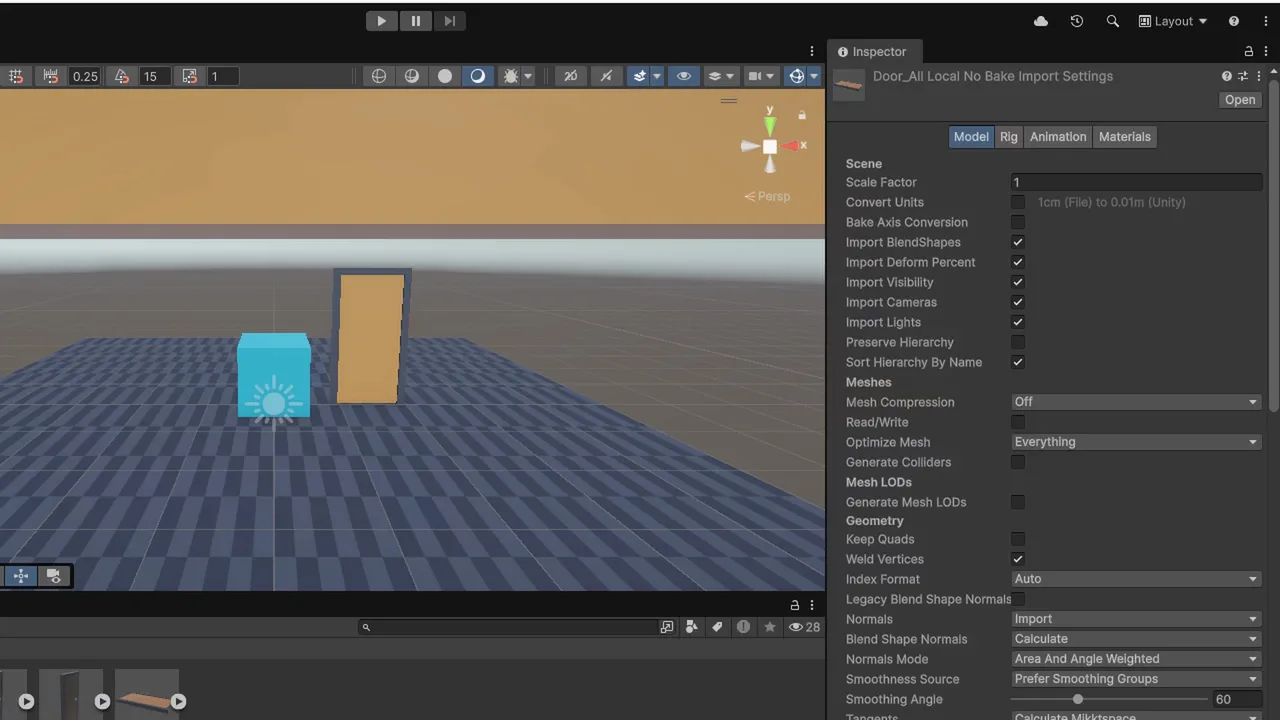
Select any FBX and open the Model tab. Two fields control size:
- Scale Factor multiplies the whole model on import. Default 1.
- Convert Units converts the file’s units to Unity metres. The label beside it shows the conversion Unity detected, such as 1cm (File) to 0.01m (Unity).
Leave both at their defaults (1 and on) and fix scale in Blender. That way every model follows the same rule and you never have to remember which file has a special Scale Factor. Only change Scale Factor for third-party files you can’t re-export, and note it somewhere.
Never “fix” an import by scaling the instance in the scene or the prefab root. Scaled transforms cause real problems:
- Non-uniform scale on a parent skews rotated children.
- Colliders scale with the transform, so physics sizes get confusing, and scaled Mesh Colliders cost more. Our Mesh Collider guide covers the details.
- Particle systems, NavMesh agents and audio ranges may or may not follow the scale, depending on their settings.
To find scaled objects in an open scene, this editor menu item lists every transform whose scale isn’t 1:
#if UNITY_EDITOR
using UnityEditor;
using UnityEngine;

public static class FindScaledObjects
{
    [MenuItem("Tools/Find Non-Unit Scale")]
    static void Find()
    {
        int count = 0;
        foreach (Transform t in Object.FindObjectsByType<Transform>(FindObjectsSortMode.None))
        {
            if (t.localScale != Vector3.one)
            {
                Debug.Log($"{t.name}: scale {t.localScale}", t);
                count++;
            }
        }
        Debug.Log($"Found {count} objects with non-unit scale");
    }
}
#endif
Put it in an Editor folder or keep the #if UNITY_EDITOR guard. Click a log entry to select the object.
Scale on Rigged and Animated Models
Applying scale on an armature is where people break their characters. If an armature has object scale 0.01 and animations with location keys, applying scale changes the bone rest positions but the location keys stay in the old units. The result in Blender: the character explodes or flies off when you play an action.
Safer options:
- Before any animation exists: select the armature and mesh together and apply scale. This is the cleanest time to do it.
- With animations already made: leave the Blender file alone and fix it at export or import. With Apply Scalings set to FBX Units Scale, check the result in Unity. If the size is still off by a constant, set Unity’s Scale Factor for that file and leave a note in the folder.
- For Humanoid characters: the Avatar is built from the imported skeleton. Fix scale before you configure the Avatar, or you’ll need to rebuild it.
Also check that the mesh and armature have the same scale before parenting them. A mesh at scale 1 parented to an armature at 0.01 is a recipe for confusion later.
Troubleshooting
Scale is 100 even with FBX Units Scale
The objects still had unapplied scale in Blender, or Unity didn’t reimport. Apply scale, export again, and right-click the FBX > Reimport.
Model is the right size but physics feels floaty
Check the model really is real-world size against the 1 m cube. Objects that are too big fall slowly relative to their size.
Children are tiny but the parent is fine
The child objects had their own unapplied scale in Blender. Select all objects in the hierarchy and apply scale.
Character explodes after Apply Scale
Location keys in the actions weren’t rescaled. Undo, and fix scale at export or import time instead.
Scale is fine but the model is offset
That’s the origin, not scale. Set the origin in Blender (Object > Set Origin) and apply location if needed.
FAQ
Why is my Blender model scale 100 in Unity?
The FBX exporter’s default Apply Scalings, All Local, stores the unit conversion on the object transform. Switch to FBX Units Scale and apply scale before export.
Is one Blender unit equal to one Unity unit?
Yes, with Metric units, Unit Scale 1.0 and the export settings above. Both mean one metre.
Should I turn off Convert Units in Unity?
No. Leave it on and fix scale in Blender. Turning it off usually makes Blender models 100 times too big.
Should I set Blender’s Unit Scale to 0.01?
Not for Unity work. Keep it at 1.0 so one Blender metre stays one Unity metre.
Can I fix scale with Unity’s Scale Factor?
Yes for files you can’t re-export, but fixing the source is better because every model then follows the same rule.
Reader questions
Asked by readers of this article and answered by AI. Behavior can differ between Unity versions, so test in yours.



Leave a Reply