
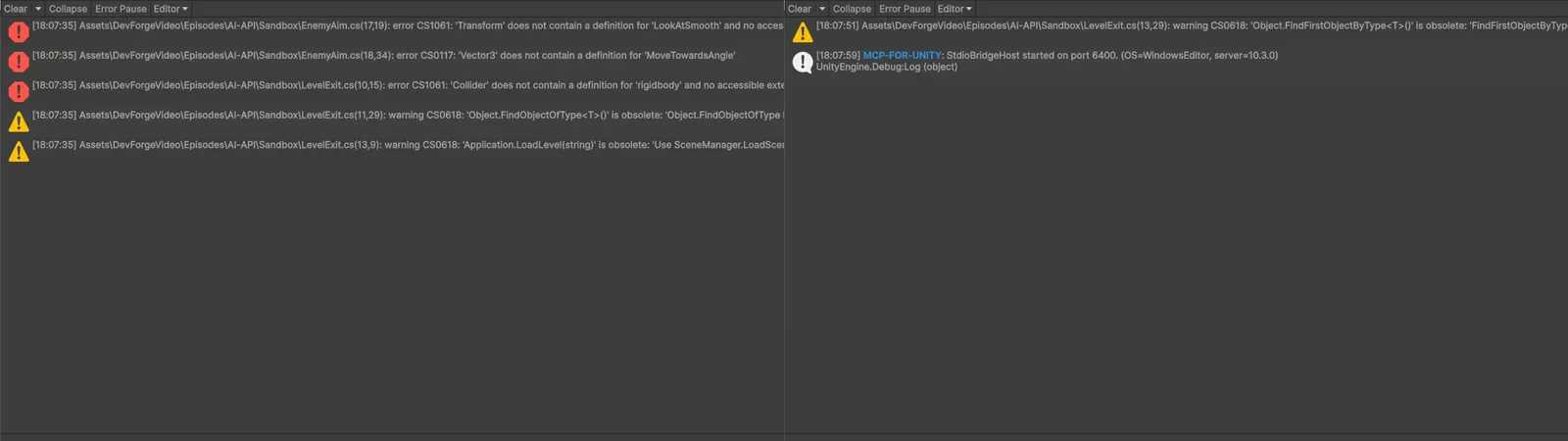
The AI’s script looked great. Then Unity’s Console filled with red: CS0117, CS1061, CS0619. When AI Unity code is not compiling, the cause is almost always one of two things. Either the model invented an API that sounds right but never existed, or it used a real API from an older Unity version that’s now renamed, obsolete or removed. This guide shows how to tell which one you’re looking at from the error code, the usual suspects in Unity 6, and prompts that make the AI correct itself instead of guessing again.
Read the Error Code First
The compiler error code tells you what kind of mistake the AI made before you even read the line:
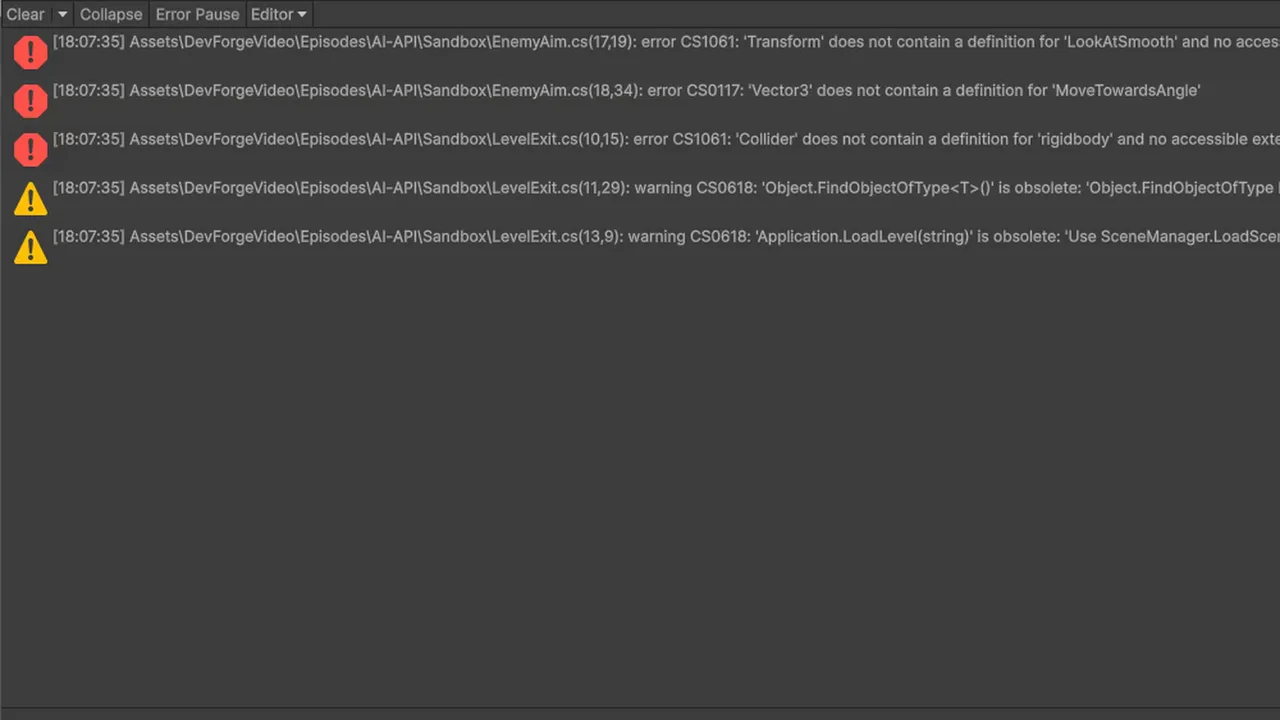
- CS0117: “‘Vector3’ does not contain a definition for ‘X’”. A static member that doesn’t exist on that type. Typical of invented helpers like
Vector3.MoveTowardsAngle. - CS1061: “‘Rigidbody’ does not contain a definition for ‘X’ and no accessible extension method ‘X’…”. An instance member that doesn’t exist. Invented, or from a different type.
- CS0619: “‘X’ is obsolete: ‘…’”. Real API, but Unity has retired it and made using it an error. The message usually names the replacement.
- CS0618: the warning version of the above. Still compiles, but it’s on its way out.
- CS0246: “The type or namespace name ‘X’ could not be found”. A missing package, wrong namespace, or a class that was renamed or never existed.
So CS0619 and CS0618 mean “outdated”, which is easy to fix: the message tells you what to use. CS0117 and CS1061 usually mean “invented” or “wrong type”, which needs a closer look. Our guide to CS0246, CS0103 and CS1061 covers the non-AI causes of these too.
Spotting Invented APIs
Hallucinated methods share a pattern: they’re exactly the method you wish existed. Watch for these signs:
- Too convenient.
transform.LookAtSmooth(target, speed),rb.MoveTowards(point),GameObject.FindWithComponent<Enemy>(). Unity’s API is lower-level than that. - Borrowed from a sibling type.
Mathf.MoveTowardsAngleexists, so the model writesVector3.MoveTowardsAngle, which doesn’t.Quaternion.Slerpexists, so it writesVector2.Slerp, which doesn’t (onlyVector3.Slerpdoes). - Borrowed from another engine or library. Method names from Godot, Unreal or DOTween show up on Unity types.
transform.DOMoveis real only if DOTween is installed. - Extra parameters. A real method called with an overload that doesn’t exist, like an extra “smooth” argument on
Physics.Raycast.
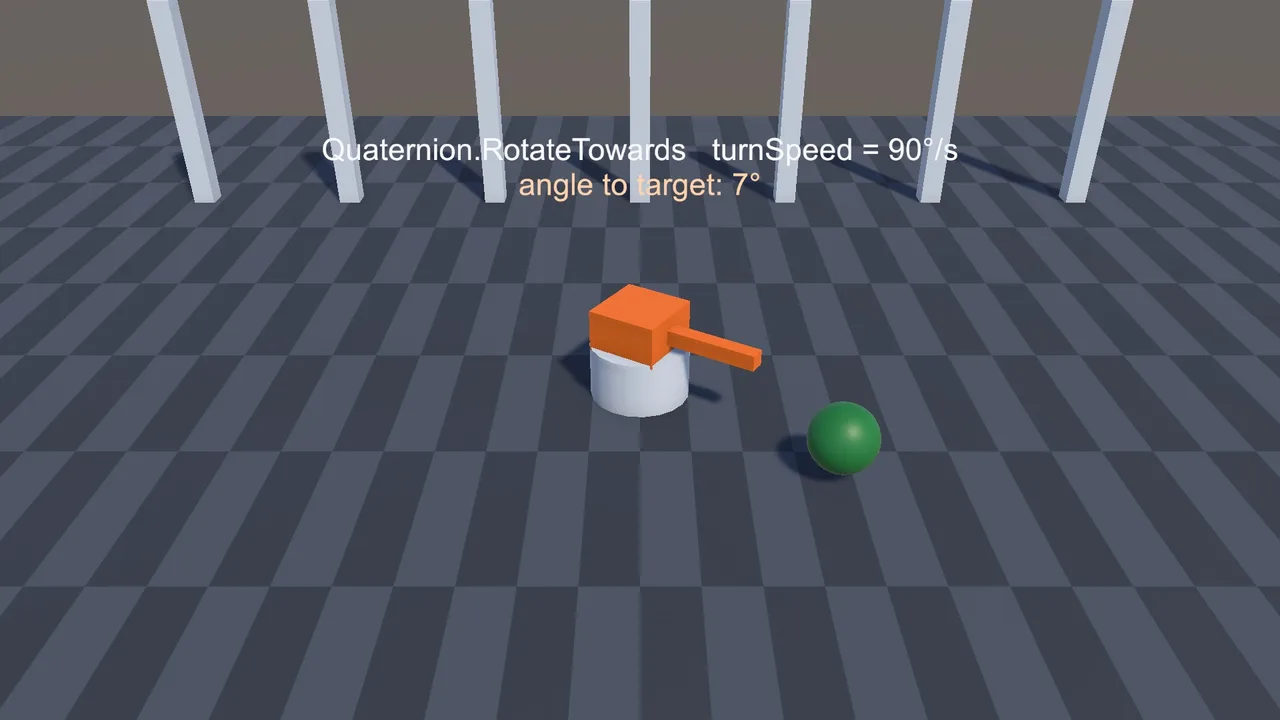
Here’s a typical invented call and the real equivalent:
// AI wrote this. CS1061: 'Transform' does not contain a definition for 'LookAtSmooth'
transform.LookAtSmooth(target.position, turnSpeed);

// Real Unity API: build the target rotation, then rotate towards it
Vector3 dir = target.position - transform.position;
dir.y = 0f;
if (dir.sqrMagnitude > 0.001f)
{
    Quaternion goal = Quaternion.LookRotation(dir);
    transform.rotation = Quaternion.RotateTowards(
        transform.rotation, goal, turnSpeed * Time.deltaTime);
}
The real version is longer, but every call in it exists. That’s the trade: AI shortcuts read nicely and don’t compile, while the real API is a few plain building blocks you combine yourself.
Outdated APIs: The Unity 6 Usual Suspects
These come up again and again in AI code because the old versions dominate training data:
- Rigidbody naming.
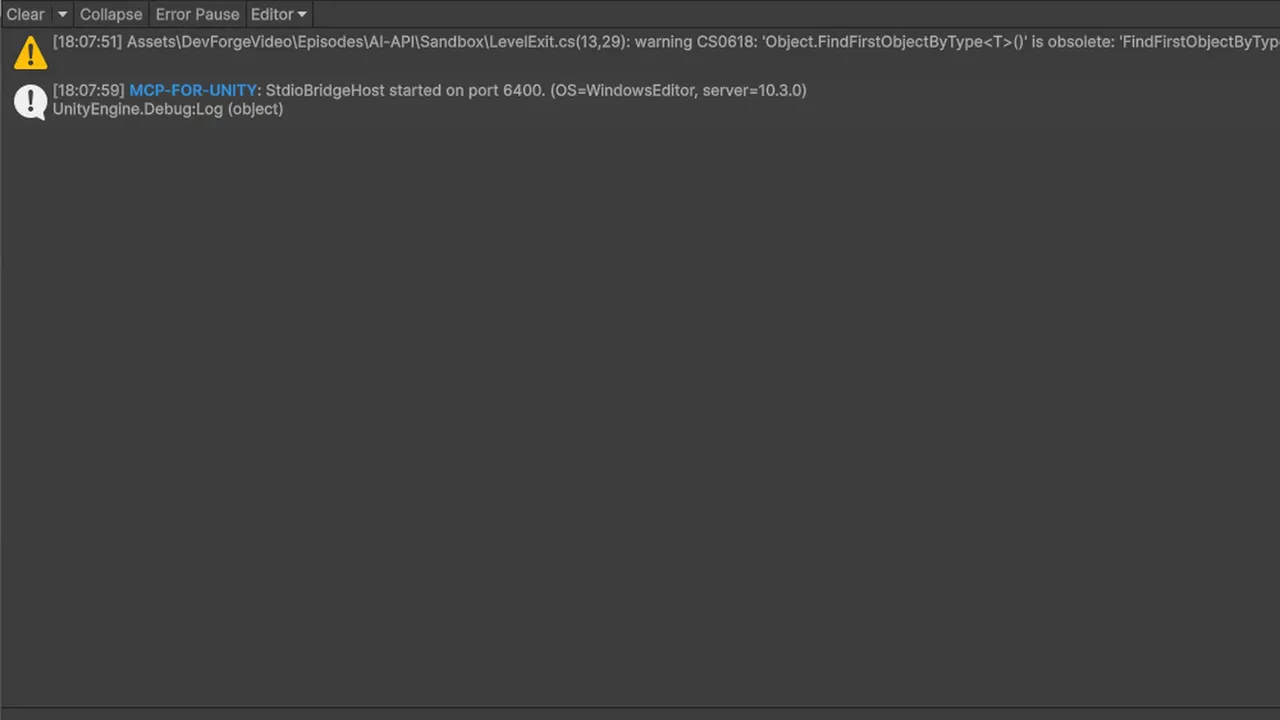
velocitybecamelinearVelocity,dragbecamelinearDamping,angularDragbecameangularDamping. Same forRigidbody2D. The old names give obsolete warnings, and Unity’s API Updater may offer to rewrite them. - Find methods.
FindObjectOfType<T>()andFindObjectsOfType<T>()are deprecated. UseFindFirstObjectByType<T>(),FindAnyObjectByType<T>()orFindObjectsByType<T>(FindObjectsSortMode.None). - Component shortcut properties.
this.rigidbody,this.renderer,this.colliderfrom very old Unity. These give CS0619 telling you to useGetComponent<Rigidbody>(). - Scene loading.
Application.LoadLevelis long retired. UseSceneManager.LoadScenewithusing UnityEngine.SceneManagement;. - Removed UI types.
GUITextandGUITextureare gone. Use TextMeshPro and uGUI Images. - Networking.
UnityEngine.Networking.NetworkManager(UNet) is gone. Netcode for GameObjects usesUnity.Netcode.UnityWebRequestis still fine for HTTP.
A quick fix pass on an outdated snippet looks like this:
using UnityEngine;
using UnityEngine.SceneManagement;

public class LevelExit : MonoBehaviour
{
    [SerializeField] string nextScene = "Level2";

    void OnTriggerEnter(Collider other)
    {
        if (!other.CompareTag("Player")) return;

        // Was: other.rigidbody.velocity = Vector3.zero;  (CS0619 + obsolete name)
        if (other.attachedRigidbody != null)
            other.attachedRigidbody.linearVelocity = Vector3.zero;

        // Was: FindObjectOfType<ScoreKeeper>()  (deprecated)
        ScoreKeeper score = FindFirstObjectByType<ScoreKeeper>();
        if (score != null) score.SaveBest();

        // Was: Application.LoadLevel(nextScene);  (CS0619)
        SceneManager.LoadScene(nextScene);
    }
}(ScoreKeeper stands in for your own class.) Upgrading a whole older project has more traps than AI code alone. Our Unity 6 upgrade guide covers the rest.
The Old Input Manager Trap
This one doesn’t show as a compile error, which makes it sneaky. Input.GetAxis and Input.GetKeyDown still compile in Unity 6. But if Edit > Project Settings > Player > Other Settings > Active Input Handling is set to Input System Package, the first call at runtime throws:
InvalidOperationException: You are trying to read Input using the UnityEngine.Input class, but you have switched active Input handling to Input System package in Player Settings.New Unity 6 projects use the Input System by default, and most AI code still uses the old class. You have two fixes: ask the AI to rewrite input with the Input System, or set Active Input Handling to Both. Rewriting is the better long-term choice. Our Input System not working guide covers the other ways input silently fails.
Package Version Mismatches
Packages change their API between major versions, and AI often mixes them up:
- Cinemachine 3 moved to the
Unity.Cinemachinenamespace and renamedCinemachineVirtualCameratoCinemachineCamera. AI code withusing Cinemachine;is Cinemachine 2 and gives CS0246 in a Cinemachine 3 project. - Render pipelines. Shader code with
CGPROGRAMandUnityCG.cgincis Built-in pipeline. URP shaders use HLSL with URP’s include files. Code that touchesOnRenderImagefor post-processing does nothing in URP. - TextMeshPro. In Unity 6 it ships as part of the uGUI package, but the namespace is still
TMPro. Code usingUnityEngine.UI.Textworks but is the legacy text component.
Check what you actually have in Window > Package Manager and tell the AI. “I have Cinemachine 3” fixes most Cinemachine code in one go.
📚 Know the fundamentals, catch the fakes
The fastest way to spot a hallucinated method is knowing what the real API feels like. Our book list covers C# and game programming foundations that make AI output much easier to judge.
Check an API in 30 Seconds
Before you argue with the AI, check yourself:
- IDE IntelliSense. Type the type name and a dot. If the method isn’t in the list, it doesn’t exist (as long as IntelliSense is working).
- Go to Definition. F12 in Visual Studio or Rider, or VS Code’s Go to Definition, jumps into the real type and shows every member.
- Unity Scripting API docs. Search the docs for your Unity version. Make sure the version selector says 6, since older pages show APIs that are gone.
- Obsolete messages. For CS0619 and CS0618, the error text itself usually names the replacement. Read the whole message.
If IntelliSense isn’t showing Unity types at all, fix that first. It’s the cheapest hallucination detector you have.
Make the AI Correct Itself
Pasting “that doesn’t work” usually gets you a second invented method. Be specific and close off guessing:
Unity 6, Input System package only. Your code gives:
Assets/Scripts/EnemyAim.cs(18,19): error CS1061: ‘Transform’ does not contain a definition for ‘LookAtSmooth’
That method doesn’t exist. Rewrite only that part using real UnityEngine members. For every Unity API you use, name the type it belongs to. If you’re not certain a member exists in Unity 6, say so.
Why this works:
- The full error with file and line removes ambiguity.
- “That method doesn’t exist” stops the model defending it.
- “Name the type it belongs to” makes it check each call, and makes your own review faster.
- “Say so” gives it a way out other than guessing.
To prevent the problem in the first place, use a context block with your Unity version and packages at the start of every chat. Our guide to prompting AI for Unity C# has a ready-made one.
Troubleshooting
error CS0619: ‘Component.rigidbody’ is obsolete: ‘Property rigidbody has been deprecated. Use GetComponent<Rigidbody>() instead.’
Very old Unity shortcut. Cache GetComponent<Rigidbody>() in Awake and use the field.
error CS0246: The type or namespace name ‘CinemachineVirtualCamera’ could not be found
Cinemachine 2 code in a Cinemachine 3 project. Use using Unity.Cinemachine; and CinemachineCamera.
warning CS0618: ‘Object.FindObjectOfType<T>()’ is obsolete
Replace with FindFirstObjectByType<T>() if you need a stable result, or FindAnyObjectByType<T>() if any instance will do. Better still, use a serialized reference.
The AI keeps suggesting a different fake method each time
Start a new chat with your context block and the current code. Ask it to list which real Unity methods could do the job before writing any code.
It compiles but the shader is pink
The AI wrote a Built-in pipeline shader for a URP project. Ask for a URP HLSL shader, or build it in Shader Graph.
FAQ
Why does AI invent Unity methods?
It predicts plausible code, and a convenient method name is plausible. It has no built-in check against the real API unless a tool gives it one.
What’s the difference between CS0618 and CS0619?
Both mean obsolete. CS0618 is a warning and still compiles. CS0619 is an error because Unity marked the API as unusable.
Will the API Updater fix AI code?
It can rewrite some renamed APIs that Unity marks as upgradable. It can’t fix invented methods.
Does giving the Unity version really help?
Yes. It’s the single biggest cause of outdated code, and one line of context fixes most of it.
Can the AI check the API itself?
Only with tools. Agents connected to your project or to Unity through MCP can look up real types, which cuts hallucinations a lot.
Reader questions
Asked by readers of this article and answered by AI. Behavior can differ between Unity versions, so test in yours.


Leave a Reply