

Objects passing straight through each other is one of the most common physics problems in Unity, and it has two very different causes. Sometimes the objects are told not to collide, through layers, the collision matrix or a missing component. Other times they should collide but move so fast that physics misses the contact entirely, known as tunnelling. This guide covers both: how Unity collision layers and the Layer Collision Matrix work, how to use them on purpose (players passing through each other, bullets ignoring their shooter), and a complete checklist for when things go through walls by accident.
Quick answer
Two objects only collide if both have colliders, at least one has a Rigidbody, and their layers are ticked for each other in Project Settings > Physics > Layer Collision Matrix. To stop two things colliding, untick their layer pair, use a collider’s Layer Overrides (Include and Exclude Layers), or call Physics.IgnoreCollision for one pair. Fast objects that pass through walls need Continuous collision detection.
The Rules: When Do Two Objects Collide?
For two objects to physically collide (bump into each other and get OnCollisionEnter), all of these must be true:
- Both have an enabled collider, and both colliders are in the same physics world (3D with 3D, 2D with 2D).
- Neither collider has Is Trigger ticked. If one does, they overlap and send
OnTriggerEnterinstead. - At least one has a non-kinematic Rigidbody (or is a CharacterController that’s moving). Two static colliders never collide, and two kinematic Rigidbodies only collide if contact pairs for kinematic bodies are enabled.
- Their layers are allowed to collide in the Layer Collision Matrix, and no per-collider override or
IgnoreCollisioncall excludes them. - The physics engine actually detects the contact, which fast objects can skip between steps.
Rules 1–3 are covered in depth in our OnTriggerEnter checklist. This guide focuses on 4 and 5.
Layers and How to Set Them Up
Every GameObject is on exactly one layer (shown at the top right of the Inspector). Unity has 32 layers: a few built-in ones (Default, TransparentFX, Ignore Raycast, Water, UI) and the rest free for you. Add your own in Edit > Project Settings > Tags and Layers, for example:
PlayerEnemyPlayerProjectileandEnemyProjectileEnvironment(or keep static level geometry on Default)PickupandTriggerRagdollorDebris
Layers aren’t the same as tags. A tag is a label for identifying objects in code (CompareTag("Player")). A layer controls engine behaviour: physics collisions, raycast masks, camera culling and lighting. One object can be tagged “Player” and sit on the “Player” layer; that’s normal.
When you change the layer of a parent with children, Unity asks whether to change the children too. For physics you usually want Yes, because colliders on children use their own layer, not the parent’s.
The Layer Collision Matrix
Open Edit > Project Settings > Physics (in Unity 6, the matrix is in the Physics settings’ Settings section; for 2D, use Physics 2D). The Layer Collision Matrix is a triangle of checkboxes: one row and column per layer. A ticked box means those two layers collide. Unticked means they pass through each other with no collision and no trigger events.
A few things to know:
- The matrix also controls triggers. If two layers are unticked, their triggers don’t fire either.
- The matrix is project-wide. It applies to every scene.
- Unticking pairs that never need to interact is also a performance win: the physics engine skips those pairs entirely in its broad phase.
- The matrix doesn’t affect raycasts. Raycasts use the layer mask you pass them (see our raycast tutorial), and default to all layers except Ignore Raycast.
You can also change layer pairs at runtime with Physics.IgnoreLayerCollision(layerA, layerB, true), for example to let the player pass through enemies during a dodge. Remember it’s global and persists until you set it back.


Per-Collider Overrides and IgnoreCollision
Sometimes the rule applies to one object, not a whole layer. Unity gives you two tools.
Layer Overrides on Colliders and Rigidbodies (the Layer Overrides foldout in the Inspector) let you set Include Layers and Exclude Layers for that one object. Excluded layers are ignored even if the matrix says they collide; included layers collide even if the matrix says no. They’re handy for a one-off such as a ghost enemy that ignores walls without creating a new layer.
Physics.IgnoreCollision ignores one specific pair of colliders. The classic use is a bullet ignoring the character who fired it:
void Fire()
{
    Projectile p = Instantiate(projectilePrefab, muzzle.position, muzzle.rotation);
    Collider bulletCol = p.GetComponent<Collider>();

    foreach (Collider own in GetComponentsInChildren<Collider>())
        Physics.IgnoreCollision(bulletCol, own);
}
The ignore is reset if either collider is disabled and re-enabled (which happens with pooled objects), so call it again each time a pooled bullet is reused.

Common Layer Setups
| Goal | Setup |
|---|---|
| Players pass through each other (co-op) | Untick Player ↔ Player in the matrix |
| Enemies don’t block each other | Untick Enemy ↔ Enemy (let NavMesh avoidance handle spacing) |
| No friendly fire | PlayerProjectile collides with Enemy and Environment but not Player; EnemyProjectile the reverse |
| Bullets don’t hit each other | Untick PlayerProjectile ↔ PlayerProjectile and ↔ EnemyProjectile |
| Debris and gibs don’t push the player | Debris collides with Environment only |
| Pickups only react to the player | Pickup layer (trigger colliders) ticked only against Player |
| Ragdolls don’t collide with their own capsule | Ragdoll layer unticked against the character’s Player/Enemy layer |
| One-way platforms (2D) | Platform Effector 2D with Use One Way, rather than layer switching |
🔧 Physics debugging tools
Inspector upgrades and physics debug tools on the Asset Store make it much quicker to see which layers, masks and contacts are involved. We tested the ones indie developers actually use.
Fast Objects Going Through Walls (Tunnelling)
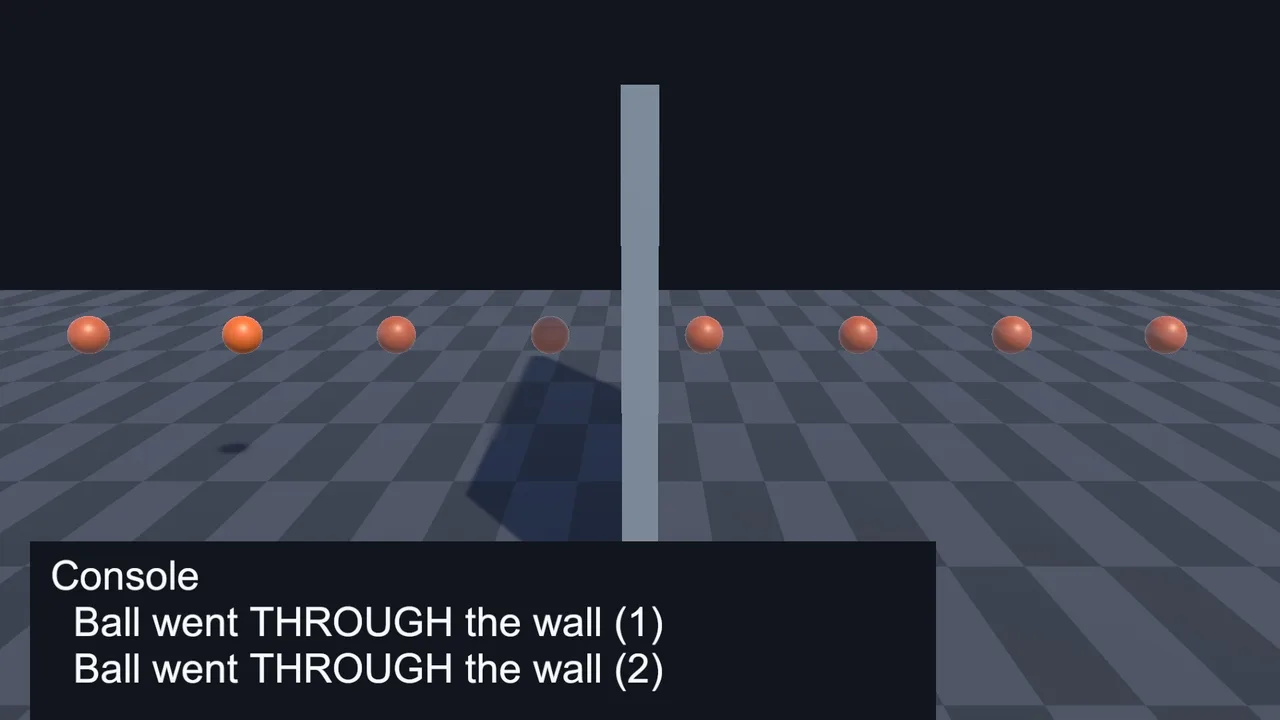
Physics runs in fixed steps (50 per second by default). Between steps an object teleports from one position to the next. If a bullet moves 2 m per step and the wall is 0.2 m thick, it can be in front of the wall on one step and behind it on the next, never overlapping it. The engine sees no contact, and the bullet passes through. This is tunnelling.
Fixes, roughly in order of preference:
- Continuous collision detection. On the fast Rigidbody, set Collision Detection to Continuous (fast object vs static geometry), Continuous Dynamic (fast object vs other moving Rigidbodies too) or Continuous Speculative (cheaper, also works for kinematic bodies and spinning objects, occasionally produces ghost contacts). This alone fixes most tunnelling.
- Move with physics. Setting
transform.positionor usingTranslateteleports the object and bypasses continuous detection completely. UseRigidbody.linearVelocity,AddForceorMovePositioninstead. - Raycast bullets. Very fast projectiles (most gun bullets) shouldn’t be physics objects at all. Each step, cast a ray from the previous position to the new one and handle the hit yourself. It’s cheaper and never misses.
- Thicker colliders. Thin walls and floors (a single plane, a 1 cm box) are easy to skip. Make important colliders thicker than the distance a fast object covers per step, or use a box instead of a plane.
- Smaller fixed timestep. Lowering Fixed Timestep (Project Settings > Time) from 0.02 to 0.01 halves the gap but doubles the physics cost. It’s a last resort.

Objects Passing Through Each Other: Full Checklist
Both objects have colliders, but they still pass through
Check that neither has Is Trigger ticked, that at least one has a non-kinematic Rigidbody, and that both colliders are enabled. Then check the layers of the GameObjects that actually hold the colliders, which may be children.
Objects go through walls only sometimes
That’s tunnelling. Set the Rigidbody to Continuous collision detection, move it with velocity rather than the transform, and thicken the wall collider.
The player walks through walls
The movement script sets transform.position directly. Use a CharacterController’s Move or a Rigidbody’s velocity. Our CharacterController vs Rigidbody guide builds both properly.
A mesh collider doesn’t block anything
Non-convex Mesh Colliders can’t collide with other non-convex Mesh Colliders, and a Rigidbody can’t use a non-convex Mesh Collider. Tick Convex for moving objects, or build them from primitive colliders. Also check the mesh’s normals; inverted faces can let objects through from one side.
Two objects collide with everything except each other
The matrix pair is unticked, a Layer Override excludes the other layer, or IgnoreCollision / IgnoreLayerCollision was called somewhere. Search the project for those calls.
Objects sink into each other, then pop out
Not tunnelling but penetration recovery. Large mass differences (a 1000 kg box on a 0.1 kg box) and huge forces make the solver struggle. Keep masses within about a 10:1 ratio and raise Default Solver Iterations in Physics settings if stacks are unstable.
Objects fall through the floor after loading
The floor’s collider is on a layer that doesn’t collide with the falling object, a terrain’s Terrain Collider points to the wrong TerrainData, or objects spawn already intersecting the floor and get pushed out downwards. Spawn slightly above the ground.
2D Physics Differences
2D physics (Box2D) has its own, separate settings. The matrix is in Project Settings > Physics 2D, and the code calls are Physics2D.IgnoreCollision and Physics2D.IgnoreLayerCollision. Rigidbody2D’s tunnelling fix is Collision Detection: Continuous. 2D also adds Effectors: the Platform Effector 2D gives one-way platforms that you can jump up through without any layer switching. If you’re using tilemaps, our Tilemap tutorial covers Tilemap and Composite colliders.
FAQ
What is the Layer Collision Matrix in Unity?
A grid in Project Settings > Physics that controls which layers collide with each other. Unticking a pair makes objects on those layers pass through each other and skip trigger events.
How do I make two objects not collide in Unity?
Put them on layers that are unticked in the Layer Collision Matrix, use a collider’s Layer Overrides, or call Physics.IgnoreCollision for one specific pair.
Why do fast objects go through walls in Unity?
They move further in one physics step than the wall is thick, so no contact is detected. Use Continuous collision detection and move the Rigidbody with velocity or forces.
What is the difference between layers and tags?
Tags identify objects in code. Layers control engine systems such as physics collisions, raycast masks and camera culling.
Does the collision matrix affect raycasts?
No. Raycasts use the layer mask passed to them. The matrix only controls collisions and triggers between colliders.
Is Continuous collision detection expensive?
It costs more than Discrete, so use it only on fast-moving objects such as projectiles, vehicles and the player, and leave slow props on Discrete.
What are collider Layer Overrides in Unity?
Settings on each collider and Rigidbody (Unity 2022.2 and newer) with Include Layers and Exclude Layers masks. They add or remove layers for that one object on top of the Layer Collision Matrix, so a single object can ignore a layer without changing the project-wide matrix.
Reader questions
Asked by readers of this article and answered by AI. Behavior can differ between Unity versions, so test in yours.



Leave a Reply