
A day-night cycle makes a world feel alive: long morning shadows, a warm sunset, and a blue moonlit night. In Unity it comes down to rotating a directional light and changing colours over time, but the details (sky, fog, ambient light, night lighting and performance) are what separate a convincing cycle from a light that just spins. This guide builds a Unity day-night cycle in URP step by step, with a time-of-day controller, gradient-driven lighting, a moon, events for gameplay, and tips to keep it fast.
Scene Setup
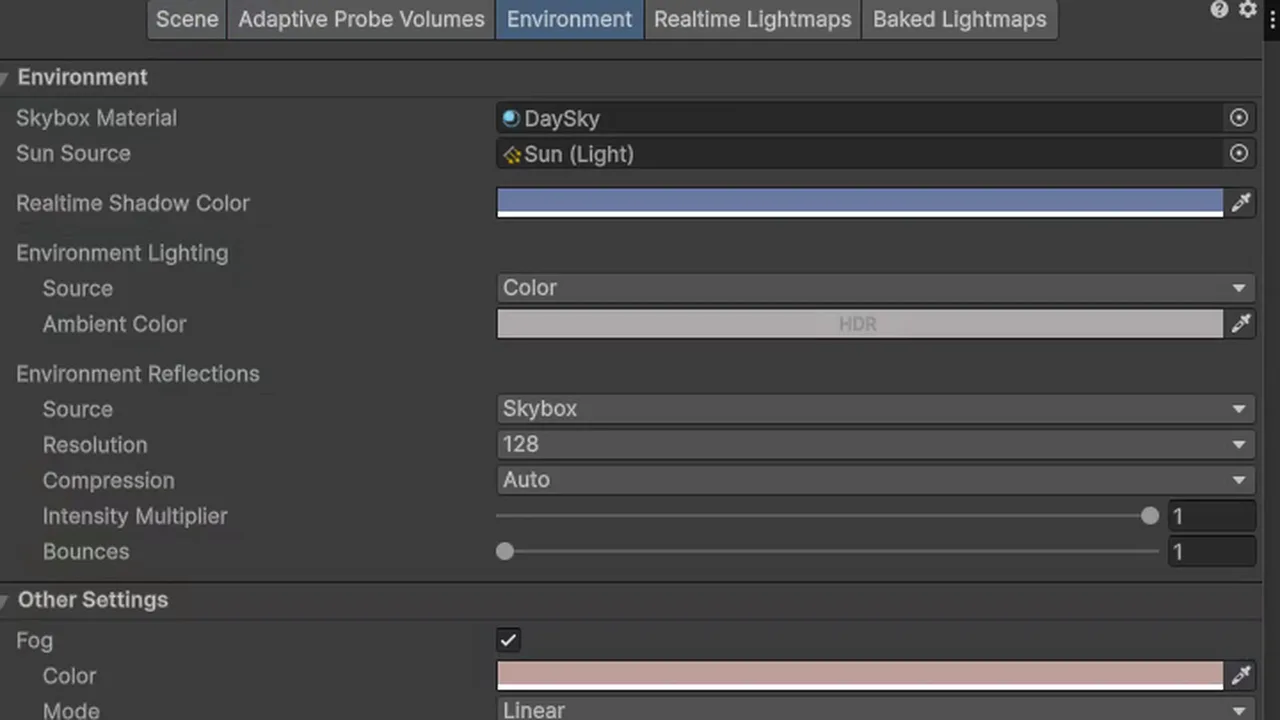
Start with a URP project and a scene that has one Directional Light (the sun). In Window > Rendering > Lighting > Environment:
- Set Sun Source to your directional light. The procedural skybox uses it to place the sun disc and colour the sky.
- Use the default Skybox/Procedural material (or create one), which reacts to the sun’s angle automatically: blue at noon, orange at the horizon, dark below it.
- Set Environment Lighting Source to Gradient or Color so you can drive ambient light from script.
A day-night cycle means the sun moves, so it must be a Realtime light. Our Unity 6 lighting guide explains why baked lighting can’t follow a moving sun.
The Time-of-Day Controller
using UnityEngine;

[ExecuteAlways]
public class DayNightCycle : MonoBehaviour
{
    [Range(0, 24)] public float timeOfDay = 8f;   // hours
    [SerializeField] float dayLengthMinutes = 10f; // real minutes per in-game day
    [SerializeField] bool running = true;

    [SerializeField] Light sun;
    [SerializeField] float sunTilt = 30f;          // rotation around Y, for nicer shadows

    void Update()
    {
        if (running && Application.isPlaying)
        {
            timeOfDay += 24f / (dayLengthMinutes * 60f) * Time.deltaTime;
            timeOfDay %= 24f;
        }
        UpdateLighting(timeOfDay / 24f);
    }

    void UpdateLighting(float t)   // t: 0..1, 0.25 = 6:00, 0.5 = noon
    {
        // 6:00 = sun at horizon (0°), noon = straight up (90°), 18:00 = horizon (180°)
        float sunAngle = t * 360f - 90f;
        sun.transform.rotation = Quaternion.Euler(sunAngle, sunTilt, 0f);
    }
}
[ExecuteAlways] lets you scrub the timeOfDay slider in Edit mode and preview lighting without pressing Play. Because time advances with Time.deltaTime, the cycle pauses with your pause menu automatically. Tilting the sun’s path a little (rotating around Y) avoids shadows pointing straight along your level’s axes.
Gradients for Light Colour and Intensity
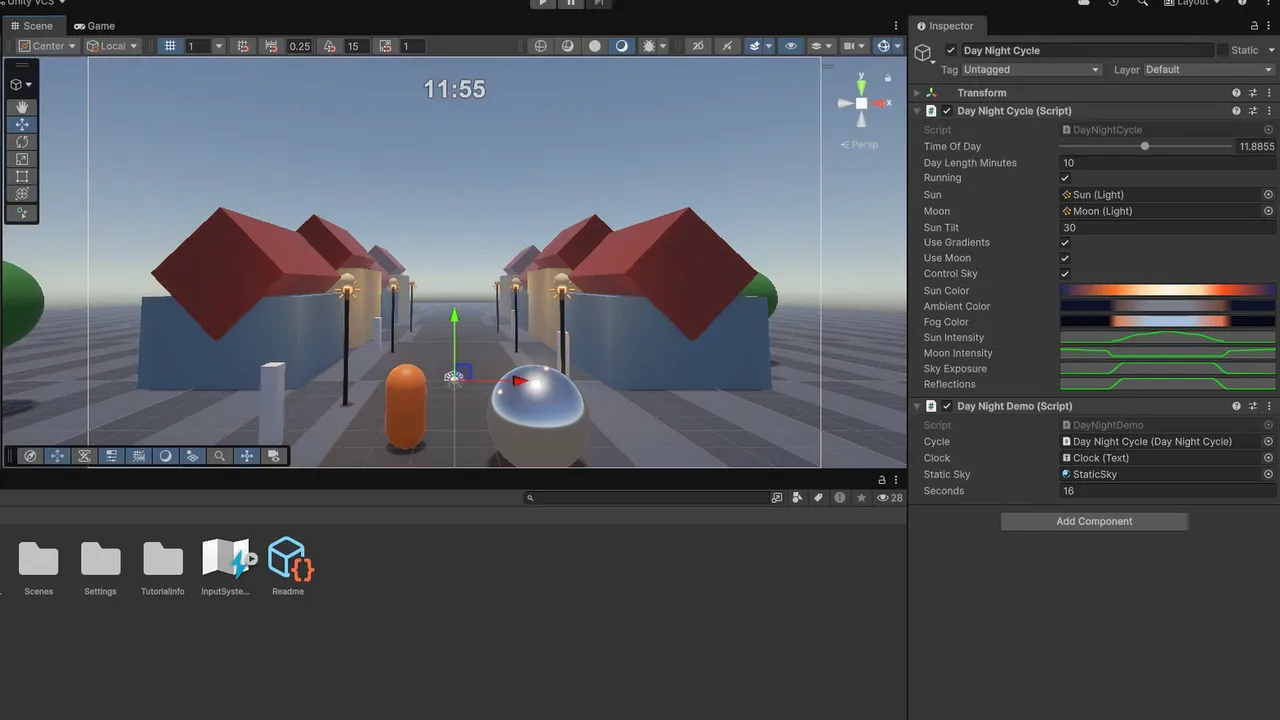
A spinning white light looks wrong at sunrise and sunset. Drive colour and intensity from Gradient and AnimationCurve fields, which you can edit visually in the Inspector:
[SerializeField] Gradient sunColor;            // keys: night blue, orange at 0.25/0.75, white at 0.5
[SerializeField] AnimationCurve sunIntensity;  // 0 at night, ~1.2 at noon
[SerializeField] Gradient ambientColor;
[SerializeField] Gradient fogColor;

void UpdateLighting(float t)
{
    float sunAngle = t * 360f - 90f;
    sun.transform.rotation = Quaternion.Euler(sunAngle, sunTilt, 0f);

    sun.color = sunColor.Evaluate(t);
    sun.intensity = sunIntensity.Evaluate(t);
    sun.enabled = sun.intensity > 0.01f;   // skip shadow rendering at night

    RenderSettings.ambientLight = ambientColor.Evaluate(t);
    RenderSettings.fogColor = fogColor.Evaluate(t);
}| Time | t | Sun colour | Intensity |
|---|---|---|---|
| Midnight | 0.0 | Off | 0 |
| Sunrise (6:00) | 0.25 | Deep orange | 0.2 |
| Morning (9:00) | 0.375 | Warm white | 0.9 |
| Noon | 0.5 | Neutral white | 1.2 |
| Sunset (18:00) | 0.75 | Orange-red | 0.2 |
For RenderSettings.ambientLight to work, the Environment Lighting Source must be Color. With Gradient, set ambientSkyColor, ambientEquatorColor and ambientGroundColor instead.
Skybox, Ambient Light and Fog
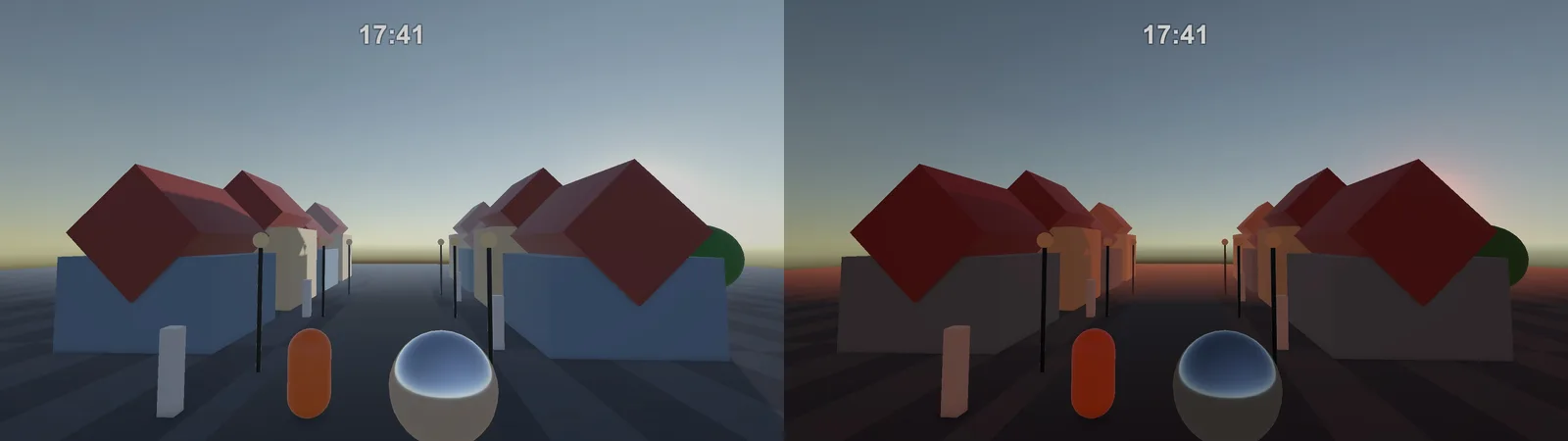
The procedural skybox handles the sky colour by itself as long as Sun Source is set. To tune it over the day, adjust its material properties:
[SerializeField] AnimationCurve skyExposure;   // dimmer at night

void UpdateSky(float t)
{
    RenderSettings.skybox.SetFloat("_Exposure", skyExposure.Evaluate(t));
}
Careful: RenderSettings.skybox is the material asset itself, so changes made in Play mode persist after you stop. Assign a runtime copy at startup (RenderSettings.skybox = new Material(RenderSettings.skybox)) to keep the asset clean.
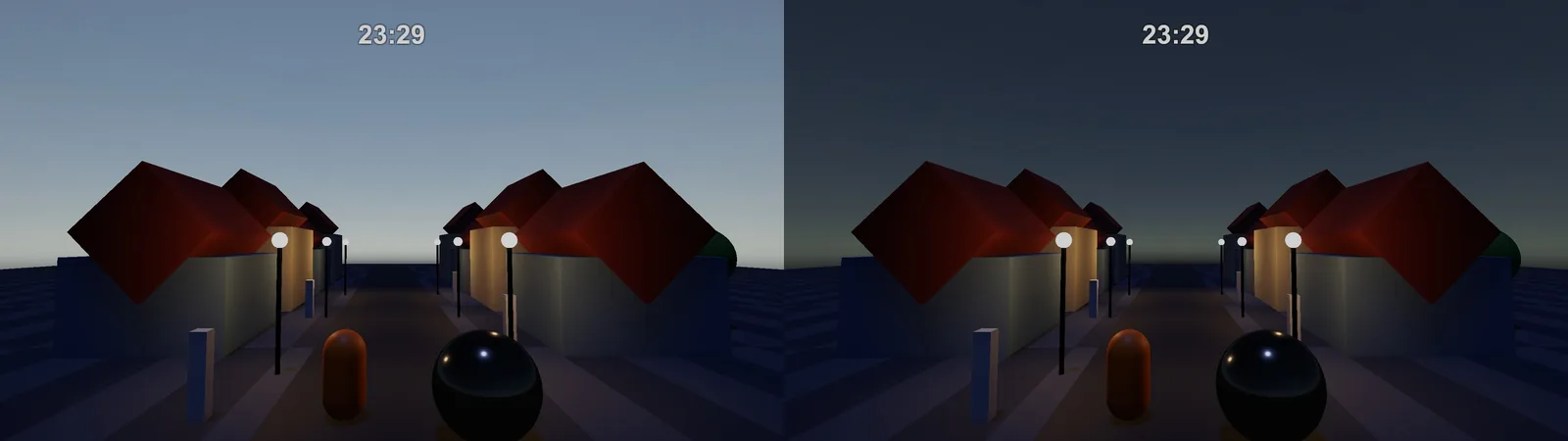
Reflections are the other piece: reflection probes baked at noon look wrong at night (shiny objects glowing with daylight). Either set reflection probes to Realtime with Time Slicing and re-render them occasionally (for example every in-game hour), or fade the environment reflection intensity down at night with RenderSettings.reflectionIntensity.
For starry nights, swap to a cubemap or a custom shader skybox that blends a star texture in as the sun drops below the horizon. Many stylised sky shaders on the Asset Store do this.
Adding a Moon
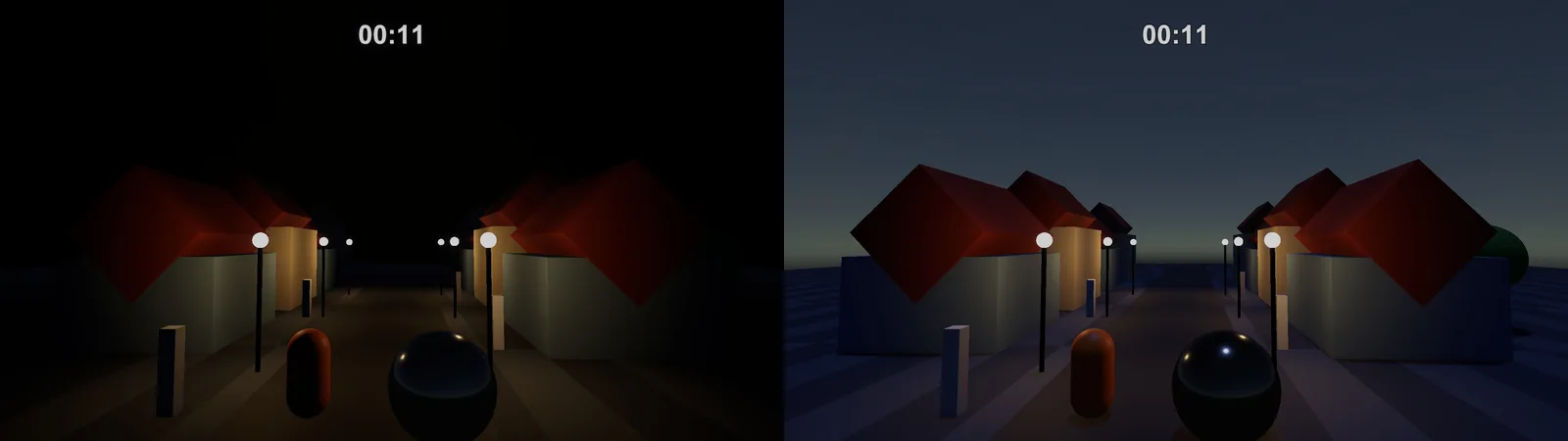
Pitch-black nights are realistic but rarely fun. Add a second directional light for the moon, rotated opposite the sun, with a cold blue colour and low intensity:
[SerializeField] Light moon;
[SerializeField] AnimationCurve moonIntensity;   // ~0.15 at midnight, 0 by day

void UpdateMoon(float t)
{
    float sunAngle = t * 360f - 90f;
    moon.transform.rotation = Quaternion.Euler(sunAngle + 180f, sunTilt, 0f);
    moon.intensity = moonIntensity.Evaluate(t);
    moon.enabled = moon.intensity > 0.01f;

    // Hand the skybox's sun over to the moon at night
    RenderSettings.sun = sun.enabled ? sun : moon;
}
URP renders shadows for one main directional light. Make sure the sun and moon never both cast shadows at full strength at once: crossfade their intensity around sunrise and sunset, and let the brighter one be the main light.
🌅 Want gorgeous skies without writing shaders?
Sky and weather systems from the Asset Store add volumetric clouds, stars, moon phases and full time-of-day control. We’ve picked the best options for indie budgets.
Time Events for Gameplay
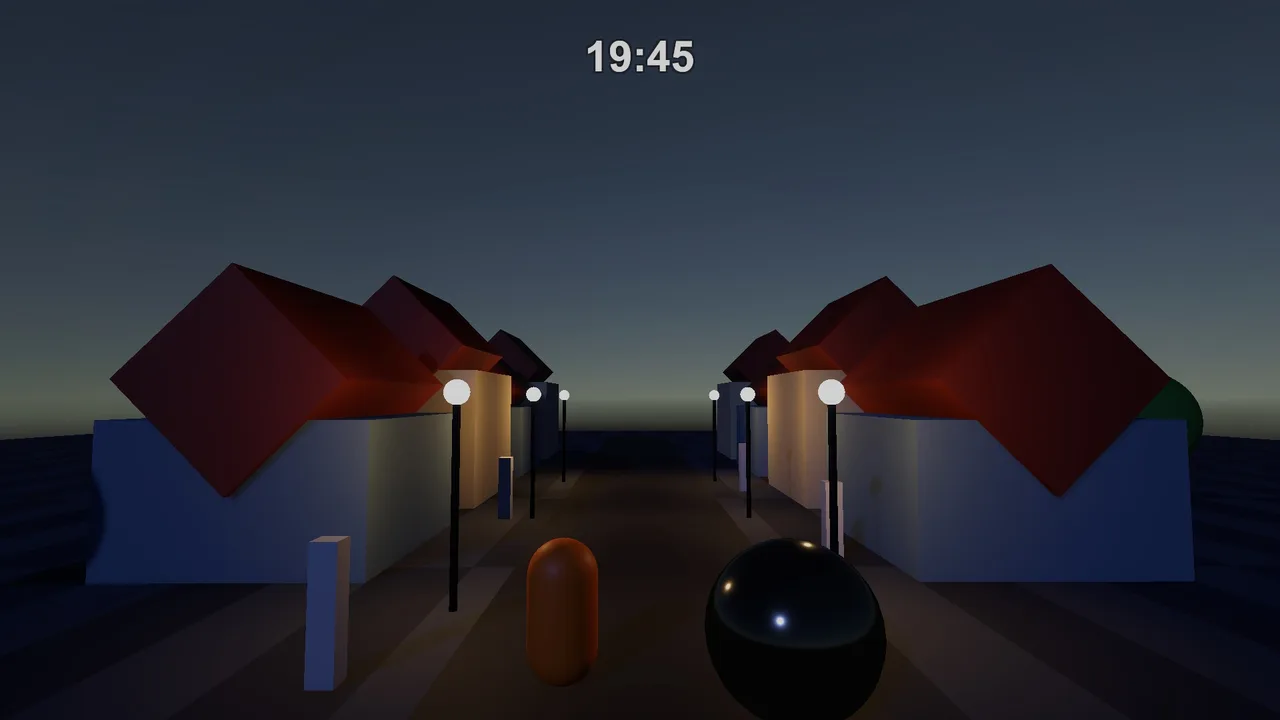
Other systems often care about the time: street lamps switch on at dusk, shops close, nocturnal enemies spawn. Broadcast events instead of having everything poll the clock:
public static event System.Action Sunrise, Sunset;
public static event System.Action<int> HourChanged;
int lastHour = -1;
bool isDay;

void CheckEvents()
{
    int hour = Mathf.FloorToInt(timeOfDay);
    if (hour != lastHour) { lastHour = hour; HourChanged?.Invoke(hour); }

    bool day = timeOfDay >= 6f && timeOfDay < 18f;
    if (day != isDay)
    {
        isDay = day;
        if (day) Sunrise?.Invoke(); else Sunset?.Invoke();
    }
}
A street lamp script then subscribes to Sunset and Sunrise to enable its light. Subscribe in OnEnable and unsubscribe in OnDisable to avoid leaks. Our C# events guide covers the pattern, and game manager patterns shows where a global clock can live. Wave-based games can use HourChanged to trigger tougher night waves with the wave spawner.
Performance and Baked Lighting
- Realtime shadows are the main cost. Keep one shadow-casting directional light, tune the URP Asset’s shadow distance and cascades, and disable lights at night.
- Don’t update every frame if you don’t need to. A slow cycle looks identical updating the lighting 10 times per second instead of 60. Moving shadows can look steppy, so keep the sun’s rotation smooth and throttle only colour, fog and probe updates.
- Baked GI won’t follow the sun. Use Realtime lighting, or bake lighting for a few key times and blend between them (advanced). Adaptive Probe Volumes with lighting scenarios in Unity 6 support blending between baked states.
- Night lights add up. Many point lights switching on at dusk can tank frame rate on mobile. Use emissive materials with bloom for distant lamps, and real lights only nearby.
Profile before and after with the Profiler.
Troubleshooting
The sky doesn’t change when the sun moves
Sun Source isn’t set in the Lighting window, or the skybox isn’t the procedural one. Assign the directional light as Sun Source.
Objects are still lit at night
Ambient light or reflections are too bright. Lower the ambient colour at night, and fade reflection intensity or update reflection probes.
The skybox stays dark or changed after leaving Play mode
You modified the skybox material asset directly. Use a runtime copy.
Shadows flicker or swim as the sun moves
Expected with a moving light to some degree. Increase shadow resolution, reduce shadow distance, and avoid rotating the sun in large steps.
Lighting looks wrong in builds but fine in the Editor
The scene’s lighting data or environment settings weren’t generated for the build. Generate Lighting once (even with Realtime), and check the build’s Quality level uses the same URP Asset.
FAQ
How do I make a day-night cycle in Unity?
Rotate a realtime directional light around the X axis over time, and drive its colour, intensity, ambient light and fog with gradients and curves.
Can I use baked lighting with a day-night cycle?
Not for the moving sun on its own. Use realtime lighting, or blend between several baked lighting scenarios with Adaptive Probe Volumes in Unity 6.
How do I make nights not pitch black?
Add a dim, blue moon directional light and keep a little ambient light at night.
How do I make the skybox change with time of day?
Use the procedural skybox with Sun Source set to your sun light. It follows the light’s angle automatically.
Is a day-night cycle expensive?
Mostly because of realtime shadows. One shadow-casting light, sensible shadow distance and turning lights off at night keep it cheap.
Reader questions
Asked by readers of this article and answered by AI. Behavior can differ between Unity versions, so test in yours.
Leave a Reply